Windows 11 AI Update 2026: Must-Use Features Powered by Microsoft Copilot

Introduction
Windows 11 AI Features (2026)
Windows has evolved rapidly over the past two years. What was once a traditional desktop operating system has now become a smart, AI-powered productivity platform. With the Windows 11 AI update 2026, Microsoft is no longer focused only on visual upgrades or performance tweaks—instead, it is delivering intelligent, context-aware experiences designed to help users work faster, recover information instantly, and automate everyday tasks.
Powered by Microsoft Copilot, Windows 11 now acts as a built-in AI assistant rather than just an operating system. From understanding natural language commands to summarizing activity, organizing workflows, and reducing repetitive effort, AI is deeply embedded into how Windows works. These advancements make Windows 11 more responsive, proactive, and personalized for modern users across laptops, desktops, and AI-enabled PCs.
In this comprehensive guide, we explore the most important Windows 11 AI features introduced or expanded in 2026, including Windows Copilot, AI Explorer, and Microsoft Recall. You’ll learn what each feature does, how it works behind the scenes, and why it matters for productivity, efficiency, and digital organization.
Windows 11 AI in 2026: A Quick Overview
Microsoft has clearly positioned artificial intelligence as the foundation of Windows’ future, and the Windows 11 AI update 2026 marks a major milestone in that transformation. Modern Windows PCs—especially Copilot+ PCs—are now equipped with neural processing units (NPUs) that accelerate AI workloads directly on the device. This shift enables faster performance, better efficiency, and stronger privacy by allowing many AI features to run locally instead of relying entirely on cloud servers.
As a result, advanced capabilities such as Windows Copilot, AI Explorer, and Microsoft Recall operate more smoothly, respond faster, and remain available even when internet connectivity is limited. Windows 11 is no longer just an operating system—it has become an AI-powered productivity platform designed to anticipate user needs and reduce everyday friction.
Below are the most significant Windows 11 AI changes in 2026, fully explained:
AI-Assisted Productivity Across the Entire Workflow
In Windows 11 2026, AI supports nearly every stage of productivity—from writing and searching to organizing and multitasking. Machine learning models help automate repetitive actions, suggest next steps, summarize information, and reduce manual effort. This allows users to complete tasks faster while maintaining accuracy and consistency.
Natural Language Interaction With Your PC
Windows now supports natural language search and commands, allowing users to interact with their PC conversationally. Instead of remembering exact file names or settings paths, you can simply describe what you’re looking for, and Windows 11 understands the intent—making everyday tasks more intuitive and accessible.
Enhanced Privacy With On-Device AI Processing
A major focus of the Windows 11 AI update is privacy. Many AI features run directly on the device using NPUs, ensuring sensitive data stays local. New privacy controls give users transparency and choice, reducing dependence on cloud processing and improving trust in AI-driven workflows.
Deep AI Integration Across Windows Apps
AI is now embedded across core Windows experiences, including Windows Search, File Explorer, Photos, Snipping Tool, Microsoft Teams, and more. This deep integration ensures AI assistance appears exactly where users work—without switching apps or disrupting workflows.
AI-Powered Creativity and Multitasking Tools
Windows 11 2026 introduces new AI tools for image editing, writing assistance, summarization, meeting analysis, and multitasking. These features empower users to create, edit, and collaborate more efficiently, whether for work, learning, or creative projects.
AI Explorer: The Smartest Way to Find Anything on Your PC (Windows 11 – 2026)
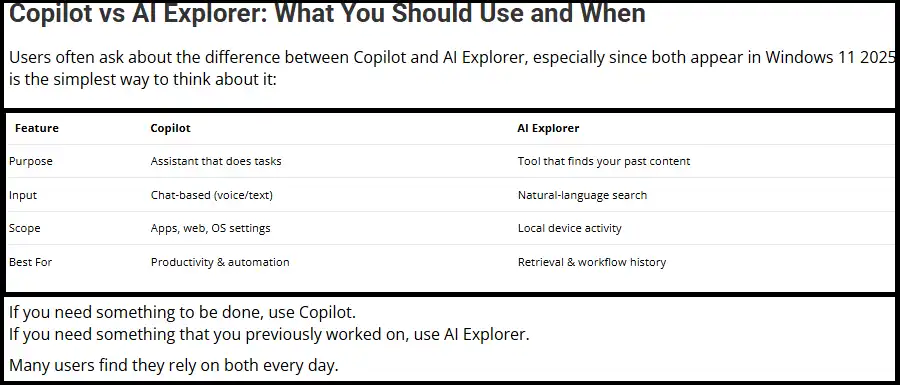
One of the most powerful and innovative AI features in Windows 11 2026 is AI Explorer. Designed to eliminate the frustration of lost files, forgotten tabs, and unfinished work, AI Explorer transforms how users search and retrieve information on their PCs. If you’ve ever struggled to remember where a file was saved or which website you were working on, AI Explorer is built specifically to solve that problem—instantly.
Powered by on-device AI and neural processing units (NPUs) found in modern Copilot+ PCs, AI Explorer goes beyond traditional keyword-based search. It understands context, intent, and natural language, making Windows search smarter, faster, and far more intuitive.
What Is AI Explorer in Windows 11?
AI Explorer acts like a memory layer for your entire PC. Instead of manually searching through folders, browser history, emails, or apps, you can simply ask Windows what you’re looking for in plain language. AI Explorer continuously indexes your activity—securely and locally—so it can recall information based on what you did, not just what you named a file.
This means Windows now understands context, not just filenames.
Natural Language Search
You can search your PC the same way you’d ask a human:
“Find the chart I made last night.”
AI Explorer understands that you created a visual file recently and searches across documents, spreadsheets, and presentations created during that time window.“Show me the article I was reading before lunch.”
Instead of browsing through browser history, AI Explorer identifies the webpage based on timing, app usage, and session context.“Find the recipe webpage I looked at last week.”
Even if you don’t remember the site name, AI Explorer locates it by recognizing browsing activity and visual content.
Deep, Context-Aware Results
AI Explorer pulls results from across your system, including:
Files and documents
Screenshots and images
Emails and attachments
Browser sessions and tabs
Application activity and timelines
Because it matches intent rather than exact keywords, results are more accurate, relevant, and faster to retrieve.
Why AI Explorer Matters in 2026
Saves time wasted searching for lost work
Reduces cognitive load and frustration
Makes Windows feel proactive and intelligent
Enables true “memory-based” computing
In short, AI Explorer turns Windows 11 into a searchable extension of your memory, making it one of the most impactful AI productivity features introduced in 2026.
How AI Explorer Helps You (Windows 11 AI Features – 2026)
AI Explorer in Windows 11 2026 is designed to support users who manage large amounts of information, multitask frequently, or work across multiple apps and projects. By combining on-device AI, natural language understanding, and activity indexing, AI Explorer turns everyday Windows usage into a smarter, more recoverable experience.
Below is a detailed look at who benefits most from AI Explorer and how to access and control it, rewritten with SEO-friendly, trending keywords and full elaboration.
Who Benefits Most from AI Explorer?
Students and Learners
AI Explorer is especially valuable for students who regularly move between notes, PDFs, online resources, and assignments. Instead of remembering file names or folder locations, students can simply ask Windows to retrieve previous study materials, lesson notes, presentations, or research articles they accessed earlier. This makes exam preparation, revision, and project work faster and less stressful.
Professionals and Knowledge Workers
For professionals juggling emails, documents, spreadsheets, meetings, and browser tabs, AI Explorer acts as a digital memory assistant. It helps quickly locate files, drafts, or web pages related to ongoing tasks, reducing time lost searching and allowing professionals to stay focused on decision-making and execution.
Creators and Designers
Creators working across design, video editing, writing, or development tools often switch between multiple applications. AI Explorer helps them rediscover assets, screenshots, drafts, timelines, and reference material without breaking creative flow—especially when working on complex or long-running projects.
Everyday Users Who Multitask
Anyone who frequently loses track of open windows, tabs, or recently accessed files benefits from AI Explorer. It simplifies digital clutter by allowing users to describe what they were working on, instead of remembering exact details.
How to Find AI Explorer in Windows 11
AI Explorer is available only on Copilot+ PCs that support on-device AI through NPUs.
Start Menu
Press the Windows key, type AI Explorer, and select it from the results to launch the feature directly.
Taskbar Icon
On supported devices, AI Explorer may appear as a dedicated taskbar icon, providing one-click access for faster retrieval of recent activity.
Windows Search Integration
You can also access AI Explorer indirectly by opening Windows Search and typing queries such as “find my recent files” or “show what I was working on yesterday.” Windows may automatically suggest AI Explorer as the best tool.
Settings Menu Location
To manage AI Explorer settings, go to:
Settings → Privacy & Security → Activity History
Privacy, Control, and Transparency
Microsoft has placed strong emphasis on privacy-first AI design, especially after feedback related to Microsoft Recall.
With AI Explorer:
Data is stored locally on your device
You can pause or disable AI Explorer at any time
Specific apps or activities can be excluded from tracking
Full user control ensures transparency and trust
This approach ensures AI Explorer enhances productivity without compromising data privacy, making it suitable for both personal and professional use.
Final Takeaway
AI Explorer is one of the most practical Windows 11 AI productivity features in 2026, helping users rediscover work, reduce friction, and stay organized—while keeping control firmly in their hands.
Microsoft Copilot: The Built-In AI Assistant in Windows 11 (2026)
Microsoft Copilot in Windows 11 2026 is a powerful, system-level AI assistant designed to help users write faster, summarize information, manage tasks, and control system settings—all without leaving the Windows environment. Unlike third-party AI tools, Copilot is natively integrated into Windows, giving it deeper access to apps, files, and system features for a smoother, more reliable experience.
What Microsoft Copilot Can Do in 2026
In 2026, Copilot functions as a full-featured AI productivity assistant:
Writing and content creation: Draft emails, reports, articles, and summaries with professional tone and structure.
Document and meeting summarization: Instantly condense large PDFs, documents, or meeting notes into clear takeaways.
Windows system control: Adjust settings like brightness, Bluetooth, network, power, accessibility, and storage using natural language.
Image and creative generation: Create images, graphics, and visual ideas directly from prompts.
Research and planning support: Assist with research, comparisons, outlines, and task organization.
System troubleshooting: Help diagnose common Windows issues and suggest fixes.
Deep Microsoft integration: Work seamlessly inside Microsoft Word, Excel, PowerPoint, Teams, and Outlook.
How Copilot Saves Time in Real-World Use
Users rely on Copilot to automate everyday tasks—such as summarizing files while they continue working, generating social media captions, comparing products, or optimizing battery and storage settings. Because Copilot operates at the system level, it responds faster and more accurately than standalone AI tools.
How to Find Copilot in Windows 11
Copilot is easy to access:
Taskbar shortcut: Click the Copilot icon on the right side of the taskbar.
Keyboard shortcut: Press Windows + C on supported devices.
Start Menu: Search for Copilot.
Taskbar settings: Enable Copilot from Taskbar Settings if it’s hidden.
Bottom line: Microsoft Copilot transforms Windows 11 into a smarter, more productive AI-powered workspace in 2026.
Why Microsoft Recall Is Useful
Microsoft Recall stands out as one of the most impactful Windows 11 AI productivity features because it fundamentally changes how users recover and revisit past work. Instead of relying on memory, bookmarks, or manual organization, Recall allows users to search their past activity visually and contextually, saving significant time and effort.
Recovering Forgotten Ideas or Visual References
Creative ideas, research insights, and important visual references are often lost simply because users forget where or when they appeared. Microsoft Recall enables users to rediscover design concepts, diagrams, notes, screenshots, or inspiration they briefly viewed but didn’t save. By searching with natural language, users can recover ideas that would otherwise be lost permanently.
Reopening Apps or Webpages Closed Earlier
It’s common to accidentally close a browser tab, document, or application—sometimes hours or even days before realizing it was needed. Recall makes it easy to reopen previously viewed apps, files, or websites, even if they were never bookmarked or saved. This eliminates frustration and helps users resume work instantly.
Revisiting Research Without Manual Organization
Research-heavy workflows often involve dozens of webpages, documents, and tools. Recall allows users to retrace their research journey visually, without needing to save every link or file. This is especially valuable for students, analysts, and professionals who explore information iteratively.
Supporting Creative and Research Teams
Creative professionals and research teams rely heavily on visual context, iteration, and comparison. Recall enables teams to quickly locate earlier drafts, visual assets, references, or edits—helping them maintain continuity across long or complex projects.
Reducing Time Lost Searching
Traditional file search depends on filenames, folders, and memory. Microsoft Recall reduces the time spent retracing steps by allowing users to search by description, time, or activity, dramatically improving efficiency and focus.
Final Perspective
With its combination of visual memory, natural language search, and strong privacy protections, Microsoft Recall transforms Windows 11 into an intelligent workspace that remembers what users see—while keeping them fully in control. In 2026, it represents a major leap forward in AI-powered personal productivity.
How to Find Microsoft Recall in Windows 11
Microsoft Recall is built directly into Windows 11’s AI experience, and Microsoft has made sure it is easy to access while giving users full control over privacy and activity tracking. There are three primary ways to find and use Microsoft Recall: through the Start Menu, the Settings app, and Microsoft Copilot.
Access Microsoft Recall from the Start Menu
The Start Menu is the quickest way to open Microsoft Recall.
When you press the Windows key and type “Recall”, Windows Search will surface the Recall feature if your device supports it. Selecting Recall opens your AI-powered activity timeline, where you can browse or search through past screen snapshots using natural language. This method is ideal when you want immediate access without navigating system menus.
Manage Microsoft Recall from the Settings Menu
Microsoft Recall includes extensive configuration options inside Windows Settings, allowing users to customize how the feature behaves.
Navigate to:
Settings → Privacy & Security → Recall and Snapshots
From this section, you can:
Enable or disable Recall entirely if you prefer not to use the feature.
Delete saved history, either selectively or all at once, to clear stored snapshots.
Exclude specific apps or content, ensuring sensitive software or personal activities are never captured.
Adjust privacy controls, such as snapshot frequency and data retention preferences.
These controls ensure Recall remains transparent, optional, and user-governed.
Use Copilot to Open Microsoft Recall
Microsoft Recall is also integrated with Microsoft Copilot, allowing hands-free, conversational access.
You can simply ask Copilot commands such as:
“Open my Recall timeline.”
“Find what I saw earlier today.”
“Show the document I worked on yesterday.”
Copilot interprets intent and launches Recall automatically, making it the most convenient option for users who prefer voice or natural language interaction.
Final Insight
By offering multiple access points and strong privacy controls, Microsoft Recall in Windows 11 2026 balances powerful AI memory features with full user control, making it both practical and trustworthy for everyday use.
Other Useful Windows 11 AI Features You Should Not Ignore (2026)
While headline features like Microsoft Copilot, AI Explorer, and Recall attract most of the attention, Windows 11 AI improvements in 2026 extend across the entire operating system. These smaller but powerful AI tools work quietly in the background, enhancing everyday tasks and turning Windows into a truly intelligent productivity assistant, not just a collection of standalone features.
Below are some often-overlooked Windows 11 AI features, fully elaborated and optimized with SEO-friendly, trending keywords.
AI-Powered Snipping Tool
The Windows Snipping Tool with AI goes far beyond basic screenshots. It can automatically extract text from images (OCR), redact sensitive information like phone numbers or emails, and intelligently organize captures for later use. This is especially useful for students, professionals, and remote workers who frequently capture on-screen information.
Windows Search With AI
AI-enhanced Windows Search now understands concepts, intent, and incomplete phrases. Instead of searching exact file names, users can type natural queries like “presentation from last week” or “notes about budget planning”, and Windows finds relevant results across files, apps, and history.
Studio Effects for Webcam and Audio
Windows Studio Effects, powered by AI and NPUs, automatically improve video calls. Features like background blur, eye contact correction, auto framing, and noise suppression enhance professionalism in meetings—without requiring third-party software.
Real-Time Translation and Live Captions
Windows 11 AI now supports real-time speech-to-text and translation, generating live captions during meetings, videos, or audio playback. This improves accessibility, supports multilingual collaboration, and helps users follow conversations more easily.
AI Photo Editing in the Photos App
The Photos app AI tools allow users to remove unwanted objects, fix lighting, sharpen details, and enhance images directly within Windows—no advanced editing software required. These features make quick edits effortless and accessible.
Microsoft Edge Browser AI Tools
Inside the Edge AI sidebar, users can rewrite text, summarize web pages, generate drafts, and extract key points from articles. This makes browsing, research, and content creation faster and more efficient.
Final Takeaway
Individually, these features may seem small—but together they transform Windows 11 into a cohesive, AI-powered assistant that supports productivity, creativity, accessibility, and multitasking across the entire system in 2025.
Should You Upgrade to a Copilot+ PC? (Windows 11 AI – 2026)
With the Windows 11 AI update 2026, Microsoft has introduced a new class of devices known as Copilot+ PCs, designed specifically to run advanced AI features directly on the device. These systems include powerful neural processing units (NPUs) that enable fast, efficient, and private on-device AI processing. Without this specialized hardware, certain next-generation Windows AI features—such as AI Explorer and Microsoft Recall—may be limited or unavailable.
Below is a detailed breakdown to help you decide whether upgrading to a Copilot+ PC makes sense for you.
You Should Upgrade to a Copilot+ PC If:
You Want the Full On-Device AI Experience
Copilot+ PCs unlock the complete range of Windows 11 AI features, including local AI processing, faster responses, and enhanced privacy. Tasks such as smart search, activity recall, and contextual assistance run more smoothly because they are handled directly on the device rather than relying on the cloud.
You Frequently Multitask or Collaborate
If your daily work involves frequent meetings, document creation, design tasks, research, or multitasking, a Copilot+ PC significantly boosts productivity. AI-powered features help summarize meetings, manage windows, enhance video calls, and retrieve past work instantly—saving time and reducing mental overload.
You Need Faster Content Creation and Search
Copilot+ PCs deliver noticeably faster performance for content generation, natural language search, image processing, and AI-assisted workflows. This is especially valuable for professionals who depend on speed and efficiency to meet tight deadlines.
You Can Skip the Upgrade If:
You Only Use Basic Copilot Features
If you mainly rely on Copilot for light tasks—such as simple writing assistance or quick questions—standard Windows 11 devices can handle these functions without requiring specialized hardware.
You Prefer Not to Invest in New Hardware
Upgrading to a Copilot+ PC requires purchasing a newer device. If your current PC meets your needs and you’re satisfied with existing performance, the upgrade may not be necessary right now.
You Don’t Use AI-Heavy Workflows
Users who do not frequently engage in AI-driven tasks, creative work, or complex multitasking may see limited benefit from Copilot+ features.
Final Verdict
A Copilot+ PC is ideal for power users who want the most advanced, private, and responsive Windows AI experience in 2026—but it’s optional for casual users.
Conclusion: Windows 11 Is Becoming the AI Operating System of the Future
The transformation taking place in Windows 11 2026 represents far more than a routine operating system update—it marks a fundamental shift in how people interact with their computers. With the deep integration of artificial intelligence, Windows is evolving from a passive platform for running applications into an active, intelligent partner that understands context, remembers activity, and assists users throughout the workday.
Features such as Microsoft Copilot, AI Explorer, and Microsoft Recall demonstrate how AI is now woven directly into the fabric of Windows. Copilot acts as a built-in productivity assistant that helps users write, summarize, plan, research, and manage system settings using natural language. AI Explorer changes how information is found by allowing users to search their PC based on intent and context rather than exact filenames. Microsoft Recall extends this intelligence even further by creating a secure, searchable timeline of past activity, enabling users to rediscover work they may have forgotten or closed accidentally.
Together, these features signal a future where Windows doesn’t just respond to commands—it anticipates needs, reduces friction, and supports focus. Routine tasks such as finding files, revisiting research, managing meetings, or organizing workflows become faster and less mentally demanding. For professionals, students, and creators alike, this translates into measurable productivity gains and a more streamlined digital experience.
If you haven’t yet explored the new Windows 11 AI features, now is the ideal time to start. Whether your goal is to save time, stay organized, enhance creativity, or simply work more efficiently, Windows 11 offers AI tools that deliver real, everyday value. As Microsoft continues to expand on-device AI capabilities and privacy-first design, Windows is clearly positioning itself as the AI operating system of the future—one that works with you, not just for you.
Useful Commands for Windows 11 AI Features and Microsoft Copilot
Windows 11 AI features depend on several factors, including the installed Windows version, Microsoft account configuration, supported hardware, Copilot availability, and regional or organizational policies. The following commands can help users check their system and troubleshoot common issues.
1. Check Your Windows 11 Version
Before using newer AI capabilities, first verify the Windows version and build installed on your PC.
winver
For more detailed information:
systeminfo
PowerShell:
Get-CimInstance Win32_OperatingSystem | Select-Object Caption, Version, BuildNumber
These commands help confirm whether the computer is running a current Windows 11 build.
2. Check System Information
AI-powered Windows features can have different hardware requirements depending on the feature.
Run:
msinfo32
This opens System Information, where you can review:
- Processor
- Installed RAM
- BIOS mode
- Secure Boot
- System manufacturer
- System model
- Windows configuration
For processor information:
Get-CimInstance Win32_Processor | Select-Object Name, NumberOfCores, NumberOfLogicalProcessors
3. Check Windows Update
Many Windows AI features are delivered through Windows updates and Microsoft Store application updates.
Open Windows Update:
start ms-settings:windowsupdate
You can also open the Windows Update page using:
ms-settings:windowsupdate
Check the Windows Update service:
sc query wuauserv
PowerShell:
Get-Service wuauserv
Keeping Windows and supported applications updated is important when troubleshooting newly introduced features.
4. Check Microsoft Store Applications
Some Windows components and applications are updated independently through the Microsoft Store.
Open Microsoft Store:
start ms-windows-store:
You can also open installed-app settings:
start ms-settings:appsfeatures
If an AI-related Windows application is behaving unexpectedly, checking for available Microsoft Store updates can be useful.
5. Check Windows Security Features
Modern Windows AI PCs can use hardware-backed security technologies such as TPM, Secure Boot, and virtualization-based security.
Check TPM:
tpm.msc
PowerShell:
Get-Tpm
Check Secure Boot:
msinfo32
PowerShell:
Confirm-SecureBootUEFI
These commands can help verify important security components on compatible hardware.
6. Check Virtualization-Based Security
Some Windows security and AI-PC configurations can make use of hardware virtualization.
Open System Information:
msinfo32
You can also query Windows security configuration using PowerShell:
Get-CimInstance -ClassName Win32_DeviceGuard
Depending on the Windows configuration, this can provide information about virtualization-based security and related security services.
7. Check Available Memory
AI applications can be resource-intensive, particularly when multiple applications are running simultaneously.
Check installed memory:
Get-CimInstance Win32_ComputerSystem | Select-Object @{Name="RAM_GB";Expression={[math]::Round($_.TotalPhysicalMemory/1GB,2)}}Check currently available memory:
Get-CimInstance Win32_OperatingSystem | Select-Object @{Name="FreeMemory_GB";Expression={[math]::Round($_.FreePhysicalMemory/1MB,2)}}These commands can help identify whether memory pressure could be contributing to application performance problems.
8. Check Processor and AI Hardware
AI PCs may contain specialized hardware such as an NPU (Neural Processing Unit), depending on the device.
To list detected processors:
Get-CimInstance Win32_Processor | Select-Object Name, Manufacturer
To inspect devices recognized by Windows:
Get-PnpDevice | Where-Object {$_.Status -eq "OK"} | Select-Object Class, FriendlyNameOn supported systems, an NPU may appear among the detected processing or system devices.
Important: The presence of an NPU alone does not guarantee that every Windows AI feature will be available. Feature availability depends on the Windows version, hardware, drivers, applications, and Microsoft's requirements.
9. Check Graphics Hardware
Some AI-assisted features can also use GPU resources.
Display adapter information:
Get-CimInstance Win32_VideoController | Select-Object Name, DriverVersion, AdapterRAM
This can help identify the installed graphics hardware and driver version.
For driver troubleshooting, users can also open Device Manager:
devmgmt.msc
10. Check Copilot-Related Applications
Windows components can change between Windows releases, so users should not assume that a particular Copilot executable or package exists on every PC.
To search installed applications with PowerShell:
Get-AppxPackage | Where-Object {$_.Name -match "Copilot"}You can also search installed packages more broadly:
Get-AppxPackage | Select-Object Name, Version | Sort-Object Name
If no Copilot package appears, that does not necessarily mean Copilot is unavailable; Microsoft can deliver Copilot functionality through different application and service configurations.
Frequently Asked Questions (FAQs)
The Windows 11 AI Update 2026 is a major upgrade that deeply integrates artificial intelligence into the operating system. It introduces features like Microsoft Copilot, AI Explorer, Microsoft Recall, and on-device AI processing to improve productivity, search, multitasking, and system automation.
Microsoft Copilot is a built-in AI assistant in Windows 11 that helps users write content, summarize documents, manage tasks, control system settings, troubleshoot issues, and perform research using natural language commands—directly inside the OS.
Some features require internet access, but many advanced AI capabilities in Windows 11 2026 run locally on the device, especially on Copilot+ PCs with NPUs. This improves speed, reliability, and privacy.
AI Explorer is an AI-powered search feature that acts like a memory for your PC. It lets you find files, apps, webpages, screenshots, and past activity using natural language instead of exact file names.
Microsoft Recall creates a private, searchable timeline of your past PC activity using on-device snapshots. In 2026, it includes strong privacy protections such as local storage, encryption, Windows Hello authentication, and the ability to pause, delete, or exclude apps.
Copilot+ PCs are a new category of Windows devices equipped with powerful Neural Processing Units (NPUs). They enable advanced on-device AI features like Recall and AI Explorer with better performance, efficiency, and privacy.
Windows 11 AI reduces manual work by automating repetitive tasks, summarizing information, improving search accuracy, enhancing meetings, and helping users recover lost work instantly—saving time and mental effort.
If you rely on productivity tools, multitasking, content creation, or research, the Windows 11 AI Update 2026 offers significant benefits. For power users, especially on Copilot+ PCs, it delivers a faster, smarter, and more personalized computing experience.