

How to Activate Microsoft Word 2024: Complete Step-by-Step Guide

Introduction to Microsoft Word 2024
Microsoft Word has been the world’s most widely used word processing software for decades, powering everything from school assignments and resumes to business reports and legal documentation. With the release of Microsoft Word 2024, Microsoft continues its tradition of delivering a stable, secure, and productivity-focused writing platform designed for modern users who prefer a one-time purchase instead of a subscription.
Microsoft Word 2024 is part of the Microsoft Office 2024 suite and is ideal for individuals, professionals, and businesses seeking long-term reliability without recurring fees. It offers enhanced performance, improved formatting tools, better collaboration options, and stronger security compared to previous versions.
What Is Microsoft Word 2024?
Microsoft Word 2024 is a professional word processing application developed by Microsoft that allows users to create, edit, format, and share documents efficiently. It supports a wide range of document types, including letters, reports, contracts, academic papers, manuals, and marketing content.
Word 2024 is designed for offline productivity while still supporting modern workflows, cloud sign-in, and seamless integration with other Microsoft Office applications.
Key Advanced Features of Microsoft Word 2024
Microsoft Word 2024 combines the familiar Word document workflow with improvements to document recovery, collaboration, accessibility, file compatibility, and the overall Office experience. Microsoft specifically highlights session recovery, the new Office theme, ODF 1.4 support, improved collaboration controls, and the ability to remove all resolved comments at once as Word 2024 features.
1. Modern Office Design and Improved User Experience
Word 2024 introduces the refreshed Office visual experience, providing a more consistent interface across Word and other Office applications. The updated design uses Microsoft's Fluent Design principles while retaining the familiar Ribbon and document-editing workflow.
This makes Word 2024 suitable for students, professionals, businesses, educators, and home users who want a familiar but modern document-creation environment.
2. Automatic Session Recovery
One of the most useful improvements in Word 2024 is session recovery. If Word closes unexpectedly before your latest changes are saved, Word can automatically reopen the documents that were open when the application closed, helping you continue your work.
This is particularly useful when working on lengthy reports, research papers, proposals, contracts, and other important documents.
3. Advanced Document Formatting and Layout
Word 2024 continues to provide comprehensive tools for creating professional documents. Users can work with:
- Styles and Themes
- Tables and lists
- Headers and footers
- Page numbering
- Section breaks
- Columns
- Find and Replace
- Templates
- Advanced paragraph and page formatting
These tools make Word suitable for everything from simple letters to complex business reports and technical documentation.
4. Enhanced Collaboration and Document Review
Word 2024 supports collaborative document workflows, including comments and different document interaction modes. Users can switch between Viewing, Reviewing, and Editing modes when working with supported shared documents. Word 2024 also adds the ability to delete all resolved comments at once.
For supported files stored on OneDrive or SharePoint, Word also supports co-authoring workflows that allow multiple users to work on a document.
5. OpenDocument Format 1.4 Support
Word 2024 adds support for OpenDocument Format (ODF) 1.4, improving compatibility when exchanging documents with applications that use the OpenDocument standard.
This can be particularly useful for organizations and users who work across different office-productivity platforms.
6. Accessibility Improvements
Word 2024 benefits from Office accessibility improvements designed to make documents and application features easier to use for a broader range of users. Microsoft also provides Word 2024 accessibility support for screen-reader users and keyboard-based document navigation.
7. Professional Document Creation
Word 2024 provides a comprehensive set of tools for creating:
- Business proposals
- Resumes and CVs
- Academic assignments
- Research papers
- Contracts and letters
- Technical documentation
- Project reports
- Professional templates
Its combination of formatting, reviewing, recovery, accessibility, and file-compatibility features makes it suitable for a wide range of professional and educational workflows.
8. One-Time Purchase Availability
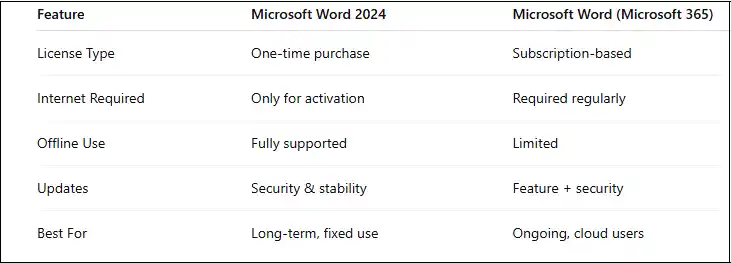
Word 2024 is included in one-time-purchase Office 2024 editions such as Office Home 2024 and Office Home & Business 2024. Microsoft also offers Office LTSC 2024 for eligible commercial and government deployments. Office 2024 is different from Microsoft 365, which is subscription-based and receives a broader stream of ongoing features.
Useful Microsoft Word 2024 Commands
For an article about Word 2024, you can include the following Windows commands and Office troubleshooting commands.
1. Check the Installed Office Version
Open Command Prompt and run:
winver
This opens the Windows version information. For detailed Office licensing information, use the Office licensing script below.
2. Locate the Office Installation
For a typical 64-bit Office installation:
cd /d "%ProgramFiles%\Microsoft Office\root\Office16"
For 32-bit Office installed on 64-bit Windows:
cd /d "%ProgramFiles(x86)%\Microsoft Office\root\Office16"
3. Check Office License Status
For supported Office licensing installations:
cscript ospp.vbs /dstatus
This displays information about the installed Office license and activation state.
4. Display Detailed Licensing Information
cscript ospp.vbs /dstatusall
This can display licensing information for installed Office products.
5. Repair Microsoft Office
If Word 2024 is experiencing installation or application problems, Windows provides Office repair through the installed-apps interface. You can open the relevant settings page with:
start ms-settings:appsfeatures
Then locate Microsoft Office 2024, select Modify, and choose the available repair option.
6. Open Word from Run
To launch Microsoft Word directly:
start winword
7. Start Word in Safe Mode
If Word crashes or an add-in is causing problems, try:
winword /safe
Safe Mode can help determine whether an add-in or customization is contributing to the problem.
8. Reset Word's Normal Template
If Word's default template becomes corrupted, you can close Word and rename the Normal template rather than deleting it:
ren "%appdata%\Microsoft\Templates\Normal.dotm" Normal.old
When Word starts again, it can create a new default Normal.dotm template.
9. Open Word with a Specific Document
You can launch Word and open a specific document from Command Prompt:
start winword "C:\Documents\Example.docx"
Replace the path with the location of your document.
Why Choose Microsoft Word 2024?
Microsoft Word 2024 combines the familiar Word experience with a refreshed interface, improved document recovery, modern collaboration features, accessibility improvements, and updated file-format support. Its desktop functionality also makes it practical for users who need to create and edit documents locally.
For anyone searching for a professional word processor for Windows and Mac, Microsoft Word 2024 offers a comprehensive set of tools for writing, editing, formatting, reviewing, and managing documents.
System Requirements for Microsoft Word 2024
Before installing Word 2024, ensure your system meets the following requirements.
Windows Requirements
- Windows 10 or Windows 11
- Minimum 4 GB RAM (8 GB recommended)
- At least 4 GB of free disk space
- Internet connection for activation
macOS Requirements
- Supported macOS version
- Intel or Apple Silicon processor
- Internet required for license activation
Installation Guide for Microsoft Word 2024
Step 1: Purchase a Genuine Microsoft Word 2024 License
Microsoft Word 2024 is usually included with Office 2024 editions such as Home & Business. Purchase a genuine license from a trusted seller to ensure smooth activation and long-term use.
Step 2: Sign In to Your Microsoft Account
Visit the Microsoft Office setup page and sign in using your Microsoft account. This account will permanently store your Word 2024 license.
Step 3: Redeem the Product Key
Enter your 25-character product key to link Word 2024 to your Microsoft account. Once redeemed, the license becomes associated with your account.
Step 4: Download Microsoft Word 2024
After redeeming the key, download the Office installer that includes Word 2024 for your operating system.
Step 5: Install Word 2024
Run the installer and follow the on-screen instructions. The installation process may take several minutes depending on system performance.
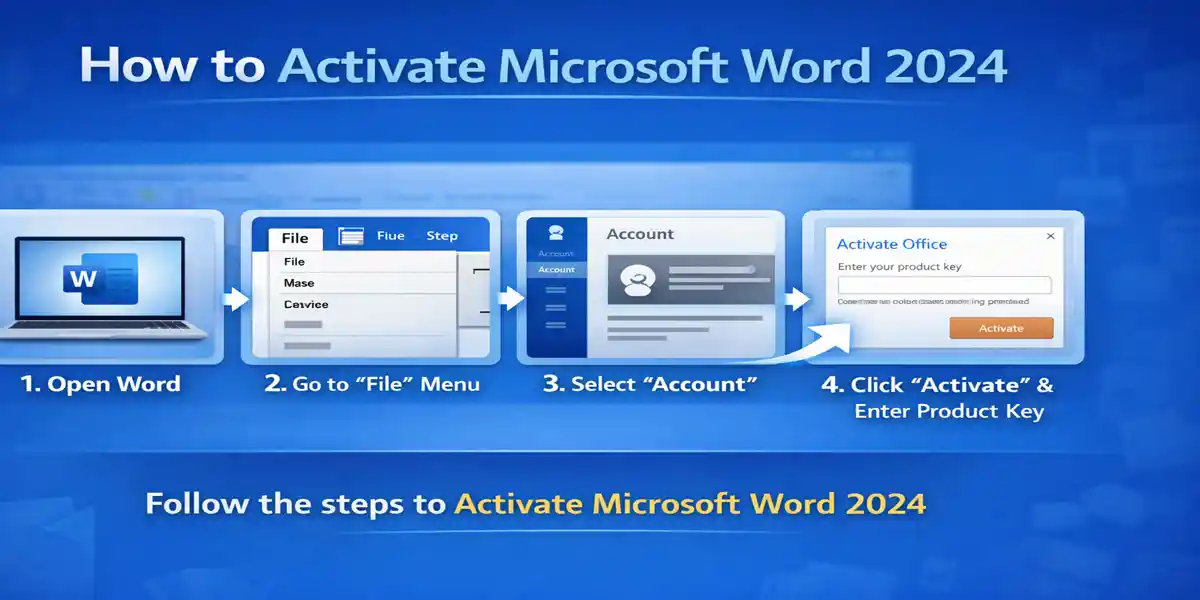
How to Activate Microsoft Word 2024
Method 1: Activation Using Microsoft Account (Recommended)
- Open Microsoft Word 2024
- Click Activate when prompted
- Sign in using the Microsoft account linked to your license
- Word activates automatically
This is the most reliable and error-free activation method.
Method 2: Activation Using Product Key
- Open Microsoft Word 2024
- Go to File → Account
- Select Change Product Key
- Enter your 25-character key
- Restart Word
Common Microsoft Word 2024 Activation Errors and How to Fix Them
Error 1: “Product Is Unlicensed” or “Activation Required”
Cause: Word has not been activated correctly.
Solution:
- Sign out of Word
- Restart your computer
- Sign in again using the correct Microsoft account
Error 2: “This Product Key Has Already Been Used”
Cause: The product key is already linked to another Microsoft account.
Solution:
- Sign in using the original account
- Transfer the license if permitted
Error 3: “Cannot Connect to Activation Server”
Cause: Network, firewall, or VPN restrictions.
Solution:
- Check internet connection
- Disable VPN temporarily
- Allow Word through firewall settings
Error 4: Conflicts with Older Office Versions
Cause: Previous Office installations remain on the system.
Solution:
- Uninstall older Office versions
- Use Microsoft’s Support and Recovery Tool
Error 5: “Invalid Product Key”
Cause: Typing error or non-genuine key.
Solution:
- Recheck the key carefully
- Contact the seller for verification or replacement
Why Choose CodesForever for Microsoft Word 2024?
1.Genuine Microsoft Licenses
CodesForever provides authentic Microsoft Word 2024 product keys that activate successfully and remain valid long-term.
2.Instant Digital Delivery
Customers receive their product keys instantly after purchase, eliminating delays and downtime.
3.Affordable Pricing
CodesForever offers competitive pricing compared to traditional retail channels, making Word 2024 accessible to individuals and businesses.
4.Dedicated Activation Support
If you experience installation or activation issues, CodesForever offers customer support to guide you through the process.
5.Trusted by Professionals
Freelancers, students, IT administrators, and businesses rely on CodesForever for safe and reliable Microsoft software licensing.
Conclusion
Microsoft Word 2024 is a robust, secure, and reliable word processing solution designed for both personal and professional users. Its one-time purchase model ensures long-term access without recurring costs, making it ideal for individuals, businesses, and students seeking a stable productivity tool.
Key advantages include:
- Improved performance and stability, enabling faster document processing and smoother operation.
- Advanced formatting and editing tools, including templates, styles, and collaboration features.
- Offline functionality, allowing users to work anywhere without depending on cloud services.
- Enhanced security, protecting documents from unauthorized access and malware.
By following correct installation and activation procedures, and knowing how to resolve common activation errors, users can enjoy a seamless Microsoft Word 2024 experience. Purchasing from a reputable provider like CodesForever guarantees genuine licenses, instant delivery, and reliable customer support, ensuring peace of mind and uninterrupted productivity.
Troubleshooting Common Issues
If the software displays a connection error code, check your computer's system date and time settings. Mismatched time stamps will cause secure Microsoft servers to reject the authentication request. Additionally, ensure your system firewall isn't temporarily blocking the application's external network requests during its initial setup window.
Frequently Asked Questions (FAQs)
Yes. Microsoft Word 2024 comes as a perpetual license when purchased as part of Office 2024 editions, such as Home & Business. This means you pay once and own the software permanently for one device without recurring subscription fees.
Yes. Once Word 2024 is activated, it works fully offline, allowing users to create, edit, and save documents without requiring a constant internet connection. Online access is only needed for activation or updates.
Yes. Microsoft Word 2024 is part of the Office Home & Business 2024 edition, alongside Excel, PowerPoint, Outlook, and OneNote. This bundle provides essential productivity tools for personal and professional use.
Yes. Word 2024 can be reinstalled on a new computer using the same Microsoft account. License activation is tied to your Microsoft account, and reinstalling is subject to Microsoft’s licensing terms.
Yes. Word 2024 supports DOC, DOCX, and other legacy file formats, ensuring compatibility with older documents created in previous Office versions. This allows smooth collaboration and document sharing across different Office editions.
If Word 2024 is not activated, you may experience limited editing functionality, such as disabled features or restrictions on saving changes. Persistent activation notifications will also appear until the software is properly licensed.
Yes. CodesForever is a trusted platform that provides genuine Microsoft licenses, instant digital delivery, and professional support to ensure smooth activation and long-term reliability.