

How to Activate Microsoft PowerPoint 2024: Complete Beginner to Advanced Guide

Introduction to Microsoft PowerPoint 2024
Microsoft PowerPoint 2024 is the latest version of Microsoft’s industry-standard presentation software, designed to help students, professionals, and organizations create, edit, and deliver compelling presentations. As part of the Office 2024 suite, PowerPoint 2024 integrates seamlessly with other Microsoft tools like Excel, Word, and Teams, enabling collaborative workflows and cloud-based storage through Microsoft 365.
With enhanced AI-powered design suggestions, smoother animations, and expanded multimedia capabilities, PowerPoint 2024 makes it easier than ever to design professional presentations. It caters to a wide audience, including business executives, educators, marketers, and content creators. This guide will help you activate PowerPoint 2024, explore its key features, install the software correctly, resolve common errors, and choose a trusted provider for genuine licenses.
What Is Microsoft PowerPoint 2024?
PowerPoint 2024 is a presentation creation and editing software that allows users to:
- Design visually appealing slides for meetings, lectures, and events
- Incorporate multimedia elements like audio, video, and 3D models
- Collaborate in real-time with colleagues using cloud-based tools
- Automate slide designs with AI-driven suggestions
Key improvements in PowerPoint 2024:
- Modernized interface for enhanced usability
- AI-powered slide design suggestions
- Expanded support for multimedia and animations
- Real-time collaboration via Microsoft 365 integration
Key Features of Microsoft PowerPoint 2024: Design, Multimedia & Presentation Tools
Microsoft PowerPoint 2024 is built for creating professional slides, business presentations, educational projects, marketing decks, and engaging visual content. It combines familiar presentation tools with improved design, accessibility, multimedia, collaboration, and delivery features — suited to a business proposal, classroom lecture, sales pitch, training session, or corporate presentation alike.
1. Familiar Interface, Faster Workflow
The Ribbon, Quick Access Toolbar, presentation views, themes, and layout tools stay consistent with prior versions, so there's no steep relearning curve. You can build from scratch or start from professionally designed templates, arranging text, images, charts, and shapes into visually consistent slides. This keeps PowerPoint approachable for beginners while still offering depth for business and education users.
2. Core Slide Design Tools
- Slide Master for consistent fonts, colors, layouts, and branding across an entire deck
- Custom Layouts tailored to specific presentation needs
- Themes and Variants for coordinated design styles
- Transitions and Animations to add motion between slides and to individual objects
- SmartArt to turn text into visual diagrams
- Presenter View, showing the current slide, next slide, notes, and timer while presenting
- Zoom for dynamic navigation between sections
- Gridlines, especially useful on PowerPoint 2024 for Mac for precise object placement
3. PowerPoint Designer
Designer analyzes slide content — pictures, lists, timelines, charts, tables — and suggests layouts and visual arrangements automatically, saving time on slides that would otherwise need manual design work. As your draft correctly notes, availability depends on your PowerPoint edition, Microsoft 365 subscription status, file location, and connected services — it isn't guaranteed to be present in every installation.
4. Multimedia and Cameo
Beyond photos, icons, shapes, charts, audio, video, and screen recordings, PowerPoint 2024 introduces Cameo — placing your live camera feed directly on a slide with the same formatting and transition effects as any other slide object. This suits live presentations, demos, training content, and recorded video alike.
5. Recording Studio
Recording Studio captures a full presentation or individual slides, including voice, ink annotations, and camera presence, then exports the result as a standalone video — useful for training videos, online lessons, product demos, and internal company training that need to exist outside a live meeting.
6. Cloud Collaboration — With the Right Caveat
When a file is saved to OneDrive or SharePoint, supported users can co-edit, see collaborator activity in real time, and comment directly on the file. As your draft rightly states, this requires supported cloud storage and account configuration — it's not a feature every offline, locally-stored file gets by default.
7. Modern Comments
Threaded comments, replies, and collaboration indicators let teams discuss specific slide content directly inside the file — useful for sales decks, project proposals, and any review cycle involving multiple stakeholders.
8. Accessibility Tools
An Accessibility Ribbon (in supported editions) centralizes accessibility checks, alongside improvements to accessible PDF export and closed captioning for supported media — helping ensure presentations reach audiences with different accessibility needs.
9. Offline-First, Online When Needed
Local files can be created and edited entirely offline. Connecting to Microsoft cloud services adds storage, sharing, and sync on top of that — pending changes made offline sync once connectivity returns, according to your cloud configuration.
10. Presenter Tools
Presenter View keeps the current slide, next slide, speaker notes, timer, navigation, annotation tools, and zoom controls available to the presenter only, while the audience sees just the current slide.
Advanced Features Worth Knowing
- Morph Transition — creates a smooth, animated transition between two slides containing similar objects, by matching and interpolating their positions, sizes, and rotations. Works best when duplicating a slide and adjusting object placement on the copy.
- Ink Equation and Ink Replay — write a math equation by hand (touch/pen input) and PowerPoint converts it to a typed equation; Ink Replay can play back the drawing or writing stroke-by-stroke during a presentation.
- Export to Video with Narration Timings — beyond Recording Studio, File > Export > Create a Video bakes in recorded timings, narrations, and ink annotations into an MP4 at a chosen resolution.
- Designer's Icon and SVG Recoloring — inserted icons and SVG graphics can be recolored and have individual shapes within them edited, rather than treating them as flat images.
- Compare Presentations — Review > Compare merges two versions of the same deck and shows slide-by-slide differences, useful when reconciling edits from a collaborator who worked offline.
- Dictate — speech-to-text directly into speaker notes or text boxes, including automatic punctuation, on supported microphones and editions.
Commands for Microsoft PowerPoint 2024
Run these from an elevated Command Prompt or PowerShell unless noted otherwise.
1. Launch and Open Files Directly
start powerpnt.exe
start powerpnt.exe "C:\Presentations\deck.pptx"
2. Start in Safe Mode (Disables Add-Ins)
powerpnt.exe /safe
The first troubleshooting step when PowerPoint crashes, freezes, or behaves oddly on launch — isolates whether a third-party add-in is the cause.
3. Check Installed Version and Build
reg query "HKLM\SOFTWARE\Microsoft\Office\ClickToRun\Configuration" /v ClientVersionToReport
where powerpnt
Confirms your exact build number and installation path.
4. Repair a Corrupted Installation
"C:\Program Files\Common Files\Microsoft Shared\ClickToRun\OfficeClickToRun.exe" scenario=Repair platform=x64 culture=en-us RepairType=QuickRepair
Use RepairType=FullRepair for a more thorough online repair if the quick repair doesn't resolve the issue.
5. Force-Close a Frozen PowerPoint Process
taskkill /f /im powerpnt.exe
Save your work elsewhere first if possible — unsaved changes are lost when a process is force-killed.
6. Check License/Activation Status (Volume-Licensed Editions Only)
cd "C:\Program Files\Microsoft Office\Office16"

cscript ospp.vbs /dstatus
This applies to volume-licensed/LTSC installations specifically. Retail and Microsoft 365 installations show activation status under File > Account instead.
7. Export a Presentation to Video via PowerShell Automation
powershell -Command "$ppt = New-Object -ComObject PowerPoint.Application; $pres = $ppt.Presentations.Open('C:\Presentations\deck.pptx'); $pres.CreateVideo('C:\Output\deck.mp4', $false, 5); while ($pres.CreateVideoStatus -eq 1) { Start-Sleep -Seconds 1 }; $pres.Close(); $ppt.Quit()"Automates the File > Export > Create a Video process from the command line — useful for batch-converting multiple decks without manually exporting each one.
8. Connectivity Check for Cloud Collaboration Issues
ipconfig /flushdns
Test-NetConnection -ComputerName officeapps.live.com -Port 443
Useful when co-authoring or OneDrive/SharePoint sync fails intermittently rather than consistently.
System Requirements for PowerPoint 2024
Windows:
- Windows 10 or Windows 11
- Minimum 4 GB RAM (8 GB recommended)
- 4 GB free storage space
- Internet connection required for activation
macOS:
- Latest supported macOS versions
- Intel or Apple Silicon processor
- Internet required for initial activation
Installation Guide for Microsoft PowerPoint 2024
Step 1: Purchase a Genuine License
Obtain Microsoft PowerPoint 2024 from a trusted provider like CodesForever. Genuine licenses ensure smooth activation, access to updates, and long-term support.
Step 2: Sign in to Microsoft Account
Visit the Microsoft Office setup portal and sign in using your Microsoft account. Linking your account stores the license permanently, making future reinstallation or device transfers simple.
Step 3: Redeem Product Key
Enter the 25-character product key provided after purchase. This links your license to your Microsoft account.
Step 4: Download PowerPoint 2024
Download the installer from Microsoft. For Windows, PowerPoint is included in the Office suite installer; Mac users download the version compatible with their operating system.
Step 5: Install PowerPoint 2024
Run the installer and follow on-screen prompts. Installation time varies depending on system performance.
Microsoft PowerPoint 2024 Commands
Microsoft PowerPoint 2024 includes a wide range of keyboard commands that help users create, edit, format, and present slides more efficiently. Using these shortcuts can reduce repetitive mouse actions and make presentation work faster. Microsoft officially documents keyboard shortcuts for PowerPoint 2024 on both Windows and Mac.
Basic PowerPoint Commands
To create a new presentation, press Ctrl + N on Windows or Command + N on Mac. To open an existing presentation, use Ctrl + O on Windows or Command + O on Mac.
To save your presentation, press Ctrl + S on Windows or Command + S on Mac. You can print a presentation using Ctrl + P on Windows or Command + P on Mac.
To add a new slide, press Ctrl + M on Windows. On Mac, use Command + Shift + N. To close PowerPoint, press Ctrl + Q on Windows or Command + Q on Mac.
Editing Commands
PowerPoint 2024 provides standard editing shortcuts for quickly managing text, images, shapes, and other slide objects. Use Ctrl + X to cut, Ctrl + C to copy, and Ctrl + V to paste on Windows. Mac users can use Command + X, Command + C, and Command + V.
To undo the previous action, press Ctrl + Z on Windows or Command + Z on Mac. To redo an action, use Ctrl + Y on Windows or Command + Y on Mac.
The Ctrl + A command selects all applicable content, while Ctrl + F opens the Find function. On Mac, these commands are generally Command + A and Command + F.
Text Formatting Commands
PowerPoint 2024 also provides shortcuts for formatting text. Press Ctrl + B to make selected text bold, Ctrl + I to apply italics, and Ctrl + U to underline text. Mac users can use Command + B, Command + I, and Command + U.
You can increase the font size with Ctrl + Shift + > and decrease it with Ctrl + Shift + < on Windows. Paragraph alignment can also be changed using shortcuts such as Ctrl + L for left alignment, Ctrl + E for center alignment, Ctrl + R for right alignment, and Ctrl + J for justified text.
Presentation and Slide Show Commands
When presenting slides, PowerPoint 2024 provides several useful commands. Press F5 to start a presentation from the beginning and Shift + F5 to start from the current slide on supported Windows configurations.
During a slide show, N, Enter, Page Down, the Right Arrow, or Spacebar can advance to the next slide. To return to the previous slide, use P, Page Up, Left Arrow, Up Arrow, or Backspace.
Press Esc to end the slide show. You can also type a slide number and press Enter to move directly to a particular slide.
Hyperlink and Comment Commands
To insert a hyperlink into a PowerPoint presentation, press Ctrl + K on Windows or Command + K on Mac.
To add a new comment, use Ctrl + Alt + M on Windows or Command + Shift + M on Mac. These commands are particularly useful when reviewing presentations or collaborating with other users.
Object and Slide Management Commands
PowerPoint 2024 allows users to quickly duplicate and reposition objects and slides. Ctrl + D duplicates a selected object on Windows, while Command + D performs the corresponding function on Mac.
Arrow keys can be used to move selected objects. You can also use Ctrl + Up Arrow or Ctrl + Down Arrow to move a selected slide up or down in the thumbnail pane on Windows. Mac users can use the corresponding Command + Up Arrow and Command + Down Arrow shortcuts.
Why PowerPoint 2024 Commands Are Useful
Learning Microsoft PowerPoint 2024 keyboard commands can improve productivity when creating professional presentations. These shortcuts make it easier to format text, manage slides, edit objects, navigate presentations, and control slide shows without constantly switching between the keyboard and mouse.
PowerPoint 2024 also introduces features such as Cameo, which allows a live camera feed to be inserted directly into a slide, and Recording Studio, which can record presentations with voice, ink gestures, and video presence.
For students, teachers, business professionals, marketers, and presentation designers, combining these commands with PowerPoint's modern presentation tools can make the overall workflow faster and more efficient.
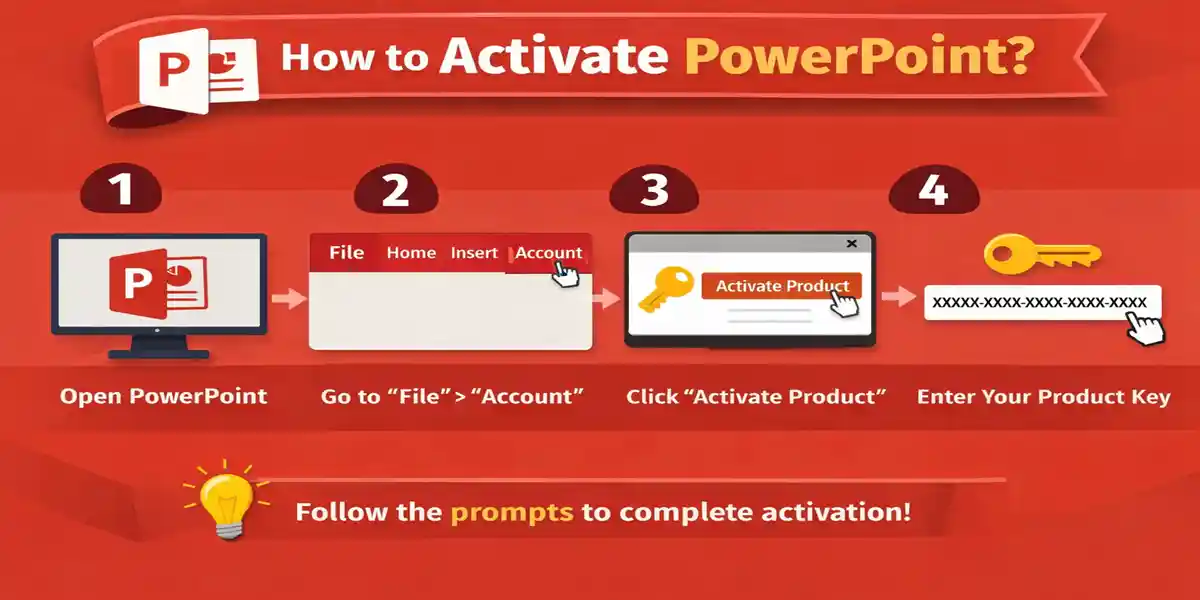
How to Activate Microsoft PowerPoint 2024
Method 1: Activation via Microsoft Account (Recommended)
- Open PowerPoint 2024
- Click Activate when prompted
- Sign in using your Microsoft account linked to the license
- Activation completes automatically
Method 2: Activation via Product Key
- Open PowerPoint 2024
- Navigate to File → Account → Change Product Key
- Enter your 25-character product key
- Restart PowerPoint to complete activation
Common Microsoft PowerPoint 2024 Activation Errors and Fixes
Error 1: “Product Not Activated”
- Cause: License not linked to Microsoft account
- Fix: Sign out, sign back in with the correct account, and retry activation
Error 2: “Product Key Already Used”
- Cause: Key already registered on another account
- Fix: Use the original account or request license transfer
Error 3: “Cannot Connect to Activation Server”
- Cause: Internet issues, firewall, or VPN interference
- Fix: Check internet connection, disable VPN, allow PowerPoint through firewall
Error 4: Conflicting Office Versions
- Cause: Old Office installations interfere
- Fix: Uninstall older versions and use Microsoft Support and Recovery Assistant
Error 5: Invalid Product Key
- Cause: Incorrect or non-genuine key
- Fix: Verify the key with the seller and re-enter accurately
Why Choose CodesForever for Microsoft PowerPoint 2024?
Genuine Product Keys
CodesForever provides 100% authentic Microsoft PowerPoint 2024 licenses, ensuring smooth activation, full features, and ongoing support from Microsoft.
Instant Delivery
Receive product keys immediately after purchase, allowing you to activate PowerPoint 2024 without delays.
Affordable and Flexible Pricing
CodesForever offers competitive pricing for students, professionals, and organizations without compromising authenticity, making PowerPoint 2024 accessible to everyone.
Reliable Activation Support
Dedicated experts provide step-by-step help for installation, activation, and troubleshooting, ensuring even beginners can activate PowerPoint without issues.
Trusted by Professionals
Freelancers, corporate teams, and IT administrators worldwide rely on CodesForever for secure, genuine Microsoft licenses and responsive customer support.
Conclusion
Microsoft PowerPoint 2024 is a professional-grade presentation software offering advanced multimedia tools, AI-powered slide suggestions, cloud collaboration, and robust offline capabilities. Activating PowerPoint 2024 correctly is essential for accessing its full functionality.
Using genuine licenses from trusted providers like CodesForever ensures smooth activation, professional support, and access to updates. Whether you are delivering business presentations, academic lectures, or creative projects, PowerPoint 2024 is the ultimate solution for creating impactful, engaging, and visually stunning presentations.
Frequently Asked Questions (FAQs)
Yes, after activation, PowerPoint 2024 works fully offline.
Yes, PowerPoint 2024 included in Office Home & Business 2024 is a perpetual license.
Yes, using the same Microsoft account within license limits.
Yes, PPT, PPTX, and other legacy formats are supported.
Sign out and sign back in, or enter the correct product key.
Yes, cloud-enabled collaboration is fully supported.
Yes, CodesForever provides genuine keys, instant delivery, and professional support.