

How to Activate Autodesk Civil 3D: A Step-by-Step Guide

Introduction
Activating Autodesk Civil 3D is an essential step to begin using the software for civil engineering projects. While the activation process is typically straightforward, users may encounter issues during activation. This guide provides a comprehensive overview of the activation process, including key features, common errors, fixes, and methods to activate Autodesk Civil 3D licenses. Whether you are a first-time user or upgrading to the latest version, this guide will ensure that you can get started with Autodesk Civil 3D smoothly.
Key Features of Autodesk Civil 3D
Before diving into the activation process, let’s first highlight some key features of Autodesk Civil 3D:
Dynamic Design Tools: Civil 3D includes dynamic modeling tools that automatically update when changes are made, allowing you to work with precise, real-time data.
Road and Highway Design: Tools to design alignments, profiles, and corridors for transportation infrastructure projects.
Surveying and Mapping: Import and process survey data for creating accurate topographic surfaces and maps.
Grading and Drainage: Advanced tools for grading design and drainage systems, essential for land development and environmental planning.
BIM Integration: Civil 3D supports Building Information Modeling (BIM) for seamless collaboration with other professionals.
Collaboration Tools: Integrated features that allow for smooth teamwork and project sharing among team members.
How to Activate Autodesk Civil 3D
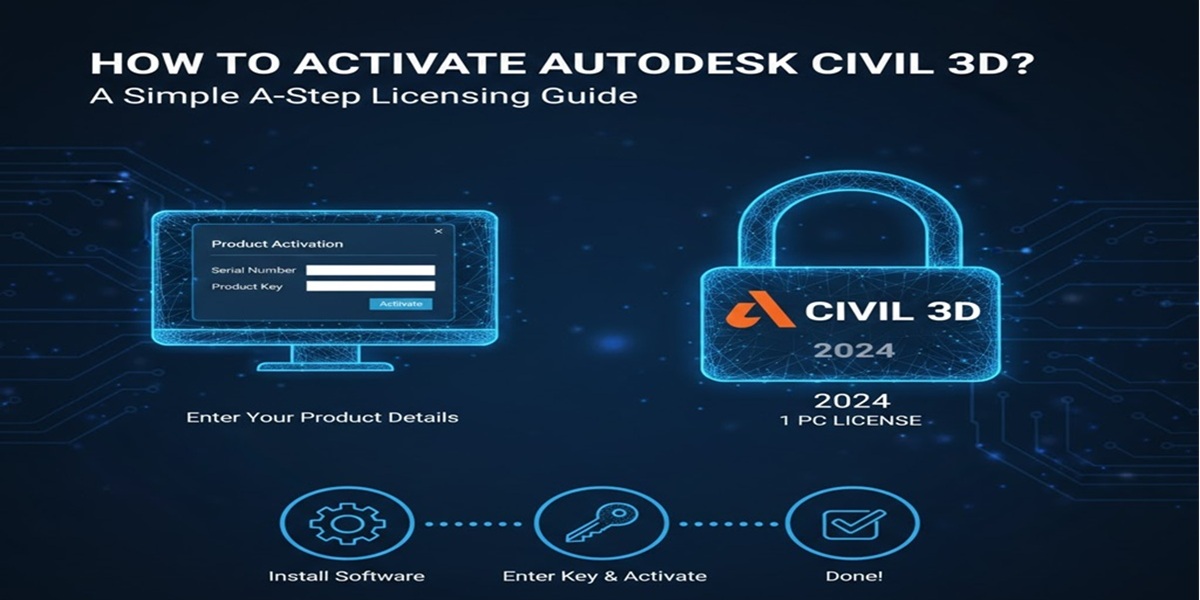
Follow these steps to activate your Autodesk Civil 3D license:
Download and Install Autodesk Civil 3D:
If you haven’t already installed Autodesk Civil 3D, download the installer from the Autodesk website or via your Autodesk account.
Run the installer and follow the on-screen instructions to install the software.
Sign In to Autodesk Account:
Open Autodesk Civil 3D and sign in with your Autodesk ID. If you don’t have one, create an account at Autodesk Account Creation.
Enter the Product Key:
Once signed in, enter the product key you received after purchasing Autodesk Civil 3D. This is usually provided via email or in your Autodesk account.
Ensure that the key matches the version you’ve purchased.
Activate the License:
After entering the product key, Autodesk Civil 3D will attempt to activate the software. You should see a confirmation message stating that your product has been activated.
Complete the Activation:
Once activated, you can start using Autodesk Civil 3D immediately for your design and analysis tasks.
Common Errors and Fixes
While the activation process is generally smooth, you might encounter errors. Below are some common issues and their fixes:
Error: “Activation Failed”
Fix: Ensure that your internet connection is stable. Try running the activation process as an administrator. If the issue persists, check that your Autodesk account is active and that you are entering the correct product key.
Error: “License Expired”
Fix: Verify that your license is still valid. If you are using a subscription, ensure your subscription is up-to-date by logging into your Autodesk account. You may need to renew or purchase a new subscription if the license has expired.
Error: “Product Key Not Valid”
Fix: Double-check the product key you’ve entered. Make sure it is the correct key for the version of Autodesk Civil 3D you purchased. If necessary, contact Autodesk support for assistance with product key validation.
Error: “No Internet Connection”
Fix: Check your network settings and ensure your firewall is not blocking Autodesk’s activation server. If you are using a proxy or VPN, try disabling it and retry the activation.
Methods to Activate Licenses
There are different methods to activate Autodesk Civil 3D licenses based on your installation type:
Online Activation:
This is the most common method and is done automatically through Autodesk’s activation servers. As long as you have an internet connection, the activation process is completed without any issues.Offline Activation:
If your computer is not connected to the internet, you can activate Autodesk Civil 3D offline by using a different machine with internet access. Autodesk will provide you with an activation request code and a response code to complete the activation.Network License Activation:
If you are part of a company or organization that uses a network license, the activation is handled via a network license server. Your IT department typically manages this process.Autodesk Account-Based Activation:
This method is used if you are using a subscription-based license. You simply need to sign in to your Autodesk account, and the software automatically activates based on your subscription.
Conclusion
Activating Autodesk Civil 3D is a straightforward process if you follow the correct steps and troubleshoot common issues. Whether you’re using it for road design, surveying, grading, or land development, Autodesk Civil 3D provides the essential tools for civil engineers and professionals. If you encounter any problems during activation, the fixes provided should help resolve most common errors. Should you need further assistance, Autodesk’s support team is available to help you get your software up and running smoothly.
Frequently Asked Questions (FAQs)
Activation typically takes just a few minutes, depending on your internet connection and the method used (online or offline).
Yes, Autodesk Civil 3D can be activated offline using an activation request and response code. This requires a second device with internet access.
Check your internet connection and verify that the product key is correct. If issues persist, visit Autodesk’s support page or contact customer support for assistance.
Log in to your Autodesk account at Autodesk Account Portal to view your subscription status, renewal date, and other details.
Yes, you can deactivate Autodesk Civil 3D on one computer and activate it on another. Simply follow the deactivation steps in your Autodesk account and then re-enter the product key on the new machine.