

How to Activate AutoCAD Autodesk Map 3D | A Step-by-Step Guide

Introduction
AutoCAD Autodesk Map 3D is a robust software solution designed for professionals working with geographic information systems (GIS) and mapping. Whether you're involved in urban planning, land development, or infrastructure projects, AutoCAD Map 3D combines powerful mapping tools with AutoCAD's traditional drafting capabilities to create an ideal platform for designing and analyzing spatial data.
To unlock the full potential of this software, you first need to activate your AutoCAD Autodesk Map 3D license. This guide will walk you through the activation process, highlight common errors, and provide solutions to ensure that you can use the software without interruptions.
Key Features of AutoCAD Autodesk Map 3D
Integrated GIS and CAD Tools
AutoCAD Map 3D seamlessly integrates GIS data and AutoCAD tools, allowing for advanced spatial analysis and mapping. This combination ensures a smooth workflow for users involved in both design and geospatial analysis.Data Connectivity
Connect to various data sources, including databases, shapefiles, and web services, enabling efficient management and manipulation of geospatial data.Customizable Tools
The software includes customizable features for specific workflows, such as tools for network analysis, topology management, and terrain modeling.Advanced 3D Visualization
Visualize your projects in 3D to improve design accuracy, detect potential issues early, and enhance the decision-making process.Collaboration and Data Sharing
AutoCAD Map 3D supports collaborative project workflows with enhanced tools for sharing data across teams, ensuring everyone works with the most up-to-date information.
How to Activate AutoCAD Autodesk Map 3D
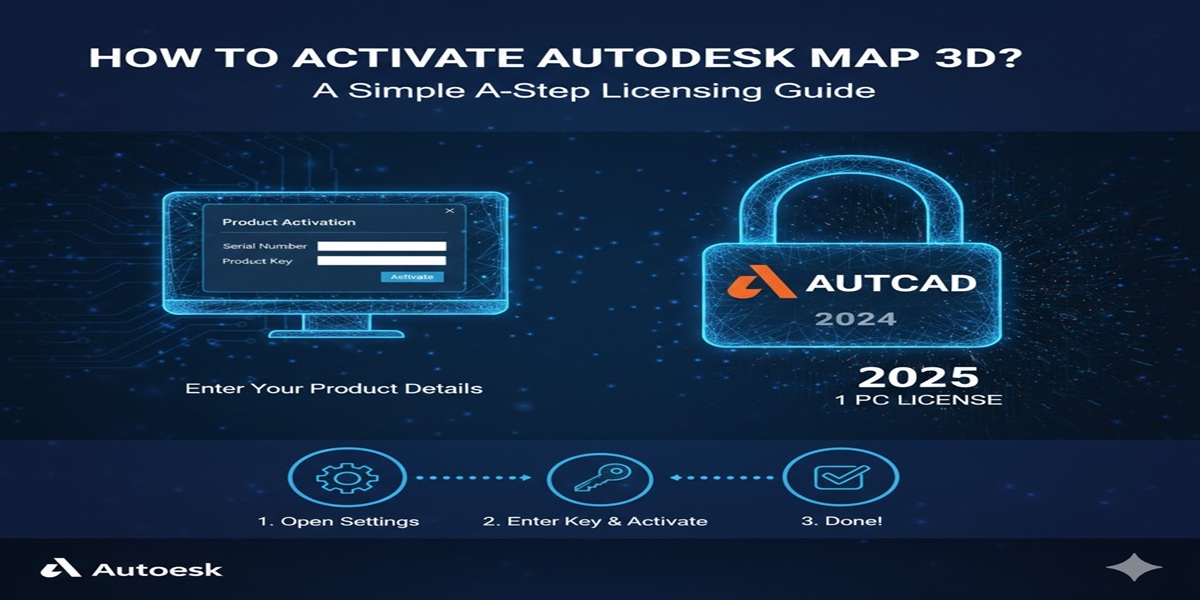
Activating AutoCAD Autodesk Map 3D is a straightforward process. Follow these steps to get started:
Download and Install AutoCAD Map 3D
Begin by downloading the installer from the Autodesk website.
Run the installer and follow the on-screen instructions to complete the installation process.
Sign in to Autodesk Account
After installation, launch AutoCAD Autodesk Map 3D. You’ll be prompted to sign in with your Autodesk ID. If you don’t have an Autodesk ID, you can create one at the Autodesk Account Portal.
Enter the Product Key
During the sign-in process, you’ll be asked to enter the product key that was provided with your purchase. Ensure that you enter the correct product key for your version of AutoCAD Autodesk Map 3D.
Activate the License
After entering the product key, Autodesk Map 3D will attempt to validate and activate your software automatically. Once activated, you’ll receive a confirmation message, and the software will be ready to use.
Complete the Activation
You can now begin using AutoCAD Autodesk Map 3D for your projects. If the software is connected to the internet, the activation will be completed automatically.
Common Errors and Fixes
Error: “Activation Failed”
Fix: Ensure you have a stable internet connection. If the issue persists, verify that you are signed in with the correct Autodesk ID and that the product key is valid. You may also need to run the activation process as an administrator.Error: “Product Key Not Valid”
Fix: Double-check the product key you entered. Ensure it corresponds to the version of AutoCAD Autodesk Map 3D you purchased. If you purchased through a third-party vendor, verify the key with the vendor or Autodesk.Error: “No Internet Connection”
Fix: Check your internet connection and ensure that no firewalls or proxy settings are blocking access to Autodesk’s servers. Try deactivating your VPN if you are using one and attempt activation again.Error: “License Expired”
Fix: If you are using a subscription-based license, check the status of your subscription in your Autodesk account. If the subscription has expired, renew it to continue using AutoCAD Map 3D.
Methods to Activate Autodesk Map 3D License
Online Activation
The most common activation method is online. After signing in to your Autodesk account, the software automatically validates and activates your license over the internet.Offline Activation
If your computer does not have internet access, you can activate AutoCAD Map 3D offline. During the activation process, you will receive an offline activation request code. You’ll need to visit Autodesk’s website on another device, input the code, and receive an activation response code. Enter the response code in the software to complete activation.Network License Activation
For businesses with multiple users, Autodesk offers a network license option. Your IT department will set up a network license server, and each user will connect to the server to obtain their license. This method allows multiple users to share a single license.
Conclusion
Activating AutoCAD Autodesk Map 3D is an essential step to begin using this powerful software. Whether you are managing geospatial data, designing infrastructure, or creating 3D visualizations, AutoCAD Map 3D provides the tools needed to optimize your projects. If you encounter activation issues, the troubleshooting tips provided here should help resolve the most common problems. Once activated, you’ll be able to take full advantage of AutoCAD Map 3D’s features to enhance your design and engineering processes.
Frequently Asked Questions (FAQs)
Activation typically takes a few minutes. The process will be faster with a stable internet connection.
Yes, you can activate the software offline by using an activation request and response code. This is ideal for users without internet access.
Double-check the product key for accuracy. If the issue persists, verify that the key matches the version of AutoCAD Map 3D you purchased, and contact Autodesk support if necessary.
Yes, you can deactivate your license on one computer and activate it on another. Simply follow the deactivation steps in your Autodesk account.
If you encounter an activation error, check your internet connection, verify your product key, and ensure you are logged into the correct Autodesk account. For persistent issues, Autodesk customer support is available to assist you.