

How to Activate Windows 10 Pro N: A Complete Guide for Users

Introduction
Windows 10 Pro N is a version of Windows 10 Pro designed for markets in Europe, including countries like the European Union, where specific media features, such as Windows Media Player, Skype, and other pre-installed apps, have been removed to comply with European regulations. Although it doesn’t come with certain media features, Windows 10 Pro N still offers a powerful set of tools that make it a great option for professionals, businesses, and power users who need a fully functional, secure, and flexible operating system.
However, just like other editions of Windows, Windows 10 Pro N requires activation to use all its features. Activating Windows 10 Pro N is crucial for ensuring that your system is properly licensed, secure, and ready for use. In this comprehensive guide, we'll walk you through the methods to activate Windows 10 Pro N, troubleshoot common activation errors, and provide solutions for resolving issues that may arise during the activation process.
Key Features of Windows 10 Pro N: Advanced Security, Management & Virtualization
Windows 10 Pro N is the same Pro edition as standard Windows 10 Pro, minus Windows Media Player, Skype, and the Media Foundation components that media apps rely on. It was created for the European Economic Area and Switzerland to satisfy competition rulings. You can add the missing pieces back with Microsoft's free Media Feature Pack.
1. Advanced Security Features
- BitLocker and BitLocker To Go encrypt system drives and removable drives, with TPM-based protection and recovery keys.
- Microsoft Defender Antivirus provides built-in real-time protection, cloud-delivered protection, and scheduled scans.
- Secure Boot and Device Guard-class protections work with UEFI firmware to block boot-level malware. Your hardware must support them.
- Windows Hello offers biometric and PIN sign-in on compatible devices.
2. Enterprise-Grade Management Tools
- Group Policy (gpedit.msc) controls settings on standalone and domain-joined PCs.
- Domain join and Azure AD (Entra ID) join let organizations manage devices centrally.
- Mobile Device Management (MDM) enrollment supports tools like Intune.
- Windows Update for Business and Delivery Optimization control update timing and bandwidth.
- Assigned Access (kiosk mode) locks a PC to a single app.
3. Virtualization Support
- Client Hyper-V runs virtual machines on one PC. It needs hardware virtualization support.
- Windows Sandbox provides a disposable, isolated desktop for testing untrusted files.
- Windows Subsystem for Linux (WSL 2) runs Linux environments alongside Windows.
- Virtual Desktops (Task View) organize your workspace, and they are available in every edition.
4. Remote Desktop (Host)
Pro can act as a Remote Desktop host, so you can connect to it from another PC. Windows Home can only connect out. Enable Network Level Authentication for stronger security.
5. Personalization and Windows Ink
Themes, wallpapers, and accent colors are fully customizable. Windows Ink supports sketching, handwriting, and annotation on pen-enabled devices.
Commands for Windows 10 Pro N
Run these in an elevated Command Prompt or PowerShell (Run as administrator).
1. Identify Your Edition and Build
winver

DISM /Online /Get-CurrentEdition

systeminfo | findstr /B /C:"OS Name" /C:"OS Version"
2. Check and Manage Activation
slmgr /dli

slmgr /dlv

slmgr /xpr
These show license information, detailed license data, and the activation expiry status.
slmgr /ipk XXXXX-XXXXX-XXXXX-XXXXX-XXXXX

slmgr /ato
/ipk installs a product key and /ato activates online. Use a genuine key from Microsoft or an authorized retailer. A Pro N key activates Pro N, not standard Pro.
3. Install the Media Feature Pack
DISM /Online /Get-Capabilities | findstr /i Media

DISM /Online /Add-Capability /CapabilityName:Media.MediaFeaturePack~~~~0.0.1.0
The first command confirms the capability is available, and the second installs it. Restart afterward.
4. BitLocker
manage-bde -status

manage-bde -on C:

manage-bde -protectors -get C:
These check status, turn on encryption for drive C, and list protectors and recovery keys. Back up your recovery key before encrypting.
5. Security Checks
powershell -Command "Confirm-SecureBootUEFI"

powershell -Command "Get-MpComputerStatus"

powershell -Command "Update-MpSignature; Start-MpScan -ScanType QuickScan"
These verify Secure Boot, show Defender status, and update signatures and run a quick scan.
6. Group Policy and Domain Tools
gpupdate /force

gpresult /r

dsregcmd /status
These refresh policies, report applied policies, and show Azure AD join status.
powershell -Command "Add-Computer -DomainName contoso.local -Credential (Get-Credential) -Restart"
This joins a domain. Replace contoso.local with your domain.
7. Enable Virtualization Features
DISM /Online /Enable-Feature /All /FeatureName:Microsoft-Hyper-V

powershell -Command "Enable-WindowsOptionalFeature -Online -FeatureName Containers-DisposableClientVM -All"
The first enables Hyper-V and the second enables Windows Sandbox. Both require a restart and hardware virtualization enabled in firmware.
8. Enable Remote Desktop
reg add "HKLM\SYSTEM\CurrentControlSet\Control\Terminal Server" /v fDenyTSConnections /t REG_DWORD /d 0 /f

netsh advfirewall firewall set rule group="remote desktop" new enable=Yes

mstsc /v:HOSTNAME
The first two commands allow incoming connections and open the firewall rule. The last launches the client and connects to a host.
9. Repair System Files
sfc /scannow

DISM /Online /Cleanup-Image /RestoreHealth
Common Activation Errors and Fixes
While activating Windows 10 Pro N can be straightforward, users might encounter some common errors during the process. Below are some frequently faced issues and their solutions:
1. “Activation Failed” Error
Cause: This error typically occurs when Windows is unable to connect to the activation server due to network connectivity issues or a faulty product key.
Fix:
Ensure your internet connection is stable and that no firewalls or antivirus programs are blocking access.
Restart your computer and try again.
If the problem persists, attempt offline activation (explained below).
2. “Invalid Product Key” Error
Cause: This happens if the product key entered is incorrect or does not match the version of Windows 10 Pro N you are trying to activate.
Fix:
Double-check your product key to ensure there are no typos or extra spaces.
Log into your Microsoft account and verify your key if necessary.
If you're still having trouble, contact Microsoft support.
3. “Too Many Devices Activated” Error
Cause: Windows 10 Pro N allows a limited number of activations per license. If you exceed the number of devices, you may encounter this error.
Fix:
Log into your Microsoft account, navigate to Manage Devices, and deactivate Windows on devices you no longer use.
Alternatively, you can contact Microsoft to manage your activations.
4. “Windows Not Genuine” Error
Cause: This error occurs when Windows detects that the operating system is not activated or the product key is invalid.
Fix:
Check that your product key is valid and ensure it matches the version of Windows 10 Pro N.
Run the Activation Troubleshooter in Windows Settings to resolve the issue.
Methods to Activate Windows 10 Pro N
There are several methods to activate Windows 10 Pro N, and the process can vary depending on whether you have an OEM license, retail license, or are upgrading from a previous version. Let's break down the steps for each method:
1. Online Activation Method
This is the easiest method for activating Windows 10 Pro N.
Step 1: Install Windows 10 Pro N
Ensure Windows 10 Pro N is properly installed on your system. You can either download it from the Microsoft website or use a disc.
Step 2: Enter Product Key
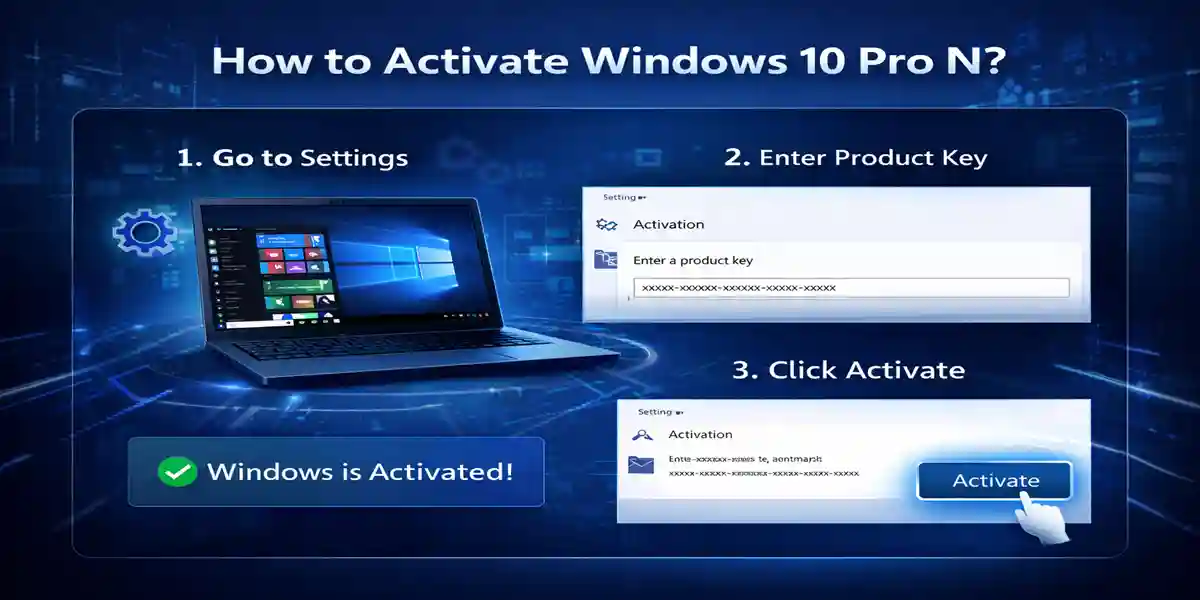
Once the system is installed, launch the Activation screen via Settings > Update & Security > Activation. Enter your product key.
Step 3: Sign in to Microsoft Account
Sign in to your Microsoft account (if not already signed in) to verify your license.
Step 4: Activate Windows
Click on Activate. If everything is correct, Windows will activate automatically, provided you have a stable internet connection.
2. Offline Activation Method
If you're unable to activate online, you can use offline activation.
Step 1: Open Activation Settings
Go to Settings > Update & Security > Activation, and select Activate Offline.
Step 2: Generate Request Code
The system will prompt you to generate a Request Code. Copy this code.
Step 3: Submit Request Code
Visit the Microsoft Activation website and enter the Request Code, along with your product key.
Step 4: Receive Activation Code
Microsoft will send you an Activation Code via email. Enter this code into the activation window to complete the activation.
3. Phone Activation Method
If you are unable to activate online or offline, Phone Activation is an alternative method.
Step 1: Call Microsoft Activation
Follow the on-screen instructions to call Microsoft’s activation hotline and speak to an agent.
Step 2: Enter Installation ID
The agent will ask for an Installation ID provided on the screen. After entering it, the agent will provide you with a Confirmation ID.
Step 3: Enter the Confirmation ID
Input the Confirmation ID into the activation window to complete the process.
Conclusion
Windows 10 Pro N offers the same robust features as Windows 10 Pro, minus the built-in media apps, making it an ideal choice for users in Europe who don’t need or want those apps. Whether you're using it for business, security, or personal productivity, Windows 10 Pro N is a versatile and reliable operating system.
Activating Windows 10 Pro N is easy, with methods ranging from online activation to offline and phone activation. If you run into any issues, the solutions for common errors like "activation failed" or "invalid product key" are simple to follow.
By following the steps outlined in this guide, you’ll be able to activate Windows 10 Pro N and enjoy its powerful features without hassle.
Frequently Asked Questions (FAQs)
You can purchase Windows 10 Pro N directly from the Microsoft website or an authorized distributor.
Ensure that you have the correct product key and serial number. If problems persist, contact Microsoft Support.
No, Windows 10 Pro N requires a valid product key for activation.
Log into your Microsoft account and deactivate Windows on devices no longer in use. Alternatively, contact Microsoft support.
Yes, with a retail license, you can transfer your license to a new device by deactivating it on the old one.