

How to Use PivotTables in Excel for Efficient Data Analysis

Introduction
PivotTables are widely regarded as one of Excel’s most powerful and versatile tools for data analysis. They allow users to summarize, organize, and explore large datasets efficiently, turning raw information into actionable insights. While many users spend hours manually writing formulas to analyze data, PivotTables automate the process, saving time, reducing errors, and enhancing reporting capabilities.
Whether you are in finance, marketing, operations, or academia, mastering PivotTables is essential for making informed decisions based on data. This comprehensive guide will teach you everything from basic creation to advanced techniques, along with troubleshooting, best practices, and practical use cases.
Key Features of PivotTables in Excel
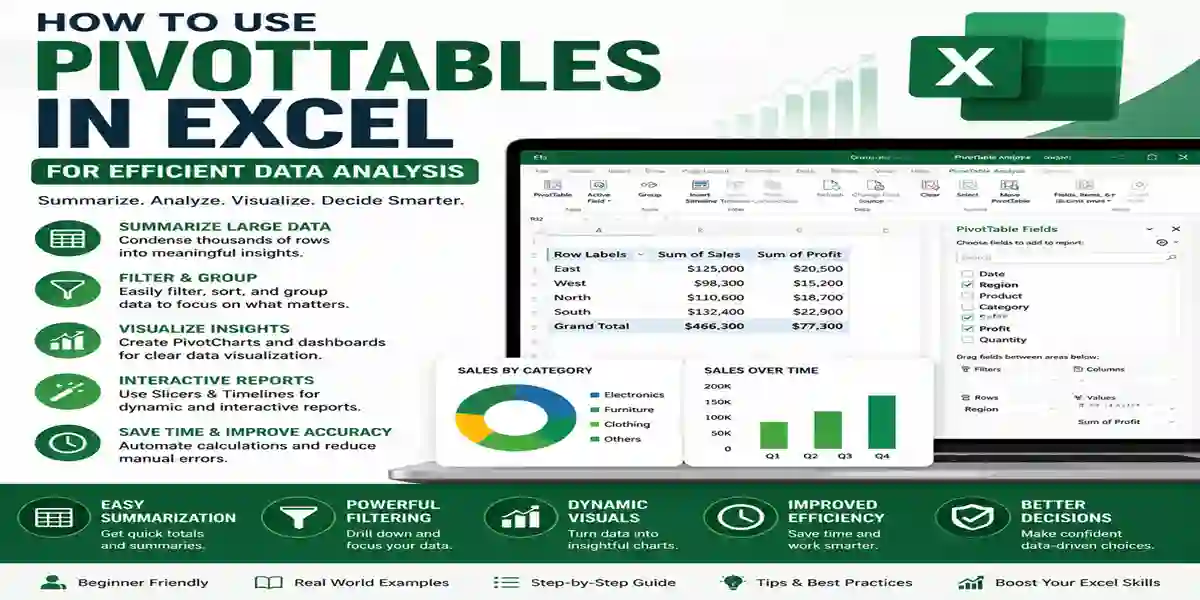
PivotTables are not just a reporting tool—they are a data analysis powerhouse. Here are the main features:
- Summarize Large Datasets Instantly
PivotTables allow you to condense tens of thousands of rows into meaningful summaries, enabling faster analysis. - Drag-and-Drop Interface
Fields can be dragged into Rows, Columns, Values, and Filters without any formulas. - Advanced Grouping
Group dates by months, quarters, or years and numbers into custom ranges for better trend analysis. - PivotCharts
Automatically generate charts based on PivotTables to visualize trends, patterns, and outliers. - Slicers for Interactive Filtering
Slicers provide clickable filters for categories such as region, product, or department, improving report interactivity. - Timelines for Date Analysis
Timelines allow dynamic filtering by months, quarters, or years, ideal for sales and trend reports. - Show Values As Percentages
PivotTables can display values as percentages of totals, allowing better understanding of contribution and performance. - Automatic Updates
When the underlying dataset changes, PivotTables can refresh automatically, keeping reports current. - Multiple Calculations
Perform sums, averages, counts, minimums, maximums, and custom calculations directly within the PivotTable. - Data Segmentation
Organize data into categories and subcategories to reveal hidden insights quickly.
Methods to Create and Master PivotTables in Excel
1. Basic PivotTable Creation
- Select your dataset
- Go to Insert → PivotTable
- Choose New Worksheet
- Drag fields into Rows, Columns, and Values
This creates a simple, interactive PivotTable to summarize your data
2. Grouping Data for Trends
- Group Dates: Right-click a date → Group → Months, Quarters, or Years
- Group Numbers: Right-click numeric field → Group → Set intervals
Example: Segment customer ages into 20–30, 30–40, 40–50 for better analysis.
3. Using PivotCharts
PivotCharts are dynamic charts tied to PivotTables:
- Select the PivotTable
- Go to PivotTable Analyze → PivotChart
The chart updates automatically as PivotTable data changes, ideal for dashboards.
4. Using Slicers for Interactive Reports
- Select PivotTable → Insert → Slicer
- Choose the category (e.g., Region, Product)
- Use clickable buttons to filter data dynamically
Slicers are perfect for presentation-ready dashboards and executive reports.
5. Timelines for Date Filtering
- Select PivotTable → Insert → Timeline
- Choose the date field
- Drag to select months, quarters, or years
Timelines provide a quick way to filter by specific time periods.
6. Show Values As Percentages
- Right-click a value → Show Values As → % of Grand Total
- Instantly view the contribution of each category to the total
This is essential for performance and ROI analysis.
7. Advanced Calculations
PivotTables allow multiple calculations without formulas:
- Sum, Average, Count, Max, Min
- Calculated Fields for custom metrics
- Combine multiple value fields in one report
Practical Examples of PivotTables
Example 1: Sales Revenue by Region and Product
- Dataset: Date, Region, Product Category, Revenue
- Setup:
- Rows → Region
- Columns → Product Category
- Values → Revenue
- Add Slicer → Product Category
Click Software to instantly see top-performing regions.
Example 2: Monthly Trend Analysis
- Dataset: Sales Data with Dates
- Group dates by Month and Year
- Add PivotChart → visualize trends over time.
Common PivotTable Mistakes to Avoid
- Forgetting to refresh data
- Using messy datasets
- Leaving blank rows
- Mixing numbers and text
- Not formatting values correctly
By avoiding these mistakes, you ensure clean, accurate, and actionable reports.
Why PivotTables Matter
- Reduce reporting time from hours to minutes
- Avoid formula errors
- Generate decision-ready insights
- Improve productivity and efficiency in Excel
Mastering PivotTables is one of the most valuable Excel skills for professionals.
Excel Compatibility
Newer versions handle larger datasets and advanced PivotTable features more efficiently.
Conclusion
PivotTables are the ultimate tool for anyone working with data in Excel. From beginners to advanced users, learning PivotTables saves time, increases accuracy, and unlocks deeper insights from your datasets. Use PivotTables in combination with PivotCharts, Slicers, and Timelines to create interactive and professional reports.
Frequently Asked Questions (FAQ)
A: To summarize, analyze, and explore large datasets quickly without formulas.
- A: Select data → Insert → PivotTable → Drag fields into Rows, Columns, and Values.
A: Right-click PivotTable → Refresh after updating data.
A: Yes, depending on Excel version and system memory.
A: PivotTables show data in table form; PivotCharts visualize it dynamically.