

How to Activate Microsoft Visio: A Step-by-Step Process (With New Features Explained)

Microsoft Visio is a powerful diagramming and visualization tool used by professionals, businesses, engineers, and IT teams to create flowcharts, network diagrams, organizational charts, floor plans, and technical drawings. To unlock all premium features, activating Microsoft Visio correctly is essential.
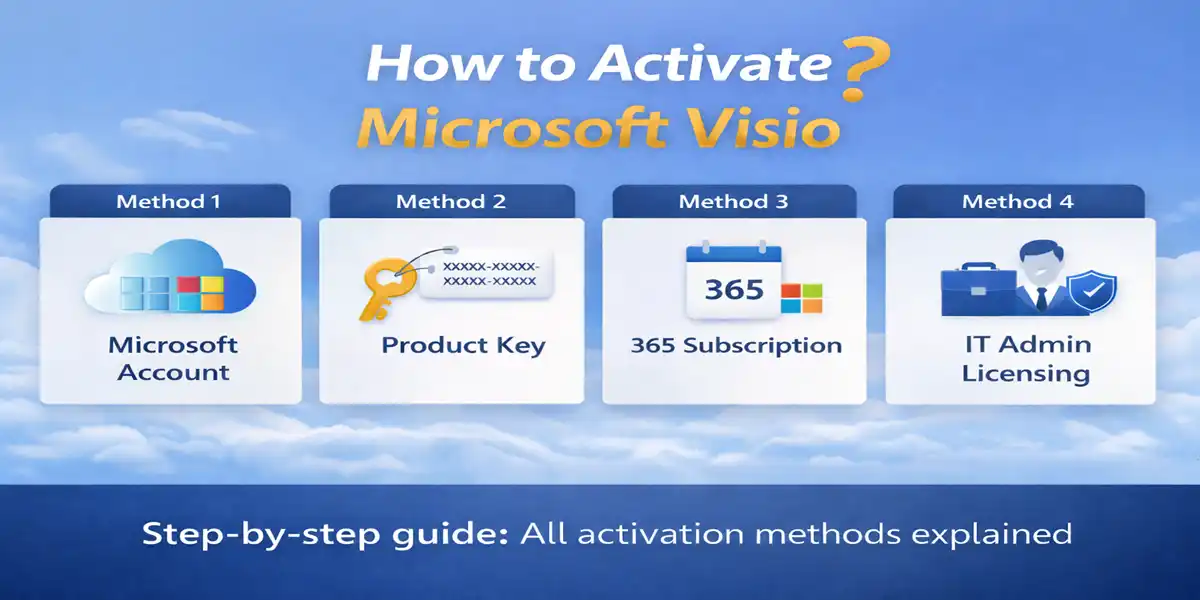
This SEO-optimized, step-by-step guide explains how to activate Microsoft Visio using all available methods, including Microsoft account activation, product key activation, Microsoft 365 subscription-based activation, and enterprise admin licensing.
What Is Microsoft Visio?
Microsoft Visio is a diagramming application that helps users visually represent complex information. It is widely used for:
- Business process mapping
- IT and network diagrams
- Organizational charts
- Engineering workflows
- Project planning
Microsoft Visio is available as:
- Visio Standard (one-time purchase)
- Visio Professional (one-time purchase)
- Visio Plan 1 & Plan 2 (subscription-based)
System Requirements Before Activating Visio
Before activating Microsoft Visio, ensure you have:
- A valid Visio license or subscription
- A Microsoft account or work account
- Stable internet connection (required for first-time activation)
- Compatible Windows version (Visio is Windows-only)
Method 1: Activate Microsoft Visio Using a Microsoft Account (Most Common)
This method applies if you purchased Visio online
Steps to Activate:
- Go to com
- Click Sign in
- Log in with the account
- Click Install Office → select Visio
- Download and install Visio
- Open Microsoft Visio
- Sign in when prompted
✔️ Visio activates automatically after sign-in.
Method 2: Activate Microsoft Visio Using a Product Key
If you purchased a retail or digital copy, you may receive a 25-character Visio product key.
Steps to Activate:
- Visit office.com
- Sign in with your Microsoft account
- Enter the 25-character Visio product key
- Confirm and link Visio to your account
- Download and install Visio
- Open Visio to complete activation
📌 Important: Product keys can only be redeemed once and linked to the account.
Method 3: Activate Microsoft Visio via Microsoft 365 Subscription (Visio Plan 1 / Plan 2)
This method is used when Visio is included in a Microsoft 365 subscription.
Steps:
- Go to com
- Sign in using your work account
- Click Install Office → choose Visio
- Install Visio
- Open Visio and sign in again
✔️ Subscription-based Visio activates automatically.
Method 4: Activate Microsoft Visio on a New or Pre-Installed System
Some business systems come with Visio pre-installed.
Steps:
- Open Microsoft Visio
- Click Activate or Sign in
- Log in using your account.
- Accept the license terms
✔️ No product key is required if the license is already assigned.
Method 5: Activate Microsoft Visio via IT administrators
This method is used by IT administrators in organizations.
Steps:
- Log in to Microsoft 365
- Go to Users → Active users
- Select the user
- Assign Visio Plan 1 or Plan 2 license
- Save changes
- User signs in to Visio to activate
How to Check Microsoft Visio Activation Status
- Open Microsoft Visio
- Click File → Account
- Check under Product Information
If activated, it will show Product Activated or Subscription Active.
Common Microsoft Visio Activation Errors & Fixes
Error: Visio Shows “Unlicensed Product”
- Sign out and sign back in
- Verify correct account
- Check license assignment
Error: Product Key Already Used
- Sign in with the Microsoft account used earlier
- Contact seller
Error: Visio Not Activating
- Check internet connection
- Update Windows
- Run Office Repair too.
Best Practices for Microsoft Visio Activation
- Always use genuine Visio licenses
- Keep your account secure
- Avoid activating with multiple accounts
- Ensure license compatibility with your Visio version
Final Thoughts
Activating Microsoft Visio is simple when you follow the correct method based on how you purchased it. Whether you are using a product key, Microsoft account, subscription plan, or admin-assigned license, proper activation ensures uninterrupted access to Visio’s professional diagramming tools.
For users looking for genuine Microsoft Visio licenses, secure activation, and reliable support, choosing a trusted platform is essential
Frequently Asked Questions (FAQs)
Is Microsoft Visio activation mandatory?
Yes. Activating Microsoft Visio is mandatory to access all premium features and avoid “Unlicensed Product” warnings. Without activation, Visio may run in limited mode or stop functioning properly.
Does Microsoft Visio require a product key to activate?
Not always.
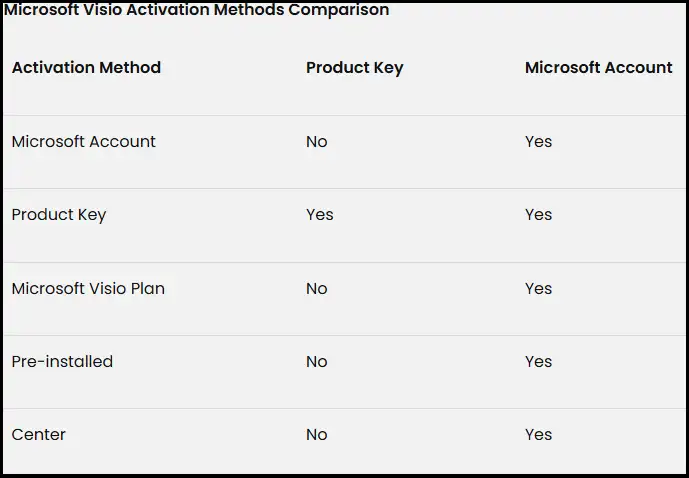
One-time purchase versions (Visio Standard/Professional) require a product key or Microsoft account linked to the key.
Subscription versions (Visio Plan 1 or Plan 2) activate automatically through a Microsoft account with an assigned license.
Can I activate Microsoft Visio without an internet connection?
An internet connection is required for initial activation. Once activated, Visio can be used offline, but periodic online checks may be needed for subscription-based licenses.
Why does Microsoft Visio show “Unlicensed Product”?
This usually happens due to:
Signing in with the wrong Microsoft account
License not assigned (for subscription plans)
Expired subscription
Corrupt installation
Signing out and signing back in or repairing Office often resolves the issue.
Can I transfer my Microsoft Visio license to another computer?
Yes, but only for retail and subscription licenses. You must first deactivate Visio on the old device and then sign in or install it on the new one using the same Microsoft account.
How do I check if Microsoft Visio is activated?
Open Visio → go to File → Account.
If activated, it will show “Product Activated” or “Subscription Active” under Product Information.
What is the difference between Visio Standard, Professional, and Plans?
Visio Standard: Basic diagrams (one-time purchase)
Visio Professional: Advanced diagrams & data linking
Visio Plan 1: Web-based diagrams
Visio Plan 2: Desktop + advanced features (subscription)