

How to Fix Microsoft Copilot Not Working Issues: Activation Guide & Error Solutions

Introduction to Microsoft Copilot
Artificial intelligence is rapidly transforming how people work, collaborate, and make decisions. Microsoft has taken a major step in this transformation with Microsoft Copilot, an AI-powered assistant deeply integrated across Microsoft products and services. From writing documents and analyzing data to automating workflows and improving collaboration, Copilot is designed to redefine productivity for individuals and enterprises alike.
However, many users face challenges such as Microsoft Copilot not working, missing Copilot icons, activation failures, or licensing errors. Simply having Microsoft 365 or Windows is not always enough—proper activation and configuration are critical to unlock Copilot’s full capabilities.
This comprehensive guide explains how to activate Microsoft Copilot, explores its key features, covers different activation methods, addresses common errors with practical fixes, and answers frequently asked questions. By the end, you’ll have a clear roadmap to successfully enable and use Microsoft Copilot in 2026 and beyond.
What Is Microsoft Copilot?
Microsoft Copilot is an AI-powered digital assistant built on advanced large language models and integrated directly into Microsoft’s ecosystem. Unlike standalone AI tools, Copilot works inside the apps you already use, including:
Microsoft Word
Excel
PowerPoint
Outlook
Teams
Windows
Microsoft Edge
Azure and developer tools
Copilot helps users generate content, analyze data, summarize information, automate repetitive tasks, and make smarter decisions faster.
Key Features of Microsoft Copilot
Before activating Microsoft Copilot, it’s important to understand why it’s such a powerful tool and what features make it valuable.
1. AI-Powered Productivity in Microsoft 365
Copilot transforms Microsoft 365 apps by adding intelligent assistance directly into workflows:
Draft and rewrite documents in Word
Generate formulas, insights, and visualizations in Excel
Create professional presentations in PowerPoint
Summarize emails and suggest replies in Outlook
Generate meeting summaries and action items in Teams
2. Context-Aware Intelligence
Microsoft Copilot understands context, meaning it can reference:
Your documents
Emails
Calendars
Chats
Data sources (based on permissions)
This allows Copilot to deliver highly relevant and personalized responses while respecting organizational security policies.
3. Enterprise-Grade Security & Compliance
Copilot is built on Microsoft’s trusted security framework:
Data stays within Microsoft 365 security boundaries
Honors user permissions and access controls
Supports compliance requirements (GDPR, ISO, SOC, etc.)
4. Automation & Workflow Optimization
Copilot reduces manual effort by:
Automating repetitive tasks
Generating summaries and reports
Creating content drafts instantly
Improving decision-making with AI insights
5. Copilot for Windows
Microsoft Copilot in Windows acts as a system-level assistant, helping users:
Change system settings
Launch apps
Summarize content across applications
Improve productivity at the OS level
Microsoft Copilot Licensing Overview
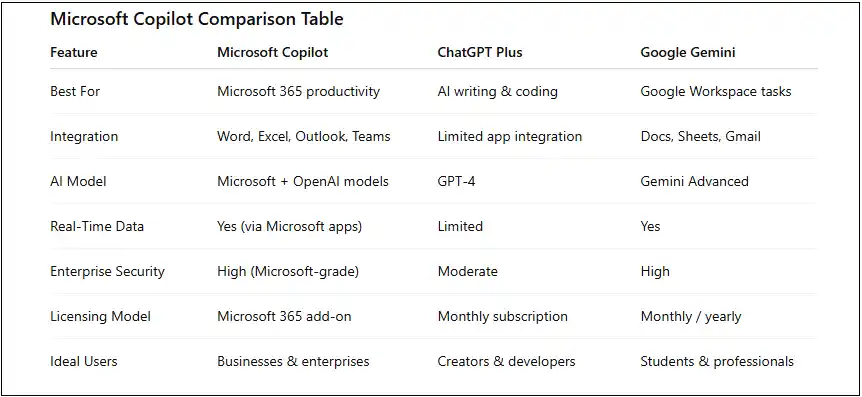
One of the most common reasons Copilot doesn’t work is licensing issues. Microsoft Copilot is not free for most enterprise use cases.
Copilot Licensing Options
Microsoft Copilot for Microsoft 365 (paid add-on)
Requires an eligible Microsoft 365 plan:
Microsoft 365 E3
Microsoft 365 E5
Microsoft 365 Business Premium (Copilot add-on)
Copilot for Windows (availability depends on region, device, and OS version)
Without the correct license, Copilot features will not activate.
System Requirements for Microsoft Copilot
Before activation, ensure your environment meets the requirements.
Basic Requirements
Windows 11 (latest updates recommended)
Eligible Microsoft 365 subscription
Copilot license assigned to the user
Microsoft Edge or supported browsers
Stable internet connection
Enterprise Requirements
Azure Active Directory (Entra ID)
Admin permissions for license assignment
Updated Microsoft 365 apps
Compliance policies configured correctly
How to Activate Microsoft Copilot (Step-by-Step)
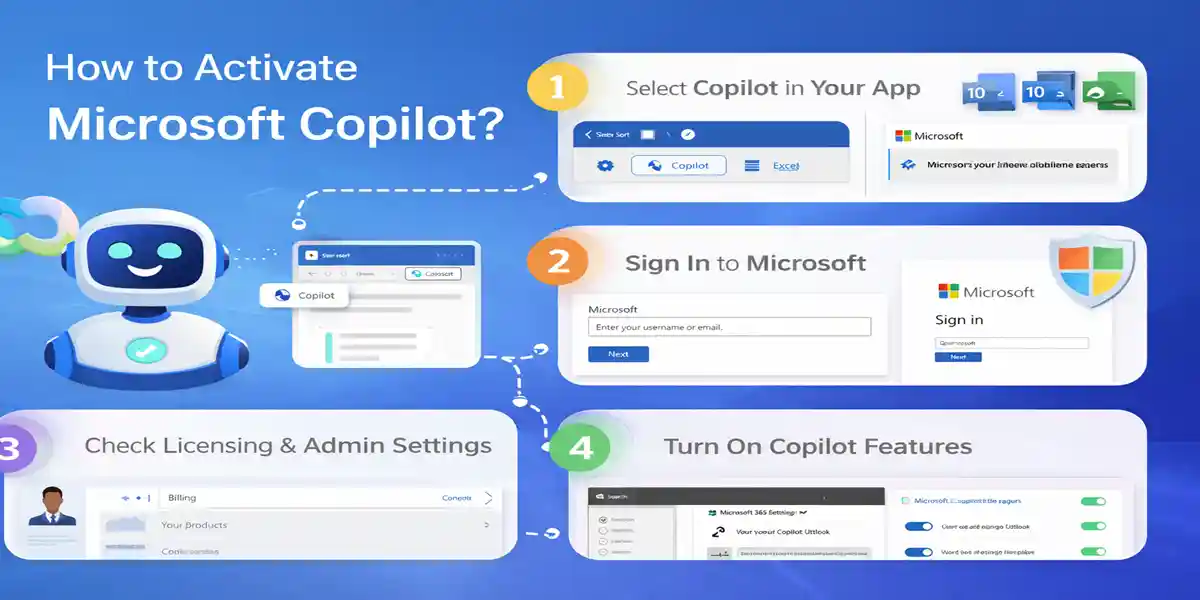
Method 1: Activate Copilot in Microsoft 365 Apps
After licensing, Copilot may still need to be enabled at the app level.
Steps:
Open a Microsoft 365 app (Word, Excel, etc.)
Go to File → Account
Confirm you are signed in with the licensed account
Update Microsoft 365 to the latest version
Restart the application
Method 2: Activate Microsoft Copilot in Windows
For Windows Copilot:
Steps:
Ensure Windows 11 is fully updated
Go to Settings → Privacy & Security
Enable Copilot (if available)
Restart your system
Method 3: Enable Copilot Using Group Policy (Enterprise)
Some organizations disable Copilot via policy.
Steps:
Open Group Policy Editor
Navigate to Windows Copilot settings
Enable Copilot
Apply policies and restart
Method 4: Activate Microsoft Copilot via Microsoft 365
This is the most common and reliable method for businesses.
Steps:
Sign in to Microsoft 365
Go to Billing → Licenses
Purchase Microsoft Copilot add-on
Navigate to Users → Active Users
Select the user
Assign the Copilot license
Save changes
Sign out and restart Microsoft 365 apps
Copilot should appear within Word, Excel, Outlook, and Teams after activation sync completes.
Common Microsoft Copilot Errors & How to Fix Them
Error 1: Microsoft Copilot Not Showing
Cause:
License not assigned
App not updated
Feature disabled by policy
Fix:
Assign Copilot license
Update Microsoft 365 apps
Check admin policies
Error 2: Copilot Icon Missing in Word, Excel, or Outlook
Cause:
Unsupported subscription
Incorrect account signed in
Fix:
Verify Microsoft 365 plan
Sign out and sign in again
Restart applications
Error 3: Copilot Says “Your Organization Doesn’t Allow This”
Cause:
Admin restrictions
Compliance policies blocking Copilot
Fix:
Contact IT admin
Review Microsoft Purview and security policies
Error 4: Microsoft Copilot Not Responding
Cause:
Temporary service outage
Network restrictions
Fix:
Check Microsoft Service Health
Verify internet and firewall settings
Error 5: Copilot Works in Some Apps but Not Others
Cause:
App version mismatch
Partial license sync
Fix:
Update all Microsoft 365 apps
Reassign Copilot license
Best Practices for Microsoft Copilot Activation
Activate Copilot before deploying to users
Keep Microsoft 365 apps fully updated
Assign licenses strategically
Train users on Copilot usage
Monitor security and compliance settings
Regularly review Microsoft updates
Benefits of Using Microsoft Copilot
Faster content creation
Improved collaboration
Reduced manual workload
Enhanced decision-making
Better ROI on Microsoft 365 investments
Conclusion
Microsoft Copilot represents the future of AI-powered productivity. However, unlocking its full potential requires proper licensing, activation, and configuration. Many “Copilot not working” issues stem from licensing gaps, outdated apps, or admin restrictions.
By following the activation methods, error fixes, and best practices outlined in this guide, individuals and organizations can confidently deploy Microsoft Copilot and transform how they work in 2026.
When activated correctly, Microsoft Copilot is not just an AI assistant—it becomes a strategic productivity partner that helps users work smarter, faster, and more efficiently across the entire Microsoft ecosystem.
Frequently Asked Questions (FAQs)
Is Microsoft Copilot free?
No. Microsoft Copilot is a paid add-on for eligible Microsoft 365 plans.
Can individuals use Microsoft Copilot?
Yes, availability depends on region and Microsoft’s rollout policies.
Does Copilot replace Microsoft Office skills?
No. It enhances productivity but does not replace user expertise.
Is Copilot secure for enterprise use?
Yes. It follows Microsoft’s enterprise-grade security model.
How long does Copilot activation take?
Typically a few minutes to a few hours after license assignment.
Does Copilot work offline?
No. It requires an active internet connection.