Microsoft Visio 2016 and 2019 End of Life – Best Upgrade Path to Visio 2024

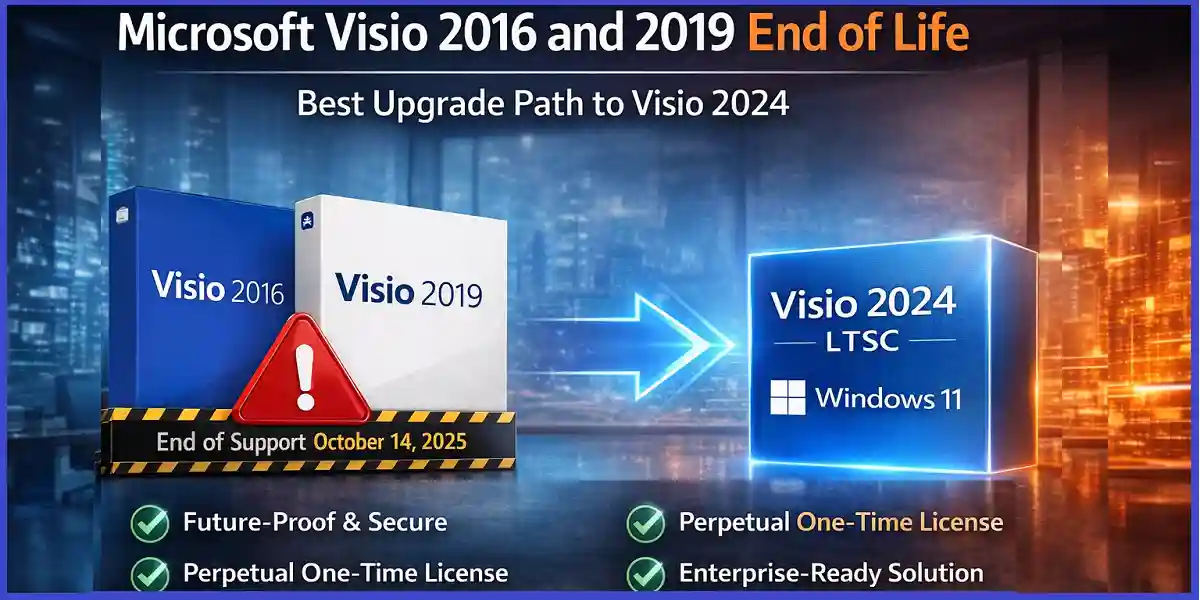
October 14, 2025: The Critical End-of-Support Deadline for Visio 2016, Visio 2019 & Windows 10
If your organization is still relying on Visio 2016 or Visio 2019, October 14, 2025 is a date you must not ignore. On this day, both versions officially reach End of Support (EOS). After the deadline, Microsoft will no longer provide security updates, bug fixes, or technical support, significantly increasing cybersecurity and compliance risks.
While Visio 2016 and 2019 may continue to run after EOS, they become progressively unsafe and costly to maintain. Unsupported software is a common target for cyberattacks, audit failures, and compatibility issues with modern systems.
Importantly, October 14, 2025 also marks the end of support for Windows 10. This makes it the ideal moment to combine your Visio upgrade with a migration to Windows 11. Handling both upgrades together allows organizations to Maintain a secure, fully supported IT environment, Reduce long-term operational and security risks, Avoid managing two separate upgrade projects, Improve performance, stability, and compliance in one transition.
Why Acting Now Matters: Business Continuity, Security & a Smooth Upgrade Path
Delaying action until the last moment increases risk, cost, and disruption. Upgrading before the Visio 2016/2019 End of Support (EOS) deadline is a proactive move that protects your organization on multiple levels. Here’s why acting early truly matters.
🔄 Ensure Business Continuity
When Visio reaches EOS, any newly discovered issue—security-related or functional—remains unresolved. This can lead to unexpected downtime, file compatibility problems, or workflow interruptions that directly impact productivity. Upgrading early ensures your teams continue to create, share, and collaborate on diagrams without disruption, keeping critical business and project workflows running smoothly.
🔐 Protect Sensitive and Business-Critical Data
Unsupported software becomes an easy target for cyber threats because it no longer receives security patches or vulnerability fixes. Visio files often contain network diagrams, process flows, system architectures, and compliance documentation—all of which can be sensitive. Moving to a supported version such as Visio 2024 LTSC significantly strengthens your security posture and reduces the risk of data breaches, malware infections, and compliance violations.
🧭 Stay Aligned with Microsoft’s Modern Support Lifecycle
Microsoft’s support policies are designed to ensure reliability, security, and compatibility across its ecosystem. Upgrading aligns your organization with current support standards, ensuring continued access to updates, fixes, and compatibility with modern tools and platforms—including Windows 11. This alignment also helps organizations meet internal IT governance and external regulatory requirements.
🛠️ Allow Time for Testing, Training & Validation
Early planning gives IT teams and end users the time they need to:
Test existing diagrams, templates, and add-ins
Validate integrations with other Microsoft and third-party tools
Train users on updated interfaces and workflows
This phased approach avoids rushed deployments and ensures a smooth, predictable transition rather than a stressful, last-minute scramble.
📉 Reduce Upgrade Costs and Last-Minute Pressure
Waiting until EOS often results in emergency upgrades, overtime costs, and rushed decisions. Acting now allows organizations to budget properly, schedule deployments strategically, and avoid premium support or downtime costs. Early upgrades are almost always more cost-effective and less disruptive.
✅ The Strategic Advantage
Upgrading early is not just about compliance—it’s about confidence and control. Organizations that act ahead of deadlines gain a secure, stable, and future-ready environment while avoiding unnecessary risk and pressure.
Why Microsoft 2024 Is a Major Upgrade: Older Microsoft 2016–2021 versions are outdated, less secure, and limited compared to today’s AI-enabled Microsoft 2024 experience.
Microsoft Visio 2016
What it was good at (then)
Basic flowcharts, org charts, and network diagrams
Microsoft Visio 2016 was effective for creating standard diagrams such as flowcharts, organizational charts, and basic network layouts. It served well for documentation-heavy environments where diagrams were static and primarily used for internal reference.
Stable desktop performance for individual users
Visio 2016 delivered reliable performance on traditional Windows desktops. Single users working offline experienced consistent speed and stability, which made it suitable for standalone workstations.
Traditional on-premise usage
Designed for on-premise environments, Visio 2016 fit well into organizations that relied on local file storage and internal servers, before cloud collaboration became mainstream.
Key limitations today
No modern collaboration or cloud-first design
Visio 2016 lacks real-time collaboration, shared editing, and cloud-native workflows, making teamwork slow and fragmented by today’s standards.
Outdated templates and visuals
Its shapes, themes, and diagram styles feel dated and no longer align with modern UI and design expectations.
Limited compatibility with modern Microsoft 365 workflows
Integration with Microsoft Teams, OneDrive, and modern Office apps is minimal, limiting its usefulness in hybrid and cloud-based environments.
Approaching or past end-of-support in many environments
With support ending or already expired in many organizations, Visio 2016 presents increasing security, compliance, and maintenance risks.
Best described as
A legacy diagramming tool built for a pre-cloud workplace.
Microsoft Visio 2017
Important clarification
There is no official standalone Microsoft Visio 2017 release.
What people usually mean by “Visio 2017”
Visio 2016 with cumulative updates
Many users refer to patched or updated versions of Visio 2016 as “Visio 2017,” even though no new product generation existed.
Early Visio Online or Microsoft 365 integrations
Some confusion comes from early cloud experiments and browser-based diagramming services introduced around that time.
Reality
No dedicated feature leap over Visio 2016
There were no architectural, performance, or usability improvements that justified a new version number.
Same architectural limitations
The software remained desktop-centric, isolated, and dependent on manual file sharing.
No AI, no modern collaboration model
There was no intelligent automation, no real-time co-authoring, and no cloud-first design philosophy.
Best described as
A naming misconception rather than a true product generation.
Microsoft Visio 2018
Important clarification
Like Visio 2017, Visio 2018 was never an official standalone release.
What users usually mean by “Visio 2018”
Visio 2016 or 2019 used during 2018
The term is often used informally to describe whichever version was active during that year.
Minor updates or security patches
Any changes were maintenance-related, not functional upgrades.
Reality
No new engine, UI, or collaboration improvements
There were no meaningful advancements in performance, visuals, or usability.
Still desktop-centric and largely isolated
Collaboration and cloud workflows remained limited and manual.
Best described as
A time reference, not a real upgrade.
Microsoft Visio 2019
What improved over Visio 2016
More templates and shapes
Visio 2019 expanded its diagram library, offering additional shapes and industry templates.
Slight UI refinements
Minor visual improvements made the interface cleaner and more usable than Visio 2016.
Better file compatibility with newer Office versions
It worked more smoothly with later Office releases, reducing file-format issues.
What still fell short
Weak real-time collaboration
True co-authoring and live collaboration were still missing or extremely limited.
Limited Microsoft 365 integration
Cloud tools like Teams and OneDrive were not deeply embedded into workflows.
No AI assistance
Users still had to build and format diagrams manually without intelligent suggestions.
Security model aging quickly
Security architecture lagged behind modern zero-trust and compliance expectations.
Status today
Approaching end-of-support timelines
Organizations face growing risk as security updates wind down.
Increasing compliance and security risk
Unsupported software can lead to audit failures and vulnerabilities.
Best described as
A transitional version—better than 2016, but not truly modern.
Microsoft Visio 2021
Key improvements
Updated visuals and templates
Visio 2021 introduced cleaner themes, improved shapes, and more polished diagram layouts.
Better performance on modern Windows
Optimized for newer versions of Windows, it runs faster and more smoothly than Visio 2019.
Improved accessibility and usability
Enhancements support accessibility standards and make diagrams easier to create and read.
Still missing
Deep cloud collaboration
Real-time co-authoring and cloud-native workflows remain limited.
AI-assisted productivity
No intelligent diagram creation, suggestions, or automation.
Tight Microsoft Teams–centric workflows
Integration exists but does not feel seamless or central to daily collaboration.
Who it suits
Organizations needing a stable, offline, perpetual license
Ideal for teams that prefer one-time purchases and local installations.
Environments not ready for full cloud integration
Works well where cloud adoption is restricted or delayed.
Best described as
A safe upgrade from 2019, but not future-focused.
Microsoft Visio 2024 (Latest & Most Advanced)
Modern productivity
Faster rendering of complex diagrams
Visio 2024 handles large and detailed diagrams with significantly improved speed and stability.
Updated templates aligned with current standards
New templates reflect modern business, IT, and engineering practices.
Optimized for Windows 11 and modern hardware
Fully leverages modern processors, memory, and graphics capabilities.
Microsoft 365 ecosystem integration
Seamless sharing via OneDrive and Teams
Diagrams can be shared, accessed, and reviewed easily across teams.
Easy embedding in Word and PowerPoint
Improved interoperability allows diagrams to integrate smoothly into documents and presentations.
Improved collaboration workflows
Designed to support hybrid teams and shared productivity environments.
Security & compliance
Ongoing security updates
Visio 2024 benefits from long-term security maintenance.
Alignment with modern IT governance policies
Supports compliance, audit readiness, and enterprise security frameworks.
Reduced audit and compliance risk
Lower exposure compared to legacy versions.
Future readiness
Designed for hybrid and cloud-connected work
Built with modern work models in mind.
Compatible with evolving Microsoft productivity strategies
Ensures long-term relevance within the Microsoft ecosystem.
Longest support lifecycle
Offers the most future-proof investment.
Best described as
A future-ready, enterprise-grade diagramming platform.
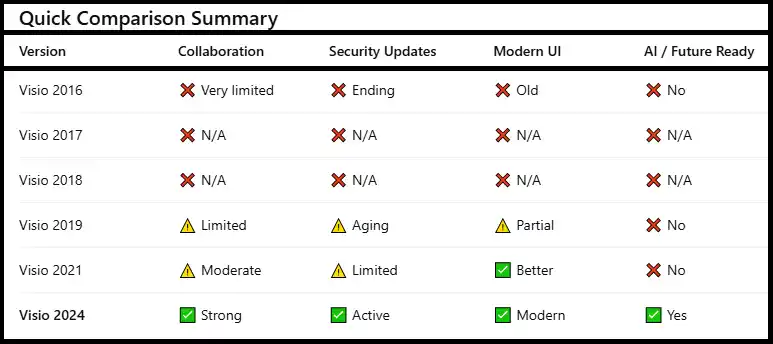
Make Visio 2024 LTSC Your Ideal Upgrade Path for Long-Term Stability and Control
For organizations moving away from unsupported Visio versions, Visio 2024 LTSC clearly stands out as the most reliable and future-proof upgrade choice. Codesforever strongly recommends Visio 2024 LTSC Professional and Visio 2024 LTSC Standard for individuals, small businesses, and IT-managed enterprises that prioritize security, predictability, and long-term cost efficiency.
Below is a deeper explanation of why Visio 2024 LTSC is the smartest upgrade path.
🔒 Perpetual License: One-Time Purchase, No Subscriptions
Visio 2024 LTSC is offered as a perpetual license, meaning organizations pay once and can use the software indefinitely on the licensed device. There are no monthly or annual subscription fees, no renewals to track, and no risk of losing access due to missed payments.
This licensing model is ideal for organizations that prefer CAPEX-based purchasing, need predictable long-term budgeting, or operate in environments where subscription licensing is not allowed or practical. Over time, it also delivers a lower total cost of ownership compared to recurring subscription models.
🧩 Fixed Feature Set for Maximum Stability
Unlike subscription or non-LTSC versions, Visio 2024 LTSC follows a fixed feature lifecycle. This means the application’s interface and core functionality remain consistent throughout its supported life.
Organizations benefit from:
No unexpected UI changes that confuse users, No sudden feature additions or removals that break workflows, Updates focused strictly on security, reliability, and quality
For regulated industries, government bodies, and IT-controlled environments, this stability reduces risk, simplifies documentation, and minimizes retraining.
📊 Advanced Professional Diagramming Capabilities
Despite its fixed feature model, Visio 2024 LTSC delivers full professional-grade diagramming power. Users gain access to rich templates and stencils for:
IT and network infrastructure diagrams, Engineering and architectural layouts, Business Process Modeling (BPMN), Data-linked diagrams for visualizing live information
This ensures teams can design, document, and maintain complex systems with accuracy, consistency, and confidence, without compromising on capability.
🖥️ Windows Desktop Focus for Simplified Deployment
Visio 2024 LTSC is a Windows-only desktop application, making it a strong fit for organizations with standardized PC environments. This focus simplifies:
Large-scale software deployment across device fleets, Centralized control using Group Policy and endpoint management tools, Use in offline, secure, or restricted-network environments
For IT teams, this means less complexity, fewer variables, and easier long-term management.
✅ Why Visio 2024 LTSC Makes Sense
By choosing Visio 2024 LTSC Professional or Standard, organizations achieve:
Long-term Microsoft support alignment, Stronger security and compliance posture, Predictable performance and user experience, Reduced operational and lifecycle costs
All of this comes without sacrificing professional diagramming features, making Visio 2024 LTSC a confident, strategic upgrade choice.
What’s New in Visio 2024: Faster, Cleaner, More Reliable Diagramming
Visio 2024 introduces meaningful refinements that improve daily productivity while keeping professional workflows familiar and dependable.
🎨 Refreshed, Modern User Interface
Visio 2024 features a cleaner, modern UI aligned with Microsoft’s 2024 desktop apps. The updated look improves readability, reduces visual clutter, and makes tools easier to find—so users spend less time navigating menus and more time creating diagrams. The result is a smoother learning curve for new users and a more efficient experience for power users.
🧩 Expanded Templates, Shapes, and Stencils
The new release adds more templates, shapes, and stencils across business and technical categories. Whether you’re building process flows, network diagrams, org charts, BPMN models, or architecture layouts, these additions help teams start faster, stay consistent, and reduce manual formatting. Standardized visuals also improve collaboration across departments.
⚡ Reliability and Performance Improvements
Visio 2024 delivers better stability and performance, especially with large, complex, or data-linked diagrams. Expect faster load times, smoother editing, and fewer interruptions—making everyday work more predictable and less frustrating.
Deployment Options: Choose What Fits Your Environment
Option A — Simple Install with a Microsoft Account (Non-LTSC)
If you purchased Visio 2024 Professional (non-LTSC) from Codesforever activation is straightforward.
Simply sign in with your Microsoft account to install and activate. This option is ideal for individual users and small teams who want the quickest setup with minimal IT overhead. Follow the Visio 2024 Professional Download Guide for step-by-step instructions.
Option B — LTSC Deployment with the Office Deployment Tool (ODT)
For Visio 2024 LTSC Professional, Microsoft recommends the Office Deployment Tool. ODT enables precise, repeatable installations for one PC or large fleets—perfect for IT-managed environments.
High-Level Deployment Steps (Explained):
Plan & Prepare
Confirm readiness for Windows 11 if you’re upgrading the OS.
Match Visio’s architecture (x64/x86) to your existing Office install.
Decide languages and whether to install from Microsoft’s CDN or a local source.
Create
configuration.xmlDefine Visio 2024 LTSC, architecture, languages, update behavior, and silent install options to ensure consistent installs.
Download
Use ODT to download installation files locally or install directly from the CDN for smaller environments.
Deploy
Run ODT manually or push via tools like Configuration Manager, Intune, or PDQ.
Uninstall older Visio versions first to avoid conflicts.
Validate
Test key templates and data-linked diagrams.
Confirm activation and update behavior.
For a faster start, consult the detailed ODT deployment guide.
Pair Visio 2024 with Windows 11 for a Secure Baseline
With Windows 10 reaching end of support on October 14, 2025, aligning your app and OS upgrades is the most efficient approach:
Upgrade eligible PCs to Windows 11 using PC Health Check and vendor driver validation.
Standardize on Windows 11 + Visio 2024 LTSC Professional for long-term support and security.
Document temporary exceptions and timelines if a small subset must remain on Windows 10 (treat ESU as a short-term bridge).
Benefits: a consistent user experience, longer support runway, improved security posture, and fewer compatibility surprises between the OS and Visio.
Fast Upgrade Plan for Visio 2024
This fast, structured upgrade checklist helps organizations move smoothly from older Visio versions to Visio 2024, while minimizing downtime, risk, and user disruption. Follow these steps to ensure a secure, compatible, and future-ready deployment.
🔍 1. Assess & Back Up
Begin by identifying all devices still running Visio 2016 or Visio 2019. This inventory helps scope the upgrade effort and prevents missed installations. Before making any changes, back up critical Visio files, including custom templates, stencils, macros, and data-linked diagrams. This ensures business-critical content is protected and easily restored if needed.
🧭 2. Decide on the Correct Visio 2024 Edition
Your Office edition determines the right Visio version:
If your organization uses Office LTSC 2024, standardize on Visio 2024 LTSC Professional for full compatibility and long-term stability.
If you use Office 2024 Home or Home & Business (non-LTSC), choose Visio 2024 Professional (non-LTSC).
Selecting the correct edition avoids activation errors and support issues.
🚀 3. Choose the Deployment Method
For non-LTSC Visio 2024 Professional, install individually and activate using a Microsoft account—ideal for small teams.
For LTSC deployments, use the Office Deployment Tool with a central configuration.xml. This approach supports scripted, repeatable installs and integrates well with tools like Configuration Manager, Intune, or PDQ.
🧹 4. Remove Legacy Versions
Uninstall older Visio versions before deployment. This prevents file-association conflicts, reduces installation errors, and ensures a clean, stable environment.
✅ 5. Install, Activate & Update
Deploy Visio 2024, confirm activation, and apply the latest security and quality updates. This step ensures the software is fully supported and secure from day one.
🧪 6. Validate & Train
Test mission-critical diagrams, templates, and data connections. Share a short “What’s New in Visio 2024” summary to help users adapt quickly and confidently.
🖥️ 7. Align the OS Move
Where possible, upgrade devices to Windows 11. Aligning your Visio and OS upgrades keeps security, compatibility, and support lifecycles in sync—reducing future risk and rework.
Ready to Upgrade? Secure Your Visio Environment Beyond October 14, 2025
With October 14, 2025 fast approaching, organizations and professionals still using older Visio versions must act now to remain secure, supported, and fully compatible. After this date, unsupported software increases security risks, compliance challenges, and operational friction. The safest approach is to standardize on Visio 2024 with the correct edition, aligned to your Office and Windows environment.
Choose the Right Visio 2024 Edition
Microsoft enforces strict compatibility rules between Office and Visio, so selecting the right edition is essential:
If you use Office LTSC 2024
Choose Visio 2024 LTSC Professional.
This option is designed for organizations that value long-term stability, predictable behavior, and extended support lifecycles. It’s ideal for enterprises, government, education, and IT-managed environments where change control and compliance matter most.If you use Office 2024 Home or Home & Business (non-LTSC)
Choose Visio 2024 Professional (non-LTSC).
This edition fits small businesses and professionals using consumer Office licenses, offering the same powerful diagramming features with a simpler activation model.
Both editions are perpetual, one-time purchase licenses and deliver identical professional diagramming capabilities—the difference is purely about Office compatibility and servicing model.
Don’t Forget the Operating System
To maintain a fully supported environment, pair your Visio upgrade with Windows 11 on supported hardware. Windows 10 also reaches end of support on October 14, 2025, making this the ideal time to align your application and OS upgrades.
Before upgrading, review the Windows 11 Pro system requirements and use Microsoft’s PC Health Check to confirm hardware readiness.
Why Acting Now Pays Off
Planning your upgrade early gives teams time to test, train, and deploy smoothly, avoiding last-minute pressure. The result is a secure, compliant, and future-ready baseline with fewer compatibility surprises and lower long-term IT costs.
Bottom line: Standardize on the right Visio 2024 edition and Windows 11 today to stay protected, productive, and supported well beyond 2025.
Conclusion: Upgrade with Confidence and Stay Secure Beyond 2025
The end of support for Visio 2016 and Visio 2019 on October 14, 2025 is more than a routine milestone—it’s a clear signal to modernize your diagramming and operating system environment. Continuing to use unsupported software exposes organizations to security risks, compatibility issues, and rising maintenance costs, all of which can be avoided with timely action.
Standardizing on Visio 2024 LTSC provides a stable, secure, and future-ready upgrade path. With its perpetual, one-time license, fixed feature set, and full professional diagramming capabilities, Visio 2024 LTSC is ideal for individuals, small businesses, and IT-managed enterprises that value predictability and long-term cost control. When paired with Windows 11, it delivers a fully supported baseline aligned with Microsoft’s modern lifecycle and security standards.
The key to a smooth transition is choosing the right Visio edition to match your Office environment, planning deployment early, and validating critical workflows before deadlines create pressure. Organizations that act now benefit from better security, fewer disruptions, simpler IT management, and a longer support runway—while avoiding last-minute upgrades and emergency fixes.
Bottom line: upgrading before the EOS deadline is not just about compliance; it’s about protecting your data, empowering your teams, and ensuring your business remains productive and supported well into the future. Take the opportunity now to move to Visio 2024 and Windows 11 with confidence.
Frequently Answer Question (FAQ)
Will Visio 2016 or Visio 2019 still work after October 14, 2025?
Yes, the applications may continue to launch, but they will be unsupported. This means no security patches, no quality updates, and no official Microsoft support. Over time, this increases security risk, compatibility issues, and compliance concerns. For a secure and supported environment, upgrading is strongly recommended.
Can I buy Visio 2024 as a one-time (perpetual) license?
Yes. Visio 2024 LTSC Professional is available as a perpetual, one-time purchase for Windows. There are no subscription fees, making it ideal for organizations that want predictable long-term costs.
Does Visio 2024 LTSC Professional work on macOS?
No. The Visio desktop application—including Visio 2024 LTSC—is Windows-only. macOS users would need alternative solutions, but for native Visio desktop functionality, Windows is required.
Can I deploy Visio 2024 LTSC Professional using the Office Deployment Tool (ODT)?
Yes. Microsoft recommends deploying Visio 2024 LTSC with the Office Deployment Tool. Using a customized configuration.xml allows IT teams to control architecture, language, update behavior, and silent installs—making it ideal for single PCs or large, multi-device rollouts.
What’s the difference between Visio 2024 LTSC and Visio 2024 (non-LTSC)?
Both editions provide the same professional diagramming features, but they differ in Office compatibility and servicing model:
Visio 2024 LTSC Professional works only with Office LTSC 2024 editions.
Visio 2024 Professional (non-LTSC) works only with non-LTSC Office versions, such as Office 2024 Home or Office 2024 Home & Business.
Choosing the version that matches your Office environment ensures smooth installation, proper activation, and long-term support.