How to Activate Power BI: A Step-by-Step Process (With New Features Explained)

Introduction
Power BI is Microsoft’s powerful business intelligence and data visualization tool used by analysts, businesses, and decision-makers to transform raw data into meaningful insights. This detailed guide explains how to activate Power BI, the different license options, and how to use Power BI’s latest features with practical examples.
This article is written in a clear, instructional style and is suitable for beginners, professionals, and SEO-focused informational content.
What Is Power BI?
Power BI is a data analytics platform developed by Microsoft that allows users to:
- Connect to multiple data sources
- Create interactive dashboards and reports
- Share insights securely across teams
- Make data-driven business decisions
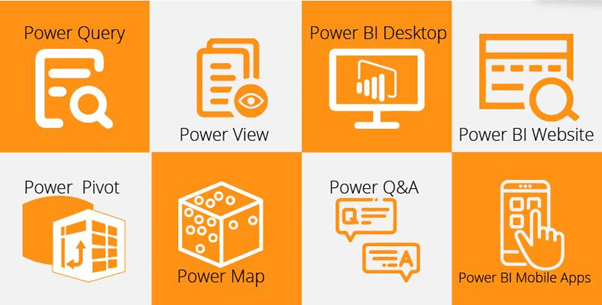
Power BI is available in multiple versions, including Power BI Desktop (free), Power BI Pro, and Power BI Premium.
Power BI License Types (Before Activation)
Before activating Power BI, it’s important to understand the available plans:
Power BI Desktop
- Download and use
- Used for creating reports locally
- No sharing or collaboration features
Power BI Pro
- Enables report sharing, collaboration, and publishing
- Required for most business users
Power BI Premium
- Advanced enterprise-level features
- Large dataset support
- AI and enhanced performance capabilities
How to Activate Power BI – Step-by-Step
Step 1: Sign in With a Microsoft Account
To activate Power BI, you need a Microsoft account.
- Go to powerbi.microsoft.com
- Click Sign In
- Log in using your system generated user id and password
⚠️ Personal email accounts (like Gmail or Yahoo) may have limited access.
Step 2: Download and Install Power BI Desktop
- Visit the Power BI website
- Download Power BI Desktop
- Install the application on your Windows system
- Launch Power BI Desktop
Power BI Desktop and required even if you use Power BI Pro.
Step 3: Activate or upgrade to Power BI Pro
If you want to share reports or collaborate:
- Sign in to the Power BI Service (online)
- Click Start Free Trial or Upgrade to Pro
- Assign the Power BI Pro license to your account via account
- Restart Power BI Desktop and sign in again
Your Power BI Pro license will now be activated.
How to Use Power BI – Basic Workflow
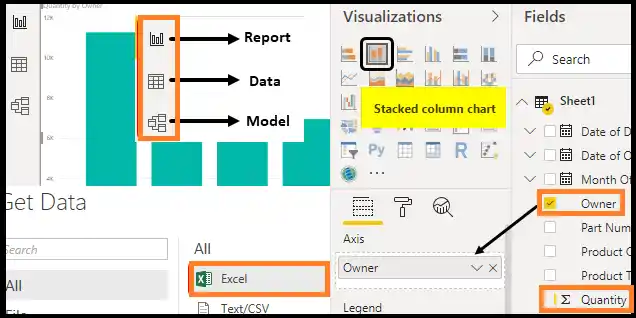
Step 1: Connect to a Data Source
Power BI supports hundreds of data sources, including:
- Excel files
- SQL Server
- SharePoint
- Azure
- Google Analytics
- CSV and text files
Example: Importing an Excel Sales File
- Click Get Data
- Select Excel Workbook
- Choose your sales file
- Load the data into Power BI
Step 2: Transform Data Using Power Query
Power Query allows you to clean and shape data:
- Remove duplicates
- Rename columns
- Change data types
- Merge tables
Example: Remove blank rows and standardize date formats before analysis.
Step 3: Create Visualizations
Use drag-and-drop visuals such as:
- Bar charts
- Line graphs
- Pie charts
- Tables and matrices
- Maps
Example: Create a bar chart showing monthly sales by region.
Step 4: Build an Interactive Dashboard
- Combine multiple visuals
- Add slicers for filtering
- Use bookmarks for navigation
New & Advanced Power BI Features (With Examples)
Copilot (AI-Powered Insights)
Power BI now integrates AI-powered Copilot features that help users:
- Generate report summaries automatically
- Ask questions in natural language
- Get AI-driven insights
Example: Type: "Show top-performing products last quarter" — Copilot generates a visual instantly.
Enhanced DAX Functions
New DAX enhancements improve performance and calculations.
Example: Use advanced time-intelligence formulas to compare YoY sales growth.
Direct Lake Mode (Premium)
Allows real-time data access without duplication.
Use case: Large enterprise datasets that require instant analytics.
Improved Data Modelling
- Faster relationships
- Enhanced calculation groups
- Better performance optimization
Enhanced Sharing & Collaboration
With Power BI Pro:
- Share dashboards securely
- Set row-level security (RLS)
- Collaborate in Microsoft Teams
Example: Share a sales dashboard with regional managers while restricting access to other regions.
Power BI Example: Sales Performance Dashboard
Scenario: A small business wants to track sales performance.
Steps:
- Import sales data from Excel
- Clean data using Power Query
- Create visuals for revenue, profit, and regions
- Add slicers for time and product category
- Publish and share with management
Result: A real-time, interactive sales dashboard.
Common Power BI Activation Issues & Fixes
Issue: Power BI Pro Not Activated
- Ensure license is properly assigned.
- Sign out and sign in again
Issue: Cannot Share Reports
- Confirm Pro license for both sender and receiver
Best Practices for Using Power BI
- Keep data models simple
- Use consistent naming conventions
- Optimize visuals for performance
- Secure sensitive data with RLS
Final Thoughts
Power BI is a powerful analytics platform that transforms raw data into actionable insights. Activating Power BI is straightforward, and with its new AI-powered features, enhanced modeling, and collaboration tools, it is more powerful than ever.
Whether you are a beginner or an advanced user, mastering Power BI can significantly improve decision-making and business intelligence outcomes.