Windows 11 Home vs Pro: Top Differences & Which Version is Best for You in 2026

Introduction
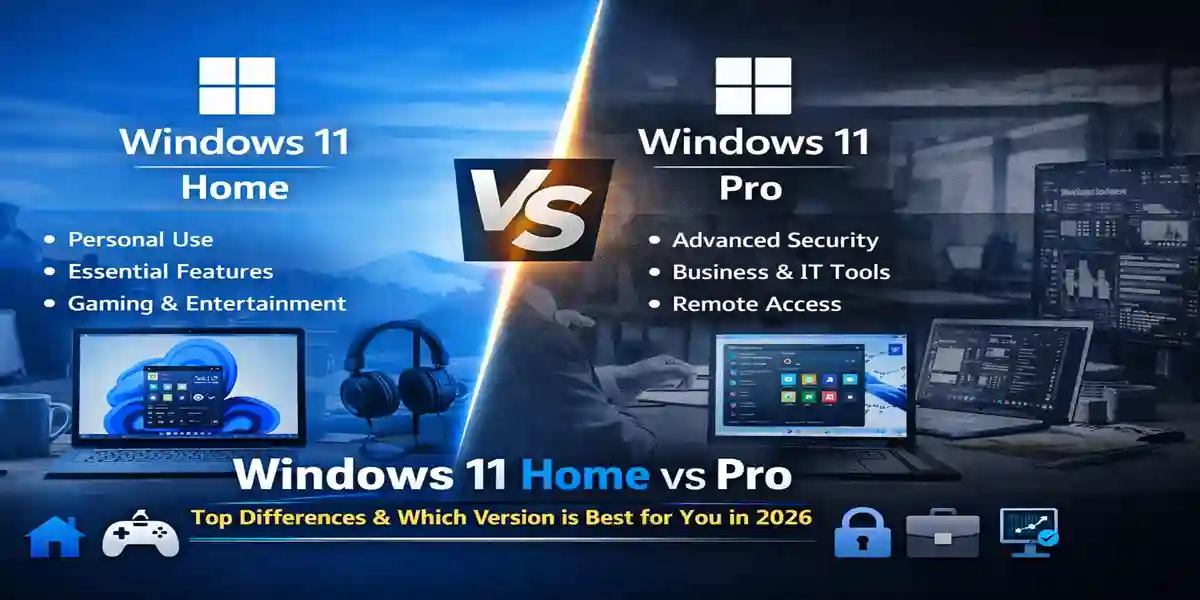
Windows 11, the latest operating system from Microsoft, is available in two main versions: Windows 11 Home and Windows 11 Pro. While both versions share many core features, they cater to different user needs, from personal home use to business and enterprise requirements. In this article, we'll break down the key differences between Windows 11 Home and Pro, helping you decide which edition is best for your specific needs in 2026.
Windows 11 Home vs Pro: Which Version Should You Choose in 2026?
If you're wondering, "What’s the difference between Windows 11 Home and Pro?", here's a quick overview:
Windows 11 Home is designed for personal use, offering a streamlined, user-friendly experience with all the essential features for everyday tasks, entertainment, and gaming.
Windows 11 Pro comes with enhanced features, particularly useful for businesses, remote work, and professional environments. It includes additional tools for security, virtualization, and IT management that make it the ideal choice for corporate users.
Let’s dive deeper into the differences that will help you decide between Windows 11 Home vs Pro in 2026.
Key Features of Windows 11 Home vs Pro: What’s the Difference?
The main differences between Windows 11 Home and Pro are centered around functionality, security, and management capabilities. Here's a breakdown of what sets these versions apart:
1. Enhanced Security Features:
Windows 11 Home provides essential security features like Windows Defender, Bitdefender, and secure boot.
Windows 11 Pro, on the other hand, offers advanced security tools such as BitLocker encryption and Windows Information Protection (WIP), making it a better choice for business users concerned about data protection.
2. Virtualization Support:
Windows 11 Home does not include Hyper-V, a virtualization tool for running virtual machines.
Windows 11 Pro supports Hyper-V, enabling developers and IT professionals to create and manage virtual environments on their PC.
3. Remote Desktop Capabilities:
Windows 11 Home lacks the Remote Desktop Host feature, limiting its ability to connect to a remote PC for business or IT support purposes.
Windows 11 Pro allows you to access your PC remotely and also enables other users to connect to your device for collaborative tasks.
4. Hardware Support:
Windows 11 Home supports up to 128GB of RAM, which is more than sufficient for casual users, students, and gamers.
Windows 11 Pro offers support for up to 2TB of RAM, which is essential for professionals dealing with resource-intensive applications like video editing, 3D rendering, and scientific research.
5. IT Management Tools:
Windows 11 Pro includes Group Policy Management and Enterprise Mode Internet Explorer, offering businesses and IT professionals more control over system configurations and security.
Windows 11 Home lacks these enterprise-grade management tools, making it unsuitable for corporate environments.
Which Version of Windows 11 Is Best for You?
Your decision between Windows 11 Home and Windows 11 Pro will depend on how you plan to use your computer. Here’s a quick guide:
Windows 11 Home is perfect for:
Casual users: Ideal for browsing the web, using media, and playing games.
Students: Suitable for everyday tasks like document editing and web browsing.
Home entertainment: Streaming, media creation, and light gaming.
Windows 11 Pro is best for:
Business and corporate users: Features like BitLocker encryption, virtualization, and remote desktop are essential for secure business operations.
Remote workers: Pro offers tools to connect securely from anywhere, making it perfect for professionals working from home.
IT professionals and developers: The advanced management tools and support for virtual environments make Pro a must-have for power users.
For Gamers:
Both Windows 11 Home and Pro offer excellent gaming performance, with the latest DirectStorage and Auto HDR support. However, Windows 11 Pro might be more beneficial if you need additional features for business or remote work while gaming.
For Educational Institutions:
Windows 11 Home works well for basic functions in classrooms and computer labs.
For scientific research, virtualization, or managing a large network of devices, Windows 11 Pro is the better choice.
Windows 11 Commands
Open Task Manager:
Press Ctrl + Shift + Esc or type Task Manager in the Start menu and hit Enter.
Check System Information:
Open Command Prompt or PowerShell, then type:
systeminfoThis will provide detailed information about your system, including OS version, memory, network adapter info, and more.
Check Windows Version:
Open Command Prompt or PowerShell, then type:
winverThis will display the exact version of Windows 11 you're using.
Flush DNS Cache:
Open Command Prompt (as Administrator) and type:
ipconfig /flushdnsThis clears the DNS cache and can be helpful if you're experiencing network issues.
Check Disk Space:
Open Command Prompt or PowerShell, then type:
dir C:\This will display the contents of the C drive, including available disk space.
Disable/Enable Windows Defender Antivirus:
Open Command Prompt (as Administrator) and type:
Set-MpPreference -DisableRealtimeMonitoring $trueTo enable it again, use:
Remote Access Features
When it comes to remote access, the Windows 11 Professional version provides a clear advantage over the Home edition. While both versions include a Remote Desktop Services client for connecting to other PCs, only Windows 11 Pro offers the server-side component of this protocol. This allows Pro to be accessed remotely, even over the internet, making it ideal for business and administrative tasks.
For system administrators who need to manage devices and servers remotely, Remote Desktop Protocol (RDP) is crucial. It provides full access to corporate systems, making it easy to troubleshoot and manage devices. However, for home users, alternatives like TeamViewer or Chrome Remote Desktop can serve as sufficient options.
Enterprise Management Features
One of the key distinctions of Windows 11 Pro is its enterprise management capabilities, which make it the ideal choice for corporate environments. These features include:
Active Directory: Enables centralized management of users, devices, and security policies.
Local Group Policy Editor (LGPO): Allows administrators to configure PC settings and system configurations.
Windows Server Update Services: Helps manage system updates across an entire network of devices.
Desktop Analytics: Analyzes and prepares PCs for updates, ensuring compatibility and readiness.
These features are specifically designed to help IT professionals effectively manage corporate IT infrastructure, a function Windows 11 Home lacks.
Business Features
In addition to its management tools, Windows 11 Pro includes several business-oriented features, making it a more robust choice for professional environments. These include:
Roaming Profiles: Sync corporate data and settings between multiple devices.
App Store License Assignment: Assign app licenses to organizations in the Microsoft Store.
Digital Signage Mode: Turn devices into public terminals for digital signage.
Assigned Access: Control access to specific apps for guest users.
Dynamic Resource Allocation: Enables optimized resource distribution in virtualized environments.
These additional business features are essential for enterprise users, and further expand Windows 11 Pro's suitability for workplace environments and specialized workstations.
Windows 11 Home vs. Pro Pricing and Licensing
When it comes to purchasing a clean installation of Windows 11 without a pre-installed version, the retail pricing is as follows:
Windows 11 Home: $139
Windows 11 Professional: $199
For users who want to upgrade from Windows 11 Home to Pro, the cost is $99. Corporate clients can also opt for Windows 11 Pro through Microsoft’s 365 licensing, which provides more flexibility in key management and usage.
Pros and Cons of Windows 11 Home vs. Pro
Advantages of Windows 11 Home:
Affordable pricing: Windows 11 Home is $60 cheaper than the Pro version, making it a budget-friendly option for home users.
User-friendly: The Home version is designed for simplicity, with an interface and setup process that doesn’t require advanced technical knowledge.
All-in-one solution for everyday tasks: It provides everything needed for casual use, including web browsing, office applications, multimedia consumption, and gaming.
Advantages of Windows 11 Pro:
Enhanced security features: Features like BitLocker and Windows Information Protection offer advanced security for sensitive business data.
Business-ready: Integration with Active Directory, Hyper-V virtualization, and remote management tools makes it suitable for business and enterprise IT needs.
Advanced remote access and virtualization: Provides RDP, Hyper-V, and Windows Sandbox for better remote control, virtual environments, and security.
Disadvantages of Windows 11 Home:
Limited remote management tools: Windows 11 Home doesn’t support RDP server, making remote management more difficult.
No advanced business features: Lacks essential business tools such as Active Directory, Hyper-V, and Dynamic Provisioning.
Disadvantages of Windows 11 Pro:
Higher cost: At $60 more than the Home edition, Windows 11 Pro may not be necessary for average users.
Overkill for casual users: For home users, many of the enterprise features in Pro are unnecessary, making it an inefficient option for basic tasks.
How to Upgrade from Windows 11 Home to Pro
If you find that you need the extra features of Windows 11 Pro, upgrading from Windows 11 Home is a simple and straightforward process. Here's how you can do it:
Open Settings and go to the Update & Security section.
In the sidebar, select the Activation tab.
Click the Go to Store button.
In the Microsoft Store window, select Buy upgrade to Professional and follow the instructions.
Once you’ve purchased the Windows 11 Pro key, your system will automatically reboot and upgrade to Pro, preserving all your files and settings.
This upgrade process is seamless, ensuring that you don’t lose any personal data or configurations during the transition.
Conclusion
Choosing between Windows 11 Home and Windows 11 Pro ultimately depends on your specific needs and use case. Windows 11 Home is an excellent choice for casual users, students, and gamers who require a simple, affordable, and efficient operating system for daily tasks, entertainment, and light computing. It provides all the essential features for personal use, such as gaming support, multimedia management, and ease of use.
On the other hand, Windows 11 Pro is tailored for business and professional environments, offering advanced security, enterprise management tools, and enhanced virtualization capabilities. If you're a business owner, IT professional, or someone who needs to manage multiple devices remotely, the Pro version provides the tools you need to securely and efficiently handle corporate infrastructure, data, and users.
If you’re not sure which version is best for you, consider your needs: Windows 11 Home is perfect for everyday use, while Windows 11 Pro offers advanced features for those requiring more robust security and business management tools. And if your needs change over time, upgrading from Home to Pro is a simple and straightforward process.
Ultimately, both versions offer the core Windows 11 experience, with Windows 11 Pro providing more functionality for power users, professionals, and businesses. Whatever version you choose, Windows 11 is designed to enhance productivity, security, and performance, making it a great choice for both personal and professional use in 2026 and beyond.
Useful Commands to Check Windows 11 Home vs Pro
If you are comparing Windows 11 Home and Windows 11 Pro, built-in Windows commands can help you identify the installed edition, licensing status, hardware configuration, security features, and virtualization capabilities.
1. Check Your Windows Edition
The quickest way to identify whether your PC is running Windows 11 Home or Pro is:
winver
This opens the About Windows dialog and displays the installed Windows edition and version.
You can also use Command Prompt:
systeminfo
Look for the OS Name entry, which identifies the installed Windows edition.
2. Check Windows Edition with PowerShell
PowerShell provides a more direct way to retrieve Windows edition information:
Get-ComputerInfo | Select-Object WindowsProductName, WindowsVersion, OsBuildNumber
Another option is:
(Get-CimInstance Win32_OperatingSystem).Caption
This can return information such as:
Microsoft Windows 11 Home
or:
Microsoft Windows 11 Pro
3. Check Windows Activation Status
To see whether Windows is permanently activated:
slmgr /xpr
For detailed licensing information:
slmgr /dlv
To display the installed product-key information without revealing the complete key:
slmgr /dli
You can also check activation through:
Settings → System → Activation
4. Check Windows Build Information
Windows build information is useful when comparing features or troubleshooting edition-specific behavior.
Run:
winver
Or:
systeminfo | findstr /B /C:"OS Name" /C:"OS Version"
PowerShell alternative:
Get-CimInstance Win32_OperatingSystem | Select-Object Caption, Version, BuildNumber
5. Check System Architecture
To determine whether your Windows installation is 64-bit:
wmic os get osarchitecture
On systems where WMIC is unavailable, use PowerShell:
(Get-CimInstance Win32_OperatingSystem).OSArchitecture
Windows 11 is designed for modern 64-bit hardware.
6. Check Installed RAM and Processor
Use:
systeminfo
For more targeted information in PowerShell:
Get-CimInstance Win32_ComputerSystem | Select-Object TotalPhysicalMemory
Check the processor:
Get-CimInstance Win32_Processor | Select-Object Name, NumberOfCores, NumberOfLogicalProcessors
These commands can help determine whether your hardware is suitable for demanding workloads commonly associated with Windows 11 Pro.
7. Check TPM 2.0
TPM is an important Windows 11 security requirement.
Open the TPM management console:
tpm.msc
You can also check TPM information through PowerShell:
Get-Tpm
Look for values such as:
TpmPresent

TpmReady

TpmEnabled
A compatible TPM configuration contributes to Windows 11 security features such as BitLocker and Windows Hello.
8. Check Secure Boot
To check Secure Boot and other firmware information:
msinfo32
In System Information, check:
- BIOS Mode
- Secure Boot State
PowerShell can also report Secure Boot status:
Confirm-SecureBootUEFI
If supported and enabled, the command returns:
True
9. Check Hyper-V Support
One of the major differences between Windows 11 Home and Pro is support for Microsoft's Hyper-V virtualization platform.
You can check virtualization-related system information with:
systeminfo
At the bottom of the output, look for the Hyper-V Requirements section.
PowerShell can also show virtualization information:
Get-ComputerInfo | Select-Object HyperV*
On Windows 11 Pro, Hyper-V can be enabled through:
Control Panel → Programs → Turn Windows features on or off → Hyper-V
You can open Hyper-V Manager with:
virtmgmt.msc
10. Check BitLocker Status
BitLocker is an important security feature associated with Windows Pro and higher editions.
To check drive-encryption status:
manage-bde -status
This can display:
- Encryption percentage
- Protection status
- Conversion status
- Lock status
- Encryption method
For example, to check the system drive:
manage-bde -status C:
Available BitLocker functionality depends on the Windows edition, device configuration, and licensing.
Frequently Asked Questions (FAQs)
Windows 11 Home is designed for personal use, with all the essential features for daily tasks, entertainment, and gaming. Windows 11 Pro offers additional features such as BitLocker encryption, Hyper-V virtualization, and Remote Desktop, making it better suited for business, IT professionals, and corporate environments.
For gaming, both Windows 11 Home and Pro provide similar performance, including support for DirectStorage and Auto HDR. Unless you need additional features like Remote Desktop or advanced security, Windows 11 Home is more than sufficient for gaming.
BitLocker is an advanced encryption tool that helps secure your device’s data by encrypting the entire disk. Windows 11 Pro includes BitLocker, while Windows 11 Home does not. This makes Pro the better option for users who prioritize data security, especially in business environments.
No, Windows 11 Home does not support Remote Desktop Host, meaning you cannot use it to connect to other PCs remotely. Windows 11 Pro supports Remote Desktop, allowing you to access your PC from another device over the internet, which is useful for remote work or IT administration.
Yes, Windows 11 Home supports up to 128GB of RAM, while Windows 11 Pro supports up to 2TB of RAM. This makes Pro the better choice for professionals working with resource-heavy applications like video editing, 3D rendering, or scientific computing.
Yes, Windows 11 Pro offers additional security features such as BitLocker, Windows Information Protection, and Microsoft Defender Application Guard, which are designed to safeguard sensitive business data. Windows 11 Home includes basic security features like Windows Defender but lacks these advanced protections.
Windows 11 Pro includes Active Directory for centralized management of users and devices, Group Policy Management for configuring system settings, and Windows Server Update Services to manage updates across a network. These features are specifically designed for business and corporate IT environments.
Windows 11 Pro is suitable for educational institutions, especially for research, virtualization, and managing multiple devices in a network. For standard classroom use, Windows 11 Home may be sufficient, but Pro is ideal for scientific research and centralized management.