Difference Between Office 2024 and Microsoft 365

Introduction
Choosing the right Microsoft Office edition can be confusing, especially when comparing Microsoft Office 2024, Office LTSC Professional Plus 2024, and Microsoft 365. Although these products share familiar applications such as Word, Excel, PowerPoint, Outlook, and OneNote, their licensing models, update policies, cloud services, and activation methods are different.
Microsoft Office 2024 is a one-time-purchase version of the classic Office applications. For commercial and government organizations that need a controlled, fixed-version deployment, Microsoft offers Office LTSC 2024, including Office LTSC Professional Plus 2024. Microsoft 365, on the other hand, is a subscription service that continuously receives new features and includes additional cloud-based services.
In this complete guide, you'll learn about Office 2024 Professional Plus activation, Office LTSC 2024 licensing, product key activation, MAK and KMS activation, installation, activation troubleshooting, license management, and the differences between Office 2024 and Microsoft 365.
Microsoft Office 2024 Professional Plus vs Microsoft 365
Before activating Office 2024, it is important to identify which product you actually have.
Microsoft Office 2024
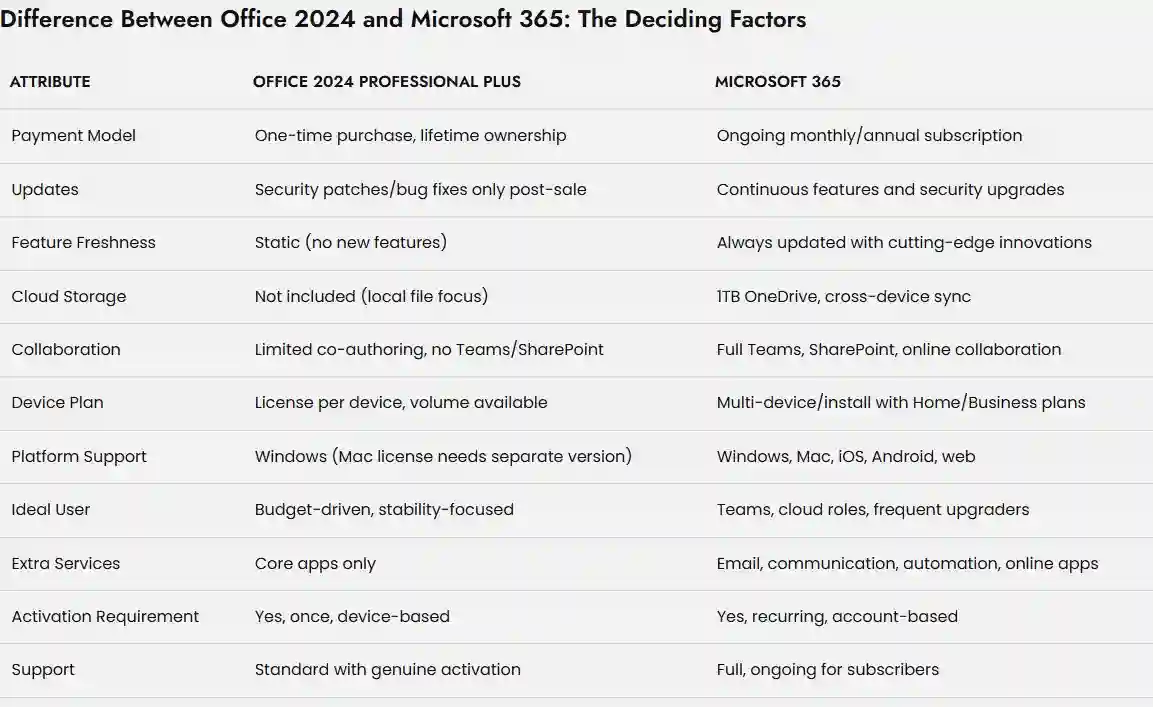
Office 2024 is designed as a one-time purchase. Depending on the edition, it includes classic desktop applications such as Word, Excel, PowerPoint, OneNote, and Outlook.
A one-time purchase does not provide the continuously updated feature set or cloud services included with Microsoft 365. Microsoft states that Office 2024 receives security updates but does not receive new feature releases after launch.
Office LTSC Professional Plus 2024
Office LTSC Professional Plus 2024 is the commercial volume-licensed edition intended for organizations that need a stable and controlled Office environment.
It includes:
- Word
- Excel
- PowerPoint
- Outlook
- OneNote
- Access
Skype for Business is also available as an optional installation for applicable Office LTSC deployments.
Microsoft 365
Microsoft 365 uses a subscription model and provides continuously updated Office applications together with additional cloud services and collaboration capabilities.
Microsoft recommends Microsoft 365 when users want the latest features and ongoing cloud-connected functionality.
Advanced Features of Office 2024 and Office LTSC 2024
Beyond the headline additions, several deeper, more technical improvements in Office 2024 are worth understanding — particularly for power users and IT administrators evaluating whether the perpetual license meets their actual workflow needs.
Excel: Beyond the Basics
- Dynamic Arrays in Charts — Charts can now reference dynamic array ranges directly, so a chart automatically resizes and updates as the underlying array grows or shrinks, without manually adjusting the chart's data range.
- 14 New Text and Array Functions — A meaningful expansion to Excel's function library for manipulating text strings and array data, reducing the need for complex nested formulas or helper columns.
- The IMAGE Function — Pull images directly into cells from a URL, or copy-paste images directly into a workbook, rather than inserting them as separate floating objects.
- Workbook Performance Improvements — Microsoft specifically cites faster, more stable large workbook handling as a core Excel 2024 engineering focus.
- Note for Power BI users: the "Publish to Power BI" feature has been removed from this Excel version — organizations relying on that specific workflow should route through the Power BI service directly instead.
Word: Deeper Document Control
- Full Session Recovery — Word 2024 can now recover all documents that were open at the time of a crash, not just the single active document — a meaningful reliability improvement for anyone working across multiple documents simultaneously.
- OpenDocument Format (ODF) 1.4 Support — Word, Excel, and PowerPoint in this release save ODF files in the newer ODF 1.4 format by default, which adds capabilities like tables within shapes and zero-based list numbering — relevant for organizations that interoperate with LibreOffice or other ODF-based systems.
- Modernized Fluent Design Interface — A suite-wide visual refresh applying Microsoft's Fluent Design principles, most noticeable on Windows 11 but present on Windows 10 as well.
PowerPoint: Production-Grade Presentation Tools
- Cameo — Insert a live camera feed directly into a slide, with the same styling, formatting, and transition effects available to any other slide object — useful for hybrid presentations and recorded training content.
- Recording Studio — A dedicated interface for recording narrated, camera-integrated presentations, exportable as standalone video files for distribution outside a live meeting.
- Closed Caption Support — Both audio and video recordings within PowerPoint now support closed captioning, improving accessibility for distributed video content.
Outlook: Refined Communication Tools
- Enhanced Search Across Email, Contacts, and Calendar — A more capable search experience spanning multiple Outlook data types from a single search action.
- Expanded Meeting Creation Options — More flexibility when scheduling and configuring meetings directly from the calendar interface.
Access and Suite-Wide Additions
- New Office Add-In API Requirement Sets — Office LTSC 2024 supports newer JavaScript API requirement sets for Office Add-ins (for example, Excel up to requirement set 1.17, PowerPoint up to 1.5, Outlook up to 1.14), along with common API sets like IdentityAPI 1.3 and SharedRuntime 1.1 — relevant primarily to organizations building or deploying custom Office Add-ins.
- Accessibility Ribbon (LTSC-specific) — A dedicated ribbon surfacing accessibility-related tools directly in Word, Excel, PowerPoint, and Outlook, making it easier to check and improve document accessibility without hunting through menus.
- Mobile-to-Desktop Image Insertion — A streamlined way to pull a picture from a mobile device directly into a document, cutting out the manual transfer-and-import steps this previously required.
How Office 2024 Activation Works
What Is Office 2024 Activation?
Office activation is the process Microsoft uses to verify that your Office installation is properly licensed.
The activation method depends on the edition and licensing model.
For example:
- Consumer Office 2024 can be associated with a Microsoft account.
- Commercial Office LTSC 2024 can use volume activation technologies.
- Organizations may use MAK, KMS, or Active Directory-based activation where supported.
- Microsoft 365 uses account-based subscription licensing.
Therefore, there is no single activation method that applies to every Office 2024 installation.
Office 2024 Professional Plus Activation Methods
1. Microsoft Account Activation
For applicable consumer Office 2024 products, a product key can be redeemed and associated with a Microsoft account.
After the license is linked to the account, users can sign in with that account during installation and activation.
This is different from volume-licensed Office LTSC installations.
2. Product Key Activation
A genuine Office product key can be used for eligible Office products.
The normal process is:
- Purchase a legitimate Office license.
- Redeem the product key through Microsoft's official setup process when required.
- Associate the license with the appropriate Microsoft account.
- Download the correct Office installer.
- Install Office.
- Sign in or complete activation as instructed.
Once a retail license has been redeemed, the license is generally associated with the Microsoft account used during redemption.
3. MAK Activation for Office LTSC 2024
Multiple Activation Key (MAK) is intended for supported volume-licensed Office deployments.
For Office LTSC 2024, organizations can configure MAK activation through Microsoft's supported deployment process. Microsoft documents using the Office Deployment Tool and configuration files for MAK-based activation.
MAK can be useful when an organization needs to activate a defined number of computers without maintaining a continuously available KMS infrastructure.
4. KMS Activation for Office LTSC 2024
Key Management Service (KMS) is another volume-activation method for eligible Office LTSC deployments.
KMS is designed for organizations with an appropriate volume licensing agreement and an internal KMS infrastructure.
The general architecture includes:
- KMS host
- Office Volume License Pack
- Appropriate Microsoft volume license
- KMS-enabled Office installation
- Network connectivity between clients and the KMS host
Microsoft documents KMS activation specifically for volume-licensed Office LTSC 2024.
KMS should not be confused with unofficial activation tools or unauthorized activation servers. Legitimate KMS activation requires an organization's properly licensed Microsoft environment.
5. Active Directory-Based Activation
Organizations using Active Directory can also configure Active Directory-based activation for supported volume-licensed Office editions.
Microsoft requires appropriate administrative privileges and a correctly configured Volume Activation Services environment for this method.
This approach can be useful for enterprise environments where centralized domain-based activation is preferred.
Office 2024 Installation and Activation Checklist
Before starting an installation, verify the following:
Check Your Office Edition
Open an Office application and select:
File → Account
Check the product name and licensing information.
Microsoft recommends checking the Account page to identify which Office version is installed.
Remove Conflicting Office Versions
If you're deploying Office LTSC 2024, Microsoft recommends removing previous Office versions where necessary before deployment.
Verify Your License
Make sure your license corresponds to the Office edition being installed.
Check Your Windows Version
Office LTSC 2024 supports supported versions of Windows 10 and Windows 11, subject to Microsoft's current lifecycle requirements.
Choose 32-bit or 64-bit
Office LTSC 2024 is available in both 32-bit and 64-bit versions. Microsoft recommends 64-bit in many environments with 4 GB or more of memory, although application compatibility should be considered before deployment.
Office 2024 Activation Troubleshooting
Activation problems can result from incorrect licensing, an incompatible Office edition, network problems, previous Office installations, or incorrect deployment configuration.
Office Shows "Unlicensed Product"
Try these steps:
- Open File → Account.
- Check the Office product name.
- Verify that your license matches the installed edition.
- Sign in with the correct Microsoft account if applicable.
- Check your internet connection.
- Install available Office updates.
- Restart the Office application.
- Contact Microsoft or your authorized licensing provider if the issue remains.
Product Key Not Working
If a product key is rejected:
- Confirm that all 25 characters were entered correctly.
- Check whether the key has already been redeemed.
- Verify that the key belongs to the correct Office edition.
- Avoid keys obtained from unauthorized sources.
- Contact the seller or Microsoft Support when appropriate.
A product key for one Office edition cannot necessarily activate a different edition.
"Product Key Already Used" Error
A product key may display as already used when it has previously been redeemed.
For applicable consumer Office products, the next step is normally to sign in with the Microsoft account associated with the redeemed license rather than attempting to redeem the key again.
Office Activation Keeps Asking for a License
Repeated activation prompts can occur when:
- The wrong Microsoft account is being used.
- Office has multiple conflicting installations.
- The license doesn't match the installed edition.
- A volume activation configuration is incomplete.
- Office has not been able to communicate with the required licensing infrastructure.
For volume deployments, administrators should verify the organization's activation configuration rather than using unofficial activation utilities.
Office 2024 Activation Commands for Administrators
For volume-licensed Office LTSC deployments, Microsoft's ospp.vbs tool can be used for certain licensing and activation-management tasks.
These commands should be treated as administrative diagnostics and management commands, not universal activation methods for consumer Office 2024.
Check Office License Status
For a typical 64-bit Office installation:
cd "C:\Program Files\Microsoft Office\Office16"
Then:
cscript ospp.vbs /dstatus
This can display licensing information for supported Office volume-license installations.
Microsoft's KMS documentation also references the ospp.vbs script for managing Office volume activation.
If Office is installed in the 32-bit program directory on a 64-bit Windows system, the relevant path may instead be:
cd "C:\Program Files (x86)\Microsoft Office\Office16"
Check the Last Five Characters of a License Key
For supported volume-licensed installations, administrators can use:
cscript ospp.vbs /dstatus
The output can help identify installed license information, including the final characters of a product key.
KMS Configuration Commands
For organizations with a legitimate KMS infrastructure, Microsoft documents ospp.vbs as one of the tools that can be used to manage KMS-related Office activation.
For example, KMS host caching can be managed using:
cscript ospp.vbs /cachst:TRUE
To disable KMS host caching:
cscript ospp.vbs /cachst:FALSE
These commands are relevant to supported volume-licensed environments and should not be used to bypass Office licensing.
MAK Activation for Enterprise Deployment
For Office LTSC 2024, Microsoft documents MAK activation as an organization-level volume licensing method.
Administrators can specify the MAK in the Office Deployment Tool's configuration process when deploying Office LTSC 2024.
This is generally more appropriate for managed organizational deployments than manually entering a key on every computer.
Should You Use ospp.vbs /act?
The ospp.vbs /act command is associated with supported volume-license activation scenarios.
However, it should not be presented as a universal Office 2024 activation command.
For a properly licensed Office LTSC deployment, administrators should first configure the appropriate MAK, KMS, or Active Directory-based activation method according to Microsoft's documentation.
Office 2024 Licensing and Security
A genuine license is important not only for compliance but also for maintaining a trustworthy software environment.
Avoid:
- Cracked Office installers
- Pirated product keys
- Key generators
- Unauthorized KMS servers
- Modified Office executables
- Activation bypass tools
These methods can introduce malware, compromise system security, create licensing problems, and interfere with Office updates.
For commercial deployments, Microsoft provides official documentation covering deployment, KMS, MAK, Active Directory activation, and Office LTSC management.
Office 2024 Features You Get After Activation
Once the correct Office license is installed and activated, users can take advantage of the features included with their particular edition.
Excel 2024
Excel 2024 includes improvements such as:
- New text and array functions
- Dynamic array capabilities
- Dynamic charts
- IMAGE function
- Improved workbook performance
- Better data analysis workflows
Microsoft identifies these as major improvements in Office 2024 and Office LTSC 2024.
Word 2024
Word 2024 includes improvements such as:
- Better session recovery
- Improved accessibility
- Modernized interface
- Improved document workflows
- OpenDocument Format improvements
PowerPoint 2024
PowerPoint 2024 introduces features including:
- Cameo
- Recording Studio
- Improved presentation capabilities
- Better accessibility features
- Updated visual design
Outlook 2024
Outlook provides tools for:
- Email management
- Calendar management
- Contacts
- Meetings
- Business communication
The available features depend on the specific Office edition and connected services.
Access 2024
Office LTSC Professional Plus 2024 includes Access for Windows, making the edition particularly useful for organizations that maintain desktop database applications.
Access can be used for:
- Inventory management
- Customer databases
- Employee records
- Business reporting
- Internal data applications
Is Office 2024 Good for Offline Work?
Office 2024 applications can be used offline after installation and activation, but Microsoft's consumer Office 2024 guidance still requires internet connectivity for initial installation and activation and periodic reactivation/update requirements. Therefore, it should not be described as a completely disconnected product.
For organizations with genuinely disconnected networks, Office LTSC is specifically designed to support controlled and on-premises environments, including options for hosting updates internally.
Office LTSC 2024 Support Lifecycle
Office LTSC 2024 has a five-year support lifecycle under Microsoft's Fixed Lifecycle Policy.
Microsoft currently lists October 9, 2029 as the end-of-support date for Office LTSC 2024.
During the supported period, organizations can continue receiving applicable security and quality updates, but Office LTSC does not receive new feature releases after launch.
Benefits of Proper Office 2024 Activation
1. Genuine Licensing
A legitimate license provides confidence that the software is properly licensed for its intended use.
2. Security and Updates
Supported Office installations can receive applicable security and quality updates.
3. Better Reliability
Correct licensing and deployment reduce the possibility of repeated activation errors.
4. Business Compliance
Organizations can maintain software licensing according to their Microsoft agreements.
5. Predictable Deployment
Office LTSC 2024 is particularly useful when an organization wants a fixed feature set and controlled change management.
Common Office 2024 Activation Errors and Fixes
Error: Unlicensed Product
Fix: Check the installed edition, account/license, activation configuration, and network connectivity.
Error: Product Key Already Used
Fix: Sign in using the Microsoft account associated with the redeemed license where applicable.
Error: Invalid Product Key
Fix: Confirm that the key belongs to the correct Office edition and was obtained from an authorized source.
Error: Office Installation Conflict
Fix: Remove incompatible or previous Office installations before deploying Office LTSC 2024 where Microsoft's deployment guidance requires it.
Error: KMS Activation Failure
Fix: Enterprise administrators should verify:
- KMS host availability
- Office Volume License Pack
- KMS host key
- DNS configuration
- Network connectivity
- Client licensing configuration
Microsoft provides dedicated KMS troubleshooting and deployment documentation for Office LTSC 2024.
Conclusion
Microsoft Office 2024 Professional Plus is best understood in the context of Microsoft's different Office licensing models. For commercial organizations, Office LTSC Professional Plus 2024 provides a stable desktop productivity suite with Word, Excel, PowerPoint, Outlook, OneNote, and Access, together with enterprise-oriented deployment and volume activation options.
For eligible volume-licensed deployments, administrators can use MAK, KMS, or Active Directory-based activation. These methods should only be used with genuine Microsoft volume licenses and properly configured organizational infrastructure.
For individual users who want the latest features, cloud storage, collaboration services, and continuously updated applications, Microsoft 365 may be a better fit. For organizations that prioritize stability, controlled deployments, and a fixed Office feature set, Office LTSC 2024 remains a strong option.
The key to a successful Office 2024 activation is simple: identify the exact Office edition, use the correct legitimate license, follow Microsoft's official installation and activation process, and avoid unauthorized activation tools or modified software.
Frequently Asked Questions (FAQs)
Office 2024 offers a one-time payment and lifetime ownership, so it’s ideal for users who want stability and avoid ongoing costs.
No—core functions work offline. Cloud services, collaboration, and updates are limited or unavailable
You lose access to all premium features and cloud storage, reverting to read-only mode on Office apps.
Yes. Some businesses run both, using standalone Office for specific devices and Microsoft 365 for collaboration
Microsoft 365 regularly updates its security and compliance tools; Office 2024 has only essential bug fixes and basic protection.