How to Transfer a License


Introduction
Your Office 2024 Professional Plus license isn’t just a key—it’s a gateway to seamless productivity across devices and teams. Life evolves: devices change, teams grow, business needs transform. Knowing how to transfer your Office license ensures continued security, compliance, and operational success. This comprehensive guide draws on industry consensus, Microsoft’s documented best practices, and real-world troubleshooting, linking you to the pillar resource Office 2024 Professional Plus Licensing Explained for deep support every step of the way.
What Is License Transfer and Why Does It Matter?
Transferring your Office 2024 Professional Plus license means moving the activation rights from one computer (or user, under special conditions) to another—without buying a new key. This ability enhances your investment, supports hardware upgrades, secures compliance during mergers and sales, and simplifies IT management for growing teams.
Why transfer?
Upgrade to a new device or replace faulty hardware
Reassign used licenses within your organization
Facilitate business restructuring, M&A, or team handovers
Avoid unnecessary purchases and maximize ROI.
Knowing your rights and the official process ensures a smooth, trusted transfer—without risking disruption or software deactivation.
How to Transfer Office 2024 Professional Plus Licenses: Step-by-Step
Transferring your license is straightforward but must follow key steps to avoid software errors or compliance issues.
Step 1: Verify License Transferability
Confirm your license is Retail (not OEM)
Volume license holders should check their VLSC dashboard for reassignment privileges
Step 2: Uninstall Office from the Current Device
Remove Microsoft Office using ‘Control Panel’ (Windows) or ‘Applications’ (Mac)
Back up files before uninstallation
Step 3: Deactivate or Sign Out License
Open any Office application
Sign out from ‘File > Account’ or deactivate license in the product settings
Step 4: Prepare the New Device and Account
Have the recipient’s Microsoft account ready (if transferred to another user—EEA law allows this)
On organization licenses, ensure the new device is properly inventoried for compliance
Step 5: Install Office on the New Device
Download from official website, using your product key or Microsoft account
Step 6: Activate on New Device
Open Office, sign in or enter the product key
Follow on-screen prompts to complete activation
Special Cases
For transfer to another person (EEA only), contact Microsoft Support for identity and entitlement verification; a new license email is issued to the recipient
For Volume licenses (MAK/KMS), IT admin reassigns the seat from VLSC, following audit protocols
Use Microsoft or Vendor Support for edge cases, like device failure or loss
Security, Compliance, and Feature Highlights
Key Features of Office 2024 Professional Plus
Perpetual desktop suite: Word, Excel, PowerPoint, Outlook, Access, Publisher, OneNote
Enhanced AI-powered automation in Word and Excel
Streamlined teamwork: Real-time co-authoring, deep OneDrive and Teams integration
Accessibility upgrades: Voice, screen reader, and improved color themes
Modern design: Fluent UI, optimized for Windows 11
Licensing & Security Advantages
Activation ensures compliance with privacy and standards
Legal transfer preserves licensing rights and avoids piracy risks
Central administration for businesses controls devices and seats
Data protection: Security patches, ransomware defense, and ongoing support
Benefits of License Transfer for Individuals & Organizations
For Individuals
No need to repurchase if PC is replaced or upgraded
Ensures continuity for work, study, and personal use
Legal transfer process means no risk of losing access or breaking terms
For Businesses/IT Teams
Major cost savings, especially when moving users/devices
Compliance: Maintains audit and privacy readiness
Flexibility: Efficiently scale teams and hardware resources
Trouble-free hardware lifecycle upgrades—license moves with the workflow
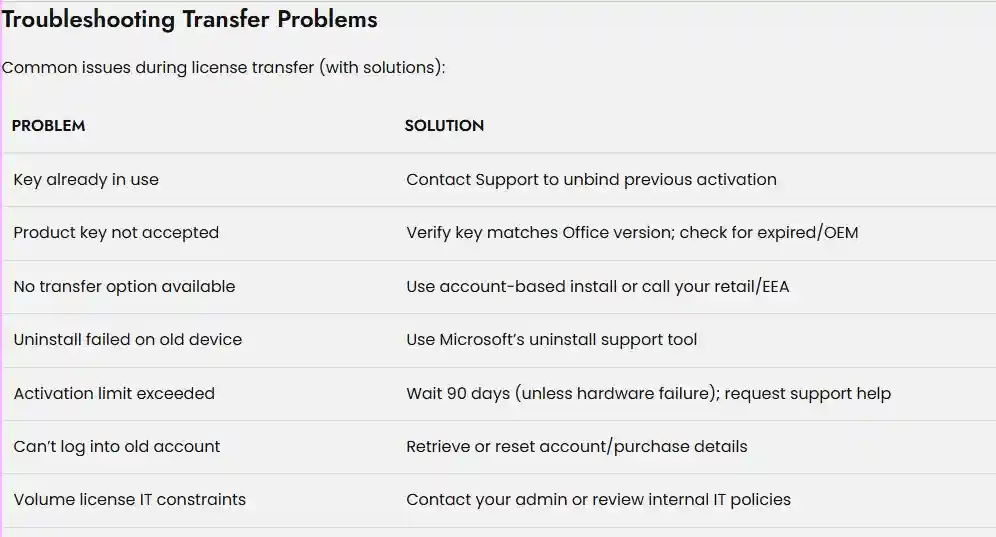
Frequently Asked Questions (FAQs)
Once every 90 days, or sooner for hardware failure (per Microsoft’s license terms).
In the EEA, yes—with Microsoft support and identity verification. Outside EEA, transfers are restricted to just your new device
Yes; retaining software on the old device breaks compliance
Volume admins can assign and reassign seats in VLSC; users follow corporate IT procedures.
Conclusion: Empower Your Digital Workspace Today
Transferring your Office 2024 Professional Plus license is more than a technical step—it’s about preserving productivity, legal peace of mind, and operational continuity. Armed with authoritative knowledge, clear instructions, and trusted support channels, you can upgrade, migrate, or scale with maximum confidence.
Begin every license journey at our pillar resource:
Office 2024 Professional Plus Licensing Explained
Your future workflows deserve the best foundation—transfer your license wisely, and build success that lasts!