

Upgrade to Office LTSC 2024 or Wait for Office 2026? What You Need to Know

Introduction
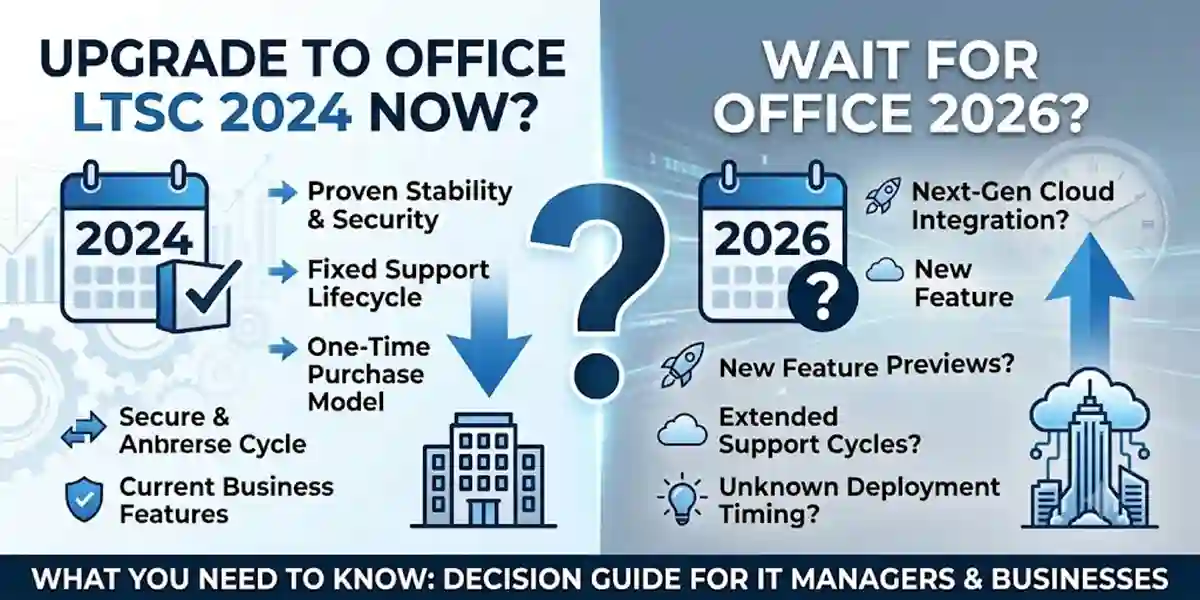
Businesses, IT professionals, and independent organizations looking for a reliable, non-subscription office suite face a critical decision: Should you deploy Microsoft Office LTSC 2024 today, or wait for Microsoft Office 2026?
While cloud-first subscriptions like Microsoft 365 receive continuous updates, many organizations require a one-time purchase, standalone suite that delivers long-term stability, predictable costs, and full offline functionality.
This comprehensive guide covers everything you need to know about Office LTSC 2024—including core features, step-by-step ODT installation, volume activation, command-line troubleshooting, and upgrade recommendations.
What Is Microsoft Office LTSC 2024?
Microsoft Office LTSC 2024 (Long-Term Servicing Channel) is the perpetual, non-subscription edition of Microsoft’s core productivity suite built for commercial, enterprise, and educational environments.
Unlike subscription models that change features dynamically, Office LTSC 2024 offers a locked feature set backed by five years of mainstream support. It provides essential security patches and stability fixes without interrupting standard user workflows.
Included Core Applications
Word 2024: Enhanced document recovery, updated interface, and modern accessibility features.
Excel 2024: Advanced dynamic array capabilities, new data functions, and faster dynamic calculation performance.
PowerPoint 2024: Upgraded slide recording capabilities, seamless multimedia integration, and refined design controls.
Outlook 2024: Streamlined account search, faster calendar synchronization, and refined inbox organization.
OneNote & Access 2024: Essential note-taking and desktop database management (Access remains Windows-only).
Key Benefits of Office LTSC 2024 for Organizations
1. Predictable One-Time Purchasing
Eliminate recurring monthly or annual SaaS billing. Office LTSC 2024 uses traditional perpetual licensing, giving organizations clear, up-front capital expense predictability.
2. Isolated & Secure Deployments
Ideal for regulated environments, air-gapped workstations, manufacturing shop floors, and secure medical labs where devices must function reliably without continuous internet connectivity.
3. Native Windows 10 & 11 Support
Optimized for modern 64-bit and 32-bit hardware architectures across Windows 10, Windows 11, and supported Windows Server releases.
Key Features of Office LTSC 2024
Before deciding whether to upgrade to Office LTSC 2024 or wait for the next major Office release, it is important to understand what LTSC 2024 actually offers. Microsoft designed Office LTSC 2024 for commercial and government organizations that need a stable, controlled Office environment without continuous feature releases. It includes updated versions of the core Office applications along with improvements to productivity, accessibility, data analysis, presentation tools, and deployment management.
1. Modern Office User Experience
Office LTSC 2024 introduces a refreshed Office design based on Microsoft's Fluent Design principles. The updated interface provides a more consistent visual experience across applications while retaining familiar Office menus and workflows.
For organizations moving from older releases such as Office 2016 or Office 2019, the redesigned interface provides a more modern desktop experience without requiring users to completely relearn the Office environment.
2. Improved Accessibility Tools
Accessibility has received additional attention in Office LTSC 2024. Improvements help users create and work with more accessible documents, presentations, spreadsheets, and emails.
These enhancements can be particularly valuable for organizations that have accessibility requirements across their workforce.
3. Enhanced Excel Data Analysis
Excel remains one of the most important applications in the Office suite, and LTSC 2024 introduces several improvements for data analysis and workbook productivity.
Users can benefit from updated functions, improved workbook performance, dynamic data capabilities, and enhanced tools for working with business information.
4. New Excel Text and Array Functions
Excel 2024 adds new text and array functions that make it easier to manipulate, transform, combine, and reorganize data.
These functions can reduce complicated spreadsheet formulas and make large datasets easier to manage, particularly for reporting, financial analysis, inventory management, and business dashboards.
5. Dynamic Array Workflows
Dynamic arrays make it possible for formulas to return multiple results across a range automatically. Functions such as FILTER, SORT, SORTBY, UNIQUE, VSTACK, HSTACK, TOROW, and TOCOL can make spreadsheet workflows more flexible.
This is particularly useful when datasets change regularly and users need formulas that adapt automatically.
6. Faster Excel Workbooks
Microsoft has improved the speed and stability of Excel 2024 workbooks. These improvements can reduce delays and interruptions when users have multiple workbooks containing independent calculations open at the same time.
For finance teams, analysts, administrators, and other heavy Excel users, these performance improvements can make everyday spreadsheet work more responsive.
7. Dynamic Excel Charts
Office LTSC 2024 provides improved support for charts working with dynamic data. This can help users create more flexible visual reports and dashboards where the underlying dataset changes over time.
Dynamic charts can be useful for:
- Sales dashboards
- Financial reports
- Inventory analysis
- Project tracking
- Business performance reports
- Management presentations
8. Improved Word Session Recovery
One of the practical improvements in Word 2024 is enhanced session recovery.
If Word unexpectedly closes before recent changes are saved, Word can automatically reopen documents that were open when the application closed, helping users continue their work with less disruption.
9. Advanced PowerPoint Presentation Features
PowerPoint 2024 introduces capabilities designed to make presentations more engaging and flexible.
Users can create business presentations, training materials, educational content, marketing presentations, sales proposals, and recorded presentations using the updated presentation tools.
10. PowerPoint Cameo
Cameo allows users to place their live camera feed directly onto a PowerPoint slide.
The camera feed can be formatted and styled like other presentation objects, making it useful for presentations where the speaker needs to remain visible while presenting slides.
How to Install Office LTSC 2024 via the Office Deployment Tool (ODT)
Installing volume-licensed editions requires the official Microsoft Office Deployment Tool.
Step 1: Download & Extract ODT
Download the Office Deployment Tool from the official Microsoft Download Center.
Run the executable and extract the contents (
setup.exeand default configuration files) to a dedicated folder, such asC:\OfficeLTSC2024.
Step 2: Create configuration.xml
Create a file named configuration.xml in your installation folder and add the appropriate configuration node:
XML
<Configuration>
  <Add OfficeClientEdition="64" Channel="PerpetualVL2024">
    <Product ID="ProPlus2024Volume">
      <Language ID="en-us" />
    </Product>
  </Add>
  <Display Level="Full" AcceptEULA="TRUE" />
</Configuration>
(Note: Use Standard2024Volume as the Product ID if installing the Standard volume license).
Step 3: Download Installation Files
Open an elevated Command Prompt (Run as Administrator), navigate to your directory, and download the source binaries:
DOS
cd C:\OfficeLTSC2024
setup.exe /download configuration.xml
Step 4: Execute Installation
Once the download completes, execute the installation pipeline:
DOS
setup.exe /configure configuration.xml
Activation Methods for Office LTSC 2024
1. Key Management Service (KMS)
Designed for networks with 5 or more endpoints. Devices activate automatically against an internal KMS host server, refreshing their status every 180 days.
2. Multiple Activation Key (MAK)
A direct, permanent activation method where machines connect online or via phone directly to Microsoft servers. Ideal for smaller teams or off-network devices.
3. Active Directory-Based Activation (ADBA)
For domain-joined machines, ADBA automatically activates Office upon computer login without requiring manual key deployments per machine.
Troubleshooting Common Licensing & Activation Errors
Error: "Product Activation Failed" or License Mismatch
Root Cause: Installed edition (e.g., Standard) does not match the assigned license key (e.g., Professional Plus).
Fix: Check installed product details using command-line diagnostic tools and match your deployment XML product ID to your key entitlement.
Command-Line License Management (ospp.vbs)
To run diagnostic or key management operations, open an elevated Command Prompt and navigate to the Office installation directory:
DOS
cd "C:\Program Files\Microsoft Office\Office16"Use the following commands to manage licenses:
Check Activation Status:
DOS
cscript ospp.vbs /dstatusInstall a Product Key:
DOS
cscript ospp.vbs /inpkey:XXXXX-XXXXX-XXXXX-XXXXX-XXXXXTrigger Online Activation:
DOS
cscript ospp.vbs /actRemove an Expired/Incorrect Key:
DOS
cscript ospp.vbs /unpkey:XXXXX(Replace
XXXXXwith the last 5 characters of the key returned by/dstatus)
Verdict: Should You Upgrade Now or Wait for Office 2026?
Waiting for an unconfirmed or unreleased future version like Office 2026 leaves organizations on aging platforms like Office 2016 or Office 2019, exposing them to compliance, support, and security risks.
Upgrade to Office LTSC 2024 Today If:
You want a fully supported, perpetual desktop suite today.
Your organization requires predictable software expenses without recurring SaaS bills.
You need immediate performance, security, and document compatibility upgrades over older editions.
Frequently Asked Question (FAQ)
1. What is Microsoft Office LTSC 2024?
Microsoft Office LTSC 2024 (Long-Term Servicing Channel) is a professional Office edition designed for businesses and organizations that need stable Office applications with predictable licensing and controlled updates. It includes applications like Word 2024, Excel 2024, PowerPoint 2024, Outlook 2024, and Access 2024.
2. Is Office LTSC 2024 better than Microsoft 365?
Office LTSC 2024 and Microsoft 365 are designed for different users. Office LTSC 2024 is ideal for businesses that prefer a one-time purchase, offline functionality, and a fixed feature set. Microsoft 365 is better for users who need continuous updates, cloud collaboration, and AI-powered features.
3. Can I upgrade from Office 2016 or Office 2019 to Office LTSC 2024?
Yes. Businesses using Office 2016 or Office 2019 can upgrade to Office LTSC 2024 for better security, improved compatibility, enhanced performance, and support for modern Windows environments.
4. Does Office LTSC 2024 require a subscription?
No. Office LTSC 2024 is designed for organizations that prefer a traditional licensing model instead of monthly or yearly Microsoft 365 subscription payments.
5. What applications are included in Office LTSC 2024 Professional Plus?
Office LTSC 2024 Professional Plus includes:
- Microsoft Word 2024
- Microsoft Excel 2024
- Microsoft PowerPoint 2024
- Microsoft Outlook 2024
- Microsoft Access 2024
- Microsoft OneNote