

9 Best PDF Editor Software in 2026 (For Every Budget and Use Case)

PDF editing used to mean paying a premium for desktop software or wrestling with free tools that mangled your formatting the moment you touched them. In 2026, that’s no longer the reality. The market has matured considerably, and there are capable options at every price point, from browser-based utilities you can use right now to full-featured professional editors with lifetime license options.
This list covers the top PDF editors available right now, evaluated on feature depth, value for money, platform availability, and practical usability across different professional contexts. Whether you’re editing contracts, annotating engineering drawings, processing scanned documents with OCR, or just merging a few reports, there’s a right tool for your situation and a right price for your budget.
Let’s get into it.
1. Adobe Acrobat Pro (via Codesforever)
Best for: Professionals who want the industry-standard PDF editor at a significantly lower price
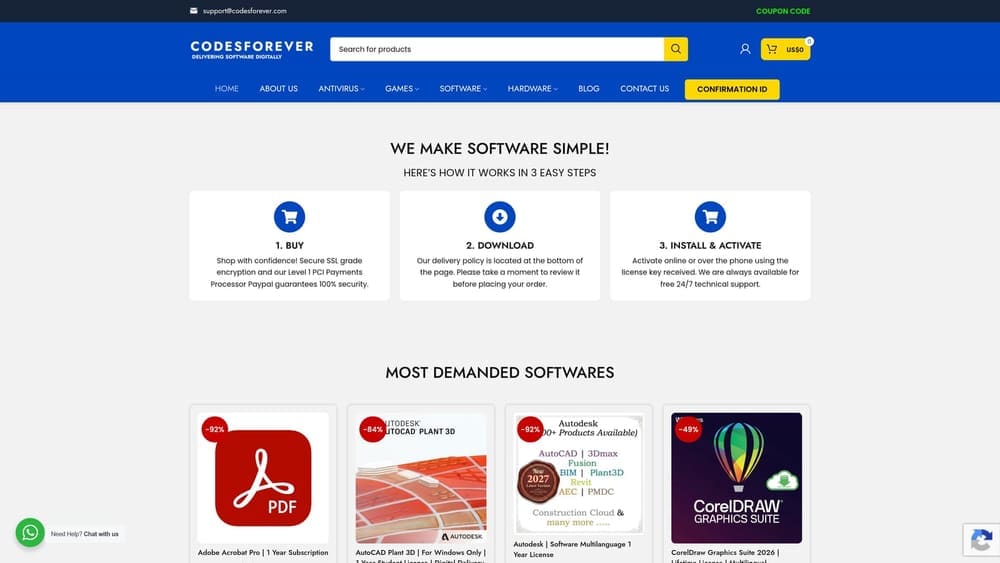
Adobe Acrobat Pro via Codesforever is the same genuine Adobe software, delivered immediately as a discounted digital license.
Where This Tool Shines
Adobe Acrobat Pro is the benchmark against which every other PDF editor is measured. Legal firms, financial institutions, architects, and enterprise teams have standardized on it for a reason: it handles every PDF task with precision, from basic annotation to full document reconstruction, advanced redaction, and accessibility compliance.
The smart angle here is purchasing through Codesforever rather than directly from Adobe. You receive a genuine, legitimate license with immediate digital delivery at a substantially lower price than Adobe’s direct retail pricing. For professionals who need the best tool but want to avoid paying full retail, this is the value play worth knowing about.
Key Features
Full Text and Image Editing: Edit any element within a PDF directly, including reflowing text, swapping images, and adjusting page layouts.
Advanced OCR: Convert scanned documents into fully searchable and editable PDFs with high accuracy, critical for working with legacy documents and physical paperwork.
Redaction and Security: Permanently remove sensitive content with professional redaction tools, plus password protection and permission controls.
E-Signatures via Adobe Sign: Send documents for legally binding signature collection, with full audit trails built in.
Form Creation and PDF/A Compliance: Build interactive forms and ensure documents meet archival and accessibility standards required in regulated industries.
Best For
Legal professionals, architects, engineers, compliance teams, and anyone whose work requires the full depth of professional PDF capability. Also ideal for businesses that need guaranteed compatibility with clients and partners who use Acrobat as their standard.
Pricing
Significantly lower than Adobe’s direct pricing. Check Codesforever for current license pricing and available options.
2. Adobe Acrobat Pro DC (Direct from Adobe)
Best for: Teams wanting Adobe’s full cloud ecosystem and the latest AI features on subscription
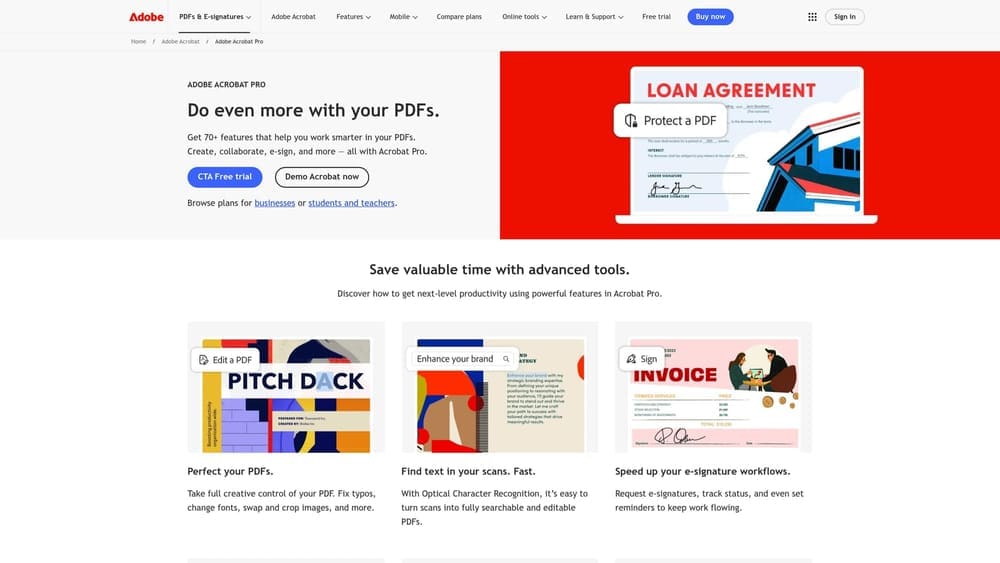
Adobe Acrobat Pro DC is Adobe’s subscription offering with cloud sync, AI Assistant integration, and continuous feature updates.
Where This Tool Shines
If you’re already embedded in the Adobe ecosystem and need continuous access to the latest features, the direct subscription route gives you cloud sync across all your devices, integration with Adobe Document Cloud, and the newer AI-powered tools that have been rolling out through 2025 and 2026.
The AI Assistant is a genuine differentiator here. It allows you to ask questions about document content, generate summaries, and extract key information from lengthy PDFs without reading them cover to cover. For professionals dealing with high document volumes, that’s a meaningful productivity gain.
Key Features
AI Assistant: Summarize documents, ask questions about content, and extract key data points using natural language queries.
Complete Editing Suite: Full text, image, and page editing with the same depth as the standalone version.
Adobe Sign Integration: E-signature workflows built directly into the interface with audit trail and legal compliance.
Cloud Sync: Access and edit documents across Windows, Mac, and mobile devices seamlessly.
Microsoft 365 and Google Drive Integration: Open and save documents directly from SharePoint, OneDrive, and Google Drive without downloading first.
Best For
Enterprise teams and power users who want Adobe’s latest AI features, active cloud collaboration, and don’t mind a recurring subscription cost in exchange for continuous updates.
Pricing
Subscription-based with monthly and annual options. Check Adobe.com for current pricing tiers.
3. Nitro PDF Pro
Best for: Business teams who want a familiar Office-style interface and perpetual license availability
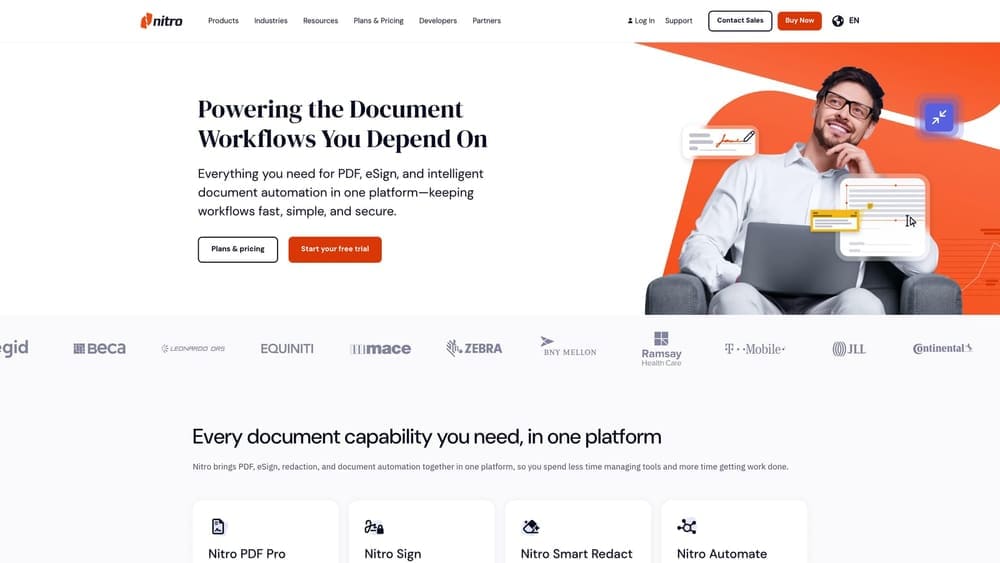
Nitro PDF Pro is a business-focused PDF editor with a ribbon-based interface that makes the transition from Microsoft Office feel completely natural.
Where This Tool Shines
Nitro’s biggest advantage is approachability. The ribbon interface mirrors what Office users already know, which dramatically reduces the learning curve for teams rolling out PDF editing across an organization. There’s no retraining required when the toolbar looks like Word.
Beyond the interface, Nitro is genuinely capable for corporate document workflows. Batch processing, e-signature collection, and solid conversion between PDF and Office formats make it a practical choice for teams processing high volumes of documents regularly.
Key Features
Ribbon Interface: Microsoft Office-style layout that immediately feels familiar to business users without any learning curve.
Office Format Conversion: Convert PDFs to and from Word, Excel, and PowerPoint with strong formatting preservation.
E-Signatures and Workflows: Send documents for signature and manage approval workflows within the platform.
Batch Processing: Handle high-volume conversion and editing tasks across multiple files simultaneously.
Perpetual License Option: Purchase once and own it, avoiding ongoing subscription costs for budget-conscious teams.
Best For
Corporate teams, legal departments, and businesses already standardized on Microsoft Office who want a PDF editor that feels like a natural extension of their existing toolkit.
Pricing
Both perpetual license and subscription options are available. Check codesforever.com for current pricing.
4. Foxit PDF Editor
Best for: Professionals who need Adobe-level features with faster performance on lower-spec hardware
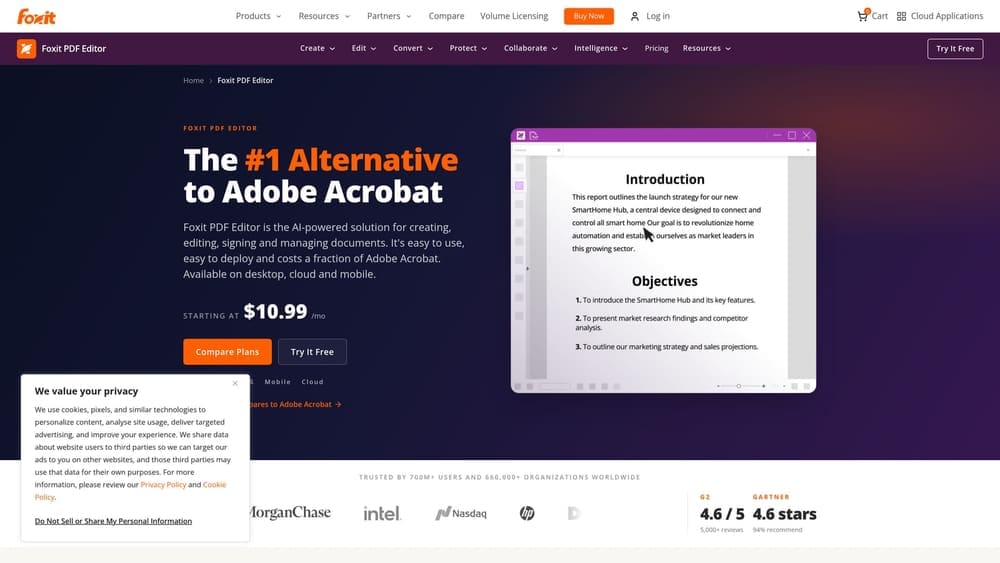
Foxit PDF Editor is a lightweight, fast alternative to Adobe Acrobat with a full professional feature set and strong enterprise deployment options.
Where This Tool Shines
Foxit has built its reputation on doing what Acrobat does, but faster and with a smaller footprint. On older hardware or systems with limited resources, the difference in load time and responsiveness is noticeable. For IT teams deploying across a large organization, that performance consistency matters.
Security features are a genuine strength. Foxit supports Rights Management Services (RMS) protection alongside standard password controls, making it a solid choice for regulated industries where document security is a compliance requirement rather than just a preference.
Key Features
Lightweight Performance: Significantly faster to load and less resource-intensive than Adobe Acrobat, important for older machines or high-volume environments.
OCR for Scanned Documents: Convert scanned files into searchable, editable PDFs with reliable accuracy.
RMS and Password Security: Enterprise-grade document protection including Rights Management Services integration.
Form Creation and E-Signatures: Build interactive forms and collect signatures with full workflow support.
Volume Licensing: Strong enterprise deployment options with centralized administration for large teams.
Best For
Enterprise IT teams, businesses with older hardware infrastructure, and organizations in regulated industries where document security and reliable performance are non-negotiable.
Pricing
Both subscription and perpetual options available. Check foxit.com for current pricing and volume licensing details.
5. PDF-XChange Editor
Best for: Windows users who need deep annotation tools and want a capable free tier before committing
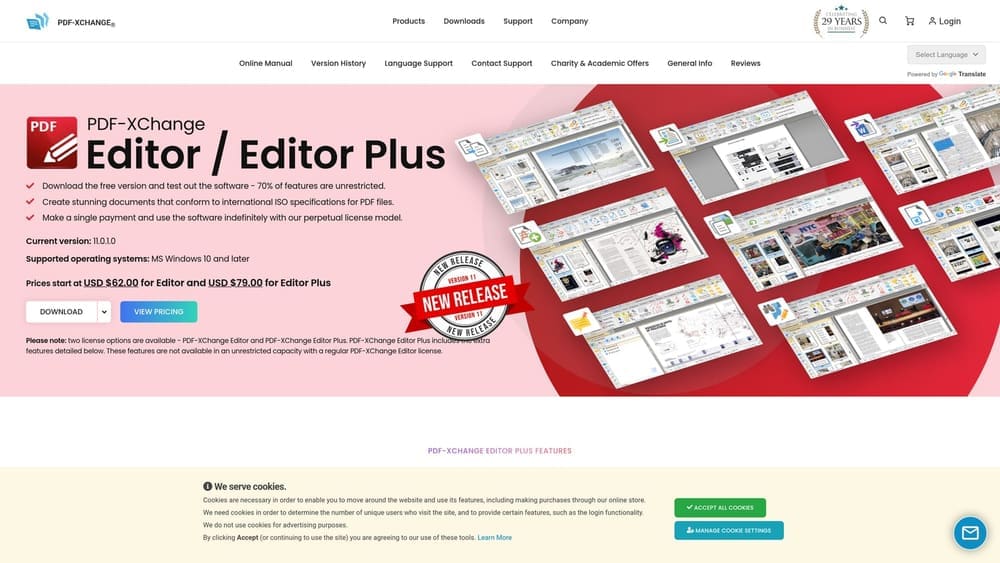
PDF-XChange Editor is a feature-rich Windows PDF editor with one of the most generous free tiers in the market and annotation capabilities that technical professionals particularly value.
Where This Tool Shines
The free tier is genuinely useful, not a crippled demo. Many core features are available without purchasing a license, with watermarks only appearing when you use features that require the Pro version. For users who primarily need annotation and markup rather than full editing, the free version may be all they ever need.
Engineers and technical professionals tend to gravitate toward PDF-XChange for its depth of annotation tools. Stamps, custom markups, measurement tools, and a tabbed interface for working across multiple documents simultaneously make it well-suited to technical review workflows.
Key Features
Generous Free Tier: Core features available without purchase, with clear indication of which actions require a Pro license.
Advanced Annotation Tools: Comprehensive markup, stamp, and measurement tools popular in engineering and technical review contexts.
Tabbed Interface: Work across multiple PDF documents simultaneously in a tabbed layout, similar to a browser.
OCR (Pro Version): Convert scanned documents to searchable and editable text in the paid tier.
Scripting and Automation: Automate repetitive tasks through scripting support, useful for technical power users.
Best For
Engineers, architects, and technical professionals on Windows who need deep annotation capabilities. Also a strong choice for anyone who wants to evaluate a capable editor thoroughly before purchasing.
Pricing
Free tier available; Pro license pricing listed at pdf-xchange.com. Note: Windows-only.
6. Wondershare PDFelement
Best for: Individuals and small teams who want AI-powered features with affordable perpetual licensing
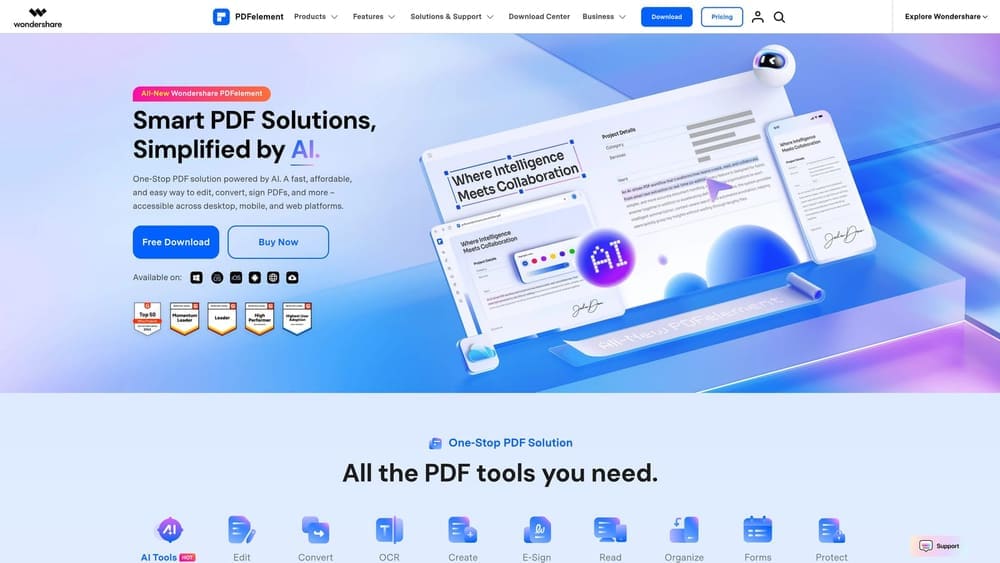
Wondershare PDFelement is an intuitive PDF editor positioned as the approachable, budget-friendly alternative to Adobe, now with AI-powered document tools built in.
Where This Tool Shines
PDFelement has consistently improved its AI capabilities through the 2025 and 2026 versions. Summarization, translation, and AI-assisted rewriting are now integrated directly into the editing workflow, which makes it genuinely competitive with tools that cost significantly more. For individuals and small teams, it delivers a lot of capability per dollar.
The interface is clean and less intimidating than Acrobat, which matters for users who don’t spend their entire day inside PDF editors. Onboarding is fast, and the learning curve is gentle without sacrificing the core professional features that make it useful.
Key Features
AI-Powered Tools: Summarize documents, translate content, and rewrite sections using integrated AI assistance.
Full Editing Suite: Text, image, and page editing with OCR for scanned documents included in the standard version.
Form Creation and E-Signatures: Build interactive forms and collect signatures with workflow management.
Perpetual License Option: Buy once and own it, a key advantage for budget-conscious users who want to avoid subscriptions.
Beginner-Friendly Interface: Clean layout designed to reduce the learning curve without removing professional capability.
Best For
Freelancers, students, small business owners, and anyone who wants modern AI features and full PDF editing capability without paying Adobe-level prices or committing to an ongoing subscription.
Pricing
Perpetual and subscription options available. Check pdf.wondershare.com for current pricing.
7. Sejda PDF Editor
Best for: Occasional users who need quick, straightforward PDF edits without installing software
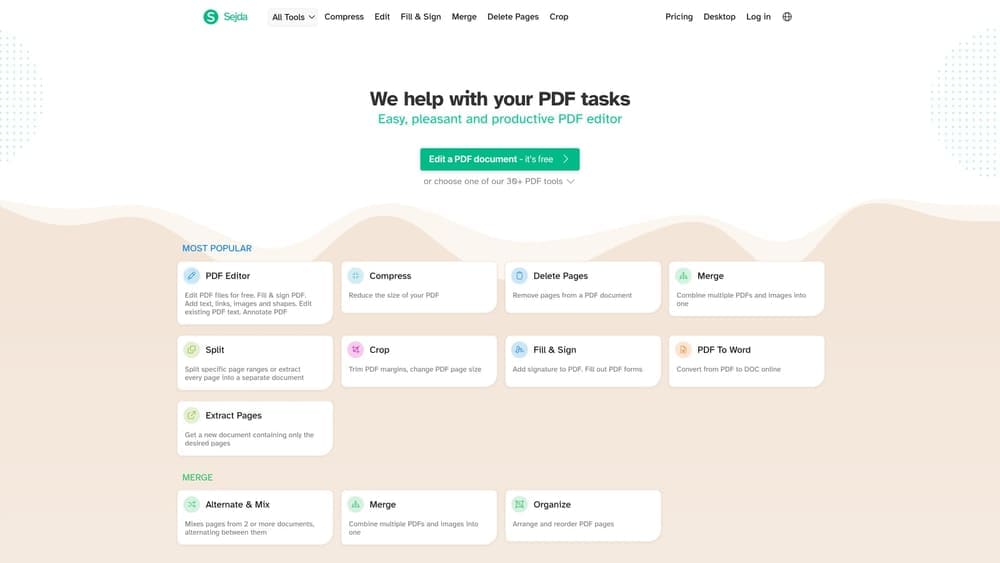
Sejda PDF Editor is a browser-based PDF editor with a desktop app option, built for users who need clean, uncomplicated PDF editing without the overhead of full desktop software.
Where This Tool Shines
Sejda’s browser-based approach means zero installation friction. You open a browser, upload your document, make your edits, and download the result. For occasional PDF tasks, that simplicity is genuinely valuable. There’s no license to manage, no software to update, and no compatibility issues to troubleshoot.
The task-based interface keeps things focused. Rather than presenting you with a full editing suite, Sejda organizes its tools around what you’re trying to accomplish: edit text, merge files, split a document, compress for email. That clarity makes it faster to use for specific jobs.
Key Features
Browser-Based Access: No installation required; works on any device with a modern browser.
Direct Text Editing: Edit text content within PDFs without converting to another format first.
Merge, Split, and Compress: Core PDF management tasks handled cleanly with a simple interface.
Signatures and Form Filling: Add signatures and complete form fields without dedicated desktop software.
Desktop App Available: An offline desktop version is available for users who need to work without an internet connection.
Best For
Occasional PDF editors, remote workers, students, and anyone who needs to make quick document changes from any device without managing software installations.
Pricing
Free tier with daily task and file size limits; paid plan removes those restrictions. Check sejda.com for current pricing.
8. iLovePDF
Best for: High-volume PDF management tasks like merging, converting, and compressing document batches
iLovePDF is a web-based PDF utility platform focused on document management tasks rather than in-document editing, and it handles those tasks exceptionally well.
Where This Tool Shines
iLovePDF isn’t trying to be Acrobat, and that focus is its strength. If your day involves merging multiple reports into one file, compressing PDFs for email, converting Word documents to PDF, or rotating pages before sharing, iLovePDF handles all of that quickly and cleanly with a free account.
The batch processing capability on paid plans makes it particularly useful for administrative teams and operations staff who regularly process large numbers of documents. It’s the kind of tool that quietly saves hours per week for the right user profile.
Key Features
Free Core Functionality: Most common PDF tasks are available without paying, including merge, split, compress, rotate, and convert.
Broad Format Conversion: Convert to and from Word, Excel, PowerPoint, and JPG with reliable output quality.
Batch Processing: Handle multiple files simultaneously on paid plans, essential for high-volume document workflows.
E-Sign: Collect signatures on documents without needing a separate tool.
Platform-Agnostic: Fully browser-based, works on any operating system with no installation required.
Best For
Administrative professionals, operations teams, and anyone whose primary need is document management at volume rather than detailed in-document editing. Not suitable if you need to edit text content within a PDF.
Pricing
Free for basic use; paid plans unlock batch processing and larger file limits. Check ilovepdf.com for current plan details.
9. Microsoft Word (PDF Editing via Microsoft 365)
Best for: Microsoft 365 subscribers who need to edit text-heavy PDFs without additional software
Microsoft Word includes a built-in PDF editing capability that many users never realize they already have access to.
Where This Tool Shines
Here’s the thing most people miss: if you already have a Microsoft 365 subscription or an Office LTSC license, you can open a PDF directly in Word, edit the text, and export it back as a PDF. No additional software, no extra cost, no new interface to learn. For straightforward text edits on standard document layouts, it works well.
The important caveat is formatting fidelity. Word handles text-heavy PDFs with simple layouts well, but complex multi-column documents, PDFs with heavy image content, or files with precise layout requirements can come out looking different from the original. Know its limits and it becomes a genuinely useful tool in your existing toolkit.
Key Features
No Additional Software Required: PDF editing is built into Word for all Microsoft 365 and Office LTSC users.
Full Text Editing: Edit, rewrite, and reformat text content within the converted document.
Re-Export as PDF: Save the edited document back to PDF format directly from Word’s export menu.
Familiar Interface: No new software to learn for existing Word users.
Known Limitation: Formatting fidelity degrades with complex layouts, multi-column designs, and image-heavy documents.
Best For
Existing Microsoft 365 subscribers who occasionally need to edit text in simple PDFs. Not a replacement for dedicated PDF editors in professional contexts, but a genuinely useful capability for light, occasional use.
Pricing
Included with Microsoft 365 subscription or Office LTSC perpetual license. Codesforever offers discounted Microsoft Office licenses if you need to get set up.
Which PDF Editor Is Right for You?
The right PDF editor depends almost entirely on how you use PDFs and how often. Here’s a quick way to think about it.
If you need the most capable tool available and want to avoid Adobe’s full retail price, Adobe Acrobat Pro through Codesforever is the clear answer. You get the industry-standard software with genuine licensing and immediate delivery at a substantially lower cost. For legal professionals, architects, engineers, and anyone whose work demands professional-grade PDF capability, this is the value-smart choice.
If you’re a business team standardized on Microsoft Office, Nitro PDF Pro’s familiar ribbon interface makes adoption easy. If performance on older hardware is a concern, Foxit PDF Editor delivers comparable professional features with a lighter footprint. For Windows-based technical professionals who need deep annotation tools, PDF-XChange Editor’s generous free tier is worth exploring before spending anything.
If budget is the primary consideration and you want modern AI features with a perpetual license option, Wondershare PDFelement delivers strong value. For occasional, task-specific PDF work without any installation, Sejda and iLovePDF are both solid choices, with iLovePDF particularly strong for high-volume document management tasks.
And if you already pay for Microsoft 365, don’t overlook Word’s built-in PDF capability for simple text edits. You may already have what you need for lighter tasks.
One consideration worth emphasizing: subscription costs add up. A tool that costs a recurring monthly or annual fee will exceed the cost of a lifetime license within a year or two. For professionals who know they’ll use PDF software long-term, perpetual licensing is often the smarter financial decision. Codesforever specializes in exactly this, offering discounted lifetime licenses for professional software including Adobe Acrobat Pro and Microsoft Office, so you pay once and move on.
Ready to stop paying full retail for the software you rely on every day? Learn more about our services and browse current PDF editor license pricing.