

Autodesk Revit 2020 | Ultimate Guide to BIM, Features, Installation & Licensing

Introduction
Autodesk Revit 2020 is a powerful Building Information Modeling (BIM) software used by architects, structural engineers, MEP engineers, and construction professionals worldwide. Released in April 2019, Revit 2020 introduced several significant improvements over its predecessor while maintaining the parametric modeling workflow that has made it the industry standard for BIM.
Revit is not just a 3D modeling tool — it is a data-driven platform where every element in a building model carries intelligent information. Walls know their height, material, and fire rating. Ducts know their airflow. Beams know their load capacity. This makes Revit invaluable for coordination, quantity takeoffs, clash detection, and lifecycle management.
This guide covers everything you need to know about Revit 2020: its features, system requirements, common errors and fixes, essential commands, license types, and frequently asked questions.
Key Features of Autodesk Revit 2020
Revit 2020 brought several new and enhanced features that improved productivity, visualization, and collaboration.
1. Path of Travel Tool
One of the most requested features, the Path of Travel tool allows you to calculate walking distances between points in a model. This is essential for egress analysis, accessibility compliance, and wayfinding studies. You can generate color-coded paths and include them in schedules.
2. PDF Import and Underlay
Revit 2020 introduced native PDF import. You can bring PDF drawings directly into Revit as underlays and trace over them. This is a major time-saver for renovation projects where existing conditions are only available as PDFs.
3. Elliptical Walls
For the first time, Revit supports elliptical wall creation natively. You can draw elliptical walls using the Wall tool, which is useful for architectural features like curved facades, auditoriums, and organic forms.
4. Scope Box Editing in 3D Views
In previous versions, scope boxes could only be edited in plan and elevation views. Revit 2020 allows you to resize and reposition scope boxes directly in 3D views, making view management more intuitive.
5. Enhanced Stair by Sketch
The Stair by Sketch tool received improvements for better control over monolithic stairs, landings, and supports. You can now create more complex stair geometries with fewer workarounds.
6. Improved Fill Patterns
Revit 2020 improved fill pattern performance and added the ability to use transparent backgrounds for drafting patterns. This makes it easier to create clean, professional drawings.
7. Fabrication Parts Enhancement
For MEP professionals, Revit 2020 improved fabrication part placement with better snapping, alignment, and routing. The software now supports more fabrication components and better LOD (Level of Development) control.
8. Reinforcement Improvements
Structural engineers benefit from enhanced rebar modeling, including better hook orientation, coupler placement, and area reinforcement. The rebar numbering system was also improved for fabrication.
9. Dynamo Player Integration
Dynamo Player, included with Revit, allows users to run pre-built visual scripts without opening the full Dynamo editor. Revit 2020 expanded the library of ready-to-use scripts for tasks like view duplication, parameter updates, and sheet organization.
10. Performance Improvements
Autodesk optimized Revit 2020 for faster file open times, smoother navigation in large models, and better memory management. The software also supports multi-threading for more tasks, improving overall responsiveness.
Official Activation Methods for Autodesk Revit 2020
1. Subscription Activation (User-Based)
- How it works: You purchase a subscription (monthly or annually) through your Autodesk Account. After installing Revit 2020, you sign in with your Autodesk ID. The software validates your subscription and activates automatically.
- Best for: Individual users and small teams.
- Offline work: Once activated, you can work offline for up to 30 days before needing to re-validate.
2. Network License Activation (Multi-Seat)
- How it works: Organizations purchase a multi-seat subscription. A license server is set up on the company network using Autodesk Network License Manager. Each workstation points to the server, and licenses are checked out when Revit launches and returned when closed.
- Best for: Firms with 10+ users who want centralized license management.
- Requires: A dedicated server (physical or virtual) running the Autodesk License Manager tool.
3. Educational License Activation
- How it works: Students and educators verify eligibility through Autodesk's Education Community. Once approved, you download and install Revit 2020, then sign in with your educational Autodesk ID.
- Best for: Students, teachers, and academic institutions.
- Validity: One year, renewable while you remain eligible. No feature limitations.
4. Trial Activation
- How it works: Download the 30-day trial from Autodesk's website. No credit card required. Launch Revit and sign in to start the trial period.
- Best for: Evaluating the software before purchasing.
- Limitation: Fully functional for 30 days, then requires a subscription to continue.
5. AEC Collection Activation
- How it works: Same as subscription activation, but your Autodesk Account shows an AEC Collection entitlement. Revit 2020 is included in the collection alongside AutoCAD, Civil 3D, Navisworks, and others.
- Best for: Professionals who need multiple Autodesk tools.
Common Revit 2020 Errors and How to Fix Them
Even with a solid system, users encounter errors. Here are the most common ones and their solutions.
Error 1: "Fatal Error" or "Unhandled Exception" on Startup
Cause: Corrupted installation, incompatible graphics driver, or missing prerequisites.
Fixes:
- Update your graphics card driver from the manufacturer's website (NVIDIA, AMD, or Intel).
- Run the Autodesk Revit 2020 installer in Repair mode.
- Install the latest Microsoft Visual C++ Redistributable packages.
- Clear the Revit journal files from %LOCALAPPDATA%\Autodesk\Revit\Autodesk Revit 2020\Journals.
Error 2: "Cannot Save Document" or "File Corrupted"
Cause: Network interruption, insufficient disk space, or file locks from worksharing.
Fixes:
- Save a local copy first, then sync to central.
- Use the "Detach from Central" option and re-save as a new central model.
- Run the Audit tool when opening the file (File > Open > Check "Audit").
- Ensure at least 5 GB free space on your local drive for temp files.
Error 3: "Elements Are Not Visible" or "Graphics Display Issues"
Cause: View range settings, visibility/graphics overrides, or graphics card limitations.
Fixes:
- Check the View Range settings in the Properties palette.
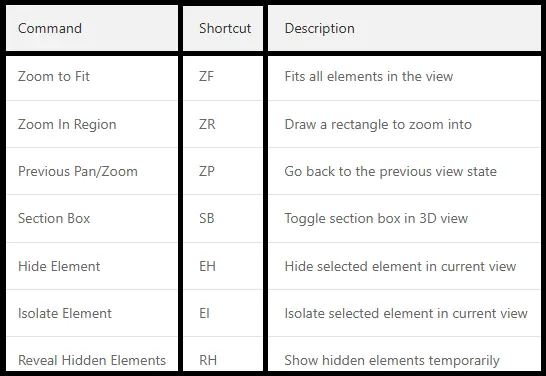
- Press VV (shortcut) to open Visibility/Graphics Overrides and verify categories are checked.
- Turn on "Hardware Acceleration" in File > Options > Graphics.
- Update your graphics driver and ensure it is DirectX 11 compatible.
Error 4: "License Error" or "License Checkout Timeout"
Cause: Network license server issues, expired subscription, or firewall blocking.
Fixes:
- Verify your Autodesk Account shows an active subscription.
- For network licenses, ensure the license server is running and reachable.
- Add licenses.[autodesk.com](https://www.autodesk.com) to your firewall allowlist.
- Run the Autodesk License Installer tool to reset the license configuration.
Error 5: "Worksharing Monitor Not Responding"
Cause: Large team, slow network, or corrupted local cache.
Fixes:
- Close Revit and delete the local cache files in %LOCALAPPDATA%\Autodesk\Revit\Autodesk Revit 2020\CollaborationCache.
- Reload the workset and sync.
- Reduce the number of worksets or use BIM 360 Design for cloud worksharing.
Error 6: "Insufficient Memory" When Opening Large Models
Cause: The model exceeds available RAM.
Fixes:
- Close other applications to free memory.
- Upgrade RAM to 32 GB or more.
- Use the "Detach from Central" option and purge unused elements.
- Split the model into linked files (separate architectural, structural, and MEP models).
Official License Types for Revit 2020
Autodesk Revit 2020 is available through several legitimate licensing options. Understanding these helps you choose the right one for your needs.
1. Revit Subscription (SaaS)
The most common way to use Revit today. You pay an annual or monthly fee and always have access to the latest version.
- Revit Single-User Subscription: One user, one license. Includes Revit, cloud credits, and technical support.
- Revit Network/Multi-Seat Subscription: For teams. Managed through Autodesk Account with seat assignment.
2. Revit LT Subscription
A lighter, lower-cost version of Revit aimed at single users who do not need worksharing, MEP or structural tools, or advanced analysis. Revit LT cannot open full Revit workshared models.
3. Revit Perpetual License (No Longer Sold)
Autodesk stopped selling new perpetual licenses in 2016. If you already own a perpetual Revit 2020 license, you can continue using it, but you will not receive new features or updates beyond the version you own. Maintenance subscriptions ended in 2021.
4. Educational License
Autodesk offers free, fully functional educational licenses to students and educators. The license is valid for one year and renewable. Educational versions do not have feature limitations, but files carry an educational watermark when printed or exported.
5. Trial License
Autodesk provides a 30-day free trial of Revit with full functionality. No credit card is required. After 30 days, you must purchase a subscription to continue using the software.
6. AEC Collection
Revit is also available as part of the Autodesk AEC Collection, which includes Revit, AutoCAD, Civil 3D, Navisworks, and other tools. This is often more cost-effective than buying individual subscriptions.
How to Get Started with Revit 2020 (Legitimate Setup)
Here is the proper workflow to start using Revit 2020 legally.
Step 1: Check System Requirements
Ensure your computer meets at least the minimum configuration listed above. For professional work, aim for the Value or Performance configuration.
Step 2: Create an Autodesk Account
Visit Autodesk and create a free account. This is required for any license type.
Step 3: Choose Your License
Select a subscription plan that fits your needs — single-user, multi-seat, educational, or AEC Collection.
Step 4: Download and Install
From your Autodesk Account portal, download the Revit 2020 installer. Run the installer and follow the on-screen instructions. You will need an internet connection for license activation.
Step 5: Activate Your License
After installation, launch Revit 2020. Sign in with your Autodesk account credentials. The software will automatically validate your subscription and activate the license.
Step 6: Start a Project
You can start a new project from a template, open an existing project, or use one of the sample files included with Revit.
Conclusion
Autodesk Revit 2020 remains a capable and widely used BIM platform, even years after its release. Its features — from the Path of Travel tool and PDF import to elliptical walls and Dynamo Player — made it a significant step forward for the AEC industry. Understanding the system requirements, knowing how to troubleshoot common errors, and mastering essential commands will help you work efficiently and avoid costly downtime.
For licensing, the subscription model provides flexibility and access to the latest versions, while educational and trial options make it accessible for learning. Always use legitimate software to ensure compliance, security, and access to official support.
Whether you are an architect designing a high-rise, an engineer modeling complex structures, or a student learning BIM for the first time, Revit 2020 provides the tools you need to create intelligent, data-rich building models.
Frequently Asked Questions (FAQs)
No. Autodesk stopped selling new perpetual licenses in 2016. Revit 2020 is only available through a subscription (monthly or annually) or as part of the AEC Collection.
Yes. Autodesk officially supports Revit 2020 on Windows 10 64-bit and Windows 11.
No. Revit files are not backward-compatible. A file saved in a newer version cannot be opened in an older version. You can export to IFC or DWG as a workaround.
For small residential projects, 8 GB may suffice. For commercial projects or large models, 16 GB is the minimum, and 32 GB is recommended. For very large, complex models with point clouds, 64 GB may be necessary.
Revit LT is a lighter, single-user version. It lacks worksharing, MEP and structural tools, advanced analysis, and some modeling capabilities. It is suitable for architects working alone on smaller projects.
Start by updating your graphics driver and running the installer in Repair mode. If the issue persists, clear journal files, reinstall Visual C++ Redistributables, and check for Windows updates.