

Autodesk Inventor 2022 | Professional 3D CAD Software

Introduction
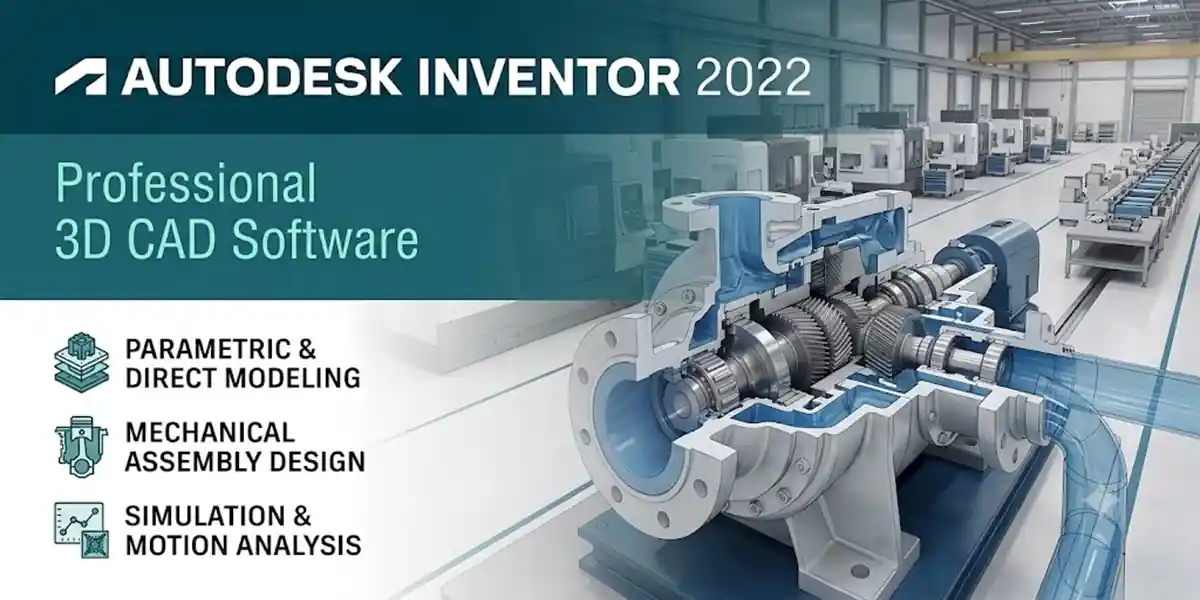
Autodesk Inventor 2022 is 3D mechanical design software intended for professional engineering and product-development workflows. It can be used to create parametric parts, assemblies, drawings, sheet-metal designs, and other engineering documentation.
Inventor is especially useful when a project requires more than basic 2D drafting. Engineers can create a digital representation of a product, modify dimensions and parameters, assemble components, check relationships between parts, and produce documentation from the same design environment.
Inventor 2022 supports Windows 10 64-bit and has hardware requirements intended for professional CAD workloads. Autodesk's published requirements list a minimum 2.5 GHz processor, 16 GB RAM for assemblies containing fewer than 500 parts, and DirectX 11-compatible graphics hardware. Autodesk recommends higher specifications for demanding projects, including 32 GB or more of RAM and a faster multi-core processor.
Before attempting activation, it is important to understand that installation and activation are two different processes.
Installation places the Inventor application and required components on your computer.
Activation or authentication confirms that you are entitled to use the software under the applicable Autodesk license.
A successful installation therefore does not always mean that Inventor is ready to use. If the correct license has not been assigned, the wrong licensing method was selected, or Autodesk licensing components are not working correctly, Inventor may open with a licensing message or fail to start.
Why Activate Autodesk Inventor 2022 Correctly?
Correct activation is important for several reasons.
1. It verifies your license
Activation connects the installed software with the applicable Autodesk licensing method. For a named-user subscription, this generally means signing in with the Autodesk Account associated with the assigned product entitlement.
2. It allows continued access
A properly licensed installation can communicate with Autodesk's licensing systems and validate access according to the license terms.
3. It prevents unnecessary activation errors
Selecting the wrong license type can cause activation to fail. Autodesk identifies different activation approaches depending on whether the installation uses a single-user subscription, network licensing, or another supported license type.
4. It makes troubleshooting easier
When your Inventor installation is connected to the correct Autodesk Account and licensing method, troubleshooting becomes much easier because you can verify product assignment, subscription status, and license information.
5. It provides a secure software environment
Using the official Autodesk installation and licensing system reduces the risk associated with modified installers, unauthorized activation tools, and unknown third-party software.
Autodesk Inventor 2022 Features
Before learning how to activate Inventor 2022, it is useful to understand why the software remains relevant for mechanical design and engineering workflows.
1. 3D Mechanical Design
Inventor provides tools for creating detailed 3D mechanical components and products.
Engineers can create parametric models where dimensions and relationships control the geometry. This makes it easier to modify designs without rebuilding everything from the beginning.
A change to a key dimension can update related geometry and drawings, helping reduce repetitive design work.
2. Part Modeling
Inventor supports detailed part modeling for mechanical components.
Typical workflows include:
- Sketch creation
- Extrusions
- Revolutions
- Holes
- Fillets
- Chamfers
- Patterns
- Shells
- Draft features
- Work planes
- Work axes
- Parametric dimensions
These tools allow designers to create accurate digital representations of manufactured components.
3. Assembly Design
Mechanical products frequently contain multiple components.
Inventor assembly tools allow designers to combine parts into larger products and control relationships between components.
Assemblies can contain everything from a few components to large mechanical systems.
4. Engineering Drawings
A 3D model is often only one part of a manufacturing workflow.
Inventor can also be used to create engineering drawings, dimensions, annotations, views, and documentation based on the model.
This helps connect 3D design with manufacturing documentation.
5. Model States
One of the important additions associated with Inventor 2022 is Model States.
Model States allow designers to represent different configurations or variations of a part or assembly within a single file structure. This can be useful when a product has multiple configurations, sizes, or design alternatives.
Autodesk's Inventor 2022 documentation highlights Model States as one of the major workflow improvements in the release.
6. iLogic
Inventor includes iLogic capabilities for design automation.
iLogic can help engineers automate repetitive tasks and create rule-driven designs.
For example, a rule can be used to control parameters or automate certain design operations based on project requirements.
7. Sheet Metal Design
Inventor includes tools for designing sheet-metal components.
These workflows can help users create:
- Flanges
- Bends
- Flat patterns
- Sheet-metal parts
- Manufacturing documentation
8. Visualization
Designers can use Inventor's visualization capabilities to inspect and communicate product concepts.
This can be useful during design reviews and presentations before a physical prototype is produced.
9. Simulation and Engineering Workflows
Depending on the Inventor edition and available tools, engineers can perform analysis and simulation-related workflows to evaluate design behavior.
These capabilities can help identify potential design issues earlier in the development process.
10. Interoperability
Inventor is designed to work with other Autodesk and engineering workflows.
For example, the Inventor 2022 installation can include components such as Revit interoperability functionality, DWG TrueView, Electrical Catalog Browser, and Content Center libraries depending on the installation configuration.
How to Prepare for Autodesk Inventor 2022 Installation
Preparation can prevent many installation problems.
Step 1: Check Windows
Confirm that the computer is running a compatible 64-bit Windows 10 environment.
You can press:
Windows + R
Then enter:
winver
Press Enter and review the Windows version.
Autodesk also recommends installing available Windows updates and restarting the computer before installing Autodesk software.
Step 2: Check available disk space
Make sure sufficient storage is available.
Inventor 2022 requires substantial disk space for the installer and complete installation.
Step 3: Close unnecessary applications
Close:
- Web browsers
- Office applications
- Other Autodesk products
- Background installers
- File synchronization applications
This reduces the possibility of file conflicts during installation.
Step 4: Use an administrator account
Autodesk recommends administrator permissions for installation.
Step 5: Confirm your Autodesk Account
If you have a named-user subscription, make sure you know the Autodesk Account email address associated with the product.
If you are part of a company or organization, ask the administrator to verify that Inventor access has been assigned to your account.
Autodesk states that an Autodesk ID must be assigned the appropriate license for subscription authentication to work.
How to Download Autodesk Inventor 2022
For legitimate use, obtain Inventor through Autodesk's official download and account channels.
Autodesk's Inventor support center provides access to product downloads, system requirements, installation information, troubleshooting resources, and Autodesk Account-related support.
For an eligible Autodesk Account:
- Sign in to Autodesk Account.
- Open the Products and Services area.
- Locate Inventor.
- Select the appropriate product version if available.
- Select the Windows download option.
- Choose the appropriate installation method.
- Download the installation files.
- Start the installer with the required permissions.
If you are using an organizational license, your administrator may provide a deployment rather than asking each user to perform a standard installation.
How to Install Autodesk Inventor 2022
Once the installation files are available, follow the installation process carefully.
Step 1: Start the installer
Locate the Inventor 2022 installer and start it.
If necessary, right-click the installer and choose Run as administrator.
Step 2: Review the installation options
The Inventor installer can include additional components.
Depending on the installation, these may include:
- Revit interoperability
- DWG TrueView
- Electrical Catalog Browser
- Content Center Libraries
Autodesk's Inventor 2022 installation documentation explains that these components can be installed by default and that some can be deselected during installation.
Step 3: Accept the license agreement
Read the Autodesk terms and license agreement.
Continue only if you agree to the applicable terms.
Step 4: Choose the installation location
Use the default installation path unless your organization has a specific reason to change it.
Avoid unusual folder structures or paths containing incompatible characters.
Step 5: Start installation
Click the installation button and allow the installer to complete.
Do not shut down the computer while installation is running.
Step 6: Restart if requested
After installation, restart Windows if the installer or Autodesk components request it.
How to Activate Autodesk Inventor 2022
Now we reach the main question:
How to activate Autodesk Inventor 2022?
The exact activation process depends on the license type.
Autodesk explains that the first launch may display a Let's Get Started window. Depending on the product and license, it can offer options such as signing in with an Autodesk ID, using a network license, or entering a serial number.
Method 1: Activate Inventor 2022 With Autodesk Account
For a named-user Autodesk subscription, signing in is generally the simplest activation method.
Step 1
Launch Autodesk Inventor 2022.
Step 2
When the activation screen appears, select the option to sign in.
Step 3
Enter your Autodesk Account email address.
Step 4
Enter your password.
Step 5
Complete any required verification or authentication.
Step 6
Wait for Inventor to validate the license.
If the Autodesk Account has the appropriate entitlement, Inventor should authenticate and become available according to the license terms.
Autodesk states that subscription activation generally requires an Autodesk ID and password, and the account must be assigned a license by the relevant administrator.
Method 2: Activate Inventor 2022 With a Network License
Some organizations use network licensing.
In this situation, Inventor obtains license access from the organization's license server rather than relying on an individual subscription login.
The administrator must configure the licensing environment correctly.
The user may need information such as:
- License server hostname
- Server address
- Network license configuration
- Appropriate Inventor entitlement
If you receive a network-license error, contact your organization's CAD or IT administrator.
Autodesk notes that network licensing requires the license server to be available and able to provide a valid license.
Method 3: Serial Number or Standalone Activation
Some older Autodesk licensing configurations can use a serial number and product key.
However, users should not assume that every Inventor 2022 installation requires a traditional activation code.
The correct activation method depends on the license assigned to the product.
Autodesk's current authentication documentation specifically explains that activation options vary by product version and license type.
If Inventor unexpectedly asks for a serial number when you normally use an Autodesk Account subscription, verify the selected license type instead of entering random information.
Method 4: Change the License Type
Sometimes Inventor is installed with the wrong license method.
For example, a user may have a named-user subscription while the installed software is configured for a network license.
Autodesk provides a supported workflow for changing or resetting the license type.
If Inventor launches, you can access the license management area and select the option to change the license type or activate the product.
If Inventor does not launch, Autodesk provides the AdskLicensingInstHelper command-line utility for supported licensing operations.
Autodesk Inventor 2022 Licensing Commands
Advanced users and system administrators may need command-line tools when troubleshooting licensing.
These commands should be used carefully and only for legitimate licensing configuration.
Check Installed Autodesk Licensing Information
Autodesk provides the following command for checking licensing information:
"C:\Program Files (x86)\Common Files\Autodesk Shared\AdskLicensing\Current\helper\AdskLicensingInstHelper.exe" list
This can help identify licensing information associated with Autodesk products installed on the computer. Autodesk documents this command for Autodesk products from 2020 onward, including 2022.
Change the License Method
Autodesk documents the following general command structure:
"C:\Program Files (x86)\Common Files\Autodesk Shared\AdskLicensing\Current\helper\AdskLicensingInstHelper.exe" change -pk <Product_Key> -pv <Version.0.0.F> -lm USER
For a network license, the method can be:
"C:\Program Files (x86)\Common Files\Autodesk Shared\AdskLicensing\Current\helper\AdskLicensingInstHelper.exe" change -pk <Product_Key> -pv <Version.0.0.F> -lm NETWORK
Autodesk documents USER for single-user/sign-in licensing and NETWORK for multi-user/network licensing.
Important
Do not replace <Product_Key> with a guessed value.
Product keys differ between Autodesk products and releases. Use the official Autodesk product-key documentation or information supplied by your organization's Autodesk administrator.
The command changes the licensing configuration. It does not create a license or provide unauthorized access to Inventor.
Resetting an Autodesk Inventor 2022 License
A license reset can be useful if Inventor repeatedly opens with the wrong license type or an old authentication session.
Autodesk provides a supported process using the Licensing Installer Helper.
A typical workflow includes:
- Close Inventor.
- Close other Autodesk applications.
- Sign out of Autodesk services if applicable.
- Open Command Prompt as administrator.
- Navigate to the Autodesk Licensing Helper directory.
- Use the appropriate licensing command.
- Restart Inventor.
- Select the correct licensing method.
- Sign in with the appropriate Autodesk Account.
Autodesk documents license-reset workflows for Autodesk 2020 and newer products.
Do not delete licensing files randomly. Incorrectly removing licensing components can make the software unusable until it is properly registered again.
Common Autodesk Inventor 2022 Activation Errors and Fixes
Activation problems can occur even when Inventor is installed correctly.
Below are some of the most common scenarios.
Error 1: Inventor Cannot Access Your License
A message such as:
“Inventor cannot access your license.”
may indicate that the application cannot reach the license service, license server, or valid entitlement.
Autodesk identifies possible causes such as:
- No internet connection
- License server problems
- Invalid or expired network entitlement
- Autodesk Desktop Licensing Service issues
- Network configuration problems
- Security or permission conflicts
Fix
First check your internet connection.
If using a network license, contact your administrator and verify that the license server is operating correctly.
If using a named-user license, sign out and sign in again.
Also verify that the Autodesk Desktop Licensing Service is running.
Error 2: License Not Assigned
You may successfully sign in but still receive a licensing error.
This often happens when the Autodesk Account does not have access to Inventor.
Fix
Sign in to Autodesk Account and verify your Products and Services.
If the product is supplied by an organization, ask the administrator to verify the user assignment.
Autodesk explains that an active, assigned, and valid entitlement is required for successful authentication.
Error 3: Device Limit Reached
A device-limit message can appear when the Autodesk Account is already active on another device or when the allowed activation/session limit has been reached.
Fix
- Close Autodesk applications on other computers.
- Sign out from devices where the product is no longer needed.
- Restart Inventor.
- Sign in again.
Autodesk's activation troubleshooting guidance recommends checking active devices when a device-limit error appears.
Error 4: Nothing Happens When You Click Sign In
Sometimes the Sign In button does not open the authentication window.
For Inventor 2022, this can be related to Autodesk Single Sign-On components because 2022 belongs to the 2020–2023 product generation.
Autodesk identifies outdated or corrupted Single Sign-On components and licensing services among possible causes.
Fix
Try:
- Close Inventor.
- Restart Windows.
- Verify the Autodesk Desktop Licensing Service.
- Update the applicable Autodesk licensing/sign-in components.
- Try signing in again.
Error 5: Licensing Error After Installation
If Inventor installs but does not activate, check whether the correct license type was selected.
For example:
- Subscription → Sign in
- Network license → Network licensing
- Standalone/legacy configuration → Applicable serial/activation method
Autodesk warns that selecting an incorrect license type can result in activation failure.
Error 6: Autodesk Desktop Licensing Service Is Not Running
The Autodesk Desktop Licensing Service is an important component for Autodesk products from 2020 onward.
Check the service
Press:
Windows + R
Enter:
services.msc
Press Enter.
Find:
Autodesk Desktop Licensing Service
Check that the service is running.
If it is stopped, start it and try launching Inventor again.
Autodesk specifically recommends verifying that this service is running when troubleshooting activation problems.
Error 7: Licensing Component Is Outdated
If the Autodesk Desktop Licensing Service is outdated or damaged, activation can fail.
Autodesk provides an updated Licensing Service installer for Autodesk products from 2020 onward, including Inventor 2022.
Fix
Close Autodesk applications and install the appropriate Autodesk Desktop Licensing Service update from Autodesk Support.
Restart the computer afterward and test Inventor.
Error 8: Sign-In Window Is Blank
A blank or frozen authentication window can result from authentication components, network security software, or browser-related problems.
Autodesk's current troubleshooting guidance recommends checking the authentication components, network access, and sign-in environment.
Fix
Try:
- Restarting the computer
- Signing out and back in
- Updating Autodesk licensing components
- Checking the system date and time
- Testing the network connection
- Temporarily checking firewall/security restrictions with your IT administrator
- Using the correct Autodesk Account
Do not permanently disable security software simply to activate Inventor.
Error 9: Installation Says the Computer Does Not Meet Minimum Requirements
This message does not always mean that your hardware is actually too weak.
Autodesk documents cases involving residual registry entries or incomplete previous installations that can trigger minimum-requirement messages when installing Inventor Professional 2022 and later.
Fix
First:
- Uninstall incomplete or previous Inventor components.
- Restart Windows.
- Use Microsoft's installation troubleshooting tools if appropriate.
- Check for leftover Autodesk installation components.
- Run the Inventor installer again.
Avoid manually deleting registry entries unless you are following an official Autodesk procedure or working with a qualified IT professional.
Error 10: Installation Takes Too Long
Inventor 2022 installation can take considerable time depending on the computer and installation environment.
Autodesk's 2022 release documentation notes that installation can sometimes be slow because of Windows security updates.
If the progress indicator appears to stop, do not immediately cancel the installation.
Allow sufficient time for the process to complete.
Error 11: Error 1603 During Installation
Error 1603 is a general Windows installation error that can have multiple causes.
Potential causes include:
- Licensing component problems
- Previous incomplete installations
- Permissions
- Windows Installer problems
- Security software interference
- Corrupted installation files
Start with the basics:
- Restart Windows.
- Install pending Windows updates.
- Close applications.
- Run the installer as administrator.
- Verify disk space.
- Repair or update Autodesk licensing components.
- Download a fresh official installer if necessary.
Do not immediately modify the registry without understanding the cause.
Error 12: Network License Cannot Be Found
If your organization uses a network license, Inventor must communicate with the license server.
Possible causes include:
- Server offline
- Incorrect server address
- Firewall restrictions
- Network connectivity problems
- Expired license
- Incorrect license configuration
- Server-side licensing problems
Autodesk recommends checking internet or network connectivity and the license-server configuration when Inventor cannot access its license.
Contact your CAD administrator if the issue is server-side.
Conclusion
Start by checking the computer requirements and preparing Windows for installation. Autodesk specifies 64-bit Windows 10 for Inventor 2022 and recommends appropriate processor, memory, graphics, storage, and .NET requirements for professional workloads.
After installing Inventor 2022, select the licensing method that matches your actual Autodesk entitlement. For many individual and named-user subscriptions, this means signing in with the Autodesk Account assigned to the product. Organizations using network licensing should use their configured network license environment.
If activation fails, do not immediately reinstall the entire application. Start with the basics: verify the Autodesk Account, confirm the license assignment, check the Autodesk Desktop Licensing Service, test network connectivity, and ensure licensing and sign-in components are functioning correctly. Autodesk's current troubleshooting documentation recommends these checks for activation and licensing problems.
For advanced administrators, Autodesk's AdskLicensingInstHelper provides commands for inspecting licensing configuration and changing supported license methods. These commands are useful for legitimate troubleshooting and deployment but do not create or bypass an Autodesk license.
The most important principle is simple: use the correct Autodesk license, choose the matching activation method, keep licensing components healthy, and use official Autodesk documentation whenever an error occurs.
With the right installation, license assignment, and configuration, Autodesk Inventor 2022 can provide a powerful environment for 3D mechanical design, assemblies, engineering documentation, product development, and professional CAD workflows.
Frequently Asked Questions (FAQs)
Yes. Autodesk software requires an appropriate licensing or authentication method. The exact activation process depends on the license type assigned to the installation. Autodesk's authentication process can use Autodesk Account sign-in, network licensing, or other supported methods depending on the product and license configuration.
For a named-user subscription, launch Inventor 2022 and choose the sign-in option when prompted. Enter the Autodesk Account credentials associated with the assigned Inventor entitlement.
If the installation uses network licensing or another supported license type, choose the corresponding method.
Yes, when your Inventor entitlement is assigned to that Autodesk Account.
Autodesk explains that subscription licensing requires the appropriate Autodesk ID and password, and the account must have the required license assignment.
Eligible users can access Autodesk software through Autodesk Account. Autodesk's Inventor support resources also provide download and installation guidance.
For older product versions, availability can depend on the account, contract, and Autodesk's previous-version policies.
Autodesk Inventor 2022 supports 64-bit Windows 10 according to Autodesk's version-specific installation requirements.
Autodesk lists 16 GB RAM as the minimum for assemblies with fewer than 500 parts and recommends 32 GB or more for typical professional workloads. Large assemblies may benefit from 64 GB or more.