

How to Activate CorelDRAW Graphics Suite Lifetime Commercial License

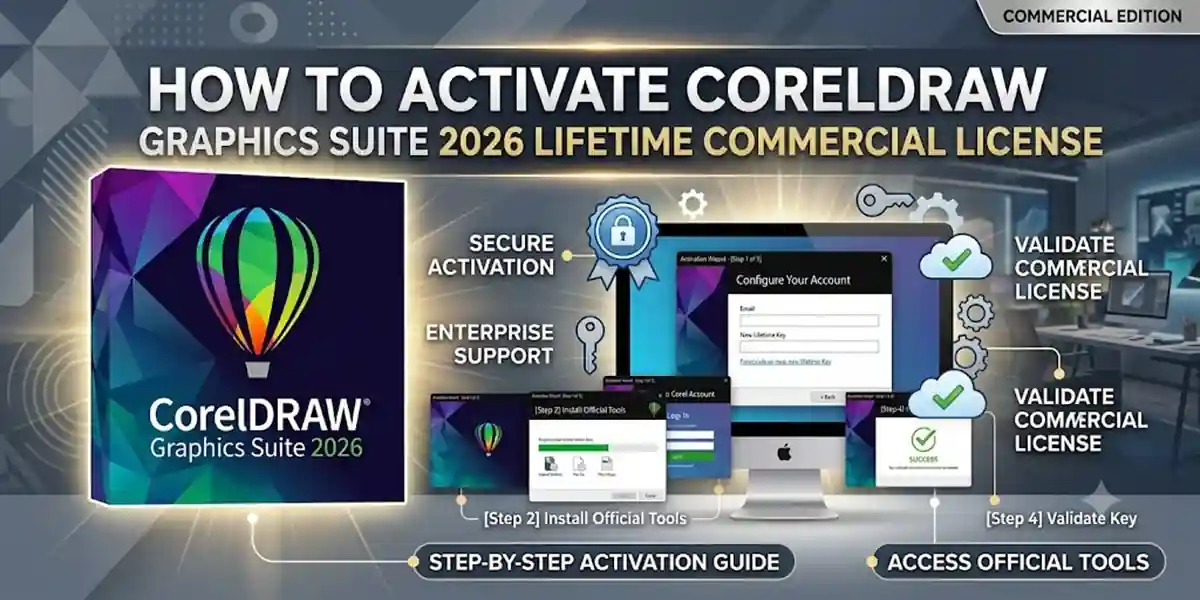
Introduction
CorelDRAW Graphics Suite is a professional graphic design solution used by designers, businesses, marketing teams, illustrators, and creative professionals. It provides tools for vector illustration, page layout, typography, and visual content creation. These capabilities make it suitable for producing logos, product labels, brochures, packaging designs, advertisements, business stationery, banners, and digital artwork.
For professionals who use graphic design software regularly, choosing the appropriate license is just as important as selecting the right features. A commercial license may be intended for business-related work, while the duration, activation requirements, transfer rights, and upgrade eligibility depend on the specific agreement.
The phrase “lifetime commercial license” is often used by software sellers to describe a perpetual license. However, buyers should verify exactly what the seller means. A genuine perpetual license generally permits continued use of the licensed version according to its terms, but it does not necessarily provide free upgrades to every future release or guarantee that all online services will remain available indefinitely.
Before installing CorelDRAW Graphics Suite , confirm that your purchase is legitimate, the edition matches your intended use, and the supplied installer is intended for the licensed product. Depending on the licensing arrangement, activation may involve entering a serial number, signing in to a Corel account, registering the product, or completing an online authentication process.
This guide covers the installation process, key features, legitimate activation methods, license verification, common errors and fixes, useful Windows commands, and frequently asked questions. The instructions are intended to help you complete setup safely without using unofficial activation utilities or modifying the software's licensing mechanisms.
1. Key Features of CorelDRAW Graphics Suite
CorelDRAW Graphics Suite is designed to support a wide range of professional design workflows. The applications and features available depend on the license you purchase, including whether you choose a perpetual license, subscription, or license with maintenance.
1.1 Vector Illustration and Graphic Design
CorelDRAW provides vector illustration tools that allow designers to create shapes, paths, symbols, logos, and detailed artwork. Vector designs can be resized for different applications while maintaining their sharp appearance.
Common uses include:
Business logos and brand identities
Product labels and packaging
Posters and banners
Business cards and stationery
Signage and promotional graphics
Illustrations and icons
These tools are particularly useful for businesses that need consistent branding across printed materials and digital platforms.
1.2 AI-Assisted Creative Tools
CorelDRAW Graphics Suite 2026 introduces AI-assisted creative capabilities, including text-to-vector and text-to-image workflows. Feature availability can depend on the purchasing option, included credits, and whether an internet connection is available.
These capabilities can help designers explore visual concepts and develop editable artwork more efficiently. Review the included features before choosing a license, particularly if AI tools are important to your workflow.
1.3 Enhanced PowerTRACE
PowerTRACE helps convert bitmap images into editable vector artwork. This can be useful when recreating logos, converting suitable illustrations, or preparing artwork for printing and production.
The 2026 release includes enhancements to PowerTRACE, including improved object structure and color handling.
1.4 Page Layout and Typography
CorelDRAW offers tools for combining text, shapes, photographs, and illustrations in organized layouts.
Designers can use these capabilities for:
Flyers and brochures
Product catalogues
Promotional advertisements
Certificates and invitations
Packaging artwork
Marketing documents
Typography tools also help control text placement, spacing, alignment, and visual hierarchy.
1.5 Photo Editing and Image Preparation
CorelDRAW Graphics Suite includes Corel PHOTO-PAINT for image editing and pixel-based design. This is useful when a project requires both vector artwork and photographs.
Depending on the task, designers can prepare images, combine visual elements, and produce graphics for print or digital use.
1.6 Font and Creative Asset Management
Creative projects often depend on fonts, templates, photos, and other design assets. The suite includes Corel Font Manager and a collection of creative resources, although the exact content and benefits vary by license.
Before purchasing a lifetime commercial license, compare the resources included in the perpetual edition with those available through subscription or maintenance.
1.7 Professional Commercial Design
For commercial users, CorelDRAW can support projects such as product branding, advertising, packaging, signage, and promotional materials.
However, the right to use the software commercially depends on the applicable license agreement. Do not assume that every educational, trial, OEM, or discounted license permits unrestricted commercial use.
2. Understanding the Lifetime Commercial License
Before activating CorelDRAW Graphics Suite , it is important to understand the meaning of the license you have purchased.
A perpetual license generally grants the right to use the specific licensed version indefinitely, subject to the applicable terms. It is different from a subscription, which provides access for a defined period while the subscription remains active.
The word “lifetime” can be misleading when used in advertisements. It may refer to continued use of a particular version rather than lifetime upgrades, technical support, online services, or access to every future release.
2.1 What a Perpetual License May Include
Depending on the product and agreement, a perpetual license may include:
Continued use of the licensed version.
Access to the features included in that version.
The right to install the software within the permitted device limits.
Activation using the supplied license information.
Commercial use where permitted by the license agreement.
Check your purchase documentation to determine which rights actually apply.
2.2 What It May Not Include
A perpetual license does not automatically include:
Every future major CorelDRAW release.
All subscription-exclusive features.
Unlimited installation on different computers.
Lifetime technical support.
Continued availability of every online service.
Transfer rights beyond those permitted by the agreement.
These distinctions matter when comparing a lifetime commercial offer with a subscription or maintenance option.
2.3 Confirm the License Before Installation
Before proceeding, review the following information:
Item
What to verify
Product name
CorelDRAW Graphics Suite
License type
Perpetual, subscription, or another authorized arrangement
Commercial rights
Whether business use is permitted
Serial number
Whether a valid number was supplied, if applicable
Account
Which Corel account is associated with the purchase
Device limit
How many installations are permitted
Upgrade rights
Whether future versions are included
Seller
Whether the seller is authorized and the license is legitimate
If the seller advertises a lifetime commercial license but cannot explain the license type or provide valid purchase documentation, clarify the situation before paying.
3. System Requirements Before Installation
A compatible computer helps CorelDRAW install and run correctly. Requirements differ between Windows and macOS, so select the information that matches your device.
3.1 Windows Requirements
For the current 2026 release, the published Windows specifications include:
Windows 10 or Windows 11, 64-bit, with current updates.
A compatible Intel or AMD processor.
At least 8 GB of RAM; 16 GB or more is recommended.
Approximately 5.5 GB of available storage for the application and installation files.
A compatible graphics card with OpenCL 1.2 support and 3 GB or more of video memory.
A supported display resolution.
Internet access for installation and authentication.
Always verify the complete requirements for your edition before installation.
3.2 Prepare Your Computer
Before downloading the installer:
Install applicable Windows updates.
Restart the computer if updates are pending.
Check the available disk space.
Close applications that are not needed.
Confirm that you can sign in to your Corel account.
Locate your purchase confirmation and license details.
Make sure the computer has a reliable internet connection.
If you are using a work computer managed by an IT department, confirm that you have permission to install the software.
3.3 Back Up Important Files
If CorelDRAW is already installed, save your design files and back up important custom resources before changing or reinstalling the application.
Your artwork, fonts, templates, and custom settings may be stored separately from the program itself. A normal uninstall should not be treated as a substitute for a backup.
4. How to Download CorelDRAW Graphics Suite
Use the installer supplied with your legitimate purchase or obtained through your Corel account.
Step 1: Locate Your Purchase
Find your order confirmation, receipt, or license documentation. Confirm that the product is CorelDRAW Graphics Suite and that the license permits your intended commercial use.
Step 2: Obtain the Correct Installer
Choose the installer that matches the licensed product and operating system. Do not assume that a trial installer, a different product edition, or an older version will activate with your license.
Step 3: Save the Download
Save the installation file in a folder you can locate easily. Allow the download to finish before opening the installer.
If the download fails, check your internet connection and try again using the authorized download method.
Step 4: Verify the File
Where available, review the file's digital signature and publisher information. Avoid running installers from unknown websites, file-sharing services, or sellers who provide modified software.
Step 5: Prepare for Installation
Close unnecessary applications and make sure you have administrator permissions if required. Keep your valid license information available in case the installer asks for it.
5. Installation Process for CorelDRAW Graphics Suite
The exact screens can vary according to the installer and license type, but the following steps describe a typical Windows installation.
Step 1: Start the Installer
Open the official installation file. If Windows displays a security prompt, check the publisher and source before allowing the program to make changes.
Step 2: Review the License Agreement
Read the End User License Agreement and other applicable terms. Confirm that you understand the rights and restrictions associated with your license.
Proceed only if you agree to the terms.
Step 3: Enter the Required Details
Some installation packages request your name, serial number, or account information.
Enter the details associated with your legitimate purchase. If the installer does not request a serial number at this stage, follow the prompts shown for your particular edition.
Step 4: Choose the Installation Options
If the setup wizard offers a typical or custom installation, select the option that meets your needs.
A typical installation is generally suitable for users who want the standard components. A custom installation may be useful if you need to select specific components or change the installation location.
Step 5: Allow Installation to Finish
Wait for the installation to complete. Do not shut down the computer or interrupt the process while files are being installed.
If an error appears, record the message before trying again.
Step 6: Launch CorelDRAW
Open the application from the Windows Start menu or its installed shortcut.
The software may ask you to sign in, authenticate the product, or enter license information. Follow the instructions for the license you purchased.
Step 7: Complete Authentication
If the application requests Corel account authentication, sign in using the account associated with your purchase.
Once authentication is complete, check the application's status for any remaining licensing warnings.
6. Methods to Activate CorelDRAW Graphics Suite Lifetime Commercial License
The correct method depends on the license supplied with your purchase. The following scenarios cover the main legitimate activation situations.
Method 1: Activation Using a Valid Serial Number
Some perpetual licenses require a serial number during installation or setup.
Step 1: Locate the serial number provided with your authorized purchase.
Step 2: Open the installer or activation screen.
Step 3: Enter the serial number carefully, checking that it matches the licensed product.
Step 4: Follow any prompts to register the product or sign in.
Step 5: Allow the software to complete the required verification.
Step 6: Restart the application if requested and check its status.
If the number is rejected, verify the product version, edition, and purchase details. Do not use a serial number generated by an unknown website or shared by an unauthorized seller.
Method 2: Activation Through a Corel Account
Corel account authentication may be required to associate the product with your account and access online features.
Connect your computer to the internet.
Open CorelDRAW Graphics Suite 2026.
Select the sign-in option displayed in the application.
Enter the email address and password associated with your Corel account.
Complete any verification prompts.
Follow the remaining instructions.
Authentication associates the product with your account, but signing in does not automatically provide a paid license. The account must have the appropriate entitlement.
Method 3: Activate a Perpetual Commercial License
If your purchase is specifically a perpetual commercial license, follow the process supplied with that license.
Confirm that the license covers CorelDRAW Graphics Suite 2026.
Obtain the correct installer.
Complete installation.
Enter the supplied serial number if requested.
Sign in and authenticate the product if required.
Verify that the application recognizes the licensed version.
Do not assume that every product described as a “lifetime license” uses the same activation procedure.
Method 4: Activate a License With Maintenance
Some purchasing arrangements combine a perpetual license with a maintenance agreement.
Maintenance may provide eligible upgrades and additional benefits while the agreement remains active. The version you can install depends on your entitlement.
To proceed:
Sign in to the account associated with the purchase.
Check the product and maintenance details.
Confirm that the version you intend to install is covered.
Download the appropriate installer.
Follow the supplied installation and authentication instructions.
If your maintenance has expired, verify which version you are still entitled to use before installing a newer release.
Method 5: Activate a Business or Volume License
Business licensing may allow an organization to manage several installations through a license administrator.
The activation procedure can differ from an individual license.
Obtain the installer and deployment instructions from your administrator or authorized seller.
Confirm the number of licensed users or devices.
Install the approved edition.
Follow the organization's authentication instructions.
Ask the administrator to verify the license assignment if activation fails.
Do not use an individual license across multiple employees unless the agreement specifically permits that arrangement.
Method 6: Start an Official Trial Before Purchasing
If a trial is available in your region, you can use it to evaluate the software before purchasing a commercial license.
Check whether Corel offers a trial for the relevant edition.
Download the official trial installer.
Install the application.
Follow the sign-in or trial-start instructions.
Review the available features and license terms.
A trial is temporary access and should not be presented as a lifetime commercial license.
Method 7: Recover Missing License Information
If you purchased the software but cannot find your serial number or license details, review your purchase documentation and Corel account.
You can also check the email address used during checkout or contact the seller through its official support channel.
Keep your order number and receipt available. Do not share your password or full serial number publicly.
7. How to Verify the License After Activation
After completing installation and authentication, check that the application is working with the correct license.
Step 1: Open the Application
Launch CorelDRAW Graphics Suite
Step 2: Check the Account
If the application displays account information, confirm that you are signed in with the appropriate account.
Step 3: Review License Messages
Look for remaining messages about activation, trial expiry, subscription status, or license verification.
Step 4: Test Basic Functionality
Create a new document, draw a simple shape, add text, and save the file.
Step 5: Check Your Purchase Records
If the application reports that the license is missing or invalid, compare the product information with your receipt and license details.
Successful account sign-in does not necessarily prove that every paid feature is licensed. If the software continues to report a problem, troubleshoot the specific error.
8. Common Activation Errors and Their Fixes
Activation problems can arise from invalid license information, account mismatches, internet connectivity, installer problems, or system settings.
Error 1: Invalid Serial Number
Possible causes:
A typing error.
A serial number for another product or version.
An incorrect license edition.
A license that has not been properly associated with the purchase.
Fix:
Check the number against your purchase documentation. Verify that it applies to CorelDRAW Graphics Suite and contact the authorized seller or Corel Support if it remains invalid.
Error 2: Account Sign-In Failed
Possible causes:
An incorrect email address or password.
An incomplete verification process.
A temporary authentication problem.
Network restrictions.
Fix:
Check the account details, reset your password through the official account recovery process if necessary, and retry. If the problem persists, record the error message and contact support.
Error 3: No Internet Connection Detected
Possible causes:
Wi-Fi or Ethernet disconnection.
A network requiring a browser sign-in.
VPN or proxy interference.
Firewall restrictions.
Fix:
Open a trusted website to check connectivity. Complete any required network sign-in, verify your network settings, and check whether security software is blocking the genuine application.
Do not permanently disable antivirus or firewall protection to activate software.
Error 4: License Not Found
Possible causes:
The wrong account is signed in.
The purchase is associated with another email address.
The license does not cover the installed version.
The license information has not refreshed.
Fix:
Verify the purchase account, compare the installed edition with the order confirmation, and follow the official authentication instructions.
Error 5: Subscription or Trial Expired
This message may appear if the software is using a subscription or trial rather than the perpetual license you expected.
Fix:
Review your purchase documentation. If you purchased a perpetual license, confirm that the installed product is associated with that license. If you purchased a subscription, check its current status.
Reinstalling the application does not renew an expired subscription.
Error 6: Installation Failed
Possible causes:
An incomplete download.
Insufficient disk space.
Pending system updates.
Lack of installation permissions.
A damaged installer.
Fix:
Restart Windows if appropriate, check available storage, download the installer again from an authorized source, and retry the installation.
Record the exact error if it happens again.
Error 7: Application Opens but Continues Asking for Activation
Possible causes:
Authentication was not completed.
The wrong account is being used.
The license does not match the edition.
A network service cannot be reached.
Fix:
Verify the license, sign in with the correct account, check internet connectivity, and follow the application's instructions. Contact support if the problem continues.
Error 8: Firewall or Security Software Blocks Authentication
Security software may sometimes restrict a legitimate application's network access.
Fix:
Review the security notification and confirm that the blocked application is the genuine Corel installation. If appropriate, allow the application through a narrowly scoped firewall rule. On a managed work computer, ask your IT administrator for assistance.
Error 9: Wrong CorelDRAW Version Installed
A license may apply only to a specific release.
Fix:
Check the installed version and compare it with the license documentation. If the wrong installer was used, obtain the correct version through your authorized account or seller.
Error 10: Incorrect Windows Date and Time
An incorrect system clock can interfere with secure connections.
Fix:
Open Windows Settings, select Time & language, and check the date, time, and time zone. Enable automatic time settings where appropriate, then restart the application and retry authentication.
Error 11: Authentication Fails on a Business Network
A company firewall, proxy, or network policy may block access to authentication services.
Fix:
Ask your IT administrator to review the network restrictions and the official Corel deployment requirements. Do not change corporate firewall settings without authorization.
Error 12: Activation Still Fails After Troubleshooting
If the error persists, collect the information support staff need:
The exact error message.
The installed product edition and version.
Your Windows version.
The purchase or license type.
The steps already attempted.
Provide sensitive license information only through an official support channel when requested.
9. Useful Windows Commands for Installation and Activation Troubleshooting
Windows includes several commands that help investigate network or system issues. These commands cannot generate a license or bypass Corel's activation requirements.
Command 1: Check Network Configuration
Open Command Prompt and enter:
ipconfig
This displays network configuration information for your computer.
If your network adapter appears disconnected or has an unexpected configuration, check your Wi-Fi, Ethernet, or router settings.
Command 2: Refresh the DNS Cache
Enter:
ipconfig /flushdns
This clears the local DNS resolver cache. It may help if stale DNS information is affecting connectivity, although it will not resolve every network problem.
Retry the connection after running the command.
Command 3: Test DNS Resolution
Enter:
nslookup example.com
This checks whether the configured DNS server can resolve a domain name.
If the lookup fails, investigate the network or DNS configuration. This test does not confirm that Corel's authentication service is available.
Command 4: Test General Connectivity
Enter:
ping example.com
This sends ping requests to a sample domain.
A failed ping does not always mean that internet access is unavailable because some networks block ping requests. Test your connection in a browser as well.
Command 5: Check the Windows Version
Press Windows + R, type:
winver
Press Enter to view the Windows version and build.
Compare the information with the supported operating-system requirements for CorelDRAW Graphics Suite 2026.
Command 6: Open Programs and Features
Press Windows + R and enter:
appwiz.cpl
This opens Programs and Features, where you can review installed applications and use the supported uninstall options.
Avoid removing unfamiliar components or deleting program files manually.
Command 7: Scan Windows System Files
Open Command Prompt as an administrator and run:
sfc /scannow
System File Checker scans protected Windows system files and attempts to repair certain problems.
This is a general Windows repair command, not a CorelDRAW activation command.
Command 8: Restart the Computer
After system repairs, installation changes, or updates, restart Windows if appropriate.
A restart can complete pending changes and release resources held by an installer. It cannot correct an invalid serial number or renew an expired license.
Command safety: Avoid running unknown scripts that claim to activate CorelDRAW automatically. Do not modify licensing files, disable license verification, block authentication services, or change the registry to bypass activation.
10. How to Update or Repair CorelDRAW Graphics Suite
If the application continues to fail after you verify the license, consider whether an official update or repair is appropriate.
Check for Updates
Open Corel's official product or support information.
Identify updates that apply to your version.
Review the compatibility and installation instructions.
Save your work.
Install the appropriate update.
Restart the application if requested.
An update may correct a software issue, but it will not provide a missing license.
Repair the Installation
If the installer or Windows offers a repair option, use the supported procedure. Follow any prompts and restart the application afterward.
Reinstall Only When Necessary
Before reinstalling, back up important design files and custom resources. Confirm that you can access your license information and have the correct installer.
Uninstall the software using the supported method, then reinstall the licensed edition. Follow the appropriate activation procedure when setup finishes.
Reinstallation does not turn a subscription into a perpetual license or guarantee that an invalid license will be accepted.
11. Best Practices for Lifetime Commercial License Owners
After successful activation, follow these practices to protect your software access and business workflow.
Keep Your Purchase Documentation
Store your invoice, order confirmation, and license details securely. These records may be important if you need to recover a license or contact support.
Protect Your Corel Account
Use a strong password and keep your recovery information current. Never share your password with an unofficial activation service.
Understand Device Restrictions
Review the license agreement before installing the software on another computer. A perpetual license does not necessarily allow unlimited simultaneous installations.
Understand Upgrade Eligibility
If you own a perpetual license for CorelDRAW Graphics Suite 2026, do not assume that a future major release is automatically included. Confirm your upgrade rights before installing another version.
Use Official Installers
Download software only through authorized channels. Modified installers and unknown activation utilities may contain malicious software or compromise your data.
Keep Your Design Files Backed Up
Save copies of important artwork, fonts where permitted, templates, and other project resources. This helps protect your business work if the computer needs repair or replacement.
Review Online Feature Availability
Some features, content, and authentication processes require internet access. A perpetual license does not guarantee that every online service will remain available forever.
12. Conclusion
Activating CorelDRAW Graphics Suite with a lifetime commercial license begins with confirming that your license is genuine, valid for the 2026 edition, and suitable for commercial use. Once you have verified the purchase, download the correct installer, check the system requirements, complete installation, and follow the activation instructions supplied with your license.
If activation fails, investigate the specific error instead of repeatedly reinstalling the application. Check the serial number, Corel account, network connection, system date and time, and installed version. Windows commands such as ipconfig, nslookup, and sfc /scannow can help diagnose certain connectivity or system problems, but they cannot replace a valid license.
Finally, understand what “lifetime” means in your purchase agreement. A perpetual license generally allows continued use of the licensed version, but it does not necessarily include future releases, lifetime technical support, or every online feature.
Frequently Asked Questions (FAQs)
Use the official installer and follow the licensing instructions for your purchase. Depending on the license, you may need a serial number, Corel account sign-in, and online authentication.
Corel offers a one-time purchase option for perpetual use of the 2026 version. Check the product details and license agreement to confirm the exact terms.
Not automatically. A perpetual license generally covers the specific version purchased. Future upgrades may require another purchase or an eligible maintenance arrangement.
Commercial use depends on the license agreement. Confirm that the license you purchased permits your intended business activities.
Some licenses require a serial number. Other activation workflows may rely on account authentication or different license information. Follow the instructions supplied with your edition.
Corel account sign-in may be required for authentication. However, an account alone does not necessarily provide a valid paid license.