

How to Download and Install VMware Workstation Pro for Free

To get VMware Workstation Pro , sign in to the support portal, open the downloads, pick the newest Workstation Pro release for your host (Windows or Linux), accept the terms and run the installer. may be you need it for work, a school or a lab, read the license terms you accept on the portal first, and consider a paid license.
Want a license instead of the portal hunt? Get VMware Workstation Pro 17 for Windows, 1 PC, lifetime at Codesforever. It is listed at US$22 on the product page and arrives by email. Support is free, and a key that fails is replaced.
The hard part is finding the right file. VMware, the old download pages send you to a portal, and search results fill up with third-party mirrors. Do install a hypervisor from a mirror. It runs with deep system privileges.
You probably have a few questions. Is VMware Workstation Pro really work? Where do I download it? Do I still need to buy a license? Can I run it on a Mac? This guide answers each one, then walks you through the install on Windows and Linux and your first virtual machine.
Is VMware Workstation Pro work?
Download it through the support portal. It is not a everyone program in every situation. The terms you accept on the portal are the ones that apply to you, so read them if you plan to use it at work or in a school.
When do I still need to buy a license?
A paid key makes sense in a few cases:
- Your use falls outside the use terms.
- You want a lifetime license to one PC, instead of depending on a portal account.
- You need a specific version, for example 17.x, for a project or a lab image.
- You want a seller that gives you activation help and a replacement if something fails.
VMware Workstation Pro 17 for Windows, 1 PC, lifetime is US$22 at Codesforever. Check the product page for the exact edition and what it covers before you order. You can read buyer reviews first.
Personal use, paid when work, school or a specific version is involved.
Can I run VMware Workstation Pro on a Mac?
No. Workstation Pro runs on 64-bit Windows and Linux hosts. On a Mac, the matching product is VMware Fusion, which is a different download.
What do I need before I download?
Run through this checklist:
- A 64-bit x86 CPU with Intel VT-x or AMD-V turned on in UEFI/BIOS.
- Windows 10 or 11, or a mainstream Linux distribution such as Ubuntu, Fedora, Debian, RHEL or SUSE.
- At least 8 GB of host RAM, so guests do not starve the host.
- 40 GB or more of free disk space for the guest.
- A free account at support.broadcom.com.
To check virtualization on Windows, open Task Manager, go to Performance and select CPU. The line "Virtualization" should read Enabled.
Step 1. How do I download VMware Workstation Pro?
The download needs a login, which is why people get stuck. The steps below take about five minutes.
Where do I find the download?
Sign in at support.broadcom.com. Then open the free downloads and find VMware Workstation Pro. Broadcom’s knowledge base has a download and license guide for Fusion Pro and Workstation Pro.
How do I choose the release?
- Expand the VMware Workstation Pro entry for your platform (Windows or Linux).
- Select the version you want under the Release column.
- Tick "I agree to the Terms and Conditions".
- Click the download icon.
The download link stays inactive until you open and tick the terms. This is the most common reason people report "unable to download". Updates are manual now, so repeat these steps when a new release arrives.
If the download button does nothing, you have not accepted the terms yet.
How do I check the file is safe?
If the portal lists a checksum next to your file, compare it with your download. On Windows, run this in PowerShell from the download folder:
Get-FileHash .\VMware-workstation-full-*.exe -Algorithm SHA256
On Linux, run this instead:
sha256sum VMware-Workstation-Full-*.bundle
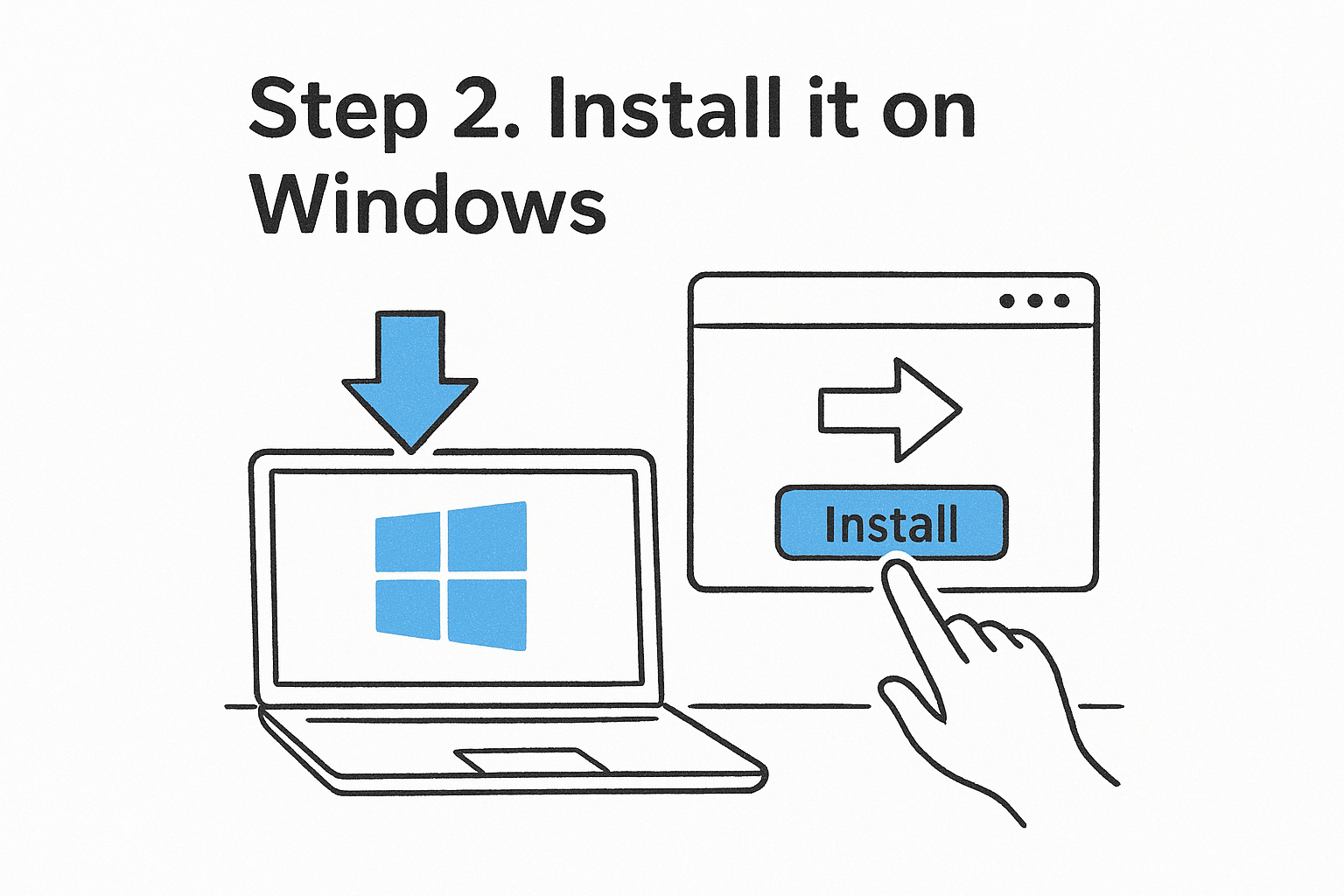
Step 2. How do I install it on Windows?
On Windows, installation is a standard wizard that takes a few minutes. Run the downloaded .exe as administrator and accept the defaults unless you have a reason to change them.
How do I run the setup wizard?
Right-click the installer, choose Run as administrator and click Next. Accept the license agreement, choose an install folder and decide on the optional Enhanced Keyboard Driver. Keep the shortcuts and click Install. Restart if the wizard asks.
When the license screen appears, choose the personal use option if you see one. Some releases let you finish without entering a key. If yours asks for a key and you have one, enter it here.
Why is my VM slow, or why won’t it start?
If Hyper-V, WSL2 or Virtual Machine Platform is active on your host, Workstation runs through the Windows Hypervisor Platform. It works, but guests run slower. If you do not need those Windows features, turn them off under Turn Windows features on or off and reboot.
A VM that refuses to start on Windows almost always points to disabled virtualization in UEFI or a Hyper-V conflict.
Step 3. How do I install it on Linux?
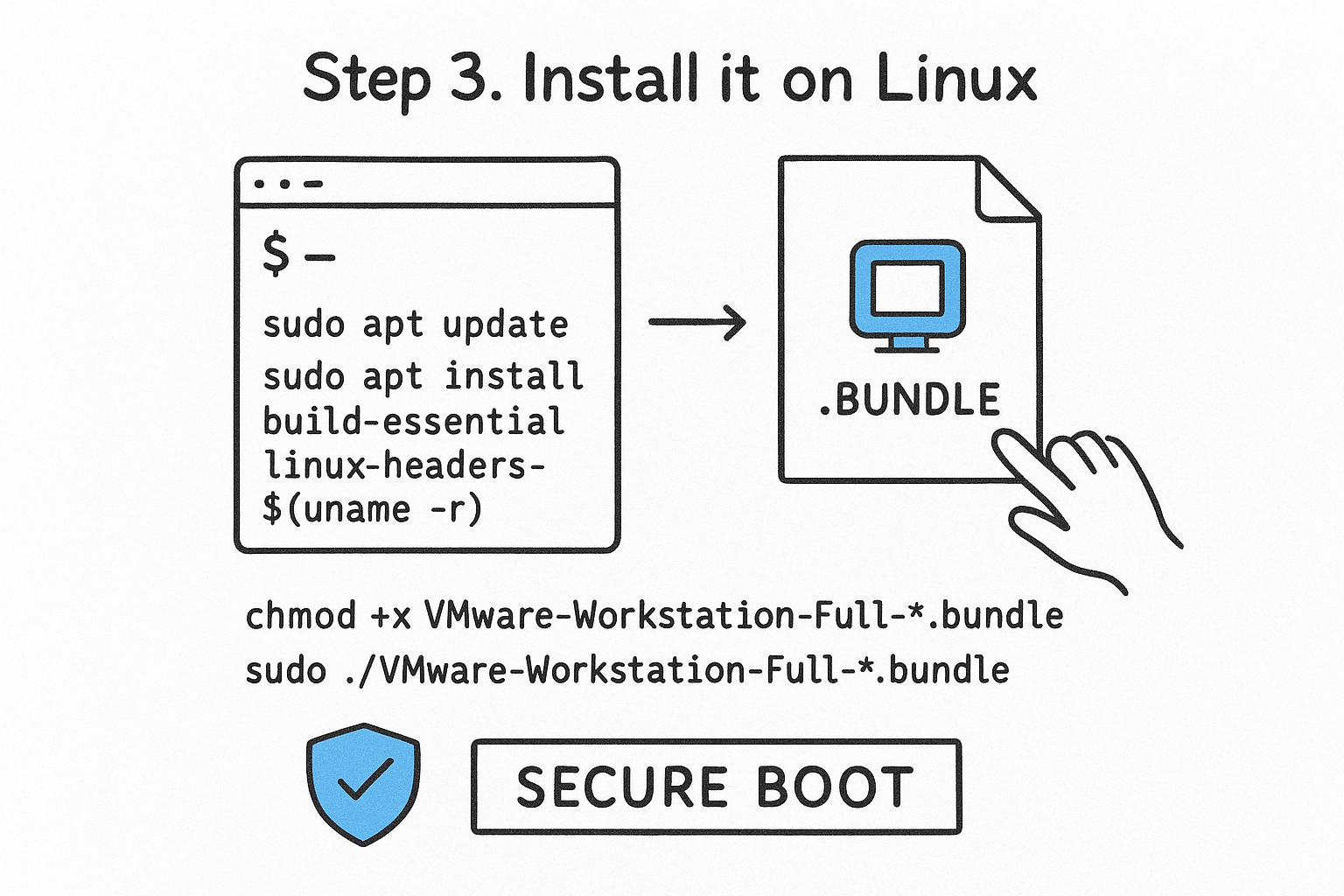
The Linux installer is a .bundle file. It builds kernel modules during setup, so install the build tools and kernel headers first. Skipping this is the number one cause of failed Linux installs.
How do I run the bundle?
On Ubuntu or Debian, install the tools like this:
sudo apt update
sudo apt install build-essential linux-headers-$(uname -r)
On Fedora or RHEL-family systems, use this:
sudo dnf install gcc make kernel-devel kernel-headers
Then make the bundle executable and run it with root rights:
chmod +x VMware-Workstation-Full-*.bundle
sudo ./VMware-Workstation-Full-*.bundle
Follow the prompts, then launch Workstation Pro from your applications menu or by typing vmware.
What about Secure Boot?
With Secure Boot enabled, the vmmon and vmnet modules must be signed. On first launch, Workstation offers to compile the modules. If Secure Boot blocks them, enroll a signing key through the machine owner key (MOK) prompt and reboot. Signing is safer than disabling Secure Boot in UEFI.
On Linux, install headers and build tools before the bundle, and you avoid most install errors.
To remove it later, run sudo vmware-installer -u vmware-workstation.
Step 4. How do I create my first virtual machine?
Create a test virtual machine to confirm the install. It takes a few minutes and proves that virtualization, networking and licensing all work.
Open Workstation Pro, click Create a New Virtual Machine and select Typical. Choose your installer ISO, name the VM and set the disk size. For a Windows 11 guest on a host with 16 GB of RAM, a comfortable setup is 4 processor cores, 8 GB of RAM and an 80 GB disk. That leaves half your memory for the host.
Do I need a Windows license inside the VM?
Yes. A virtual machine is a separate computer as far as Windows is concerned, so the guest needs its own license. A Windows 11 Pro key is US$14 at Codesforever, and Windows Server 2022 Datacenter with 50 CALs is US$76 if you are building a server lab.
Windows 11 also requires UEFI and a virtual TPM. Workstation can add the TPM, and the wizard asks you to set an encryption password for the VM. Store that password safely, because an encrypted VM is unrecoverable without it.
How do I protect my setup?
Check Help, then About, to confirm the version. Before installing software in the guest, take a snapshot under VM, then Snapshot. It gives you a clean roll-back point if something breaks.
Take a snapshot of every fresh VM before you install anything inside it.
Building a lab? Here is what people pair with Workstation
- VMware vSphere Enterprise Plus 8 (US$48) for production-style hosts.
- SQL Server 2022 Standard (US$88) for database testing.
- Visual Studio 2022 for development inside a VM.
Ready to get your license?
Check your virtualization settings and run the installer for your host. Windows needs a wizard, and Linux needs headers plus a bundle. A snapshot keeps the first VM safe.
If your use goes beyond personal use, or you want a lifetime key for one PC, get VMware Workstation Pro 17 at Codesforever. Our support team helps with installation and activation.