

Autodesk Plant 3D 2025 Activation Guide | Step-by-Step Instructions

Introduction
Autodesk AutoCAD Plant 3D 2025 is a specialized plant-design application built on AutoCAD that helps engineers create P&IDs, 3D piping models, equipment layouts, structural models, isometric drawings, and orthographic deliverables. Activating it correctly ensures access to updates, cloud-connected features, project collaboration tools, and official technical support.autodesk+1
This guide explains the legitimate ways to install and activate AutoCAD Plant 3D 2025, including Autodesk ID sign-in, network licensing, serial-number activation, deployment methods, common activation errors, and practical fixes. It also covers useful Plant 3D commands, installation preparation, and frequently asked questions.
What Is AutoCAD Plant 3D 2025?
AutoCAD Plant 3D 2025 is Autodesk’s process-plant design software for creating intelligent 3D models and 2D documentation. It is commonly used in oil and gas, chemical, power, water treatment, pharmaceutical, food processing, HVAC, piping, and industrial engineering projects.autodesk+1
The software combines familiar AutoCAD drafting tools with plant-specific functionality, including specification-driven piping, P&ID symbols, equipment modeling, structural components, isometric generation, and project data management.
Who Uses Plant 3D?
AutoCAD Plant 3D is useful for:
Piping designers and piping engineers
Process engineers
Mechanical, electrical, and plumbing designers
Plant layout designers
Structural designers working on plant projects
EPC contractors
Fabricators and construction teams
Owners and operators managing plant documentation
Key Features of AutoCAD Plant 3D 2025
AutoCAD Plant 3D 2025 includes tools that help teams move from conceptual process design to construction-ready deliverables.help.autodesk+1
1. P&ID Design
Plant 3D lets users create Piping and Instrumentation Diagrams using intelligent symbols, lines, tags, and annotation tools. P&ID data can support downstream 3D modeling and documentation workflows.blogs.autodesk+1
2. Specification-Driven 3D Piping
Designers can route pipes using pipe classes, line numbers, sizes, specifications, and component catalogs. This helps maintain consistency across a project and reduces manual modeling errors.
3. Equipment Modeling
The software includes tools for creating pumps, vessels, tanks, exchangers, nozzles, and other plant equipment. Users can define equipment shapes and nozzle positions before connecting piping systems.
4. Structural Modeling
Plant 3D supports basic steel structures, grids, stairs, ladders, platforms, and profiles. This helps designers place piping and equipment within a realistic plant context.
5. Isometric Drawing Generation
Users can generate production isometrics directly from the 3D model. Isometric drawings can include line numbers, dimensions, bills of material, and other fabrication-related information.
6. Orthographic Drawings
Plant 3D can create 2D orthographic views from 3D models. These drawings are useful for plan views, sections, elevations, and construction documentation.
7. Project Manager and Data Management
The Project Manager helps organize drawings, models, P&IDs, isometrics, orthographic views, and shared project data. It provides a central workspace for managing plant projects.
8. Collaboration Tools
Depending on the subscription and setup, teams can use Autodesk collaboration workflows to share project data, coordinate designs, and manage access across locations.
System Requirements and Pre-Installation Checklist
Before installing AutoCAD Plant 3D 2025, confirm that your computer meets Autodesk’s requirements and that you have the correct Autodesk account permissions. Autodesk provides product-specific system requirement and support information through its official Plant 3D support pages.
Recommended Preparation
Use a supported 64-bit Windows operating system.
Ensure you have administrator rights on the computer.
Confirm sufficient RAM, storage, and a compatible graphics setup.
Update Windows and graphics drivers.
Disable unnecessary background applications during installation.
Sign in to your Autodesk Account.
Confirm that your Autodesk ID has been assigned a Plant 3D license.
Collect network license server details if your organization uses a network license.
Locate your serial number and product key if your license type requires them.
Temporarily allow the installer through antivirus or firewall prompts only when appropriate and approved by your IT team.
Autodesk states that subscription licenses require sign-in with an Autodesk ID, while network or multi-user licenses require license-server information. Serial-number activation applies when a serial number was provided with the software.
How to Download AutoCAD Plant 3D 2025
The safest way to download AutoCAD Plant 3D 2025 is through your official Autodesk Account. Autodesk directs users to sign in to Autodesk Account or the Education product-access site to download the product.
Download Steps
Go to the Autodesk Account portal at manage.autodesk.com.
Sign in with your Autodesk ID and password.
Open Products and Services.
Find AutoCAD Plant 3D 2025.
Select the appropriate platform, language, and installer type.
Click Download or use the Autodesk installation method provided by your organization.
Save the installer to a local folder with enough free disk space.
Extract the downloaded files if required.
Run the installer as an administrator.
Autodesk’s official support documentation also provides downloadable offline Help for AutoCAD Plant 3D 2025, which can be useful for users working in restricted-network environments.
How to Install AutoCAD Plant 3D 2025
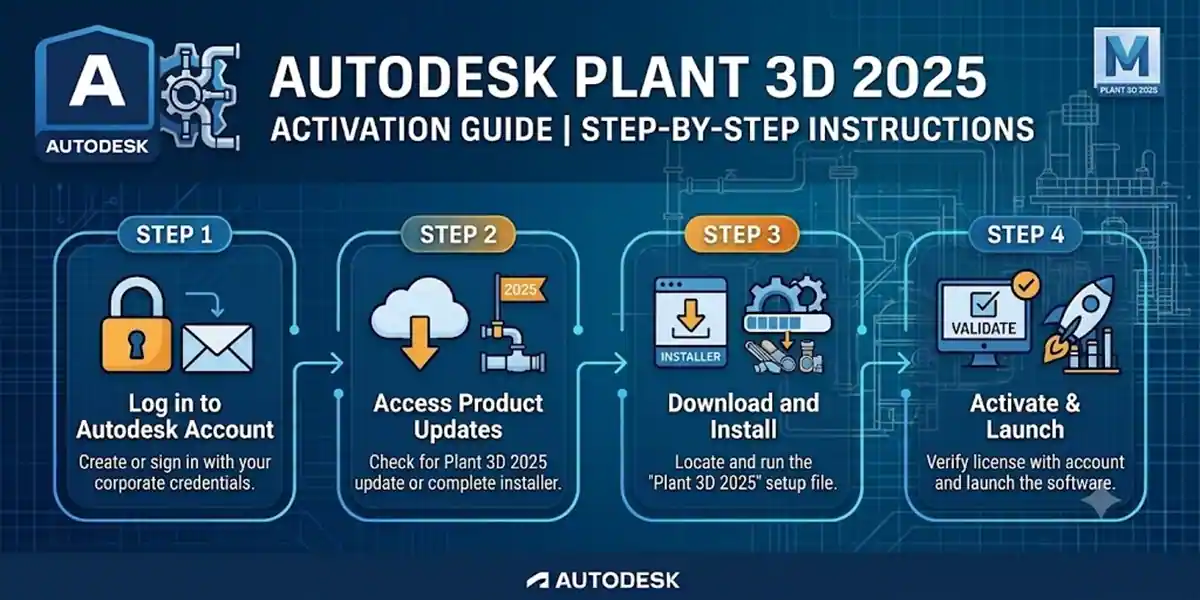
Installation should be completed before activation. Autodesk’s activation process normally occurs automatically the first time the software runs, although some installations display the “Let’s Get Started” window with activation options.
Standard Installation Process
Run the installer as administrator
Right-click the setup file and choose Run as administrator.Choose installation preferences
Select the installation language, destination folder, and components you want to install.Accept the license agreement
Review Autodesk’s license terms before continuing.Select the product configuration
Choose the default installation unless your IT administrator has provided a custom configuration.Begin installation
Click Install and wait for the process to finish.Launch AutoCAD Plant 3D 2025
After installation, open the software from the Windows Start menu or desktop shortcut.Complete authentication
Sign in with your Autodesk ID or choose the licensing method configured for your organization.
Installation Tips
Do not interrupt the installation once it begins.
Keep your device connected to the internet for subscription sign-in.
If your organization uses a deployment package, follow the internal deployment instructions instead of installing manually.
If you use a network license, confirm the license server name or address before launching the software.
Install available updates after activation to improve stability and compatibility.
Methods to Activate AutoCAD Plant 3D 2025
Autodesk supports several legitimate activation methods. The correct method depends on whether your license is a subscription, network, education, or serial-number-based license.
Method 1: Activate with Autodesk ID Sign-In
This is the most common method for individual subscription users.
Steps
Launch AutoCAD Plant 3D 2025.
If the Let’s Get Started window appears, select Sign in with your Autodesk ID.
Enter your Autodesk ID email address.
Enter your password.
Complete two-factor authentication if enabled.
Wait while Autodesk verifies your entitlement.
Once verified, the software opens with an active license.
Autodesk explains that subscription licenses require an Autodesk ID and password. Your Autodesk ID must also be assigned a product license by the contract primary or secondary administrator.
If Sign-In Fails
Confirm your internet connection.
Verify that you are using the correct Autodesk ID.
Check whether your license has been assigned to your account.
Ask your Autodesk contract administrator to assign the license.
Clear cached Autodesk sign-in data if instructed by Autodesk Support.
Try signing in through a browser to confirm your account works.
Method 2: Activate with a Network License
Network licensing is used by organizations that manage licenses through an Autodesk network license server.
Steps
Launch AutoCAD Plant 3D 2025.
In the Let’s Get Started window, select Use a network license.
Choose the appropriate license server type.
Enter the license server name or IP address provided by your IT administrator.
Click Done or OK.
Launch the software again if required.
The application should connect to the network license server and activate.
Autodesk identifies network or multi-user licensing as the appropriate method when the product license type is Network or Multi-user.
Network License Requirements
A properly configured Autodesk network license server
Available network license seats
Correct server name or IP address
Network access between the workstation and license server
Correct firewall permissions
An Autodesk account or local user profile with permission to run the software
Method 3: Activate with a Serial Number
Some users may have received a serial number with their software. This method applies when Autodesk provides a serial number for the product.autodesk
Steps
Open AutoCAD Plant 3D 2025.
Select Enter a serial number in the activation window.
Enter your serial number.
Enter the product key if requested.
Follow the on-screen instructions to complete activation.
Restart the software if prompted.
To find a serial number, Autodesk instructs users to sign in to their Autodesk account, open Products and Services, select the product tile, and open License Details.
Method 4: Activate Through an Educational License
Eligible students and educators may access Autodesk products through Autodesk Education. The activation process usually requires signing in with the Autodesk ID associated with the educational entitlement.
Steps
Install AutoCAD Plant 3D 2025 from the Autodesk Education product-access site.
Launch the software.
Select Sign in with your Autodesk ID.
Sign in using the education-associated Autodesk account.
Confirm the educational license entitlement.
Start using the software.
Autodesk’s support page refers to the Education product-access site as one place where users can download products.
Method 5: Activate Through a Company Deployment
Large organizations often deploy Autodesk software using an administrative deployment package. In this case, activation may be preconfigured by the IT department.
Steps
Obtain the deployment package from your IT administrator.
Run the deployment installer.
Follow the organization-specific installation instructions.
Launch AutoCAD Plant 3D 2025.
Sign in or connect to the configured license server.
Confirm that the license status is active.
This approach is common in companies with centralized IT management, standardized workstation setups, and multiple Autodesk products.
Activation Errors and Fixes
Activation problems usually relate to account permissions, internet connectivity, license-server configuration, corrupted installation files, or outdated software components. Autodesk’s official authentication guidance identifies sign-in, network licensing, and serial-number activation as the primary methods.
Error 1: “Sign-In Failed” or “Unable to Verify License”
Possible Causes
Incorrect Autodesk ID or password
No internet connection
License not assigned to the user
Autodesk authentication service temporarily unavailable
Firewall or proxy blocking Autodesk services
Corrupted sign-in cache
Fixes
Confirm your internet connection.
Sign in to manage.autodesk.com in a browser.
Verify that AutoCAD Plant 3D 2025 appears under Products and Services.
Ask your contract administrator to assign the license to your Autodesk ID.
Restart the computer and try again.
Disable VPN or proxy temporarily if permitted by your IT policy.
Contact Autodesk Support if the issue continues.
Autodesk specifically notes that a user must have a license assigned by the contract primary or secondary administrator.
Error 2: “License Not Available” on a Network License
Possible Causes
All network license seats are in use
Incorrect license server name or IP address
License server is offline
Firewall blocking communication
License file does not include Plant 3D
Network configuration issue
Fixes
Confirm that a license seat is available.
Verify the license server address with your IT administrator.
Restart the Autodesk network license manager service.
Confirm that the license file includes AutoCAD Plant 3D 2025.
Check firewall rules for license-server communication.
Test the connection from another workstation.
Contact your internal CAD or IT administrator.
Error 3: “Invalid Serial Number” or “Product Key Not Accepted”
Possible Causes
Typing error in the serial number
Wrong product key
Serial number assigned to another product or version
Expired or retired license
Using a serial number with a subscription-only product
Fixes
Re-enter the serial number carefully.
Confirm the product key for AutoCAD Plant 3D 2025.
Check License Details in Autodesk Account.
Confirm that the serial number belongs to the correct product and version.
Contact your Autodesk reseller or Autodesk Support if the number is valid but still fails.
Autodesk provides serial-number lookup through the product tile’s License Details section in Autodesk Account.
Error 4: Software Opens in Trial Mode or Expired Mode
Possible Causes
User is signed in with the wrong Autodesk ID
Subscription has expired
License assignment was removed
Sign-in cache is outdated
Network license server is unreachable
Fixes
Sign out of Autodesk Account inside the software.
Sign back in using the correct Autodesk ID.
Confirm subscription status in Autodesk Account.
Ask the administrator to reassign the license.
Reconnect to the network license server.
Repair or reinstall the software if files are corrupted.
Error 5: “Let’s Get Started” Window Keeps Appearing
Possible Causes
Authentication did not complete
License type mismatch
Corrupted user profile
Restricted permissions
Outdated Autodesk licensing component
Fixes
Choose the correct activation option for your license type.
Sign in with the Autodesk ID that holds the license.
Run the software as administrator.
Restart the workstation.
Update the Autodesk desktop licensing component.
Repair the installation through Windows Control Panel or Settings.
Reinstall the software using a fresh official installer.
Autodesk notes that the exact wording in the activation window can vary by product version, but the main options include Autodesk ID sign-in, network license, and serial number.
Error 6: Installation Fails or Freezes
Possible Causes
Insufficient disk space
Corrupted download
Missing Windows updates
Antivirus interference
Insufficient user permissions
Conflicting previous Autodesk installation
Fixes
Free up disk space.
Re-download the installer from Autodesk Account.
Run the installer as administrator.
Temporarily disable non-essential antivirus scanning if approved by IT.
Install pending Windows updates.
Use the Autodesk installation diagnostic or repair tools.
Remove conflicting older versions only after backing up custom files and settings.
Error 7: Plant 3D Installs but Missing Toolsets or Features
Possible Causes
Incorrect product selected during installation
Incomplete installation
Missing updates
Project-specific content not installed
Corrupted content libraries
Fixes
Confirm that you installed AutoCAD Plant 3D, not only AutoCAD.
Re-run the installer and modify the installation.
Install available service packs or updates.
Reset the Plant 3D project configuration if needed.
Reinstall missing content from the original installer.
Autodesk provides a dedicated tutorial for installing the AutoCAD Plant 3D Toolset from available products in Autodesk Account.
Conclusion
Activating Autodesk AutoCAD Plant 3D 2025 is straightforward when you use the correct licensing method for your account. Most individual users activate by signing in with an Autodesk ID, while organizations may use a network license server or serial-number-based activation. Autodesk’s official activation process supports these methods and may authenticate the product automatically when the software is first launched.
For the best experience, download the software from Autodesk Account, verify that your license is assigned, install the application with administrator rights, and use official troubleshooting resources if activation errors occur. Avoid unauthorized activation tools, since legitimate activation protects your access to updates, cloud services, technical support, and secure project workflows.
Frequently Asked Questions (FAQs)
Launch the software and sign in with the Autodesk ID assigned to your subscription. If you use a network license, choose Use a network license and enter the license server information. If you received a serial number, choose Enter a serial number and follow the prompts.
Autodesk subscription products authenticate through your Autodesk ID. Signing in confirms that your account has an active product entitlement.
Ask your Autodesk contract primary or secondary administrator to assign an AutoCAD Plant 3D license to your Autodesk ID. Autodesk states that a license must be assigned before sign-in activation can succeed.
Initial activation for subscription licenses generally requires internet access for Autodesk authentication. Network-license users may be able to work after connecting to the organization’s license server, depending on the license configuration.autodesk
Sign in to manage.autodesk.com, open Products and Services, select the AutoCAD Plant 3D product tile, and click License Details.
A subscription license is activated by signing in with an Autodesk ID. A network license is managed through a company license server and requires server information during activation.