

How to Activate Canva Pro: A Step-by-Step Guide to Unlock Premium Design Features

Introduction
Canva Pro is an advanced version of the popular graphic design tool, Canva, designed to provide more robust and professional features for both individuals and teams. Whether you're creating eye-catching social media graphics, presentations, or marketing materials, Canva Pro offers the tools and assets needed to elevate your designs. From premium templates and stock photos to advanced editing tools and collaboration features, Canva Pro makes designing professional visuals accessible to everyone.
This guide will walk you through everything you need to know about activating Canva Pro, its powerful features, and how to troubleshoot common activation issues. By the end of this guide, you'll be equipped to unlock the full potential of Canva Pro and start creating high-quality designs right away.
Features of Canva Pro
Canva Pro comes with a range of powerful features that help users create professional-grade designs with ease. Here are the standout features that set Canva Pro apart from the free version:
Premium Templates and Design Assets
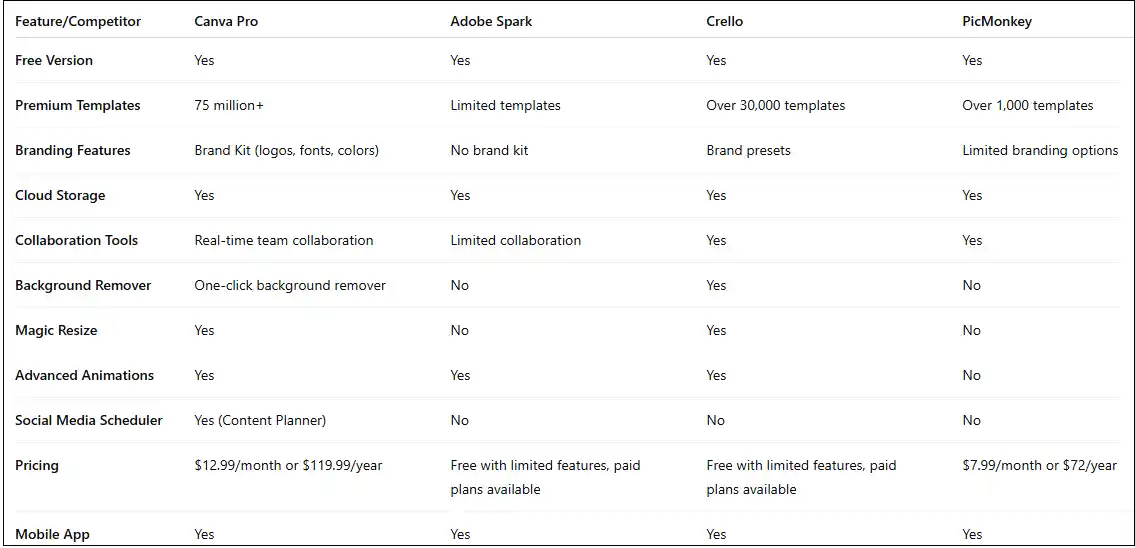
Canva Pro provides access to over 75 million premium templates, stock photos, illustrations, and videos. You’ll be able to use high-quality content to enhance your designs without worrying about licensing issues.Brand Kit
With the Brand Kit feature, you can upload your brand’s logo, fonts, and color palette for consistent branding across all your designs. This ensures that your visual content always aligns with your brand identity.Magic Resize
The Magic Resize tool lets you quickly resize designs for different platforms. For example, you can resize an Instagram post into a Facebook cover or a Pinterest pin in just a few clicks. This feature saves a lot of time, especially when you need to create multiple versions of the same design.Background Remover
The Background Remover tool allows you to easily remove backgrounds from images with just one click. This is perfect for creating professional-looking images or product photos with a transparent background.Advanced Animations
If you're looking to make your designs more dynamic, Canva Pro includes a variety of animation options. Animate your text, graphics, or entire slides to bring your content to life and engage your audience.Cloud Storage
All your designs are saved in cloud storage, making it easy to access them from any device. Whether you’re on your desktop, laptop, or mobile device, you’ll always have your designs available.Team Collaboration
For businesses and teams, Canva Pro provides real-time collaboration. You can invite team members to work on the same design, leave comments, and edit content in real-time, streamlining your workflow.
Uses of Canva Pro
Canva Pro is a versatile tool that can be used for a wide range of design needs. Here are some common use cases:
Social Media Content Creation
Create eye-catching posts, banners, and stories for platforms like Instagram, Facebook, Twitter, and LinkedIn. With Canva Pro’s templates and advanced features, you can quickly generate content that stands out.Marketing Materials
Canva Pro is perfect for businesses that need to create promotional materials like flyers, brochures, posters, and business cards. With the Brand Kit and access to premium assets, your marketing content will be cohesive and professional.Presentations
Whether you’re preparing a pitch, client proposal, or team meeting, Canva Pro allows you to design polished, visually engaging presentations. With customizable slides, animations, and professional templates, your presentations will captivate your audience.Content for Blogs and Websites
Use Canva Pro to create visuals for blog posts, website banners, and landing pages. The tool offers everything you need to design images that complement your written content.E-commerce Product Images
If you’re running an e-commerce store, Canva Pro’s Background Remover is ideal for creating professional-looking product photos without the need for expensive photo editing software.
Common Errors and Fixes in Canva Pro Activation
While activating Canva Pro is typically a smooth process, you may encounter some issues. Here are some common errors and how to fix them:
1. Error: "Invalid Payment Details"
Cause: The payment information you provided may be incorrect or expired.
Fix: Double-check your payment method and billing information. Make sure your card is active and has sufficient funds. If the problem persists, try updating your payment method.
2. Error: "Activation Failed"
Cause: This can occur if there’s an issue with your account or internet connection.
Fix: Ensure that your internet connection is stable and that your account is in good standing. If the problem persists, try logging out and logging back in. If the issue continues, contact Canva support.
3. Error: "Subscription Not Found"
Cause: You may have signed up for Canva Pro under a different email address, or the subscription hasn’t been activated yet.
Fix: Check your inbox for a confirmation email from Canva and follow the instructions to complete the activation. Verify that you're using the correct email to log in.
4. Error: "Slow Performance"
Cause: This could be due to high traffic on Canva’s servers or a poor internet connection.
Fix: Try refreshing the page, clearing your browser cache, or checking your internet connection. If the issue persists, wait a few minutes and try again.
Method to Activate Canva Pro
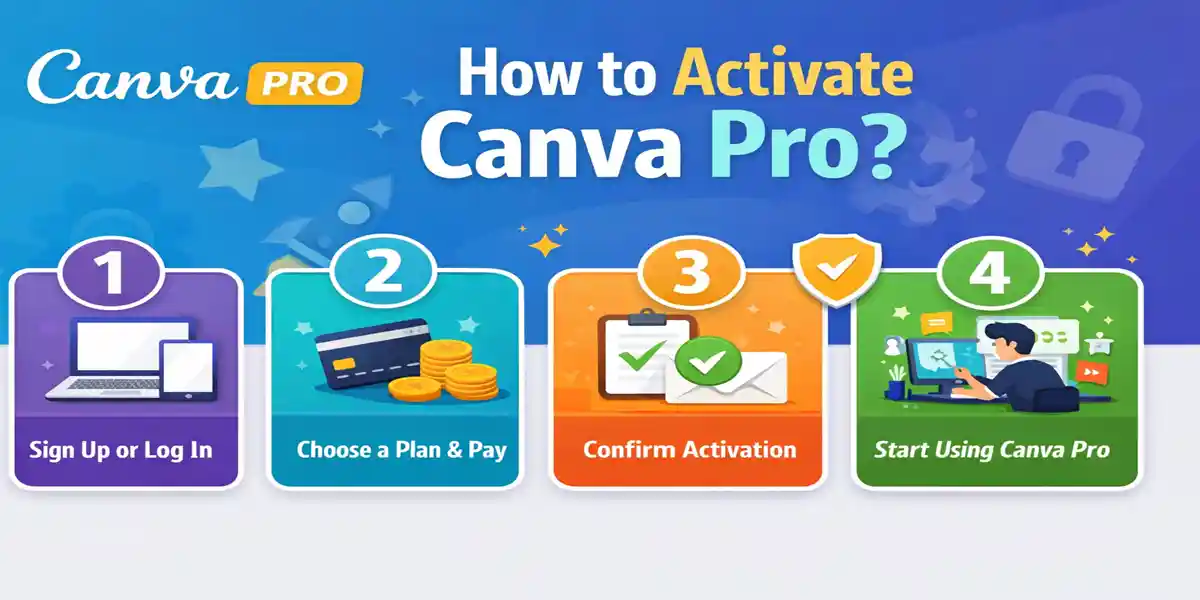
Activating Canva Pro is simple and can be done in just a few steps:
Sign Up or Log In:
Go to the Canva website, sign up for a new account, or log in with your existing credentials.Choose a Subscription Plan:
Navigate to the Pricing page, select Canva Pro, and choose a monthly or annual plan. Enter your payment details to proceed with the purchase.Confirm Activation:
Once your payment is processed, Canva Pro will be activated, and you’ll have access to all premium features.Start Using Canva Pro:
Once activated, start creating with the premium templates, advanced tools, and collaboration features. Begin designing and enhancing your projects!
Conclusion
Canva Pro is a powerful tool that offers unparalleled design flexibility and a variety of advanced features for both individuals and teams. Whether you're a marketer, designer, or small business owner, Canva Pro is a valuable asset that can help you create stunning visual content quickly and easily. With premium templates, advanced editing tools, team collaboration features, and cloud storage, Canva Pro takes your design projects to the next level.
By following this step-by-step guide to activation and understanding the common issues and fixes, you’ll be up and running with Canva Pro in no time. Unlock the full potential of this amazing tool and start creating professional-quality designs with ease.
Common Errors and Fixes in Canva Pro Activation
While activating Canva Pro is typically a smooth process, you may encounter some issues. Here are some common errors and how to fix them:
1. Error: "Invalid Payment Details"
Cause: The payment information you provided may be incorrect or expired.
Fix: Double-check your payment method and billing information. Make sure your card is active and has sufficient funds. If the problem persists, try updating your payment method.
2. Error: "Activation Failed"
Cause: This can occur if there’s an issue with your account or internet connection.
Fix: Ensure that your internet connection is stable and that your account is in good standing. If the problem persists, try logging out and logging back in. If the issue continues, contact Canva support.
3. Error: "Subscription Not Found"
Cause: You may have signed up for Canva Pro under a different email address, or the subscription hasn’t been activated yet.
Fix: Check your inbox for a confirmation email from Canva and follow the instructions to complete the activation. Verify that you're using the correct email to log in.
4. Error: "Slow Performance"
Cause: This could be due to high traffic on Canva’s servers or a poor internet connection.
Fix: Try refreshing the page, clearing your browser cache, or checking your internet connection. If the issue persists, wait a few minutes and try again.
Method to Activate Canva Pro
Activating Canva Pro is simple and can be done in just a few steps:
Sign Up or Log In:
Go to the Canva website, sign up for a new account, or log in with your existing credentials.Choose a Subscription Plan:
Navigate to the Pricing page, select Canva Pro, and choose a monthly or annual plan. Enter your payment details to proceed with the purchase.Confirm Activation:
Once your payment is processed, Canva Pro will be activated, and you’ll have access to all premium features.Start Using Canva Pro:
Once activated, start creating with the premium templates, advanced tools, and collaboration features. Begin designing and enhancing your projects!
Conclusion
Canva Pro is a powerful tool that offers unparalleled design flexibility and a variety of advanced features for both individuals and teams. Whether you're a marketer, designer, or small business owner, Canva Pro is a valuable asset that can help you create stunning visual content quickly and easily. With premium templates, advanced editing tools, team collaboration features, and cloud storage, Canva Pro takes your design projects to the next level.
By following this step-by-step guide to activation and understanding the common issues and fixes, you’ll be up and running with Canva Pro in no time. Unlock the full potential of this amazing tool and start creating professional-quality designs with ease.
Frequently Asked Questions (FAQs)
How much does Canva Pro cost?
Canva Pro offers both monthly and annual subscription plans. The monthly plan costs around $12.99/month, and the annual plan costs $119.99/year.
Can I use Canva Pro for free?
Canva offers a free version with basic design tools. However, Canva Pro requires a paid subscription and offers additional premium features such as templates, advanced tools, and branding options.
Can I access my Canva designs on multiple devices?
Yes, Canva Pro allows you to access your designs from any device with an internet connection, thanks to cloud storage.
Can I collaborate with my team using Canva Pro?
Yes, Canva Pro includes real-time collaboration features, allowing you to share designs with your team and work on them together.
What is the Brand Kit in Canva Pro?
The Brand Kit allows you to upload your brand's logo, fonts, and color palette for consistent branding across all your designs.
How do I use the Magic Resize feature in Canva Pro?
The Magic Resize feature allows you to resize a design for different platforms with a single click. Simply create a design and select the “Resize” option to choose the platforms or dimensions you need.