

How to Activate Microsoft Outlook 2024: Complete Step-by-Step Guide

Introduction to Microsoft Outlook 2024
Email and communication remain at the core of modern business operations, and Microsoft Outlook has long been one of the most trusted platforms for managing emails, calendars, contacts, and tasks. With the release of Microsoft Outlook 2024, Microsoft has further refined the experience, focusing on performance, security, and productivity for both individuals and businesses.
Outlook 2024 is available as part of Microsoft Office 2024 (including Home & Business editions) and is also used widely in professional environments where stable, non-subscription software is preferred. Unlike cloud-only email tools, Outlook 2024 combines powerful offline capabilities with modern integrations, making it ideal for professionals, entrepreneurs, and organizations.
What Is Microsoft Outlook 2024?
Microsoft Outlook 2024 is the latest standalone desktop version of Microsoft’s powerful email and personal information management application. It is designed for users and businesses that prefer a one-time purchase license with long-term stability, offline access, and enterprise-grade security—without relying on recurring subscription models.
Below is an elaboration of its core capabilities:
Email Management from Multiple Accounts
Outlook 2024 allows users to manage multiple email accounts in one unified interface. It supports Microsoft Exchange, Outlook.com, Microsoft 365, POP, and IMAP accounts, making it easy to handle both personal and business emails. Advanced filtering, focused inbox, rules, and search tools help users stay organized, prioritize important messages, and reduce inbox clutter for improved productivity.
Calendars and Meeting Schedules
The integrated calendar in Outlook 2024 provides a powerful way to manage appointments, meetings, and events. Users can schedule meetings, send invitations, track responses, and set reminders. Seamless integration with Microsoft Teams and Exchange calendars enables smooth coordination across teams, ensuring deadlines and meetings are never missed
Contacts and Address Books
Outlook 2024 includes a centralized contacts and address book system where users can store, categorize, and manage contact details. It supports contact groups, syncing with Exchange directories, and easy access during email composition—making communication faster and more efficient for both personal and professional use.
Tasks, Reminders, and Notes
The application includes built-in task management tools that help users track to-do lists, deadlines, and priorities. Reminders and notes ensure important actions are never forgotten, helping users stay organized and maintain better time management throughout the day.
Built for Reliability, Security, and Long-Term Use
Microsoft Outlook 2024 is optimized for stability, offline functionality, and enhanced security. It receives long-term security updates from Microsoft and is ideal for users who want dependable email and productivity tools without monthly or yearly subscription fees.
Key Features of Microsoft Outlook 2024: Email, Calendar & Security for a One-Time Purchase
1. Modern, Streamlined Fluent Design Interface
Outlook 2024 brings the Fluent Design refresh used across Office 2024. It keeps the familiar classic Outlook layout with cleaner spacing, clearer icons, and less visual clutter.
- Smoother navigation between Mail, Calendar, People (Contacts), and Tasks
- Better readability and less eye strain during long working days
- A dedicated Accessibility ribbon in the LTSC edition
2. Enhanced Email Management and Search
Outlook 2024 is built for people who handle high volumes of email:
- Improved search across email, contacts, and calendar from a single search action, so you can find what you need faster
- Rules, filters, and sorting tools to prioritize and automate your inbox
- Focused Inbox (with Exchange accounts) to separate important messages from the rest
- A built-in Junk Email filter with safe and blocked sender lists
3. Improved Calendar and Scheduling Tools
- New meeting creation options that reduce the steps needed to schedule
- Multiple calendars side by side for easier planning
- Reminders, availability status, and priority settings for busy schedules
These tools suit managers and teams coordinating complex schedules.
4. Offline Access and Reliability
Outlook 2024 works offline. With an Exchange or Microsoft 365 mailbox in Cached Exchange Mode, you can read mail and work with calendars, contacts, and tasks without a connection. Changes sync automatically when connectivity returns, which helps during travel, outages, and remote work.
5. Security and Data Protection
- Modern authentication (including multi-factor sign-in) for supported accounts
- S/MIME support for digitally signing and encrypting messages
- Protected View and attachment blocking for risky file types
- Macro and add-in security controls
Worth knowing: advanced anti-phishing, Safe Links, and Safe Attachments come from your mail provider's server-side services, such as Microsoft Defender for Office 365. They aren't features of the desktop app itself.
6. Integration with the Microsoft Ecosystem
- Word, Excel, and PowerPoint for attaching, sharing, and previewing files
- Microsoft Exchange, POP, and IMAP accounts for flexible email management
- Microsoft Teams meeting scheduling, if Teams is installed. Teams isn't bundled with Office LTSC 2024 and is downloaded separately.
System Requirements for Microsoft Outlook 2024
Before installing Outlook 2024, ensure your system meets the following minimum requirements:
Windows Requirements
- Windows 10 or Windows 11
- Minimum 4 GB RAM (8 GB recommended for optimal performance)
- At least 4 GB of available disk space
- Internet connection required for activation
macOS Requirements
- Supported macOS versions
- Intel or Apple Silicon processor
- Internet connection required for activation
Useful Commands for Microsoft Outlook 2024
These commands help with startup problems, profile issues, and data-file repair. Open Run (Win + R) or Command Prompt to use the switches. Use an elevated prompt only where noted.
1. Start Outlook in Safe Mode
outlook.exe /safe
Starts Outlook with add-ins and customizations disabled, which is the first test when Outlook crashes or hangs at launch.
2. Reset Common Outlook Settings
CommandWhat it doesoutlook.exe /resetnavpaneResets the Navigation Pane (folder list and shortcuts)outlook.exe /cleanviewsRestores default views. Custom views are lost.outlook.exe /cleanrulesDeletes all client and server rules. Back up rules first.outlook.exe /cleanremindersClears and regenerates remindersoutlook.exe /cleanfreebusyClears and regenerates free/busy informationoutlook.exe /resetfoldersRestores missing default folders in the default store3. Manage Profiles
outlook.exe /profiles
Shows the profile selection prompt at startup.
outlook.exe /profile "ProfileName"
Opens Outlook with a specific profile.
control mlcfg32.cpl
Opens the Mail Setup dialog, where you can create, copy, or remove profiles.
reg query "HKCU\Software\Microsoft\Office\16.0\Outlook\Profiles"
Lists the Outlook profiles stored for the current user.
4. Create Items Directly from the Command Line
outlook.exe /c ipm.note
Opens a new email message.
outlook.exe /c ipm.appointment
Opens a new calendar appointment.
outlook.exe /c ipm.contact
Opens a new contact, and ipm.task opens a new task.
5. Repair a Corrupted PST or OST File
Close Outlook first, then launch the Inbox Repair Tool:
"C:\Program Files\Microsoft Office\root\Office16\SCANPST.EXE"
For 32-bit Office on 64-bit Windows, use C:\Program Files (x86)\Microsoft Office\root\Office16\SCANPST.EXE. Make a copy of the data file before repairing it. OST files can usually be rebuilt by removing the file and letting Outlook resync from the server.
6. Check Outlook Version and Install Details
reg query "HKLM\SOFTWARE\Microsoft\Office\ClickToRun\Configuration" /v ClientVersionToReport
Returns your installed Office build number.
where outlook
Confirms whether Outlook is installed and where its executable is.
7. Close a Frozen Outlook Process
taskkill /f /im outlook.exe
Force-closes Outlook when it is unresponsive. Save your work first, since unsaved drafts may be lost.
8. Repair the Office Installation (Any Edition)
"C:\Program Files\Common Files\Microsoft Shared\ClickToRun\OfficeClickToRun.exe" scenario=Repair platform=x64 culture=en-us RepairType=QuickRepair
Use RepairType=FullRepair for an online repair if the quick repair doesn't resolve the problem.
9. License Status (Volume-Licensed / LTSC Only)
cd "C:\Program Files\Microsoft Office\Office16"

cscript ospp.vbs /dstatus
This works only for volume-licensed editions such as Office LTSC 2024. Retail editions show activation status under File > Office Account instead.
10. Connectivity Checks for Sign-In and Sync Problems
ipconfig /flushdns
Clears stale DNS entries that can interfere with mailbox connection.
Test-NetConnection -ComputerName outlook.office365.com -Port 443
Installation Guide for Microsoft Outlook 2024
Step 1: Purchase a Genuine Outlook 2024 License
Outlook 2024 is typically included with Office 2024 editions such as Office Home & Business 2024. Always purchase a genuine license from a trusted source to ensure proper activation and updates.
Step 2: Sign In to Your Microsoft Account
Visit the Microsoft Office setup page and sign in using your Microsoft account. This account will permanently store your Outlook 2024 license and allow future reinstallation if needed.
Step 3: Redeem the Product Key
Enter your 25-character product key to link Outlook 2024 to your Microsoft account securely.
Step 4: Download Outlook 2024
Once the key is redeemed, download the Office/Outlook installer compatible with your operating system.
Step 5: Install the Application
Run the installer and follow the on-screen instructions. Installation time may vary depending on system performance.
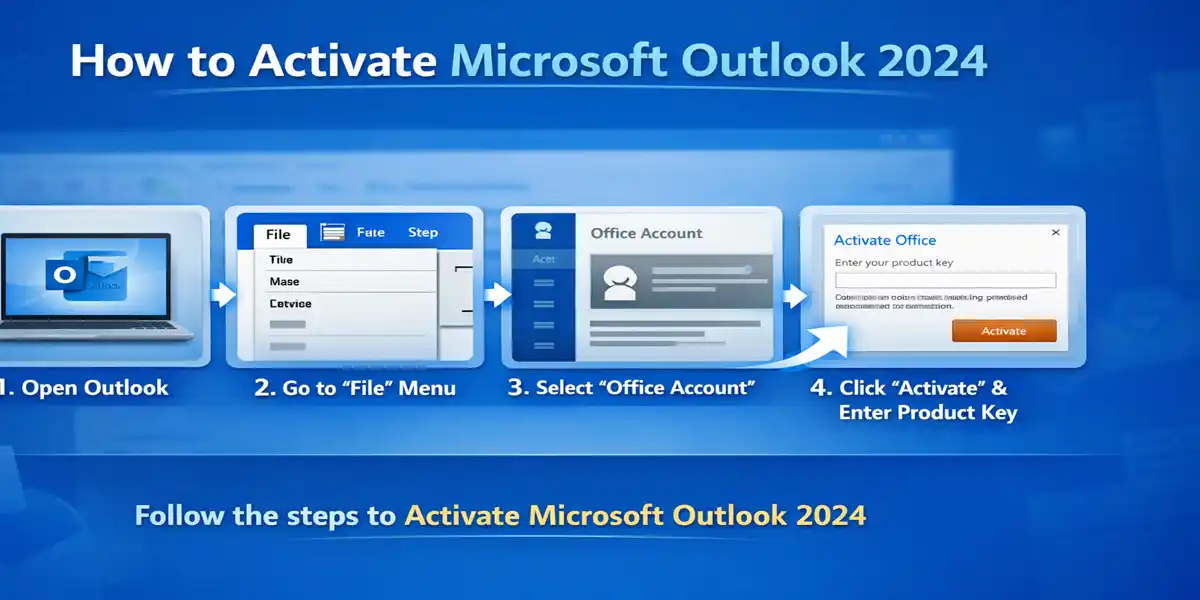
How to Activate Microsoft Outlook 2024
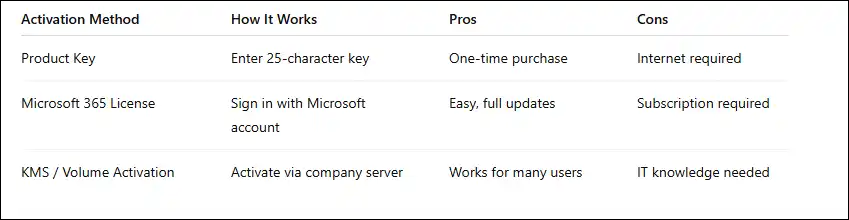
Method 1: Activation Using Microsoft Account (Recommended)
- Open Microsoft Outlook 2024
- Click Activate when prompted
- Sign in with the Microsoft account used during purchase
Activation completes automatically. This is the safest and most reliable method.
Method 2: Activation Using Product Key
- Open Outlook 2024
- Go to File → Account
- Select Change Product Key
- Enter your 25-character key
- Restart Outlook
Common Activation Errors in Outlook 2024 and How to Fix Them
Error 1: “Outlook Is Unlicensed” or “Activation Required”
Cause: Outlook is not properly activated.
Fix:
- Sign out of Outlook
- Restart the system
- Sign back in using the correct Microsoft account
Error 2: “This Product Key Has Already Been Used”
Cause: The key is already linked to another Microsoft account.
Fix:
- Use the original Microsoft account
- Transfer the license if permitted
Error 3: “Cannot Connect to Activation Server”
Cause: Network, firewall, or VPN restrictions.
Fix:
- Check internet connectivity
- Disable VPN temporarily
- Allow Outlook through firewall settings
Error 4: Conflict with Older Outlook or Office Versions
Cause: Previous Office installations on the system.
Fix:
- Uninstall older Office versions
- Use the Microsoft Support and Recovery Tool
Error 5: “Product Key Is Invalid”
Cause: Incorrect or non-genuine key.
Fix:
- Re-verify the product key
- Contact the seller for replacement or assistance
Why Choose CodesForever for Microsoft Outlook 2024?
1.Genuine Microsoft Licenses
CodesForever provides authentic Microsoft Outlook 2024 and Office product keys, ensuring smooth activation and long-term reliability.
2.Instant Digital Delivery
You receive your Outlook 2024 activation key immediately after purchase, with no delays or shipping wait times.
3.Affordable Pricing
CodesForever offers significant cost savings compared to standard retail pricing while maintaining genuine licensing.
4.Dedicated Activation Support
If you face any installation or activation issues, CodesForever provides reliable customer support to resolve them quickly.
5.Trusted by Professionals
Freelancers, businesses, and IT professionals worldwide trust CodesForever for secure, reliable Microsoft software licensing.
Conclusion
Microsoft Outlook 2024 is a powerful, secure, and dependable email and productivity solution designed for professionals and businesses that prefer a one-time purchase model. With its modern interface, enhanced email management, offline access, and robust security features, Outlook 2024 supports efficient communication and long-term productivity.
By following proper installation and activation procedures, maintaining updates, and backing up data regularly, users can ensure a smooth and uninterrupted experience. Choosing a trusted provider like CodesForever guarantees access to genuine licenses, instant delivery, and dependable activation support.
Frequently Asked Questions (FAQs)
Yes. When purchased as part of Office 2024 editions such as Home & Business, Outlook 2024 is a perpetual license with no recurring subscription fees.
No. An internet connection is required for the initial activation. After activation, Outlook 2024 can be used offline.
Yes. Outlook 2024 fully supports POP and IMAP accounts, allowing you to use Gmail, Yahoo, and other third-party email services.
Yes. You can reinstall Outlook 2024 using the same Microsoft account, subject to the license terms and device limits.
Yes. Outlook 2024 is included in the Office Home & Business 2024 edition.
If Outlook is not activated, some features may be restricted, and activation warnings will appear until the software is properly licensed.
Yes. Microsoft provides regular security updates and stability fixes to ensure safe and reliable operation
Yes. CodesForever is known for providing genuine Microsoft licenses, instant delivery, and reliable customer support.