

Microsoft Office 2021 Hacks | Expert Tips to Work Smarter

Introduction
In today’s fast-paced digital world, Microsoft Office 2021 remains a must-have for professionals, students, and businesses. With the latest Office 2021 Professional Plus, users can access new features designed to enhance workflow, improve collaboration, and increase efficiency. This guide explores expert tips and tricks for Microsoft Office 2021 to help you maximize its potential.
Understanding Microsoft Office 2021
Before exploring the tips, it’s important to understand what Office 2021 offers. Compared to previous versions, it provides enhanced tools for data analysis in Excel, improved collaboration in Word, and advanced features in PowerPoint. Fully compatible with Windows 11, it ensures a smooth, modern, and productive experience.
Key Features of Microsoft Office 2021
Microsoft Office 2021 delivers a range of productivity, collaboration, data analysis, presentation, and usability improvements across popular applications such as Word, Excel, PowerPoint, and Outlook. These features make Office 2021 a practical choice for users looking for powerful desktop productivity tools with a familiar interface.
1. Real-Time Collaboration and Co-Authoring
Office 2021 introduces improved collaboration features that allow multiple users to work on supported documents at the same time. With real-time co-authoring in Word, Excel, and PowerPoint, teams can collaborate on shared files and see changes more quickly.
Key collaboration benefits include:
- Real-time document co-authoring
- Modern comments
- Improved teamwork in Word, Excel, and PowerPoint
- Easier document sharing
- Visibility into other collaborators working on a file
2. Advanced Excel Data Analysis
Excel 2021 includes powerful formulas and data-analysis features that can make complex spreadsheets easier to manage. Microsoft introduced tools such as XLOOKUP, Dynamic Arrays, LET, and XMATCH to improve data searching, calculations, and spreadsheet workflows.
Popular Excel 2021 features include:
- XLOOKUP for flexible data searches
- Dynamic Arrays for returning multiple results from a formula
- LET for creating named calculation results
- XMATCH for finding positions within ranges
- Improved spreadsheet performance
- Custom Sheet Views
- Accessibility tools
These features make Excel 2021 useful for financial analysis, business reports, data management, budgeting, and everyday spreadsheet tasks.
3. Modern Office Visual Refresh
Office 2021 provides a refreshed user interface with a cleaner and more modern appearance. The updated design includes refreshed Ribbon tabs, updated icons, and softer window elements designed to provide a more consistent experience, particularly on Windows 11.
The Office 2021 visual refresh includes:
- Modernized Office interface
- Updated Ribbon design
- Cleaner navigation
- Refreshed icons
- Improved visual consistency
- Familiar Microsoft Office workflow
4. Enhanced PowerPoint Presentation Tools
PowerPoint 2021 includes new and improved presentation features designed to help users create engaging business presentations, educational slides, and visual content. Microsoft highlights improvements such as Ink Replay, improved Slide Show recording, new Draw tab tools, and additional creative content.
PowerPoint 2021 features include:
- Improved Slide Show recording
- Ink Replay and Rewind effects
- Enhanced drawing tools
- Point Eraser, Ruler, and Lasso tools
- New presentation media options
- Improved collaboration features
These tools help users create professional presentations with less effort.
5. Improved Performance and Productivity
Office 2021 also includes performance and usability improvements across applications. Microsoft highlights improvements in speed, stability, and performance, including faster calculations for commonly used Excel functions.
Users can benefit from:
- Faster spreadsheet calculations
- Improved application stability
- Smoother document editing
- Better productivity workflows
- More efficient everyday Office tasks
6. Accessibility and Inclusive Productivity Tools
Microsoft Office 2021 includes accessibility-focused improvements designed to help users create and work with more accessible documents and presentations. The Accessibility Checker can identify potential accessibility issues, while the Accessibility Ribbon provides easier access to relevant tools.
These tools can help users:
- Check documents for accessibility issues
- Improve document readability
- Create more accessible content
- Locate accessibility features more easily
7. Modern Drawing and Inking Tools
Office 2021 also improves digital drawing and inking capabilities. The updated Draw tab provides easier access to tools such as the Point Eraser, Ruler, and Lasso, making it easier to annotate and work with digital ink.
8. Better File and Document Compatibility
Office 2021 supports modern document workflows and includes support for OpenDocument Format (ODF) 1.3, helping users work with supported document formats across compatible applications.
This makes Office 2021 suitable for users who regularly work with:
- Word documents
- Excel spreadsheets
- PowerPoint presentations
- OpenDocument files
- Business reports
- Academic documents
Top Tips & Tricks for Mastering Microsoft Office 2021
Word 2021: Boost Document Productivity
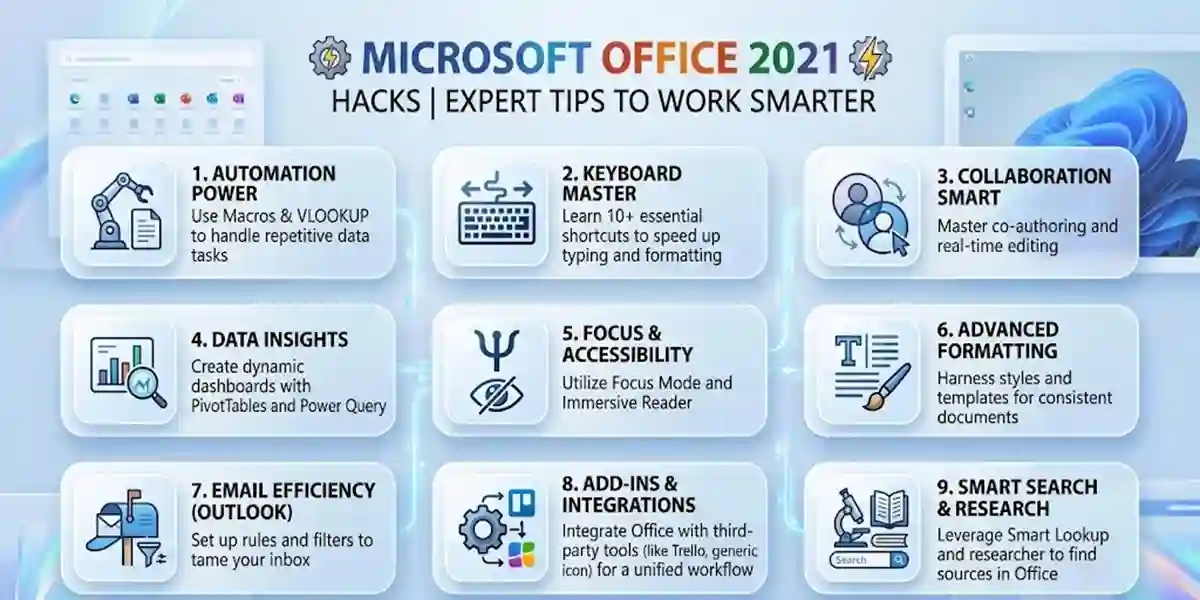
- Focus Mode: Hide distractions for better concentration.
- Dictation: Convert speech to text seamlessly.
- Editor Tool: Grammar and style suggestions for professional writing.
- Keyboard Shortcuts: Quickly format text with Ctrl+B/I/U.
- Navigation Pane & Headings: Easily navigate long documents.
- Themes & Templates: Apply polished designs instantly.
- Advanced Table Customization: Organize data efficiently.
Excel 2021: Advanced Data Analysis
- Dynamic Arrays: Simplify complex calculations.
- LET Function & XLOOKUP: Streamline formulas and data lookup.
- Flash Fill: Automate repetitive data entry.
- Pivot Tables & Conditional Formatting: Summarize and highlight key data.
- Power Query: Transform and merge datasets from multiple sources.
PowerPoint 2021: Create Stunning Presentations
- Presenter Coach: Improve speaking and delivery skills.
- Morph & Ink Replay: Add professional animations and drawing effects.
- Design Ideas & Slide Master: Create visually consistent slides quickly.
- Hyperlinks & Comments: Enhance interactivity and collaboration.
Outlook 2021: Manage Emails Efficiently
- Custom Swipe Gestures & Focused Inbox: Organize emails smartly.
- Quick Steps & Rules: Automate repetitive tasks.
- Smart Search & Scheduled Emails: Access important messages and plan communications effectively.
- Calendar Management: Color-coded events and recurring meetings for better scheduling.
How to Install Microsoft Office 2021
Installing Microsoft Office 2021 is straightforward when you use the correct installer and Microsoft account associated with your Office license. Before starting, remove conflicting or older Office installations when necessary and make sure your Windows or Mac device meets the requirements for Office 2021.
Step 1: Check Your Office 2021 License
Before downloading Office 2021, confirm which edition you own, such as Office Home & Student 2021, Office Home & Business 2021, or another licensed edition.
If your purchase includes a product key, keep it available. A new product key is generally redeemed through Microsoft's Office setup process and then associated with your Microsoft account. Once redeemed, future installation can normally be managed through that account.
Step 2: Sign In to Your Microsoft Account
Visit your Microsoft account and sign in with the account associated with your Office 2021 purchase.
If you have already redeemed your Office product key, you can normally find the Office product under your account's services or subscriptions and start the installation from there. Microsoft recommends using the same account associated with the Office license when reinstalling the software.
Step 3: Download Office 2021
After signing in, locate your Office 2021 product and select the installation option.
Depending on your Office edition and device, Microsoft may provide options for:
- Office 2021 for Windows
- Office 2021 for Mac
- 32-bit or 64-bit installation on supported Windows configurations
- Different installation languages
Choose the appropriate version for your computer and download the installer.
Step 4: Install Office 2021 on Windows
After the download is complete:
- Open the downloaded Office installer.
- Allow the installer to make changes if Windows displays a User Account Control prompt.
- Wait while Microsoft Office installs the required applications.
- When installation is complete, select Close.
- Open Word, Excel, PowerPoint, or another installed Office application.
Microsoft states that the installation is complete when the Office setup process displays the confirmation that Office has been installed.
Step 5: Install Office 2021 on Mac
For Office 2021 for Mac:
- Download the Office installer associated with your Microsoft account.
- Open Finder and navigate to the Downloads folder.
- Double-click the downloaded installer package.
- Follow the installation instructions.
- Launch Word, Excel, PowerPoint, or another Office application.
- Sign in with the Microsoft account associated with your Office license when prompted.
Microsoft provides separate installation instructions for Office 2021 on Mac.
Step 6: Complete the Initial Setup
After Office 2021 has been installed, open an Office application such as Word or Excel.
You may be asked to:
- Accept the Microsoft Software License Terms
- Sign in with your Microsoft account
- Enter or confirm your product key
- Complete the Office Activation Wizard
Follow the instructions shown on screen rather than using unofficial activation utilities.
Methods to Activate Microsoft Office 2021
Microsoft Office 2021 can be activated through different legitimate licensing workflows depending on how the software was purchased or provided.
Method 1: Activate Office 2021 With a Microsoft Account
For many Office 2021 purchases, activation is associated with the Microsoft account used to redeem or purchase the product.
Steps:
- Open Word, Excel, or PowerPoint.
- Select Sign In if prompted.
- Enter the Microsoft account associated with your Office license.
- Accept the license terms if requested.
- Allow Office to verify the license.
- Restart the Office application if necessary.
Microsoft recommends signing in with the account used to purchase Office when activation is requested.
Once the license is correctly associated with the account, you generally do not need to repeatedly enter the product key for future installations.
Method 2: Activate Office 2021 With a Product Key
Some Office 2021 purchases include a 25-character product key.
A typical Office product key follows this format:
XXXXX-XXXXX-XXXXX-XXXXX-XXXXX
If your purchase includes a new, unused product key, redeem it through Microsoft's official Office setup process.
General activation process:
- Open Microsoft's Office setup page.
- Sign in with your Microsoft account.
- Enter your Office product key when requested.
- Follow the on-screen instructions.
- Associate the license with your Microsoft account.
- Download and install Office 2021.
- Open an Office application and sign in if required.
Microsoft notes that a product key is generally redeemed only once. If a message says that the key has already been used, the product should normally be installed through the Microsoft account to which the key was previously redeemed.
Method 3: Activate Office 2021 After Reinstallation
If Office 2021 was previously installed and activated on a computer, you may not need to enter the product key again.
Instead:
- Sign in to the Microsoft account associated with Office.
- Open the account's services or subscriptions area.
- Locate your Office product.
- Select the installation option.
- Install Office again.
- Open Word or another Office application.
- Sign in with the associated account if requested.
This is especially useful when reinstalling Office after Windows has been reset or the previous installation has been removed.
Method 4: Office 2021 Volume Licensing
Organizations may use volume-licensed editions such as Office LTSC 2021 rather than consumer editions of Office 2021.
For enterprise deployment, Microsoft provides the Office Deployment Tool (ODT). Administrators can use a configuration XML file to control the products, languages, installation source, updates, and deployment settings.
A basic deployment workflow is:
- Download the Office Deployment Tool.
- Create a configuration XML file.
- Define the required Office edition and deployment settings.
- Download the installation files if required.
- Install Office using the ODT.
- Configure the appropriate organizational licensing and activation method.
Volume licensing should be handled according to the organization's Microsoft licensing agreement and administrator configuration.
Common Microsoft Office 2021 Installation Errors and Fixes
Office 2021 installation and activation problems can occur because of conflicting Office versions, incorrect Microsoft accounts, network problems, damaged installations, product-key issues, or licensing configuration.
Microsoft maintains troubleshooting guidance for Office 2021 installation and activation problems.
1. Office 2021 Installation Is Not Starting
Possible causes
- Damaged installer
- Internet connection problems
- Existing Office installation conflict
- Windows configuration issue
- Insufficient permissions
- Temporary Microsoft service issue
Fix
Restart the computer and try the installation again.
If another Office version is installed, check whether it needs to be removed before installing the desired edition. Microsoft specifically recommends checking for multiple Office installations when troubleshooting activation problems.
For managed or enterprise deployments, administrators should also verify the ODT configuration and installation source.
2. "We Couldn't Install Office" Error
This error can occur when the installer encounters a conflict or cannot complete the installation.
Fix:
- Close all Office applications.
- Restart Windows.
- Check your internet connection.
- Remove unnecessary older Office installations.
- Run the Office installation again.
- If the problem continues, use Microsoft's Office troubleshooting and repair options.
Avoid repeatedly installing different Office editions over the top of one another, as this can create licensing and installation conflicts.
3. Office Says "Unlicensed Product"
An Unlicensed Product message usually means Office cannot verify the license associated with the installation.
Microsoft recommends checking the account used to sign in, checking for multiple Office installations, verifying licensing information, and troubleshooting the activation connection.
Fix:
- Sign out of Office.
- Close all Office applications.
- Restart the computer.
- Open Word or Excel.
- Sign in with the Microsoft account associated with your Office license.
- Check whether the correct Office product appears in your account.
4. "This Product Key Has Already Been Used"
This message does not necessarily mean that the Office license is unusable.
A product key that has already been redeemed is normally linked to a Microsoft account and does not need to be entered again.
Fix:
- Sign in to the Microsoft account used when the key was originally redeemed.
- Open the account's services or subscriptions section.
- Locate your Office product.
- Select the installation option.
- Install Office using the account.
Microsoft specifically recommends using the associated Microsoft account rather than trying to redeem an already-used key again.
5. "We Couldn't Find Any Office Products"
This usually indicates that the Microsoft account being used does not have access to the Office license being requested.
Fix:
- Sign out of Office.
- Check which Microsoft account was used for the original purchase.
- Sign back in with that account.
- Verify that Office 2021 appears under the account's services or subscriptions.
- If the license was purchased through an organization, contact the organization's administrator.
Using the correct Microsoft account is one of Microsoft's recommended first troubleshooting steps for Office activation problems.
6. Office Activation Wizard Keeps Appearing
The Office Activation Wizard can appear when Office needs additional activation information.
Fix:
- Make sure the computer has an active internet connection.
- Open an Office application.
- Follow the Activation Wizard instructions.
- Sign in with the licensed Microsoft account if prompted.
- Verify that the installed Office edition matches the purchased license.
If activation continues to fail, check Microsoft's Office activation troubleshooting guidance.
7. Product Key Is Invalid
An invalid product key can occur when:
- The key was entered incorrectly.
- The key belongs to another Office edition.
- The key was already redeemed.
- The key is intended for volume licensing.
- The key was obtained from an unauthorized source.
- The key is for a different region or product.
Fix:
First, carefully verify the key and Office edition.
If the key has already been redeemed, sign in to the Microsoft account associated with it.
If a key purchased from a third-party seller does not work, Microsoft recommends contacting the seller. Microsoft also warns that some separately sold keys may be unauthorized or subsequently blocked.
8. ERR_MISSING_PARTNUMBER or ERR_INVALID_TOKEN
Microsoft documents product-key errors such as:
- ERR_MISSING_PARTNUMBER
- ERR_INVALID_TOKEN
These can occur when a key is entered into the wrong redemption process or belongs to an older or different Office licensing channel.
Fix:
Check the Office edition and licensing type associated with the key. If it is a volume license key, it may require an organization's volume-license deployment and activation process rather than the consumer Office setup workflow.
9. Office Activation Fails Because of Internet or Network Problems
Office may need an internet connection during installation, account verification, or activation.
Fix:
Check:
- Wi-Fi or Ethernet connection
- Windows date and time
- Firewall settings
- Proxy configuration
- Antivirus network restrictions
- Microsoft account sign-in
Microsoft specifically recommends checking connectivity, firewall, proxy settings, and system date/time when troubleshooting activation problems.
10. Incorrect Date and Time Causes Activation Problems
Incorrect system date, time, or time zone settings can interfere with Office activation.
Fix:
On Windows:
- Open Settings.
- Go to Time & language > Date & time.
- Enable automatic time.
- Verify the correct time zone.
- Restart Word, Excel, or another Office application.
- Try activation again.
Microsoft includes correct date, time, and time-zone settings among its recommended Office activation troubleshooting steps.
11. Multiple Office Versions Are Installed
Installing multiple Office versions can create conflicts and activation problems.
For example, an older Office installation may remain on the computer while Office 2021 is being installed.
Fix:
- Open Windows Settings or Control Panel.
- Open the installed applications/programs list.
- Look for multiple Office installations.
- Remove the Office version you no longer need.
- Restart the computer.
- Open Office 2021 again.
Microsoft recommends checking for multiple copies of Office when troubleshooting activation problems.
12. Office 2021 Stops Activating After a System Change
Activation may need to be re-established after major changes such as reinstalling Windows or moving Office to another computer.
Fix:
Sign in with the Microsoft account associated with your Office license and use the appropriate installation/reactivation process.
For organization-managed installations, contact the IT administrator if the license is controlled through volume licensing.
Office 2021 Activation Troubleshooting Checklist
If Microsoft Office 2021 will not activate, work through the following checklist:
- Confirm that you own a valid Office 2021 license.
- Use the correct Microsoft account.
- Check whether the Office product appears in your account.
- Verify the product key if your edition includes one.
- Make sure Windows is properly configured.
- Check your internet connection.
- Verify date, time, and time zone.
- Remove conflicting Office installations.
- Restart the computer.
- Update or repair Office if necessary.
- For volume editions, contact your organization administrator.
- Avoid unofficial activators, cracks, key generators, and modified installers.
Microsoft's current troubleshooting documentation recommends checking account credentials, multiple installations, connectivity, system settings, and Office repair when activation problems occur.
Important Office 2021 Activation Safety Note
Avoid downloading unofficial Office activators, cracks, key generators, modified ISO files, or scripts that claim to bypass Microsoft licensing.
These tools can introduce malware, compromise personal information, damage the Office installation, or result in an invalid licensing state. For a reliable Office 2021 installation, use Microsoft's official installer and a genuine license associated with the appropriate Microsoft account.
For business environments, use Microsoft-supported deployment technologies such as the Office Deployment Tool and follow the licensing terms applicable to your organization.
Conclusion
Microsoft Office 2021 remains a powerful desktop productivity suite for users who prefer a traditional, non-subscription Office release. With applications such as Word, Excel, PowerPoint, and Outlook, Office 2021 provides tools for document creation, data analysis, presentations, communication, and everyday productivity.
Installing Office 2021 correctly starts with identifying the appropriate edition and license, downloading the software through Microsoft's supported installation process, and signing in with the Microsoft account associated with the license. Where a product key is provided, it should be redeemed through Microsoft's official setup process and linked to the appropriate account.
Most Office 2021 activation problems can be resolved by checking the Microsoft account, removing conflicting Office installations, verifying the product key and license edition, correcting system date and time, checking network connectivity, and repairing the Office installation when necessary.
For organizations deploying Office at scale, the Office Deployment Tool provides additional control over installation files, applications, languages, updates, and deployment configuration.
For the safest and most reliable experience, always use a genuine Microsoft Office 2021 license and official installation resources. This helps ensure that Office applications remain properly licensed and that your installation receives the appropriate product support and security updates available for the Office 2021 lifecycle.
Frequently Asked Questions (FAQ)
A: Office 2021 Professional Plus includes Word, Excel, PowerPoint, Outlook, Access, Publisher, and OneNote, providing a complete suite for productivity, data management, presentations, and communication.
A: Yes, it is fully compatible with Windows 11 as well as Windows 10, ensuring smooth performance and modern UI integration.
A: Yes, you can use all Office apps offline after installation. Internet is only required for initial activation, updates, or cloud features such as OneDrive.
A: You can buy it from codesforever as a one-time license for personal, business, or educational use. This ensures you receive a legal license and full access to all Office apps.
A: The license purchased from codesforever is typically for one PC per license. For multiple devices, you may need additional licenses depending on the terms.
A: Activation can be completed using a product key, through your Microsoft account, or via authorized methods such as Phone Key with CID. Full instructions are provided with your purchase.