

How to Activate Microsoft Office 365 : A Step-by-Step Process (With New Features Explained)

Microsoft Office 365, now known as Microsoft 365, is one of the most widely used productivity suites in the world. Whether you are a home user, student, freelancer, or business professional, activating Office 365 correctly is essential to unlock premium features such as cloud storage, real-time collaboration, and advanced security.
What Is Microsoft Office 365?
Microsoft Office 365 (Microsoft 365) is a subscription-based Office suite that includes Word, Excel, PowerPoint, Outlook, OneNote, OneDrive, and Teams. Unlike one-time purchase versions, Office 365 requires an active subscription to continue using premium features.
Key benefits include:
- Always-updated Office apps
- OneDrive cloud storage
- Multi-device access
- Advanced security and collaboration tools
Advanced Features of Microsoft 365 (Formerly Office 365)
1. Account-Based Activation and Device Management
- Sign-in activation: install the apps, sign in with the account that holds the subscription, and the license attaches automatically. A prepaid or retail code is redeemed once on Microsoft's official redeem page (setup.office.com) and then linked to your account.
- Multi-device use: consumer plans let you install on multiple PCs, Macs, tablets, and phones, and stay signed in on up to five devices at once. Business plans allow installs on up to five PCs or Macs, five tablets, and five phones per user. Confirm the current limits for your plan.
- Shared Computer Activation: lets many users sign in on a shared machine, such as RDS or VDI, where each user's license is tied to their sign-in.
2. Copilot Across the Apps
- Consumer plans: Microsoft 365 Personal and Family include Copilot in Word, Excel, PowerPoint, Outlook, and OneNote with limited monthly AI credits. Premium and Pro plans include higher limits. Copilot access on Family plans is limited to the plan owner.
- Work and school accounts: Copilot Chat is included, while the full in-app Microsoft 365 Copilot is a separate paid add-on.
- App rename: the Microsoft 365 (Office) hub app is now called the Microsoft Copilot app.
- Availability varies by plan, region, and account type.
3. Real-Time Collaboration and Cloud Storage
- Co-authoring lets several people edit the same document at once, with AutoSave and version history on OneDrive or SharePoint.
- 1 TB of OneDrive storage per user on consumer plans.
- Comments and @mentions keep feedback inside the document.
4. Update Channels (Business and Enterprise)
ChannelBehaviorCurrent ChannelNew features as soon as they're readyMonthly Enterprise ChannelPredictable monthly release on a fixed scheduleSemi-Annual Enterprise ChannelFeature updates twice a year, for stability5. Security and Management Additions in 2026 Plans
Reported 2026 plan updates include Defender for Office 365 Plan 1 added to E3 plans, URL time-of-click protection, expanded Intune device-management tools, and enhanced Copilot Chat with admin controls. Some of these details come from partner summaries, so verify them against Microsoft's official announcements.
6. Things to Know Before You Publish
- Publisher is scheduled to end in October 2026 (Windows only), so avoid promoting it.
- Commercial pricing increases took effect July 1, 2026, on most plans.
- Always-current software: subscriptions receive feature updates continuously, unlike perpetual Office 2024.
Advanced Commands for Microsoft 365 Apps
Run these from an elevated Command Prompt or PowerShell unless noted.
1. Check Subscription License Status
cd "%ProgramFiles%\Microsoft Office\Office16"

cscript ospp.vbs /dstatus
For 32-bit Office on 64-bit Windows, use %ProgramFiles(x86)%. A subscription shows a Subscription license with a LICENSED status. There's no product key, so /inpkey doesn't apply.
2. Identify Edition, Channel, and Build
reg query "HKLM\SOFTWARE\Microsoft\Office\ClickToRun\Configuration" /v ProductReleaseIds

reg query "HKLM\SOFTWARE\Microsoft\Office\ClickToRun\Configuration" /v VersionToReport

reg query "HKLM\SOFTWARE\Microsoft\Office\ClickToRun\Configuration" /v CDNBaseUrl
These return the product IDs (such as O365ProPlusRetail or O365BusinessRetail), the build number, and the update channel source.
3. Force an Update
"%ProgramFiles%\Common Files\Microsoft Shared\ClickToRun\OfficeC2RClient.exe" /update user
Add forceappshutdown=true to close open Office apps during the update. Save your work first.
4. Fix "Can't Activate" by Resetting Licensing and Sign-In State
Close all Office apps and sign out first, then run:
rd /s /q "%localappdata%\Microsoft\Office\16.0\Licensing"

reg delete "HKCU\Software\Microsoft\Office\16.0\Common\Identity\Identities" /f
The first command clears cached license data, and the second removes cached sign-in identities. Restart Office and sign in again. Deleting registry keys is a last resort, so back up the registry first.
5. Check Device Join and Sign-In Health
dsregcmd /status
Review the AzureAdJoined and AzureAdPrt fields. A missing token often explains repeated sign-in prompts on work accounts.
6. Test Connectivity to Microsoft Services
powershell -Command "Test-NetConnection login.microsoftonline.com -Port 443"

powershell -Command "Test-NetConnection officeapps.live.com -Port 443"

ipconfig /flushdns
These confirm sign-in and Office service endpoints are reachable, and the last clears stale DNS entries.
7. Deploy with the Office Deployment Tool
setup.exe /download configuration.xml

setup.exe /configure configuration.xml
Example configuration:
xml<Configuration>
<Add OfficeClientEdition="64" Channel="MonthlyEnterprise">
<Product ID="O365ProPlusRetail">
<Language ID="en-us" />
<ExcludeApp ID="Publisher" />
</Product>
</Add>
<Updates Enabled="TRUE" />
<Display Level="None" AcceptEULA="TRUE" />
</Configuration>
Use O365BusinessRetail for Microsoft 365 Apps for business.
8. Enable Shared Computer Activation
Add this line inside the <Configuration> element of your ODT file:
xml<Property Name="SharedComputerLicensing" Value="1" />
To verify it on an installed machine:
reg query "HKLM\SOFTWARE\Microsoft\Office\ClickToRun\Configuration" /v SharedComputerLicensing
A value of 1 means it's on. Use this on RDS and VDI hosts only.
9. Admin: Manage Licenses with Microsoft Graph PowerShell
Install-Module Microsoft.Graph -Scope CurrentUser

Connect-MgGraph -Scopes "User.ReadWrite.All","Organization.Read.All"

Get-MgSubscribedSku | Select-Object SkuPartNumber, SkuId, ConsumedUnits

Set-MgUserLicense -UserId [email protected] -AddLicenses @(@{SkuId="<SkuId>"}) -RemoveLicenses @()

Get-MgUserLicenseDetail -UserId [email protected]
These list your subscriptions and seat usage, assign a license, and check what a user holds. Microsoft has retired the older MSOnline and AzureAD PowerShell modules, so use Graph.
10. Repair or Reinstall Cleanly
taskkill /f /im winword.exe /im excel.exe /im outlook.exe

"%ProgramFiles%\Common Files\Microsoft Shared\ClickToRun\OfficeClickToRun.exe" scenario=Repair platform=x64 culture=en-us RepairType=QuickRepair
Use RepairType=FullRepair for an online repair. For a full clean uninstall, use Microsoft's Support and Recovery Assistant (aka.ms/SaRA-officeUninstallFromPC).
Requirements Before Activating Office 365
Before starting the activation process, make sure you have:
- A valid Microsoft 365 subscription
- A Microsoft account or work/school account
- Stable internet connection
- Compatible Windows, macOS, Android, or iOS device
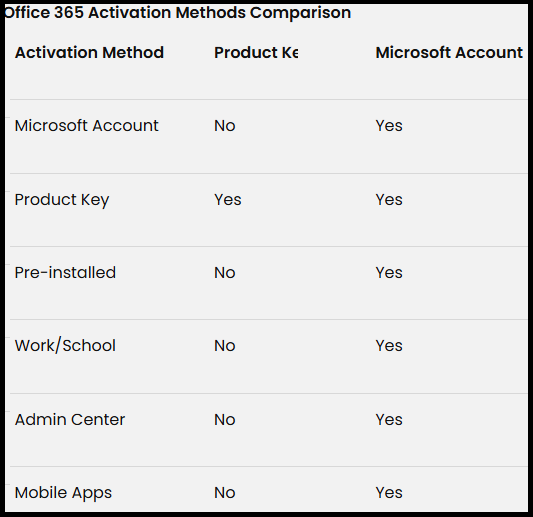
Method 1: Activate Office 365 Using a Microsoft Account (Most Common)
This is the most popular activation method for users who purchase Office 365 online.
Steps to Activate:
- Go to com
- Click Sign in
- Log in using the account, i.e., the system-generated one you will get after purchase
- Click Install Office
- Download and install the Office apps
- Open Word or Excel
- Office activates automatically after sign-in
Method 2: Activate Office 365 Using a Product Key
If you purchased Office 365 from a retail store, you may receive a 25-character product key.
Steps to Activate:
- Visit office.com
- Sign in with your Microsoft account
- Enter the Office 365 product key
- Link the key to your Microsoft account
- Download and install Office
- Open any Office app to complete activation
Method 3: Activate Pre-Installed Office 365 on a New PC or Laptop
Many new laptops come with Office 365 pre-installed.
Steps:
- Open Word, Excel, or PowerPoint
- Click Activate Office
- Sign in with your account
- Accept the license agreement
Office will activate automatically without requiring a product key.
Method 4: Activate Office 365 Using Work Account
This method is ideal for businesses, enterprises, students, and educators.
Steps:
- Go to com
- Sign in using your work email address
- Click Install Office
- Download and install the apps
- Open any Office app and sign in again
The license is managed by your organization’s IT administrator.
Method 5: Activate Office 365 via Microsoft 365 IT administrators
This method is used by IT administrators to activate Office 365.
Steps:
- Log in to Microsoft 365
- Navigate to Users → Active users
- Select a user
- Assign a Microsoft 365 license
- Save changes
- User signs in to activate Office
Method 6: Activate Office 365 on Mobile Devices (Android & iOS)
Office 365 can also be activated on smartphones and tablets.
Steps:
- Install Word, Excel, or PowerPoint from the app store
- Open the app
- Sign in with your account i.e. system generated account received after purchase
Premium features activate automatically with a valid subscription.
How to Check Microsoft Office 365 Activation Status
- Open any Office application
- Click File → Account
- Check under Product Information
If activated, it will show Active.
Common Office 365 Activation Errors and Fixes
Office Shows “Unlicensed Product”
- Sign out and sign back in
- Verify subscription status
- Ensure correct account
Product Key Already Used
- Try signing in with a different Microsoft account
- Contact the seller
Activation Failed
- Check internet connection
- Update Windows or macOS
- Run Office Repair tool
Best Practices for Office 365 Activation
- Always use an account
- Keep your subscription active
- Avoid using multiple accounts for one license
- Sign out before switching devices
Final Thoughts
Activating Microsoft Office 365 is a straightforward process when you follow the correct method based on your purchase type. Whether you activate using a Microsoft account, product key, work account, or admin-assigned license, Microsoft 365 ensures seamless access to powerful productivity tools.
For users looking for genuine Office licenses, secure activation, and reliable support, choosing a trusted platform is essential for a smooth experience.
Frequently Asked Questions (FAQs)
In 2026, Microsoft 365 is receiving major upgrades focused on AI-powered productivity, enhanced security, and improved device management. Microsoft Copilot will be more deeply integrated into apps like Word, Excel, Outlook, PowerPoint, and Teams. Business and enterprise plans will also gain stronger email security, endpoint management via Intune, and AI-driven security tools. Alongside these improvements, Microsoft has announced a global price increase effective July 1, 2026.
Yes. Microsoft has officially confirmed that Microsoft 365 commercial, enterprise, and government subscriptions will increase in price starting July 1, 2026. Plans such as Microsoft 365 Business Premium, E3, and E5 are affected. While exact pricing varies by region, businesses should expect noticeable increases due to expanded AI, security, and compliance features.
As of now, Microsoft has not announced immediate price increases for Microsoft 365 Family or Personal plans. However, historically, consumer pricing often follows enterprise increases. This makes it a smart time for home users to secure subscriptions early at lower prices.
The biggest AI upgrade is the expansion of Microsoft Copilot and Copilot Chat across more Microsoft 365 plans. Users can:
Generate documents in Word
Analyze data and trends in Excel
Summarize emails and meetings in Outlook
Build presentations faster in PowerPoint
Organize notes in OneNote
These AI tools are designed to reduce manual work and improve productivity across daily tasks.
One of the best ways to save is by purchasing Microsoft 365 from an authorized reseller like Codesforever instead of buying directly from Microsoft. Codesforever offers 100% genuine Microsoft 365 subscriptions at 30–50% lower prices, with the same activation process and full feature access.
Yes. Codesforever sells authentic Microsoft licenses that activate directly on Microsoft’s official servers. You receive the same apps, updates, cloud services, and security features as buying directly from Microsoft—only at a lower cost.
No functional differences at all. Subscriptions purchased from Codesforever:
Activate the same way as Microsoft direct purchases
Include Word, Excel, PowerPoint, Outlook, Teams, OneDrive, and Copilot features
Work on Windows, macOS, iOS, Android, and web
Receive regular updates and security patches
The only difference is price.
Yes. Codesforever supports multi-user and business subscriptions, making it ideal for companies with 5, 10, 15, or more users. Even small per-seat savings can result in significant annual cost reductions for businesses.