

Microsoft Windows 11 latest 2026 Update Review | Latest Features, Changes & Improvements

Introduction
Microsoft continues to improve Windows 11 with regular feature updates designed to enhance security, performance, accessibility, productivity, and overall user experience. The Windows 11 latest 2026 Update introduces a wide range of practical improvements focused on making the operating system more reliable, easier to manage, and more user-friendly.
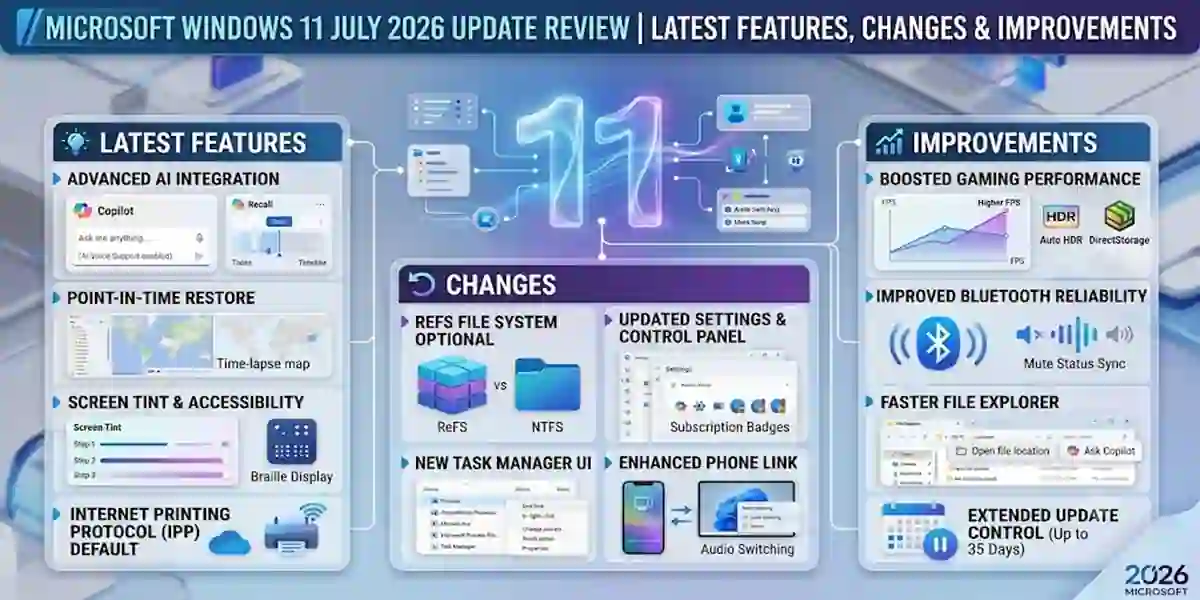
Unlike some previous updates that focused mainly on visual changes, the latest 2026 update concentrates on meaningful improvements that users experience in everyday computing. Microsoft has introduced better recovery options, improved Windows Update controls, enhanced Bluetooth connectivity, smoother File Explorer performance, accessibility upgrades, improved Phone Link functionality, and several system reliability fixes.
This update is especially valuable for users who depend on Windows 11 for work, education, business operations, communication, and entertainment. Laptop users will benefit from improved wireless connectivity and touchpad controls, while professionals can take advantage of better update management, networking improvements, and enhanced system stability.
One of the biggest highlights of the Windows 11 latest 2026 update is Point-in-Time Restore, a new recovery feature designed to help users quickly restore their computers to a previous working state. This makes troubleshooting easier when problems occur after installing drivers, applications, or system updates.
What Is the Windows 11 latest 2026 Update?
The Windows 11 latest 2026 Update is a major improvement package released by Microsoft to enhance the Windows 11 operating system. It includes new tools, reliability improvements, user interface changes, accessibility features, and performance optimisations.
The update focuses on improving how users
- Recover their PCs
- Manage system updates
- Connect wireless devices
- Use File Explorer
- Control accessibility settings
- Connect smartphones
- Manage productivity tools
Microsoft designed this update to provide a smoother and more dependable Windows experience without requiring users to learn a completely new interface.
Many improvements were introduced through Windows 11 versions 24H2 and 25H2 update channels. Microsoft follows a gradual rollout system, meaning some users may receive specific features earlier than others depending on device compatibility and update availability.
Features Explained
The latest Windows 11 updates in 2026 introduce a range of improvements across system recovery, Windows Update, accessibility, File Explorer, Bluetooth, Phone Link, voice control, and printing. Along with visual and usability improvements, several changes provide better control over system maintenance and everyday Windows tasks.
Below is a detailed look at the major features, their benefits, settings paths, and useful Windows commands.
1. Point-in-Time Restore: Advanced Windows Recovery
One of the most useful recovery improvements is Point-in-Time Restore, which provides a more convenient way to return Windows to a previously working state when a recent system change causes problems.
System problems can sometimes occur after:
- Installing applications
- Updating device drivers
- Changing Windows settings
- Installing Windows updates
- Modifying system configurations
- Installing system-level utilities
Instead of immediately performing advanced troubleshooting or resetting Windows, users can use available recovery options to return the system to an earlier working configuration.
Key Benefits
Point-in-Time Restore can help users:
- Recover from recent system problems
- Reverse problematic configuration changes
- Reduce troubleshooting time
- Minimize unnecessary Windows resets
- Restore a previously functional system state
It can be particularly useful for office computers, personal PCs, student systems, and managed business devices.
Recovery Settings
Open:
Settings → System → Recovery
For additional recovery options, users can also open the Windows Recovery Environment.
Useful Commands
To check available system restore points:
rstrui.exe
This launches the System Restore interface.
You can also open the Recovery Control Panel using:
control /name Microsoft.Recovery
For advanced system-file troubleshooting, administrators can use:
sfc /scannow
If Windows component corruption is detected, run:
DISM /Online /Cleanup-Image /RestoreHealth
After DISM completes, running SFC again can help verify system-file integrity.
2. Improved Windows Update Pause Controls
Windows Update management has become more flexible, giving users greater control over when updates are installed.
The updated controls are useful when a computer needs to remain stable during important activities such as:
- Business meetings
- Presentations
- Travel
- Online classes
- Software development
- Large projects
Users can access update controls through:
Settings → Windows Update
The important advantage is that pausing updates does not permanently disable Windows Update. Instead, it provides temporary control over update timing.
Advanced Windows Update Commands
Users can check the Windows Update service with:
sc query wuauserv
PowerShell can also be used:
Get-Service wuauserv
To view Windows Update-related policies and configuration, administrators can use:
gpresult /h "%USERPROFILE%\Desktop\gpresult.html"
This generates a Group Policy report on the desktop.
For troubleshooting Windows Update components, Microsoft-supported repair procedures commonly involve resetting update components. Before making service or cache changes, administrators should understand the effect on pending updates.
Benefits
- Better update scheduling
- Fewer unexpected interruptions
- Improved maintenance planning
- Greater control over update timing
- Easier troubleshooting
3. Widgets Become Less Distracting
Windows Widgets have received usability improvements designed to make the experience less intrusive.
Users can customize how they interact with Widgets while reducing unwanted interruptions.
Improvements include:
- Reduced unnecessary interruptions
- Better notification management
- Improved customization
- More controlled interaction
- Smoother dashboard behaviour
Widgets can be accessed from the Windows taskbar or through the Windows keyboard shortcut:
Windows + W
Users who do not regularly use Widgets can customize taskbar settings to reduce their visibility.
Open:
Settings → Personalization → Taskbar
Why This Matters
A less intrusive Widgets experience can be useful on professional systems where users primarily need quick access to applications, notifications, and productivity tools.
4. Screen Tint Accessibility Feature
Windows 11 continues expanding its accessibility features with improved display customization.
A screen tint or color-filter-style accessibility option can apply a customized visual effect across the display.
Users can adjust display appearance based on their visual preferences.
Potential customization options include:
- Color selection
- Intensity
- Strength of the visual effect
- Display appearance
Access accessibility settings through:
Settings → Accessibility
Depending on the Windows build and available accessibility configuration, color-related options may also be available under:
Settings → Accessibility → Color filters
Keyboard Shortcut
Windows provides a shortcut for quickly accessing color-filter functionality:
Windows + Ctrl + C
If the shortcut is not enabled, users can configure the relevant accessibility option in Settings.
5. Improved Magnifier Controls
Windows Magnifier provides screen enlargement for users who need larger visual elements.
The latest improvements provide more control over magnification and viewing behaviour.
Magnifier can be useful for:
- Reading small text
- Reviewing documents
- Examining designs
- Viewing detailed graphics
- Accessibility requirements
Open Magnifier with:
Windows + +
Decrease magnification with:
Windows + -
Close Magnifier with:
Windows + Esc
Users can also configure Magnifier through:
Settings → Accessibility → Magnifier
Advanced Magnifier settings allow users to customize zoom behaviour, viewing mode, and other accessibility preferences.
6. File Explorer Performance Improvements
File Explorer remains one of the most frequently used components of Windows 11.
Performance improvements can make common file-management operations more responsive, including:
- Opening folders
- Navigating directories
- Renaming files
- Managing documents
- Searching for files
- Working with storage devices
Additional improvements may affect areas such as:
- Address-bar reliability
- Shortcut handling
- Cloud-storage integration
- File operations
- Disk-image mounting
- Overall responsiveness
Useful File Explorer Commands
Open File Explorer:
explorer.exe
Open the Downloads folder:
explorer.exe shell:Downloads
Open the Documents folder:
explorer.exe shell:Documents
Open the Windows directory:
explorer.exe C:\Windows
If File Explorer becomes unresponsive, it can be restarted from Command Prompt:
taskkill /f /im explorer.exe

start explorer.exe
This restarts the Windows shell without restarting the entire PC.
7. Bluetooth Improvements
Bluetooth connectivity has become increasingly important as Windows laptops rely on wireless accessories.
The latest improvements focus on areas such as:
- Device pairing
- Wireless reconnection
- Audio stability
- Microphone reliability
- Wake-from-sleep behaviour
- Bluetooth settings
Supported accessories can include:
- Wireless headphones
- Bluetooth earbuds
- Keyboards
- Mice
- Microphones
- Controllers
Troubleshooting Bluetooth
Open Bluetooth settings:
Settings → Bluetooth & devices
You can also open the Bluetooth settings page directly with:
ms-settings:bluetooth
To check Bluetooth-related devices using PowerShell:
Get-PnpDevice -Class Bluetooth
To display Bluetooth services:
Get-Service | Where-Object {$_.Name -match "Bluetooth"}If Bluetooth stops working after a driver or Windows update, checking Device Manager and reinstalling or updating the affected Bluetooth driver may resolve the problem.
8. Phone Link Improvements
Phone Link provides integration between Windows PCs and compatible smartphones.
The latest improvements focus on communication and call-management behaviour.
Phone Link can help users:
- Receive phone notifications
- Manage calls
- Exchange messages
- Access supported phone content
- Connect their smartphone with Windows
One area of improvement involves call audio behaviour.
For supported configurations, ringing and call audio can behave more predictably between the phone and connected PC.
Open Phone Link
You can launch Phone Link with:
explorer.exe shell:AppsFolder
Alternatively, search for Phone Link from the Start menu.
The application can also be managed through:
Settings → Bluetooth & devices → Mobile devices
Available features depend on the smartphone, Windows version, account configuration, and Microsoft-supported integration.
9. Voice Access and Voice Typing Improvements
Windows 11 continues expanding hands-free interaction through Voice Access and voice typing.
These features can help users:
- Write documents
- Enter text
- Search for information
- Navigate Windows
- Control applications
- Perform tasks without traditional keyboard input
Voice-related improvements can include better recognition, additional language support, and improved command handling.
Open Voice Access
Go to:
Settings → Accessibility → Speech
Users can also search for Voice Access from the Start menu.
Voice Typing Shortcut
Windows voice typing can be launched using:
Windows + H
This is particularly useful when writing emails, documents, notes, and messages.
10. Modern Windows Printing Improvements
Windows 11 continues moving toward a more modern printing architecture that reduces dependence on traditional manufacturer-specific driver packages where supported.
Modern printing standards can simplify printer setup and device management.
Traditional printer installation may involve:
- Downloading manufacturer drivers
- Installing additional software
- Selecting ports
- Configuring printer services
- Manually troubleshooting drivers
Modern Windows printing can reduce some of these steps for compatible devices.
Printer Settings
Open:
Settings → Bluetooth & devices → Printers & scanners
You can also open the printer settings page directly:
ms-settings:printers
Check Installed Printers
PowerShell:
Get-Printer
To display printer drivers:
Get-PrinterDriver
To display printer ports:
Get-PrinterPort
Add a Printer
For compatible environments, users can manage printers through Windows Settings rather than manually installing legacy drivers.
Benefits
- Simpler printer installation
- Reduced driver dependency
- Easier printer management
- Better compatibility with modern printing standards
- More streamlined device configuration
Advanced Windows 11 Troubleshooting Commands
The 2026 improvements are useful, but Windows administrators and advanced users may still need command-line tools when problems occur.
System File Checker
Run Command Prompt as Administrator:
sfc /scannow
SFC checks protected Windows system files and attempts to repair corrupted files.
DISM Health Check
Check whether the Windows component store has corruption:
DISM /Online /Cleanup-Image /CheckHealth
Perform a deeper scan:
DISM /Online /Cleanup-Image /ScanHealth
Repair detected component-store corruption:
DISM /Online /Cleanup-Image /RestoreHealth
Check Windows Version
Use:
winver
You can also run:
systeminfo
to display detailed system information.
Check Network Configuration
For network troubleshooting:
ipconfig /all
Flush the DNS cache:
ipconfig /flushdns
Reset Winsock:
netsh winsock reset
Reset TCP/IP:
netsh int ip reset
Restart Windows after performing network-stack resets when prompted.
How to Install Windows 11's Latest 2026 Update
Installing the Windows 11, 2026 The update is simple for most users.
Follow these steps:
Step 1: Open Windows Settings
Click:
Start Menu → Settings
Step 2: Open Windows Update
Select:
Windows Update
Step 3: Check for Updates
Click:
Check for updates
Windows will search for available updates.
Step 4: Download and Install
If available:
- Click Download
- Allow Windows to install the update
- Restart your computer
Step 5: Complete Installation
After restarting, Windows will complete the update process.
The installation time depends on:
- Internet speed
- Hardware performance
- Update size
Common Windows 11 July 2026 Update Errors and Fixes
Although Microsoft tests updates carefully, some users may experience issues.
Below are common problems and solutions.
Error 1: Windows Update Cannot Download Update
Symptoms:
- Update stuck at downloading
- Download percentage does not increase
- Installation fails
Causes:
- Internet problems
- Windows Update service issues
- Insufficient storage
Fix:
Try:
- Restart computer
- Check internet connection
- Free storage space
- Run Windows Update Troubleshooter
Path:
Settings → System → Troubleshoot → Other troubleshooters → Windows Update
Error 2: Installation Failed Error
Causes:
- Corrupted update files
- Driver conflicts
- Background software interference
Fix:
Steps:
- Restart PC
- Disconnect unnecessary devices
- Disable temporary security software
- Retry update installation
Error 3: Bluetooth Devices Not Connecting
Symptoms:
- Headphones not detected
- Audio disconnects
- Device pairing fails
Fix:
Try:
- Remove Bluetooth device
- Restart Bluetooth service
- Pair device again
- Update Bluetooth drivers
Path:
Settings → Bluetooth & devices
Error 4: File Explorer Slow After Update
Causes:
- Temporary indexing issues
- Background optimization
Fix:
Try:
- Restart Windows Explorer
- Restart computer
- Allow indexing to complete
Error 5: Phone Link Not Working
Causes:
- Account synchronization issues
- Bluetooth connection problems
Fix:
Steps:
- Restart Phone Link
- Reconnect smartphone
- Update Phone Link application
- Check permissions
Error 6: Printer Installation Problems
Causes:
- Driver compatibility issues
- Printer connection problems
Fix:
Try:
- Remove printer
- Restart computer
- Add printer again
Path:
Settings → Bluetooth & devices → Printers & scanners
Error 7: Update Causes Performance Issues
Some users may experience temporary slowdown after updates.
Solutions:
- Restart computer
- Update drivers
- Remove unnecessary startup applications
Check background processes
Methods to Activate Windows 11 July 2026 Update
The Windows 11 July 2026 Update does not require a separate activation process because it is a feature update provided through Microsoft Windows Update. However, your Windows 11 operating system must already be properly activated with a valid digital license or product key before installing and using all features without restrictions.
A genuine Windows activation ensures:
- Full access to Windows features
- Security updates from Microsoft
- Personalization options
- System stability
- License compliance
- Removal of activation notifications
Below are the different methods to check and activate Windows 11 before or after installing the July 2026 Update.
Method 1: Activate Windows 11 Using a Digital License
A digital license is one of the easiest activation methods. It connects your Windows activation status with your Microsoft account and device hardware.
Steps:
- Open Settings
- Select System
- Click Activation
- Check activation status
- Sign in with your Microsoft account if required
If your device already has a digital license, Windows will automatically verify and activate your system.
Benefits of Digital License Activation:
- No need to enter a product key repeatedly
- Activation remains linked to your hardware
- Easier recovery after reinstalling Windows
- Automatic license verification
Method 2: Activate Windows 11 Using a Product Key
A Windows 11 product key is a 25-character license code used to activate Windows.
Example format:
XXXXX-XXXXX-XXXXX-XXXXX-XXXXX
Steps:
- Open Settings
- Go to:
System → Activation
- Select:
Change Product Key
- Enter your valid Windows 11 product key
- Click Activate
- Restart your computer
Windows will connect with Microsoft activation servers and verify your license.
Method 3: Activate Windows 11 Through Command Prompt
Advanced users and administrators can use Command Prompt commands to manage Windows activation.
Step 1: Open Command Prompt
Run Command Prompt as Administrator.
Step 2: Install Product Key
Command:
slmgr /ipk XXXXX-XXXXX-XXXXX-XXXXX-XXXXX
Replace the X values with your valid product key.
Step 3: Activate Windows
Command:
slmgr /ato
This connects Windows with activation servers and attempts activation.
Step 4: Check Activation Status
Command:
slmgr /xpr
Displays whether Windows is permanently activated.
Step 5: View Detailed License Information
Command:
slmgr /dlv
Shows detailed licensing information.
Method 4: Activate Windows 11 Through Microsoft Account
If your Windows license is connected to a Microsoft account, activation can be restored easily.
Steps:
- Open Settings
- Select Accounts
- Sign in with your Microsoft account
- Open Activation settings
- Select:
Troubleshoot
- Choose:
I changed hardware on this device recently
- Select your device
- Activate Windows
This method is useful after:
- Hardware replacement
- Windows reinstallation
- System recovery
Method 5: Activate Windows 11 Using Activation Troubleshooter
Windows includes a built-in activation troubleshooting tool.
Steps:
- Open:
Settings → System → Activation
- Click:
Troubleshoot
- Allow Windows to detect activation problems
The troubleshooter can identify issues such as:
- Incorrect license information
- Account connection problems
- Hardware changes
Method 6: Enterprise Activation Using Organization License
Businesses managing multiple Windows devices may use enterprise activation methods.
Common enterprise solutions include:
- Microsoft Volume Licensing
- Active Directory-based activation
- Key Management Service (KMS)
- Microsoft Configuration Manager
These methods allow IT administrators to manage activation across multiple computers.
Benefits:
Centralized license management
Easier deployment
Better control over company devices
How to Verify Windows 11 Activation After Update
After installing the Windows 11 July 2026 Update, check activation status.
Method 1: Using Settings
Go to:
Settings → System → Activation
You should see:
Windows is activated
Method 2: Using Command Prompt
Open Command Prompt and enter:
slmgr /xpr
If activated permanently, Windows will display activation confirmation.
Common Activation Problems After Windows 11 Update
Error: Windows Activation Failed
Causes:
- Internet connection problems
- Incorrect product key
- Microsoft account issue
Fix:
- Check internet connection
- Re-enter product key
- Run Activation Troubleshooter
Error: Product Key Not Accepted
Causes:
- Wrong Windows edition
- Invalid license key
Fix:
Ensure the license matches your Windows version:
- Windows 11 Home key → Home edition
- Windows 11 Pro key → Pro edition
Error: Activation Server Unavailable
Causes:
- Temporary Microsoft server issues
- Network restrictions
Fix:
- Wait and try again
- Check firewall settings
- Restart network connection
Here is the chronological, date-wise timeline of official Windows 11 updates released through the course of 2026 (covering Patch Tuesday security releases, optional previews, and out-of-band updates for modern versions like 24H2/25H2).
July 2026
July 14, 2026 — KB5101650 (OS Builds 26200.8875 / 26100.8875): Major cumulative security update featuring File Explorer size unit refinements (showing KB, MB, GB instead of raw KB) and AI model version upgrades.
June 2026
June 23, 2026 — KB5095093 (Preview): Optional preview update introducing early adjustments for taskbar alignment and search behavior.
June 9, 2026 — KB5094126 (OS Builds 26200.8655 / 26100.8655): Standard Patch Tuesday security release addressing vulnerabilities and preparing systems for updated Secure Boot certificates.
May 2026
May 26, 2026 — KB5089573 (Preview): Non-security preview rollout emphasizing WinUI 3 stability elements.
May 12, 2026 — KB5089549 / KB5089548: Monthly security update patch across supported Windows 11 builds.
April 2026
April 30, 2026 — KB5083631 / KB5083806 (Preview): Preview update focusing on context menu speeds and UI responsiveness.
April 14, 2026 — KB5083769 / KB5083768: April Patch Tuesday fix rollout addressing system bug fixes and driver reliability.
March 2026
March 31, 2026 — KB5086672 (Out-of-Band): Emergency patch addressing critical hardware interaction conflicts.
March 26, 2026 — KB5079391 / KB5079489 (Preview): Optional rollout bringing early visual consistency updates for legacy dialogs.
March 21, 2026 — KB5085516 (Out-of-Band): Addressed severe launch regressions tied to specific security configurations.
March 10, 2026 — KB5079473 / KB5079466: Standard March security baseline update.
February 2026
February 24, 2026 — KB5077241 / KB5077239 (Preview): Focuses on memory footprint reductions for PCs running on lower RAM configurations.
February 10, 2026 — KB5077181 / KB5077179: February Patch Tuesday release targeting core kernel stability and Bluetooth audio dropouts.
January 2026
January 29, 2026 — KB5074105 (Preview): Initial preview package introducing foundational elements for enhanced taskbar flexibility.
January 24, 2026 — KB5078127 (Out-of-Band): Targeted hotfix for post-boot freezing on specific enterprise hardware profiles.
January 17, 2026 — KB5077744 (Out-of-Band): Emergency stabilization patch.
January 13, 2026 — KB5074109: The first official Patch Tuesday baseline update of 2026, centering heavily on security hardening and servicing stack improvements.
Conclusion
The Windows 11 July 2026 Update brings important improvements that make Windows 11 more reliable, secure, accessible, and easier to manage. With new features such as Point-in-Time Restore, improved Windows Update controls, enhanced Bluetooth performance, File Explorer improvements, better Phone Link integration, and accessibility upgrades, this update focuses on improving the everyday computing experience.
To enjoy all features without restrictions, users should ensure that their Windows 11 installation is properly activated using a genuine digital license, product key, or organization-managed licensing method. Proper activation provides access to Microsoft updates, security improvements, personalization options, and complete system functionality.
Overall, the Windows 11 July 2026 Update is a valuable upgrade for home users, professionals, and businesses. It improves performance, simplifies recovery, strengthens reliability, and continues Microsoft's goal of delivering a modern and user-friendly Windows experience. For users looking for better productivity, stronger security, and smoother system performance, installing and properly activating this update is highly recommended.
Frequently Asked Questions (FAQ)
The Windows 11 July 2026 Update is a major feature and reliability update released by Microsoft to improve the overall Windows 11 experience. It introduces new features such as Point-in-Time Restore, improved Windows Update controls, better accessibility options, File Explorer enhancements, Bluetooth improvements, Phone Link updates, and several performance and stability fixes.
Yes, the Windows 11 July 2026 Update is available free of charge for supported Windows 11 devices. Users can download and install it through Windows Update without purchasing an additional license.
You can install the update by following these steps:
- Open Settings
- Go to Windows Update
- Click Check for Updates
- Select Download and Install
- Restart your PC when prompted
Microsoft may release some features gradually, so availability can vary between devices.
The major improvements include:
- Point-in-Time Restore for easier system recovery
- Better Windows Update pause controls
- Improved File Explorer performance
- Enhanced Bluetooth connectivity
- Better Phone Link call handling
- Screen Tint accessibility feature
- Improved Magnifier controls
- Voice Access improvements
- Easier printer setup
- Touchpad customization options
Point-in-Time Restore is a recovery feature that helps users restore their computer to a previous working condition. It can be useful when problems occur after installing applications, drivers, or system updates.
It reduces the need for advanced troubleshooting and makes system recovery easier for everyday users.