

Common Office 2024 Installation Mistakes and How to Avoid Them

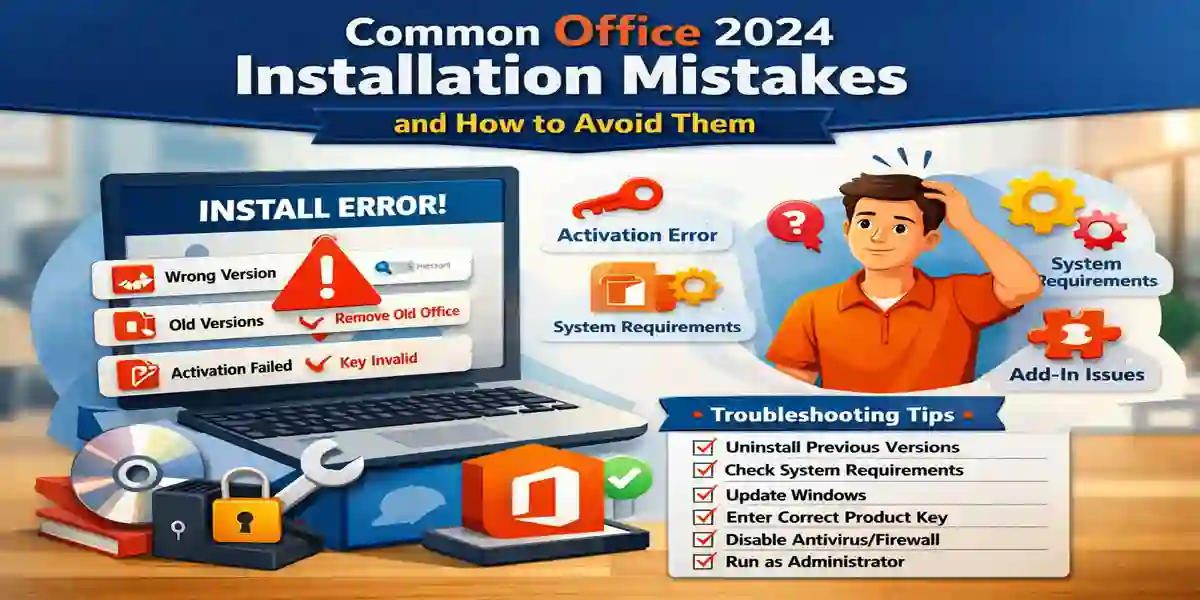
Introduction
Microsoft Office 2024 comes in two major editions: Office 2024 (Non-LTSC) and Office LTSC 2024. Both include the essential tools you rely on daily — Word, Excel, PowerPoint, and Outlook — but they're built for different needs.
- Non-LTSC (Office 2024 Home & Business / Home): Designed for individuals and small businesses, with a straightforward setup and ongoing feature updates.
- LTSC (Office LTSC 2024 Professional Plus / Standard): Built for organizations that prioritize stability over frequent updates, ensuring long-term reliability in controlled IT environments. Individuals and small businesses can also use LTSC if they specifically need a fixed, long-term servicing channel.
No matter which version you're deploying, installation errors can happen — from setup failures to frustrating activation loops — costing you time you didn't plan to lose.
This guide walks through the most common Office 2024 installation mistakes, how to fix each one, and includes a practical troubleshooting checklist so your setup goes smoothly the first time.
Office 2024 Step-by-Step Installation Overview
Understanding the setup process helps you spot exactly where things tend to go wrong.
Office 2024 Non-LTSC Installation
- Download and run setup.exe from your Microsoft account or official Microsoft download portal.
- Run the installer directly.
- Enter your product key when prompted.
- Office activates automatically and enables ongoing updates.
Office 2024 LTSC Installation
- Use the Office Deployment Tool (ODT) with a configuration XML file, or
- Follow your organization's IT-provided deployment guide for Office 2024 LTSC, which typically uses volume activation methods suited for managed environments.
Knowing your exact version and deployment method before you start troubleshooting will save you significant time.
Common Office 2024 Installation Mistakes and How to Fix Them
Mistake #1: Using the Wrong Installer Version
The Problem: Installing the 32-bit version on a 64-bit system, or using mismatched installers (e.g., an LTSC key with a Non-LTSC installer), causes setup errors.
Consequences:
- Installation fails or crashes.
- Office apps open with missing features or errors.
The Fix:
- Check your system type: Settings > System > About > System type.
- Use the correct installer (32-bit or 64-bit) that matches your OS.
- Always match your installer to your license type (Non-LTSC key with Non-LTSC installer, LTSC key with LTSC installer).
Mistake #2: Not Uninstalling Previous Office Versions
The Problem: Old Office versions (2016, 2019, 2021, or a previous Office 2024 install) can leave behind files and registry entries that interfere with a fresh installation.
Consequences:
- Setup rolls back or freezes mid-installation.
- Activation loops or licensing errors appear after install.
- Office apps crash or fail to open.
The Fix:
- Go to Control Panel > Programs and Features and uninstall older Office versions completely.
- If leftover files or registry entries persist, use Microsoft's own Support and Recovery Assistant (search "Get Help" in Windows, then search for "Uninstall Office" within it) to fully clean up a stuck installation.
- Reboot your PC before starting the new installation.
Important: Always extract downloaded setup files to a normal folder (like Downloads or Desktop) before running them, rather than attempting to run an installer directly from inside an archive tool. Running setup files straight out of an unextracted archive is a common — and easily avoidable — cause of installation failures.
Mistake #3: Skipping Windows Updates or Missing System Requirements
The Problem: Office 2024 expects an updated system environment. Missing Windows updates or system dependencies can cause the installer to fail outright.
Consequences:
- Setup crashes or won't start.
- Certain Office features malfunction even after a successful install.
The Fix: Run Windows Update and install all pending updates, then verify your system meets these baseline requirements:
- OS: Windows 10 (version 20H2 or later) or Windows 11
- RAM: 4 GB minimum
- Disk Space: 10 GB free
- .NET Framework: 4.8 or newer
- Processor: Dual-core, 1.6 GHz or faster
- Runtime: Visual C++ 2015–2019 Redistributables installed
Mistake #4: Activation Problems
The Problem: Office may fail to activate due to a mistyped key, an incorrectly licensed key for your installer type, or a network/firewall issue blocking the activation check.
Consequences:
- "Product key invalid" error messages.
- Office remains stuck in unlicensed or reduced-functionality mode.
The Fix:
For Non-LTSC users:
- Double-check the product key for typos — copy-paste it rather than typing it manually.
- Temporarily disable firewalls, antivirus, or VPN software that might be blocking Microsoft's activation servers.
- Go to File > Account > Activate Product in any Office app to retry activation manually.
For LTSC users (volume/command-line activation):
cscript ospp.vbs /inpkey:XXXXX-XXXXX-XXXXX-XXXXX-XXXXX

cscript ospp.vbs /act
ospp.vbs is located in your Office installation folder, typically:
C:\Program Files\Microsoft Office\Office16
Run Command Prompt as Administrator, navigate to that folder, and execute the commands above to install the key and activate.
A note on where to get your license: Always purchase Office 2024 directly through Microsoft's official store, the Microsoft 365 admin center, or a Microsoft-authorized retail partner. Keys purchased from unauthorized third-party resellers are frequently resold volume-license keys, previously used or shared keys, or outright invalid — any of which can leave you unable to activate, or worse, get your license revoked after the fact. If a deal looks unusually cheap for a "genuine" key, that's a signal to verify the seller's authorization status before buying.
Mistake #5: Add-in Compatibility or Missing Plugins
The Problem: Legacy add-ins or third-party plugins built for older Office versions may not be compatible with Office 2024, causing crashes or degraded performance.
Consequences:
- Office apps launch slowly or fail to launch at all.
- Expected tabs or features disappear from the ribbon.
The Fix:
- Launch the affected app in Safe Mode (hold Ctrl while opening the app).
- Go to File > Options > Add-ins.
- At the bottom, set Manage to COM Add-ins, click Go, then uncheck non-essential add-ins.
- Restart the app normally and re-enable add-ins one at a time to identify the problematic one.
Mistake #6: Expecting Deprecated Features to Still Work
The Problem: Some legacy tools and older VBA libraries are no longer supported in Office 2024.
Consequences:
- Macros that worked in older versions stop functioning.
- Mail merge templates built for older Office versions break.
- Custom scripts fail silently or throw errors.
The Fix:
- Review Microsoft's official deprecated features documentation for your specific Office 2024 edition.
- Update older scripts and templates to currently supported formats.
- Consider modern alternatives like Power Automate or Office Scripts for workflows that previously relied on deprecated macro functionality.
Advanced Features of Microsoft Office 2024 and Office LTSC 2024
Microsoft Office 2024 introduces a range of productivity, accessibility, document-management, and deployment improvements designed for modern professional workflows. While the standard Office 2024 editions are aimed primarily at consumers and small businesses, Office LTSC 2024 is designed for organizations that require a controlled and predictable software environment.
It is important to understand the difference between the two: Office 2024 can receive product updates under Microsoft's applicable servicing model, while Office LTSC 2024 does not receive new features after its release. LTSC continues to receive security and quality updates during its support period.
1. Modern Office User Interface
Office 2024 introduces a more consistent visual experience across Word, Excel, PowerPoint, Outlook, and other Office applications.
The updated Office theme follows Microsoft's Fluent Design principles and provides a cleaner interface while maintaining familiar menus, commands, and workflows.
This can help users transition from earlier versions of Office without having to completely relearn the software.
2. Advanced Excel Data Analysis
Excel 2024 includes several improvements aimed at users working with complex spreadsheets and business data.
Important capabilities include:
- Dynamic-array improvements
- Dynamic charts that can respond to changing array data
- New text and array functions
- Improved workbook performance
- Enhanced data organization
- The IMAGE function for incorporating pictures into cells
These features can be useful for financial analysis, inventory management, sales reports, business dashboards, research, and data-processing workflows.
3. Improved Dynamic Charts
One of the useful Excel improvements is the ability for charts to work more effectively with dynamic-array data.
Instead of manually adjusting a chart whenever the underlying dataset changes, dynamic data structures can help the visualization respond to changing information.
This is particularly useful for:
- Sales dashboards
- Monthly reports
- Financial models
- Inventory tracking
- Performance reports
- Business analytics
4. IMAGE Function in Excel
Excel 2024 adds the IMAGE function, allowing users to incorporate images directly into spreadsheet workflows.
This can be particularly useful when creating:
- Product catalogs
- Inventory databases
- Employee directories
- Product comparison sheets
- Visual reports
- Asset-management spreadsheets
For businesses that maintain large product lists, combining images with structured spreadsheet data can make workbooks easier to understand and manage.
5. Enhanced Word Session Recovery
Word 2024 provides improved session recovery capabilities.
If Word unexpectedly closes, the application can reopen documents that were active when the session ended. This can reduce the risk of losing track of documents that were being edited.
The feature is particularly useful when working on:
- Long reports
- Business proposals
- Contracts
- Research papers
- Academic assignments
- Technical documentation
- Marketing documents
6. Improved Accessibility
Accessibility is another important area of Office 2024.
Microsoft has introduced and improved accessibility-related functionality to help users create documents, presentations, spreadsheets, and emails that are easier for a broader audience to use.
This is especially relevant to businesses, schools, government organizations, and professional teams that need to produce accessible digital content.
7. OpenDocument Format 1.4 Support
Office 2024 and Office LTSC 2024 add support for OpenDocument Format (ODF) 1.4 in applications including Word, Excel, and PowerPoint.
ODF compatibility is useful when users exchange files with productivity applications that use the OpenDocument standard.
This can make cross-platform document workflows easier and reduce compatibility problems when working with different office-productivity ecosystems.
8. PowerPoint Presentation Enhancements
PowerPoint 2024 introduces several capabilities designed to improve presentation creation and delivery.
Depending on the edition, users can benefit from features such as:
- Cameo for displaying a live camera feed on slides
- Recording Studio capabilities
- Improved presentation controls
- Better visual positioning
- Enhanced presentation recording
- Improved accessibility
These tools can be useful for online training, corporate presentations, education, product demonstrations, webinars, and recorded presentations.
9. Outlook Productivity Features
Outlook 2024 includes improvements designed to make email management more efficient.
Useful capabilities include:
- Scheduled email sending
- Focused Inbox
- Improved email organization
- Better productivity workflows
- Enhanced calendar and communication management
Scheduled sending can be especially useful for users communicating across multiple time zones because messages can be prepared in advance and delivered at a selected time.
10. Continuity Camera on Mac
Office 2024 for Mac can take advantage of Apple's Continuity Camera functionality.
This allows users to use a compatible iPhone or iPad to capture an image and insert it into Office content on a Mac.
For example, users can quickly add:
- Receipts
- Product photographs
- Whiteboard images
- Printed documents
- Physical notes
- Reference photographs
This can reduce the number of steps required to transfer visual information from a mobile device to an Office document.
11. Professional Document Collaboration
Office 2024 improves collaboration and document-review workflows through features such as modern commenting and review capabilities.
Word users can work with different document modes, including:
Viewing → Reviewing → Editing
This provides better control over how documents are reviewed and modified.
Comment reactions can also provide a quick way for collaborators to acknowledge feedback without adding unnecessary responses.
12. Office Deployment Tool for Enterprise Deployment
For organizations using Office LTSC 2024, Microsoft provides the Office Deployment Tool (ODT).
The ODT allows administrators to control how Office is installed across organizational computers.
Administrators can configure:
- Office edition
- 32-bit or 64-bit architecture
- Installation source
- Languages
- Applications to include
- Product configuration
- Activation method
- Deployment settings
Microsoft specifically recommends using ODT for deploying Office LTSC 2024.
13. Configuration XML for Customized Installation
The configuration XML file is one of the most powerful components of an Office LTSC deployment.
Administrators can use the XML configuration to define how Office should be installed.
For example, the configuration can specify the Office architecture:
<Configuration>

  <Add OfficeClientEdition="64">

  </Add>

</Configuration>
The XML can also be used to define products, languages, installation sources, and other deployment options.
Microsoft's deployment documentation states that the OfficeClientEdition value can be 32 or 64, and all Office products installed on the same device must use the same architecture.
14. Command-Line Deployment
Office LTSC 2024 provides command-line deployment capabilities through the Office Deployment Tool.
Two important commands are:
setup /download configuration.xml
This downloads the Office installation files specified by the configuration.
After the required files have been downloaded, administrators can use:
setup /configure configuration.xml
to install Office according to the configuration file. Microsoft documents these commands as part of the standard ODT deployment process.
15. KMS and MAK Volume Activation
Office LTSC 2024 supports volume-licensing activation methods including Key Management Service (KMS) and Multiple Activation Key (MAK).
KMS allows organizations to activate supported Office installations through an internal activation infrastructure, while MAK uses product keys for activation.
Microsoft states that the activation process for volume-licensed Office remains based on these established methods.
Organizations should use the activation method associated with their legitimate Microsoft volume-license agreement.
16. Centralized Office Deployment
Large organizations can use Microsoft deployment-management technologies such as Microsoft Configuration Manager to deploy Office LTSC 2024 across multiple computers.
This provides administrators with greater control over:
- Software deployment
- Application selection
- Office architecture
- Updates
- Configuration
- Organizational rollout
Microsoft documents Configuration Manager as an alternative deployment method for Office LTSC 2024.
17. Controlled Update Model
A major characteristic of Office LTSC 2024 is its controlled servicing model.
Unlike Microsoft 365 Apps, Office LTSC 2024 does not receive new features after release. Instead, Microsoft provides security and quality updates.
This approach can be useful for organizations that need predictable software behavior and want to avoid frequent changes to the feature set.
18. 32-Bit and 64-Bit Deployment Options
Office LTSC 2024 is available in both 32-bit and 64-bit versions.
Microsoft recommends evaluating application compatibility before selecting the architecture. Organizations should also remember that 32-bit and 64-bit Office products cannot be mixed on the same device.
For modern systems with larger memory requirements, 64-bit Office can be appropriate, but organizations should test compatibility with existing add-ins and applications before deployment.
19. Language and Proofing Tool Deployment
Office LTSC 2024 can be deployed with multiple languages.
Administrators can configure language resources through the Office Deployment Tool and can also deploy proofing tools for users who need multilingual document support.
This is especially useful for international organizations and teams that create documents in multiple languages.
20. Better Enterprise Deployment Control
The combination of ODT, configuration XML, volume activation, language deployment, and Configuration Manager gives IT administrators significant control over Office LTSC 2024 installations.
A typical enterprise deployment can follow this workflow:
Plan → Configure XML → Download Office → Test Deployment → Deploy → Activate → Update → Monitor
This structured approach can reduce installation inconsistencies and make large-scale Office deployment easier to manage.
Office 2024 Commands and Deployment Commands
For advanced Office 2024 and Office LTSC 2024 installations, administrators can use the Office Deployment Tool (ODT). ODT uses setup.exe together with a configuration XML file to download, install, configure, and manage Office deployments.
1. Download Office Installation Files
Use the following command to download the Office installation files defined in your XML configuration:
setup.exe /download configuration.xml
For example:
setup.exe /download Office2024.xml
This downloads the files according to the settings specified in the XML configuration.
2. Install Office 2024
After preparing the configuration file, use:
setup.exe /configure configuration.xml
For example:
setup.exe /configure Office2024.xml
This starts the Office installation using the products, architecture, language, and other settings defined in the configuration file.
3. Install Office LTSC 2024
For an Office LTSC 2024 deployment, administrators can use:
setup.exe /configure configuration.xml
The XML file determines the LTSC product, architecture, language, activation configuration, and other deployment settings. Microsoft recommends the Office Deployment Tool for organizational deployment of Office LTSC 2024.
4. Remove Previous MSI-Based Office Versions
The ODT configuration can include:
<RemoveMSI />
This allows supported previous Windows Installer (MSI) versions of Office, Visio, or Project to be removed as part of the deployment. Microsoft recommends considering RemoveMSI when deploying Office LTSC 2024.
5. Specify 64-Bit Office
A configuration file can specify the Office architecture:
<Add OfficeClientEdition="64">
For 32-bit Office:
<Add OfficeClientEdition="32">
Microsoft states that Office products installed on the same device must use the same architecture.
6. Specify the Office LTSC 2024 Product
For Office LTSC Professional Plus 2024, the product ID is:
<Product ID="ProPlus2024Volume">
For Office LTSC Standard 2024:
<Product ID="Standard2024Volume">
These are volume-license product IDs intended for the appropriate Office LTSC licensing scenarios.
7. Specify the Installation Language
For English:
<Language ID="en-us" />
Multiple languages can also be included in the configuration file.
8. Specify a MAK Product Key
For a legitimate MAK-licensed Office LTSC deployment, the configuration can contain a PIDKEY value:
<Product ID="ProPlus2024Volume" PIDKEY="YOUR-MAK-KEY">
Replace the placeholder with the organization's legitimate MAK key. Do not use publicly shared, unauthorized, or generated keys.
9. Configure Silent Installation
Administrators can configure the installation interface using the Display element:
<Display Level="None" AcceptEULA="TRUE" />
This is useful for managed deployments where users should not have to interact with the installation wizard. Microsoft's Office LTSC documentation provides this configuration as part of its deployment examples.
10. Specify an Installation Source
Office LTSC 2024 can be installed directly from Microsoft's Office CDN or from a local network location.
A configuration can specify a network source such as:
<Add OfficeClientEdition="64"

     SourcePath="\\Server\Share">
This approach can be useful when an organization manages Office installation files from an internal network.
11. Check Office Deployment Tool Help
For ODT command-line assistance, use:
setup.exe /?
This displays available command-line options supported by the installed version of the Office Deployment Tool.
12. Check Office Updates
For Office LTSC 2024, users can manually check for updates through:
Office app → File → Account → Update Options → Update Now
Microsoft notes that Office LTSC 2024 updates can be obtained from the Office CDN by default or from a configured internal update location.
13. Example Office LTSC 2024 Configuration
A basic organizational configuration can look like this:
<Configuration>

  <Add OfficeClientEdition="64" Channel="PerpetualVL2024">

    <Product ID="ProPlus2024Volume">

      <Language ID="en-us" />

    </Product>

  </Add>


  <RemoveMSI />


  <Display Level="None" AcceptEULA="TRUE" />

</Configuration>
After saving the file as configuration.xml, open Command Prompt as Administrator, navigate to the folder containing setup.exe, and run:
setup.exe /download configuration.xml
After the download has completed, install Office with:
setup.exe /configure configuration.xml
Microsoft documents /download for downloading the required installation files and /configure for installing Office according to the configuration file.
Pro Tips for a Smooth Setup
- Purchase and activate Office 2024 only through official Microsoft channels — the Microsoft Store, the Microsoft 365 admin center, or a verified Microsoft-authorized reseller.
- Keep your product key backed up securely, ideally in a password manager, in case you need to reinstall later.
- Back up templates, custom dictionaries, and personal settings before upgrading or reinstalling, so you don't lose your personalized setup.
- Avoid pirated or cracked installers. Beyond violating Microsoft's licensing terms, they frequently break Windows activation, introduce malware, and leave you without access to security updates.
Conclusion
Streamlining Office 2024 Installation and Activation
While installing Office 2024 (Standard, LTSC, or consumer editions) is typically a smooth process, minor oversights can easily trigger setup errors or activation roadblocks.
Adhering to a few core best practices ensures a clean, hassle-free deployment:
Clear Out Legacy Files: Completely remove older or conflicting Office versions beforehand to prevent installer confusion and license mismatches.
Update Your Operating System: Ensure your macOS or Windows environment is fully updated to support the modern architecture of the 2024 suite.
Match Installer to License: Always align your installation package with your exact license
Frequently Asked Questions (FAQs)
A: No. Uninstall older Office versions to avoid setup conflicts and activation errors.
A: Non-LTSC gets periodic updates; LTSC is static, ideal for environments avoiding frequent updates.
A: Possible reasons: incorrect key entry, version mismatch, offline or firewall issues. LTSC may require command-line activation.
A: No. Office 2024 requires Windows 10 (20H2+) or Windows 11.
A: Open any Office app → File > Account > About Word/Excel; version info shows 32-bit or 64-bit.