How to Activate SQL Server 2025 – Step-by-Step License Activation Guide

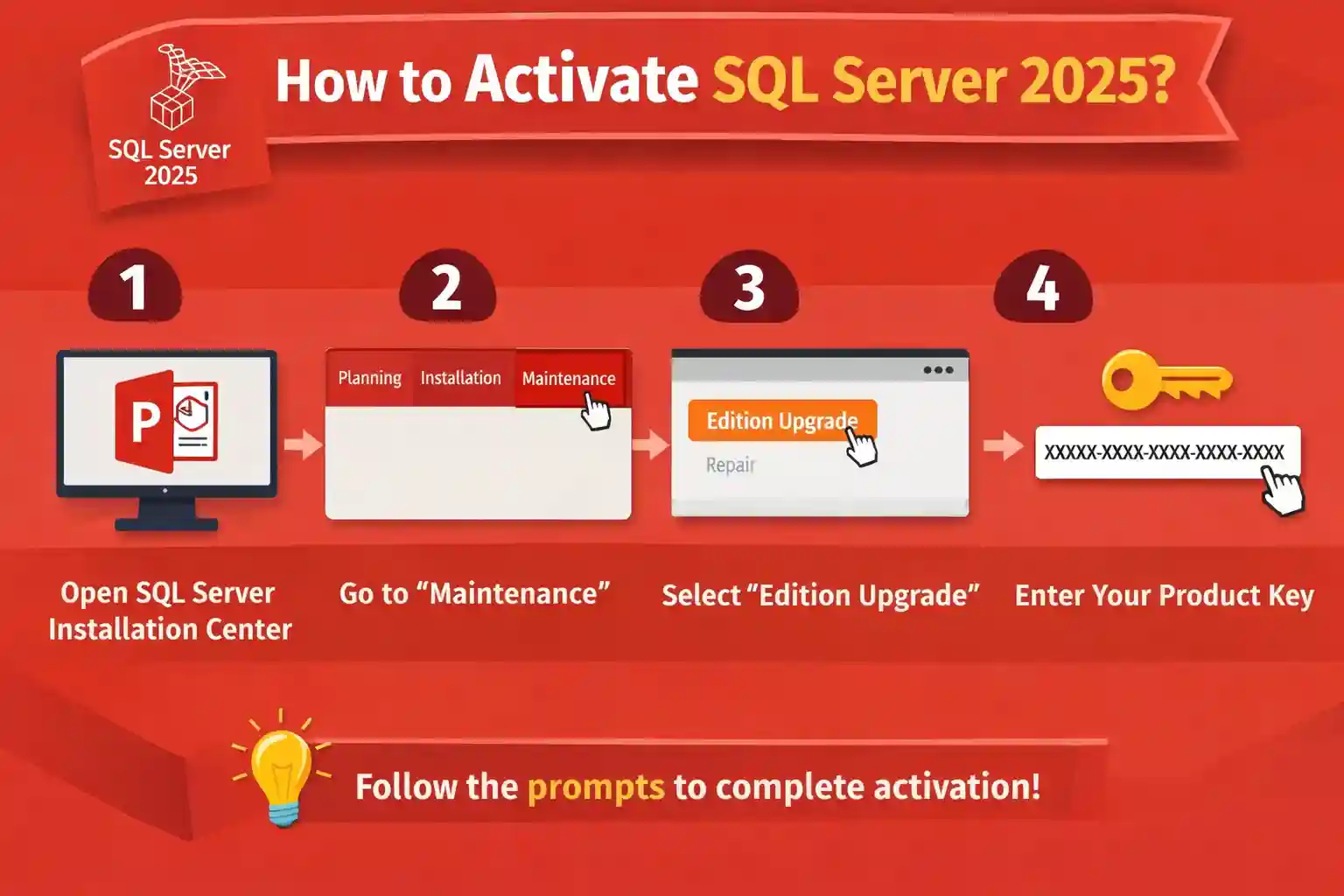
Introduction to SQL Server 2025 Activation
Microsoft SQL Server 2025 is the latest evolution of Microsoft’s enterprise-grade relational database platform, built to support modern data workloads, AI-powered analytics, cloud integration, and mission-critical business applications. With improved performance, security enhancements, and deeper integration with Azure services, SQL Server 2025 is designed for organizations that demand reliability, scalability, and compliance.
However, simply installing SQL Server 2025 is not enough. Activation is a mandatory step that ensures your database engine runs without limitations, remains compliant with Microsoft licensing policies, and receives full feature access and updates.
Key Advanced Features of Microsoft SQL Server 2025
Before configuring or licensing SQL Server 2025, it is useful to understand the major capabilities introduced in this release. SQL Server 2025 expands its database engine with improvements across AI, query processing, security, high availability, and hybrid-cloud connectivity.
1. Intelligent Query Processing and Performance
SQL Server 2025 expands Intelligent Query Processing (IQP) with capabilities such as cardinality estimation feedback, optional parameter plan optimization (OPPO), and degree-of-parallelism feedback. These technologies can help the Database Engine adapt query execution to workload behavior and improve performance without requiring extensive application changes.
2. Advanced Security and Data Protection
SQL Server 2025 strengthens database security with improvements to authentication, encryption, and credential protection. It supports Always Encrypted, secure enclaves, Transparent Data Encryption, auditing, row-level security, and Microsoft Entra authentication where supported. It also introduces PBKDF2-based password hashing by default and adds TLS 1.3/TDS 8.0 support for several SQL Server components.
3. AI and Intelligent Data Workloads
SQL Server 2025 adds expanded capabilities for AI-focused applications, including a native vector data type, DiskANN-based vector indexing, embedding generation, external models, local ONNX models, and chunking support. These capabilities make SQL Server more suitable for applications that combine traditional relational data with modern AI workloads.
4. Hybrid Cloud and Azure Integration
SQL Server 2025 provides deeper connectivity with Microsoft's hybrid-management ecosystem. Azure-connected capabilities include the Azure extension for SQL Server, Microsoft Entra integration, Azure Arc-enabled scenarios, and managed identity support for selected operations.
5. High Availability and Disaster Recovery
SQL Server 2025 supports several technologies for maintaining database availability, including Always On availability groups, Always On failover cluster instances, log shipping, backup compression, and database mirroring, with feature availability depending on the SQL Server edition. Enterprise supports full Always On availability groups, while Standard supports Basic availability groups.
6. Modern Data Virtualization
SQL Server 2025 includes PolyBase capabilities for querying data from sources such as Azure Storage, S3, and ODBC data sources. This can help organizations work with data distributed across different storage platforms without moving all data into a single database.
Useful SQL Server 2025 Commands
The following commands can be included in your article to help administrators check the SQL Server installation, version, configuration, and licensing status.
1. Check SQL Server Version
Run the following query in SQL Server Management Studio (SSMS):
SELECT

    SERVERPROPERTY('ProductVersion') AS ProductVersion,

    SERVERPROPERTY('ProductLevel') AS ProductLevel,

    SERVERPROPERTY('Edition') AS Edition;
2. Display SQL Server Edition
SELECT SERVERPROPERTY('Edition') AS Edition;
This can help confirm whether the installation is Enterprise, Standard, Developer, Express, or another supported edition.
3. Check SQL Server Service
From PowerShell:
Get-Service -Name MSSQLSERVER
For a named SQL Server instance:
Get-Service -Name 'MSSQL$INSTANCE_NAME'
Replace INSTANCE_NAME with the actual instance name.
4. Check SQL Server Configuration
You can use:
SELECT

    name,

    value,

    value_in_use

FROM sys.configurations

ORDER BY name;
This displays SQL Server configuration settings and their current values.
5. Check Database Status
SELECT

    name,

    state_desc,

    recovery_model_desc

FROM sys.databases

ORDER BY name;
This is useful for reviewing whether databases are ONLINE, their recovery model, and their current state.
6. Check Always On Availability Groups
For servers configured for Always On:
SELECT

    name,

    replica_server_name,

    role_desc,

    operational_state_desc

FROM sys.dm_hadr_availability_replica_states AS ars

JOIN sys.availability_replicas AS ar

    ON ars.replica_id = ar.replica_id;
Always On functionality depends on the installed SQL Server edition and the specific availability architecture being configured.
7. Check SQL Server Agent Status
SELECT

    servicename,

    startup_type_desc,

    status_desc

FROM sys.dm_server_services

WHERE servicename LIKE 'SQL Server Agent%';
8. Check Server-Level Security Information
SELECT

    name,

    type_desc,

    is_disabled

FROM sys.server_principals

ORDER BY name;
This can help administrators review server-level logins and their status.
SQL Server 2025 Editions Overview
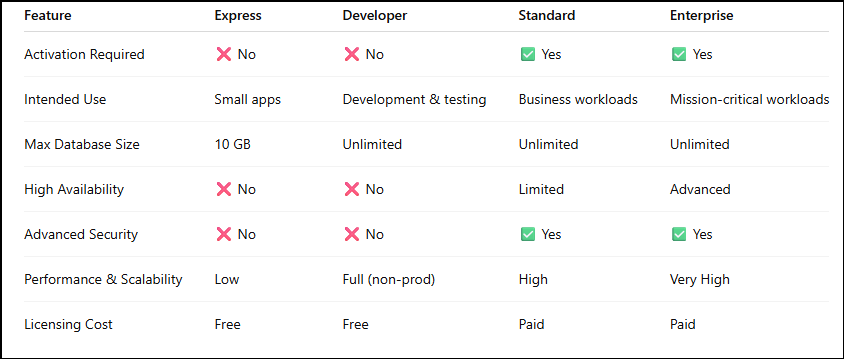
SQL Server 2025 is available in multiple editions, each with different activation requirements:
Enterprise Edition – Mission-critical workloads, large enterprises
Standard Edition – Core database features for SMBs
Web Edition – Hosting and web-based applications
Developer Edition – Free (no activation required, non-production only)
Express Edition – Free (no activation required, limited features)
Evaluation Edition – 180-day trial (activation required after expiration)
Only Standard, Enterprise, and Web editions require license activation.
System Requirements for SQL Server 2025
Before installation and activation, ensure your system meets the requirements:
OS: Windows Server 2022 / Windows Server 2025 / Windows 11 (for testing)
CPU: x64 processor, minimum 4 cores recommended
RAM: Minimum 8 GB (16–32 GB recommended for production)
Storage: SSD recommended for data and logs
Network: Stable network for clustered or hybrid environments
How to Install SQL Server 2025 (Pre-Activation Step)
Step 1: Download SQL Server 2025
Obtain SQL Server 2025 installation media from an official or authorized source.
Step 2: Launch Installation Center
Run setup.exe and open the SQL Server Installation Center.
Step 3: Choose Installation Type
Select:
New standalone installation
Or Add features to an existing instance
Step 4: Select Edition
You may:
Enter a product key now
Or choose Evaluation Edition and activate later
Step 5: Complete Setup
Finish configuration, restart the system if required, and verify services.
At this stage, SQL Server may still be unactivated or running in evaluation mode.
Methods to Activate SQL Server 2025
Method 1: Activate SQL Server 2025 Using Edition Upgrade (Recommended)
This is the most common and safest method.
Steps:
Open SQL Server Installation Center
Click Maintenance
Select Edition Upgrade
Enter your valid SQL Server 2025 product key
Complete the wizard
Restart SQL Server services
This method:
Converts Evaluation → Standard / Enterprise
Applies licensing without reinstalling SQL Server
Method 2: Activate SQL Server 2025 During Installation
If you already have a product key:
Enter it during setup
SQL Server installs as a fully activated licensed edition
This is ideal for:
New production deployments
Clean server installations
Method 3: Activate SQL Server 2025 Using Command Line (Advanced)
For automated or remote environments:
setup.exe /Q /ACTION=EditionUpgrade /PID=XXXXX-XXXXX-XXXXX-XXXXX-XXXXXBest for:
Data centers
Large IT deployments
Scripted installations
Common SQL Server 2025 Activation Errors & How to Fix Them
Error 1: SQL Server Evaluation Period Has Expired
Message:
“The evaluation period for SQL Server has expired.”
Cause:
The 180-day trial period has ended.
Fix:
Perform an Edition Upgrade and enter a valid product key.
Error 2: Invalid Product Key Error
Cause:
Wrong SQL Server version key
Typing mistake
Edition mismatch
Fix:
Verify the product key
Ensure it matches SQL Server 2025 edition
Re-run Edition Upgrade
Error 3: Edition Upgrade Failed
Cause:
Pending system restart
Antivirus interference
Corrupted setup files
Fix:
Restart the server
Disable antivirus temporarily
Run setup as Administrator
Error 4: SQL Server Service Not Starting After Activation
Cause:
Incomplete license application
Permission or configuration issues
Fix:
Open SQL Server Configuration Manager
Restart SQL Server services
Check error logs
Error 5: Feature Limitations After Activation
Cause:
Wrong edition installed (Standard vs Enterprise)
Fix:
Confirm installed edition
Upgrade to correct edition if required
Best Practices for SQL Server 2025 Activation
Activating SQL Server 2025 correctly is critical to ensure performance, compliance, and long-term stability. Following best practices helps organizations avoid downtime, licensing risks, and unexpected costs.
Activate Before Production Deployment
Always activate SQL Server before moving it into a live production environment. Early activation ensures uninterrupted database services, avoids evaluation expiration issues, and confirms that all licensed features are available from day one.
Store Product Keys Securely
SQL Server product keys should be stored in a secure password manager or license management system. This prevents key loss, unauthorized access, and delays during audits or system rebuilds.
Match Edition to Workload Requirements
Choosing the correct SQL Server edition is essential.
Standard Edition suits most business applications and reporting needs.
Enterprise Edition is ideal for mission-critical workloads, large databases, and advanced analytics.
Selecting the right edition avoids over-licensing or feature limitations.
Use Licensed Cores Correctly
SQL Server 2025 uses core-based licensing, especially for Standard and Enterprise editions. Ensure that all physical or virtual cores running SQL Server are properly licensed to stay compliant with Microsoft’s licensing policies.
Keep SQL Server Updated with the Latest Patches
Regular updates and cumulative patches improve security, performance, and stability. Keeping SQL Server 2025 up to date also ensures compatibility with Microsoft support and protects against vulnerabilities.
Why Choose CodesForever for SQL Server 2025?
Choosing the right license provider is just as important as activating SQL Server correctly. A trusted provider ensures genuine licenses, compliance, and peace of mind.
CodesForever Advantages
CodesForever is a reliable platform for Microsoft SQL Server licensing, offering:
✅ 100% Genuine SQL Server Licenses
All licenses are authentic, verified, and sourced from authorized channels.
✅ Competitive Pricing for Standard & Enterprise Editions
Cost-effective options for startups, SMBs, and large enterprises without compromising compliance.
✅ Instant Digital Delivery
Receive your SQL Server 2025 product key quickly, minimizing deployment delays.
✅ Expert Licensing Guidance & Support
Get help selecting the right edition, core licensing, and activation method.
✅ Compliance-Ready Solutions for Businesses
Ensures your organization stays audit-ready and aligned with Microsoft licensing rules.
How CodesForever Protects Your Business
CodesForever helps organizations avoid common licensing risks such as:
Fake or invalid product keys
License activation failures
Microsoft licensing violations
Costly compliance audits and penalties
Conclusion
Activating SQL Server 2025 is a critical step that ensures your database environment runs smoothly, securely, and without limitations. From understanding features and installation to choosing the right activation method and fixing common errors, proper activation protects your business from downtime and compliance risks.
By following best practices and working with a trusted provider like CodesForever, you can confidently deploy SQL Server 2025 for modern, high-performance workloads.
A correctly activated SQL Server is not just a database—it’s the backbone of your digital operations.
Frequently Asked Questions (FAQs)
No. Developer Edition is free and does not require activation, but it cannot be used in production.
After the evaluation period, SQL Server will stop accepting client connections.
Yes. You can activate anytime using Edition Upgrade.
Yes, with a valid Enterprise product key.
No. SQL Server activation does not require online validation.
License mobility depends on license type and Microsoft terms.
Yes. It supports hybrid and cloud-connected deployments.
From trusted providers like CodesForever to ensure authenticity and compliance.