

Autodesk 3ds Max 2024 for Beginners & Professionals | Complete 3D Design


Introduction
3D design, animation, visualization, and digital content creation have become essential parts of modern industries including architecture, gaming, film production, product design, and advertising. Professionals require advanced software that can handle complex modeling, realistic rendering, animation, and efficient production workflows.
Autodesk 3ds Max 2024 is one of the most powerful professional 3D modeling, animation, and rendering applications developed by Autodesk. It provides industry-standard tools for creating realistic environments, characters, products, architectural designs, and visual effects.
The activation process is an important step after installing Autodesk 3ds Max 2024 because it verifies your license and connects the software with your Autodesk account. A properly activated installation ensures access to updates, cloud services, support, and complete software functionality. Autodesk provides official installation and licensing workflows through Autodesk Account and supported license types.
What is Autodesk 3ds Max 2024?
Autodesk 3ds Max 2024 is professional 3D modeling and animation software designed for artists, architects, designers, and creative professionals.
It provides tools for:
- 3D modeling
- Character creation
- Animation
- Rendering
- Lighting
- Material creation
- Simulation
- Visual effects
- Architectural visualization
Autodesk 3ds Max 2024 is widely used by:
- Architecture studios
- Game developers
- Animation companies
- Film production teams
- Product designers
- Advertising agencies
The software supports professional workflows with powerful modeling tools, procedural design features, advanced rendering, and integration with other Autodesk products.
Autodesk 3ds Max 2024 New Features
Autodesk 3ds Max 2024 introduces several improvements focused on faster modeling, better workflow efficiency, and professional production requirements.
1. Enhanced Boolean Modifier
One of the major improvements in Autodesk 3ds Max 2024 is the enhanced Boolean workflow.
The Boolean Modifier allows artists to create complex shapes by combining or cutting objects.
Benefits:
- Faster hard-surface modeling
- Non-destructive editing
- Cleaner object creation
- Improved procedural workflow
It is especially useful for:
- Mechanical designs
- Product models
- Architecture elements
- Game assets
2. Advanced Array Modifier
The Array Modifier receives major improvements in Autodesk 3ds Max 2024.
It allows users to create repeated objects quickly.
Examples:
- Building components
- Trees
- Fence designs
- Decorative patterns
- Complex structures
New improvements help artists create:
- More flexible object distributions
- Better procedural designs
- Faster repeated geometry creation
3. OCIO Color Management
Color accuracy is extremely important in professional visualization.
Autodesk 3ds Max 2024 introduces improved color management workflows using OpenColorIO (OCIO).
Benefits include:
- Accurate color reproduction
- Better consistency between applications
- Improved VFX workflow
- Professional rendering pipeline support
This is valuable for:
- Film production
- Animation studios
- Product visualization
4. Improved STL Workflow
Users working with CAD models and 3D printing benefit from improved STL handling.
Improvements include:
- Faster STL importing
- Better large mesh processing
- Improved checking performance
This helps professionals working with:
- Engineering models
- 3D printing projects
- Industrial designs
5. Arnold Renderer Improvements
Autodesk 3ds Max 2024 includes Arnold Renderer integration for realistic rendering.
Arnold provides:
- Realistic lighting
- Advanced materials
- Accurate reflections
- Professional rendering quality
Arnold for 3ds Max is included as the default renderer for interactive rendering workflows.
6. USD Workflow Support
Universal Scene Description (USD) workflows allow better collaboration between different 3D applications.
Benefits:
- Easier asset exchange
- Better production pipelines
- Improved collaboration
USD support helps teams working with multiple software platforms.
Autodesk 3ds Max 2024 Professional Uses
Architecture Visualization
Architects use Autodesk 3ds Max 2024 to create realistic:
- Buildings
- Interiors
- Landscapes
- Walkthrough animations
Benefits:
✔ Client presentations
✔ Realistic previews
✔ Better design communication
Game Development
Game developers use 3ds Max for:
- Character models
- Environment assets
- Props
- Vehicles
The software helps prepare optimized assets for game engines.
Film and Animation
3ds Max 2024 is used for:
- Visual effects
- Animated scenes
- Digital environments
- Motion graphics
Product Visualization
Companies use 3ds Max for realistic product presentations.
Examples:
- Cars
- Furniture
- Electronics
- Industrial equipment
Autodesk 3ds Max 2024 License Types
Autodesk provides different licensing options depending on user requirements.
1. Single User Subscription License
This license is designed for individual users.
Features:
- Personal Autodesk account access
- Online license verification
- Flexible subscription management
Suitable for:
- Freelancers
- Individual designers
- Small businesses
2. Network License
Network licensing is designed for organizations.
Benefits:
- Multiple user management
- Centralized control
- Enterprise deployment
Suitable for:
- Studios
- Companies
- Educational institutions
Autodesk provides network installation options for organizations requiring centralized deployment.
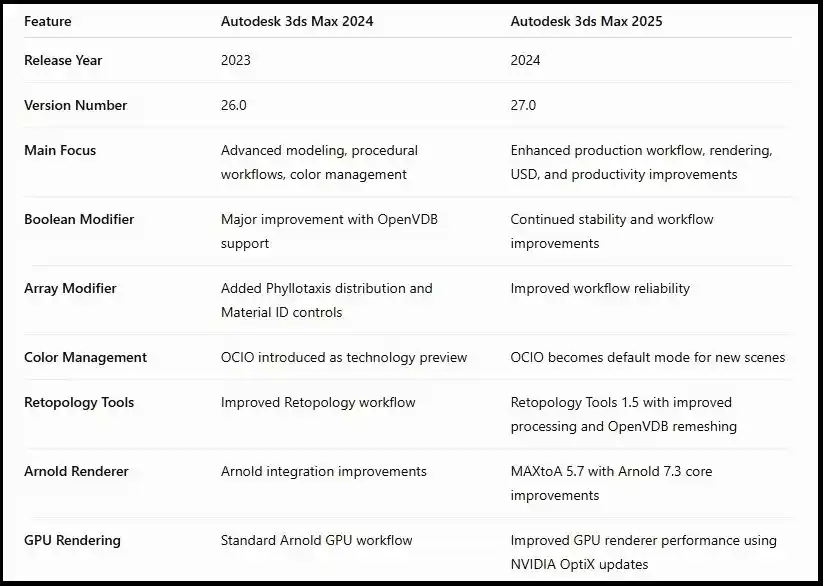
Autodesk 3ds Max 2024 Installation Process
Before activating Autodesk 3ds Max 2024, the software must be installed correctly on your system. A proper installation ensures that licensing components, Autodesk services, and required tools work properly. Autodesk provides installation options for individual systems and network environments.
Step 1: Check System Compatibility
Before installation, verify that your computer meets the recommended requirements.
Recommended configuration:
- Windows 10 or Windows 11 64-bit
- Multi-core Intel or AMD processor
- Minimum 8 GB RAM (16 GB+ recommended)
- Dedicated graphics card
- SSD storage for better performance
A powerful system improves:
- Viewport speed
- Rendering performance
- Large project handling
- Animation workflow
Step 2: Download Autodesk 3ds Max 2024
Download Autodesk 3ds Max 2024 through your Autodesk Account or official Autodesk installation channels.
Available installation options include:
Autodesk Access
Suitable for:
- Individual users
- Subscription customers
Browser Download
Useful when:
- Internet connection is unstable
- Full installation files are required
Network Deployment
Suitable for:
- Companies
- Educational organizations
- Multiple computers
Step 3: Install Autodesk 3ds Max 2024
Follow these steps:
- Open the Autodesk installer.
- Select Autodesk 3ds Max 2024.
- Choose installation location.
- Select additional components.
- Start installation.
- Wait until the installation process finishes.
- Restart your computer.
During installation, Autodesk installs important components such as:
- Autodesk Licensing Service
- Autodesk Material Library
- Arnold Renderer
- Autodesk Desktop components
Autodesk 3ds Max 2024 Activation Process
After installation, activation connects Autodesk 3ds Max 2024 with your valid Autodesk license.
Method 1: Activate Autodesk 3ds Max 2024 Using Autodesk Account
This is the recommended activation method for most users.
Steps:
- Launch Autodesk 3ds Max 2024.
- Click Sign In.
- Enter your Autodesk Account email.
- Enter your password.
- Autodesk verifies your subscription.
- The product becomes available.
This method is commonly used for:
- Individual subscriptions
- Business subscriptions
- Cloud-connected licenses
Method 2: Subscription License Activation
Users with an active Autodesk subscription can activate 3ds Max 2024 through their assigned account.
Steps:
- Purchase an Autodesk 3ds Max subscription.
- Sign in to Autodesk Account.
- Confirm product assignment.
- Open Autodesk 3ds Max 2024.
- Complete license verification.
You can manage products and assignments from Autodesk Account.
Method 3: Network License Activation
Organizations managing multiple users can use network licensing.
Typical workflow:
- Install Autodesk Network License Manager.
- Configure the license server.
- Install Autodesk 3ds Max 2024 on client computers.
- Connect the software with the license server.
Network licensing is useful for:
- Design studios
Universities
Large companies
Errors and Fixes
Error 1: "There is a Problem with the Software License"
Cause:
Possible reasons:
- Autodesk Licensing Service issue
- Incorrect account sign-in
- Expired subscription
- License not assigned
- Blocked Autodesk connection
Fix:
Solution 1: Sign Out and Sign In Again
Steps:
- Open Autodesk 3ds Max 2024.
- Sign out from Autodesk Account.
- Close the application.
- Restart the computer.
- Sign in again.
Solution 2: Check Autodesk Licensing Service
Steps:
- Press:
Windows + R
- Type:
services.msc
- Find:
Autodesk Desktop Licensing Service
- Ensure it is running.
Autodesk recommends checking licensing services when activation problems occur.
Error 2: Installation Error 1603
Problem:
Installation stops and shows:
"Install failed - Error 1603"
Causes:
- Licensing component failure
- Corrupted installation files
- Permission problems
Fix Methods:
Method 1:
Restart Windows and run installation again.
Method 2:
Remove incomplete Autodesk installation files.
Method 3:
Download complete installation files and reinstall.
Autodesk notes that incomplete installation packages can cause installation failures.
Error 3: Autodesk 3ds Max 2024 Stuck on Initializing Screen
Symptoms:
- Software freezes during startup
- Splash screen does not continue
Causes:
- Graphics driver problems
- Corrupted preferences
- Licensing service issues
- Plugin conflicts
Fix:
Update Graphics Drivers
Update:
- NVIDIA drivers
- AMD drivers
Reset User Preferences
Resetting preferences can solve corrupted configuration problems.
Error 4: Autodesk Account Sign-In Not Working
Causes:
- Internet restrictions
- Outdated sign-in components
- Firewall blocking Autodesk services
Fix:
Try:
- Checking internet connection
- Updating Autodesk components
- Temporarily checking firewall settings
- Signing out and signing in again
Error 5: Missing License After Installation
Causes:
- Product not assigned
- Wrong Autodesk account
- Expired subscription
Fix:
- Login to Autodesk Account.
- Verify product access.
- Confirm Autodesk 3ds Max 2024 is assigned.
Restart the software.
Conclusion
Autodesk 3ds Max 2024 is a powerful professional solution for 3D modeling, animation, rendering, and visualization. Proper activation ensures that users can access the complete software features through valid Autodesk licensing.
The activation process is straightforward when using Autodesk Account sign-in, subscription licensing, or network licensing. Maintaining updated licensing services, drivers, and Autodesk components helps prevent common errors.
With improved Boolean modeling, advanced Array Modifier tools, OCIO color management, enhanced STL performance, and professional rendering capabilities, Autodesk 3ds Max 2024 provides a complete environment for architects, designers, artists, and developers.
Frequently Asked Questions (FAQs)
Autodesk 3ds Max 2024 is professional 3D design software used for creating realistic models, animations, architectural visualizations, game assets, and high-quality renders.
It provides tools for:
- 3D modeling
- Character design
- Animation
- Rendering
- Simulation
- Product visualization
- Architectural walkthroughs
The major improvements in Autodesk 3ds Max 2024 include:
- OCIO-based color management
- Improved Boolean Modifier workflow
- OpenVDB Boolean meshing
- Enhanced Array Modifier
- Phyllotaxis distribution method
- Material ID assignment improvements
- Faster STL import and checking
- Improved Modifier List search
Yes, Autodesk 3ds Max 2024 is widely used for architectural visualization.
Architects and designers use it for:
- Interior rendering
- Exterior visualization
- Building walkthroughs
- Realistic lighting
- Material presentation
Autodesk 3ds Max 2024 can be activated using a valid Autodesk license.
General activation steps:
- Install Autodesk 3ds Max 2024.
- Open the application.
- Select Sign In.
- Enter your Autodesk Account details.
- The software verifies your license automatically.
Users should activate the software using official Autodesk licensing options.
Autodesk provides different licensing options:
Single User License
- Designed for individual users
- Connected with an Autodesk Account
Multi User / Network License
- Designed for companies and organizations
- Central license management
Educational License
- Available for eligible students and educators
Recommended system configuration:
- Windows 10 or Windows 11 64-bit
- Multi-core Intel or AMD processor
- 16 GB RAM or higher
- Dedicated graphics card
- SSD storage
A powerful workstation improves:
- Viewport performance
- Rendering speed
- Large project handling