

Autodesk Mechanical 2019 | Everything You Need to Know About Mechanical CAD Design Software


Introduction
Autodesk Mechanical 2019, also known as AutoCAD Mechanical 2019, is a professional mechanical design and drafting software developed for engineers, designers, manufacturers, and CAD professionals. It combines the powerful drafting capabilities of AutoCAD with specialized mechanical engineering tools that help users create accurate 2D mechanical drawings, manufacturing documentation, and engineering designs.
Designed specifically for the mechanical industry, Autodesk Mechanical 2019 includes intelligent tools, standard component libraries, automated drafting features, and productivity improvements that reduce repetitive tasks. It supports industry-standard DWG files and helps engineering teams maintain accuracy and consistency throughout the design process.
To use Autodesk Mechanical 2019 without limitations, users must complete the official activation process with a valid Autodesk license. Activation verifies ownership of the software and connects the product with the appropriate license type, such as a single-user subscription, perpetual license, or network license. Autodesk activation options depend on how the product was purchased and the license assigned to the user.
Key Features of Autodesk Mechanical 2019
1. Advanced Mechanical Design Tools
Autodesk Mechanical 2019 provides specialized tools designed specifically for mechanical engineers. Users can create accurate designs faster with intelligent drafting commands and automation features.
The software includes:
- Mechanical symbols
- Part references
- Automated balloons
- Manufacturing annotations
- Standard component insertion
These features help reduce errors and improve drawing consistency.
2. Standard Parts Library
One of the biggest advantages of Autodesk Mechanical 2019 is its extensive library of standard mechanical components.
Users can quickly insert:
- Bolts
- Nuts
- Screws
- Bearings
- Washers
- Fasteners
- Shafts
- Holes
Instead of manually drawing every component, engineers can select standard parts and customize them according to project requirements.
3. Enhanced Drawing Documentation
Mechanical drawings require precise documentation. Autodesk Mechanical 2019 provides tools for:
- Dimensions
- Surface texture symbols
- Welding symbols
- Geometric tolerances
- Parts lists
- Bill of materials
These tools help create professional manufacturing documentation.
4. Drawing Compare Feature
The Drawing Compare feature allows users to identify differences between two versions of a drawing.
Benefits include:
- Finding design changes
- Comparing revisions
- Checking modifications
- Improving collaboration
Autodesk introduced Drawing Compare improvements within the AutoCAD 2019 family, including specialized toolsets.
5. Updated User Interface
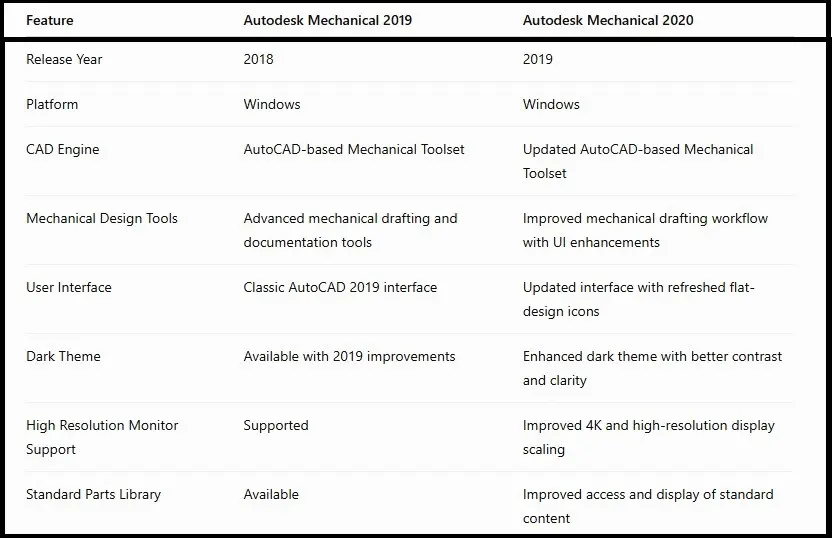
Autodesk Mechanical 2019 includes refreshed icons and interface improvements that make navigation easier.
The updated interface provides:
- Improved ribbon design
- Better accessibility
- Faster command selection
- Modern workspace experience
6. DWG Compatibility
Autodesk Mechanical 2019 supports the DWG file format, allowing users to exchange drawings with other CAD applications and Autodesk products.
Advantages:
- Better collaboration
- Easy file sharing
Improved workflow compatibility
Autodesk Mechanical 2019 License Types
Before activation, users should understand available license options.
1. Single User License
A single-user license allows one person to use Autodesk Mechanical 2019.
Activation method:
- Autodesk Account login
- Serial number and product key (for eligible licenses)
2. Network License
A network license allows multiple users within an organization to access the software through a license server.
Commonly used by:
- Companies
- Engineering departments
- Educational institutions
3. Subscription License
Subscription users activate the product by signing in with their Autodesk Account credentials.
The license is verified through Autodesk servers.
How to Activate Autodesk Mechanical 2019
Method 1: Activate Using Autodesk Account
This is the recommended activation method for users with subscription access.
Steps:
- Install Autodesk Mechanical 2019.
- Launch the software.
- Click Sign In.
- Enter your Autodesk Account email and password.
- The software automatically checks your license.
- After verification, activation is completed.
This method is simple and does not require manual license entry.
Method 2: Activate Using Serial Number and Product Key
Users with eligible standalone or perpetual licenses can activate using license information.
Steps:
- Open Autodesk Mechanical 2019.
- Select Activate.
- Choose the serial number option.
- Enter your valid serial number.
- Enter the product key.
- Complete the verification process.
- Restart the software.
Always use the license information provided with your legitimate Autodesk purchase.
Method 3: Network License Activation
Organizations using network licensing need to configure the license server.
Steps:
- Install Autodesk Network License Manager.
- Configure the license server.
- Enter server information during installation.
- Launch Autodesk Mechanical 2019.
- The software connects with the network license server.
Autodesk Mechanical 2019 Activation Errors and Fixes
Error 1: Invalid Serial Number
Causes:
- Incorrect license information
- Wrong Autodesk Account
- Typing mistakes
Fix:
- Verify your Autodesk Account.
- Check license details.
- Re-enter information carefully.
- Contact Autodesk support if the license is valid.
Error 2: Activation Failed
Causes:
- Internet connection problems
- Firewall restrictions
- Autodesk service issues
Fix:
- Check your internet connection.
- Temporarily check firewall settings.
- Restart Autodesk services.
- Try activation again.
Error 3: License Manager Not Working
Causes:
- Damaged licensing files
- Incorrect installation
Fix:
- Close Autodesk applications.
- Restart the computer.
- Repair Autodesk installation.
- Reset licensing components if required.
Autodesk provides official license reset procedures for cases where activation fails or licensing information needs to be refreshed.
Error 4: Trial Expired Message
Causes:
- Trial period completed
- Previous license information stored
Fix:
- Sign in with the correct Autodesk Account.
- Confirm that your license is active.
- Reset the license information using official Autodesk tools.
Error 5: Autodesk Mechanical 2019 Crashes After Activation
Causes:
- Outdated graphics drivers
- Corrupted installation
- Compatibility issues
Fix:
- Update graphics drivers.
- Install Autodesk updates.
- Repair the installation.
Check system requirements.
Conclusion
Autodesk Mechanical 2019 remains a powerful mechanical drafting solution for engineers and designers who require accurate 2D mechanical design tools. With specialized mechanical libraries, automated documentation features, DWG compatibility, and productivity improvements, it provides a professional environment for manufacturing and engineering workflows.
Activating Autodesk Mechanical 2019 is straightforward when using a valid Autodesk license. Users can activate through Autodesk Account sign-in, serial number-based licensing, or network licensing depending on their purchase type. Understanding common activation errors and troubleshooting methods can help prevent downtime and maintain a smooth design workflow.
Frequently Asked Questions (FAQs)
Autodesk Mechanical 2019 is an older version of AutoCAD Mechanical. Availability depends on Autodesk licensing policies and your account eligibility.
You can activate it by signing in with your Autodesk Account or entering valid license information provided with your purchase.
The software requires proper licensing activation to use the full product features.
AutoCAD Mechanical includes additional mechanical engineering tools, standard parts libraries, and manufacturing-focused features.
Yes, Autodesk Mechanical 2019 supports compatible Windows 10 systems.
Activation errors usually occur due to incorrect license details, connectivity problems, or damaged licensing components.