

Autodesk AutoCAD Electrical 2020 | Complete User Guide for Installation & Activation

Introduction
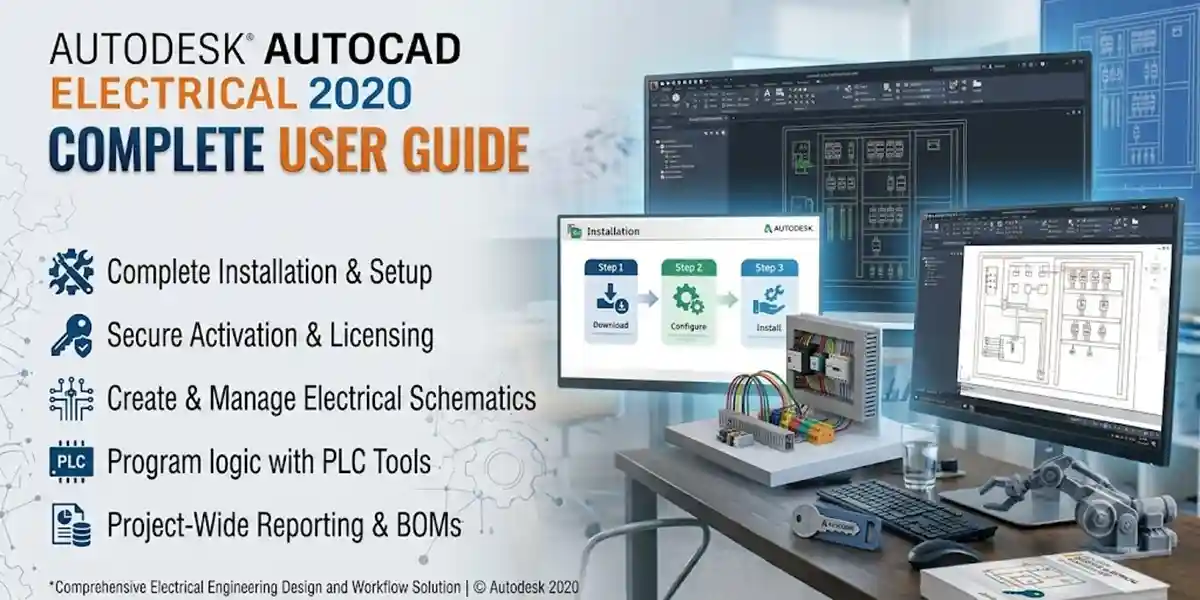
Autodesk AutoCAD Electrical 2020 is a specialized electrical design solution built for engineers, electrical designers, technicians, and professionals who create electrical control systems, schematics, panel layouts, wiring documentation, and related engineering drawings. As part of the AutoCAD family, AutoCAD Electrical combines familiar AutoCAD drafting capabilities with electrical-specific tools that can help automate repetitive design tasks and improve project documentation.
Installing the software is only one part of getting AutoCAD Electrical 2020 ready for use. You also need to ensure that the installation is properly licensed and that Autodesk's licensing system can recognize your entitlement. Depending on the type of license associated with your Autodesk account or organization, the activation and sign-in process can be different.
This guide explains how to activate Autodesk AutoCAD Electrical 2020 using legitimate licensing procedures. It covers installation preparation, Autodesk account sign-in, license types, activation methods, common activation problems, troubleshooting steps, license management, and frequently asked questions.
The exact licensing experience can vary depending on Autodesk's licensing system, the type of entitlement available to you, and whether you are using an individual, educational, or organizational installation. For that reason, the safest approach is to use Autodesk's official account and licensing services rather than third-party activation tools.
What Is Autodesk AutoCAD Electrical 2020?
AutoCAD Electrical 2020 is an electrical design-focused version of AutoCAD that provides specialized tools for creating and managing electrical control designs. It is intended to help users produce electrical schematics, control circuit drawings, panel layouts, reports, and documentation more efficiently.
Unlike standard CAD drafting, electrical design frequently involves repetitive information such as component tags, wire numbers, circuit references, cross-references, terminal information, and reports. AutoCAD Electrical provides specialized functionality intended to automate many of these tasks.
For professionals working on large electrical projects, this can reduce repetitive manual work and improve consistency across project drawings.
AutoCAD Electrical can be useful for applications such as:
- Electrical control panel design
- Schematic drafting
- Control circuit documentation
- Wiring diagrams
- Electrical engineering documentation
- Panel layout drawings
- Component management
- Terminal documentation
- Electrical reports
- Manufacturing documentation
- Industrial automation projects
Key Features of AutoCAD Electrical 2020
Before learning how to activate the software, it is useful to understand what makes AutoCAD Electrical different from standard AutoCAD.
1. Electrical Schematic Design
AutoCAD Electrical provides specialized tools for creating electrical schematic drawings. Instead of manually creating every symbol and reference, users can work with electrical components and intelligent design tools.
This can make the creation of control circuits and electrical documentation more structured.
2. Electrical Symbol Libraries
Electrical projects often use standardized symbols for switches, relays, motors, terminals, circuit breakers, connectors, and other components.
AutoCAD Electrical includes electrical symbol libraries designed to help users create consistent drawings.
3. Automatic Wire Numbering
Manually numbering wires can become time-consuming in large projects. AutoCAD Electrical provides tools for assigning wire numbers automatically according to project settings.
This helps reduce repetitive work and can make electrical documentation easier to maintain.
4. Component Tagging
Electrical components may require unique identifiers. AutoCAD Electrical can help manage component tags and references across project drawings.
This becomes particularly useful when a project contains many pages and hundreds or thousands of components.
5. Cross-Referencing
Control circuits frequently contain components that are referenced in multiple locations. AutoCAD Electrical provides tools for managing component relationships and cross-references.
This helps designers keep related electrical information organized.
6. Panel Layout Tools
Electrical control panels require both schematic documentation and physical component layout information.
AutoCAD Electrical provides tools that support panel layout documentation, allowing users to represent electrical components and their physical arrangement.
7. Electrical Reports
Large electrical projects often require reports containing information about components, wires, terminals, cables, and other project data.
AutoCAD Electrical can generate different types of reports based on project information.
8. Project Management
Electrical designs frequently contain multiple drawing files. AutoCAD Electrical provides project-level tools for managing related drawings and project information.
This can make it easier to work with multi-sheet electrical projects.
9. Circuit Design Tools
Specialized electrical commands can help users create control circuits and electrical connections more efficiently than manually drafting every element.
10. AutoCAD Compatibility
Because AutoCAD Electrical is based on AutoCAD technology, users familiar with the AutoCAD environment can generally recognize many of the standard drafting concepts and interface elements.
What You Need Before Activating AutoCAD Electrical 2020
Before beginning activation, prepare the following:
1. Genuine Autodesk License
You need a valid Autodesk entitlement or license appropriate for AutoCAD Electrical 2020.
2. Autodesk Account
For Autodesk account-based licensing, you generally need the Autodesk account associated with your product entitlement.
3. Internet Connection
An internet connection may be required for account sign-in, license verification, downloading installation components, or managing your Autodesk entitlement.
4. Compatible Windows Computer
Make sure the computer meets the operating-system and hardware requirements applicable to AutoCAD Electrical 2020.
5. Correct Installer
Use a legitimate Autodesk installer obtained through Autodesk or an authorized source.
6. Administrator Access
Depending on the installation environment, administrator permissions may be necessary to install or update software and licensing components.
How to Activate Autodesk AutoCAD Electrical 2020
There is no single activation procedure that applies to every installation. The available workflow depends on your licensing arrangement.
The safest method is to follow the licensing screen presented by the legitimate AutoCAD Electrical installation and use the Autodesk account or license information associated with your entitlement.
Method 1: Activate Through Autodesk Account Sign-In
For installations associated with Autodesk account-based licensing, sign-in is generally the simplest approach.
Step 1: Install AutoCAD Electrical 2020
Install the software using a legitimate Autodesk installation package.
Follow the installation wizard and allow the installer to complete the required components.
Step 2: Launch AutoCAD Electrical 2020
After installation, open AutoCAD Electrical 2020 from the Windows Start menu or desktop shortcut.
Step 3: Select the Appropriate Licensing Option
When the licensing interface appears, select the option that corresponds to signing in with an Autodesk account if that option is available for your entitlement.
Step 4: Sign In
Enter the email address associated with your Autodesk account.
Enter your password when requested.
If multi-factor authentication is enabled, complete the additional verification step.
Step 5: Verify Your Entitlement
Autodesk's licensing system checks whether your account has an appropriate entitlement.
If the entitlement is recognized, the software can proceed with the licensed activation process.
Step 6: Start AutoCAD Electrical
Once licensing is successfully verified, launch the application and confirm that it operates normally.
Method 2: Activate Through an Organizational License
Organizations may use centralized Autodesk licensing rather than having every employee manage an individual product purchase.
If AutoCAD Electrical 2020 is provided by an employer, school, or other organization, your administrator may manage access to the product.
In this situation:
- Confirm that your Autodesk account has been assigned access.
- Sign in using the account provided by your organization.
- Launch AutoCAD Electrical 2020.
- Follow the licensing prompts.
- Contact your organization's Autodesk administrator if the product is not available.
Do not attempt to replace organizational licensing with unofficial activation utilities.
If the account does not have access, the issue is usually related to entitlement assignment rather than the AutoCAD Electrical installation itself.
Method 3: Use an Existing Authorized License
If your organization has an existing legitimate license arrangement that supports the version you are installing, follow the licensing instructions provided by your organization's administrator.
Older software versions can have different licensing requirements from current Autodesk products, so it is important to verify compatibility between your entitlement and AutoCAD Electrical 2020.
If you are unsure whether your license supports the software version, check your Autodesk account or contact Autodesk Support.
Method 4: Educational Access
Students, educators, and qualifying educational institutions may be eligible for Autodesk's educational access programs.
Educational licensing is subject to Autodesk's eligibility requirements and terms.
If you qualify:
- Create or sign in to your Autodesk account.
- Verify your educational eligibility through Autodesk.
- Obtain access to the applicable Autodesk products.
- Install the software using an authorized installation method.
- Sign in using the verified Autodesk account.
Educational licenses should only be used for permitted educational purposes.
Understanding Autodesk License Types
One of the most important parts of activation is understanding which type of license you have.
Individual Subscription
An individual Autodesk subscription is associated with a user's Autodesk account.
The user signs in with the account associated with the entitlement.
This model can be convenient for individual professionals because licensing is managed through the Autodesk account.
Multi-User or Network Licensing
Organizations with multiple users may use centralized licensing arrangements.
Network or organizational licensing can require specific configuration and administration.
If you are an employee using a company-owned license, your organization's Autodesk administrator should normally provide the necessary instructions.
Educational License
Educational access is intended for eligible students, educators, and qualifying educational institutions.
The eligibility requirements and permitted use are determined by Autodesk.
Trial Access
Autodesk may provide trial versions or trial access for eligible products and versions.
Trial availability can vary by product and time period.
A trial should not be treated as a permanent license.
Common AutoCAD Electrical 2020 Activation Errors and Fixes
Activation problems can happen for many reasons. Some are related to the Autodesk account, while others are caused by connectivity, system configuration, licensing components, or expired entitlements.
Below are some common problems and practical troubleshooting approaches.
Error 1: Autodesk Account Sign-In Fails
Possible Causes
- Incorrect email address
- Incorrect password
- Internet connectivity problem
- Browser or authentication issue
- Temporary Autodesk service issue
- Account security verification problem
Fixes
First, verify that you can sign in to your Autodesk account through the official Autodesk website.
If the account login works in your browser but not in AutoCAD Electrical, restart the application and try again.
Also check your internet connection and make sure your computer's date and time are correct.
Error 2: Product Is Not Available
You may receive a message indicating that the product is not available for your account.
Possible Causes
Your Autodesk account may not have an entitlement for the installed product or version.
Fix
Sign in to your Autodesk account and check your available products.
If the product was supplied by an employer or educational organization, contact the organization's Autodesk administrator.
Do not use unofficial activation tools to bypass the licensing system.
Error 3: License Has Expired
A license or subscription may expire.
Possible Causes
- Subscription ended
- Trial expired
- Educational access ended
- Organization removed your access
Fix
Check your Autodesk account for current entitlement information.
If your organization manages the license, contact the administrator.
If you need continued access, obtain an appropriate legitimate license.
Error 4: Internet Connection Problem
Licensing verification may require network access.
Symptoms
You may see:
- Sign-in failure
- License verification failure
- Connection errors
- Repeated authentication prompts
Fixes
Check whether other websites load normally.
Restart your router if necessary.
If you are using a corporate network, firewall, proxy, or VPN, ask your network administrator whether Autodesk services are being blocked.
Error 5: Incorrect System Date and Time
Incorrect system date and time can cause authentication and certificate problems.
Fix
Open Windows Date & Time settings.
Enable automatic time synchronization where appropriate.
Confirm that the time zone is correct.
Restart AutoCAD Electrical and try signing in again.
Error 6: Licensing Service Problems
Autodesk applications rely on licensing components to manage authentication and product access.
If those components are damaged or outdated, activation can fail.
Fix
Restart Windows and try again.
Check for official Autodesk updates or licensing component updates applicable to your installation.
If the problem continues, use Autodesk's official support documentation for the specific licensing error.
Error 7: Repeated Sign-In Requests
Sometimes AutoCAD Electrical may repeatedly request authentication.
Possible Causes
- Corrupted cached authentication information
- Browser authentication issue
- Licensing component problem
- Incorrect account
- Network restrictions
Fixes
Sign out where possible.
Close AutoCAD Electrical.
Restart the computer.
Then launch the application and sign in again using the correct Autodesk account.
If the issue persists, consult Autodesk's official troubleshooting documentation.
Error 8: Firewall Blocking Connection
A firewall may prevent required Autodesk services from connecting to the internet.
Fix
If you are using a personal computer, check your Windows firewall configuration.
If the computer belongs to an organization, contact the network administrator instead of changing security settings yourself.
Avoid disabling security software permanently simply to activate software.
Error 9: Proxy Server Problem
Corporate environments may route internet traffic through proxy servers.
Symptoms
- Internet works in a browser but Autodesk authentication fails.
- Login windows do not load correctly.
- License verification repeatedly fails.
Fix
Ask your network administrator to verify the required Autodesk connectivity.
Do not make random proxy changes if the computer is managed by an organization.
Error 10: Wrong Autodesk Account
Users sometimes have multiple Autodesk accounts.
For example, you might have:
- Personal account
- Work account
- School account
The wrong account may not have the required entitlement.
Fix
Check which email address was used to obtain or assign the AutoCAD Electrical license.
Sign out and sign in with the correct account.
Error 11: Installation Is Corrupted
If the installation files are damaged, licensing problems may appear alongside other application errors.
Fix
Use Autodesk's supported installation and repair procedures.
If repair does not work, uninstall the affected Autodesk components according to Autodesk's documented process and reinstall using a legitimate installer.
Error 12: Activation Works but the Software Still Shows a License Warning
This can happen if the application has not refreshed its licensing information.
Fix
Close the application.
Restart the computer.
Open AutoCAD Electrical again.
Verify that you are signed in to the correct Autodesk account.
If the warning remains, check the Autodesk account and licensing status.
How to Maintain an AutoCAD Electrical 2020 Installation
Proper maintenance can help keep the application stable.
1. Keep Backups
Maintain backups of important electrical projects.
2. Use Consistent Templates
Organizations can use standardized templates to improve documentation consistency.
3. Maintain Project Data
Keep project files organized and avoid unnecessary duplication.
4. Monitor Licensing
Check that assigned users continue to have valid Autodesk access.
5. Document Installation Information
Record the software version and licensing configuration used by your organization.
Conclusion
Activating Autodesk AutoCAD Electrical 2020 is primarily a matter of installing the software correctly and using the legitimate Autodesk licensing method associated with your entitlement. For account-based licensing, signing in with the correct Autodesk account is generally the most straightforward approach. Organizations may use centralized licensing, while eligible students and educators may have access through Autodesk's educational programs.
If activation fails, do not immediately assume that the software installation is defective. Check the Autodesk account, product entitlement, internet connection, Windows date and time, network restrictions, licensing components, and Autodesk service availability.
Common issues such as repeated sign-in requests, unavailable products, expired access, connectivity failures, and incorrect accounts can often be resolved by identifying the underlying licensing problem rather than reinstalling the entire application.
Most importantly, avoid unofficial activation methods such as cracks, patches, key generators, or modified licensing files. Apart from violating software licensing terms, these tools can introduce security risks and make future troubleshooting considerably more difficult.
For the most reliable experience, use legitimate Autodesk installation files, maintain a valid entitlement, keep account information secure, and refer to Autodesk's official documentation when a licensing problem requires additional assistance.
With the licensing process completed correctly, AutoCAD Electrical 2020 can provide a specialized environment for electrical schematic design, component management, panel documentation, wire numbering, cross-referencing, reporting, and other professional electrical engineering workflows.
Frequently Asked Questions (FAQs)
Install AutoCAD Electrical 2020 from a legitimate source and follow the licensing prompts. Where account-based licensing is available, sign in using the Autodesk account associated with your entitlement.
For account-based Autodesk licensing, yes. The account must have access to the applicable product entitlement.
You should not bypass Autodesk licensing. Use an appropriate Autodesk license, educational entitlement, trial if available, or organizational access.
The Autodesk account you're using may not have the required entitlement, or your organization's administrator may not have assigned access.
Use Autodesk's official account recovery process and verify that you are using the correct email address.
Repeated sign-in requests can result from authentication, licensing, network, or cached account information problems. Restart the application and computer, verify your account, and check Autodesk's official troubleshooting guidance.