

Autodesk AutoCAD Mechanical 2020 | Features, Mechanical Design Tools & Complete Guide

Introduction
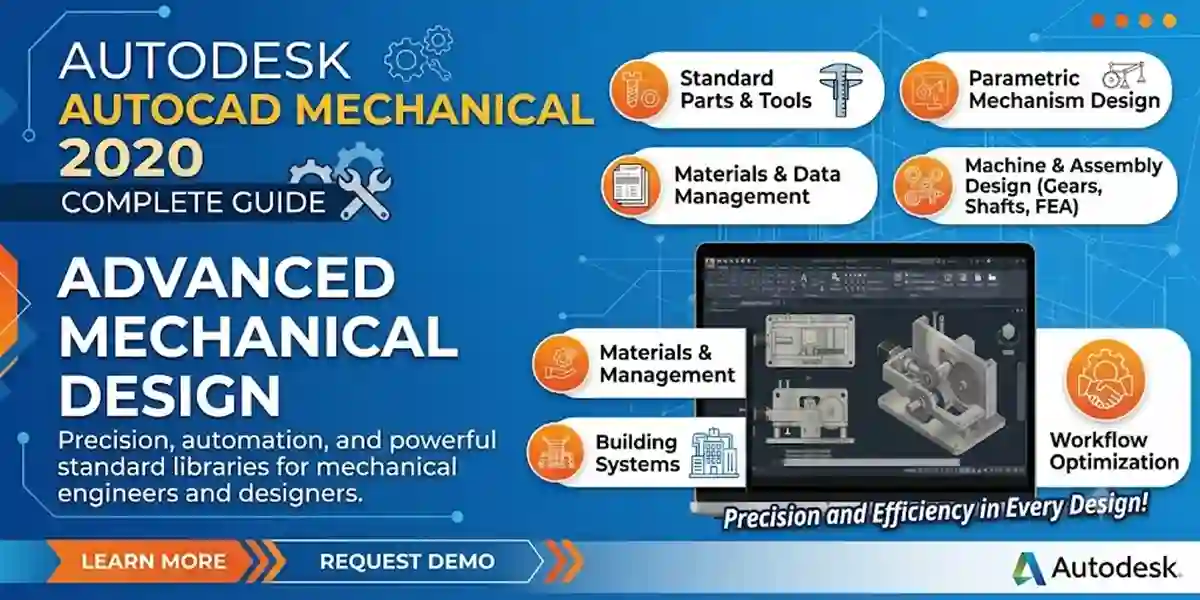
Autodesk AutoCAD Mechanical 2020 is a specialized mechanical drafting solution designed for engineers, mechanical designers, manufacturers, drafters, and technical professionals who create detailed engineering and manufacturing drawings. It combines the familiar AutoCAD environment with mechanical-specific tools for standard parts, mechanical layers, dimensions, bills of materials, parts lists, balloons, annotations, and other documentation workflows.
Installing AutoCAD Mechanical 2020 is only one part of preparing the software for use. The installation must also be properly authenticated with a valid Autodesk license or entitlement. The activation process depends on how the software was licensed. Autodesk's current documentation explains that the licensing interface can provide options such as signing in with an Autodesk ID, using a network license, or entering a serial number, although the exact wording can vary by product version.
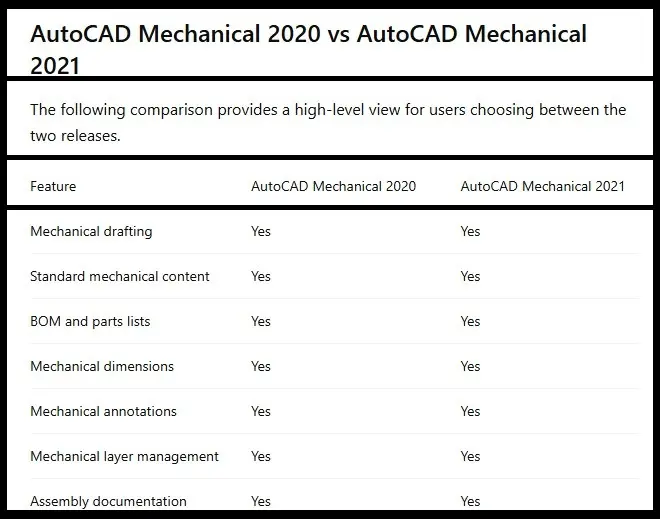
This guide explains legitimate ways to activate AutoCAD Mechanical 2020 and troubleshoot common licensing problems. It covers the software's major features, preparation before activation, activation methods, license types, common errors and fixes, a comparison with AutoCAD Mechanical 2021, and frequently asked questions.
Because AutoCAD Mechanical 2020 is an older release, licensing behavior can also depend on the type and age of the entitlement. Autodesk specifically notes that eligible perpetual standalone 2020-or-earlier products may use an activation code for offline authentication.
The safest approach is always to use an authorized Autodesk installer and a genuine license. Cracks, patches, key generators, modified licensing files, and unofficial activation utilities should not be used.
What Is Autodesk AutoCAD Mechanical 2020?
AutoCAD Mechanical 2020 is a mechanical-focused version of AutoCAD designed primarily for 2D mechanical design and documentation.
Mechanical engineering drawings often require much more than basic lines, arcs, circles, and text. Designers may need standardized components, manufacturing annotations, dimensions, parts lists, bills of materials, balloons, mechanical layers, and drawing standards.
AutoCAD Mechanical brings specialized functionality into the AutoCAD environment to address these requirements.
Typical applications include:
- Mechanical component drawings
- Manufacturing documentation
- Assembly drawings
- Machine design
- Fabrication drawings
- Engineering layouts
- Parts lists
- Bills of materials
- Mechanical detailing
- Standard-component documentation
- Production drawings
- Technical illustrations
- Engineering documentation
Autodesk's official AutoCAD Mechanical support center provides documentation, installation information, system requirements, and troubleshooting resources for the product.
Key Features of Autodesk AutoCAD Mechanical 2020
1. Mechanical-Specific Drafting Tools
The biggest difference between AutoCAD Mechanical and standard AutoCAD is the availability of specialized mechanical drafting functionality.
Instead of building every mechanical element manually, designers can use dedicated commands and content intended for engineering drawings.
This can reduce repetitive work and help maintain consistent drawing standards.
2. Standard Parts and Content Libraries
Mechanical drawings frequently contain standard components such as screws, nuts, washers, bolts, bearings, holes, shafts, and other commonly used elements.
AutoCAD Mechanical provides standard-content libraries that can help designers insert commonly used mechanical components instead of recreating them manually.
The 2020 release notes also document standard content libraries as part of the installation process. Autodesk states that standard content libraries are selected by default during installation.
3. Mechanical Layer Management
Layer management is an important part of professional CAD documentation.
AutoCAD Mechanical provides mechanical-specific layer functionality intended to organize drawing objects according to mechanical drafting requirements.
This can help users maintain consistent visibility, colors, line types, and drawing organization.
4. Bills of Materials
A bill of materials, commonly called a BOM, provides information about components used in an assembly.
AutoCAD Mechanical includes BOM and parts-list functionality that can help connect drawing information with component documentation.
This is especially useful for assembly drawings containing many individual parts.
Autodesk's 2020 release notes specifically reference BOM and parts-list functionality in AutoCAD Mechanical 2020.
5. Parts Lists
Parts lists help identify the components shown in an assembly.
A properly organized parts list can make manufacturing and engineering documentation easier to understand.
AutoCAD Mechanical can use drawing information to help create and manage this type of documentation.
6. Associative Balloons
Balloons are frequently used to identify components in assembly drawings.
AutoCAD Mechanical provides specialized balloon functionality that can be associated with parts and BOM information.
When a design changes, associative documentation can reduce the amount of manual editing required.
7. Mechanical Dimensioning
Mechanical drawings often contain many dimensions with different requirements.
AutoCAD Mechanical provides specialized dimensioning tools designed for engineering documentation.
These tools can help users create consistent dimensions while reducing repetitive drafting operations.
8. Mechanical Annotations
Manufacturing drawings require detailed annotations to communicate design intent.
AutoCAD Mechanical provides tools for mechanical notes, symbols, leaders, and other documentation elements.
This can help designers create drawings that are easier for manufacturing and engineering teams to interpret.
9. GD&T Documentation
Geometric Dimensioning and Tolerancing is important in manufacturing documentation because it communicates allowable variation and geometric requirements.
AutoCAD Mechanical includes tools intended to support mechanical annotation and tolerancing workflows.
These capabilities can be useful when creating production-ready mechanical drawings.
10. Drawing Borders and Title Blocks
Professional engineering drawings commonly use standardized drawing borders and title blocks.
AutoCAD Mechanical provides tools that can help users create and manage these elements according to project requirements.
Organizations can establish consistent templates for different projects and customers.
11. Reusable Mechanical Details
Mechanical designs frequently contain repeated features.
Reusable details and specialized mechanical drafting tools can reduce the need to recreate identical geometry and annotations.
This can be particularly valuable for organizations producing large numbers of similar drawings.
12. AutoCAD 2020 Productivity Improvements
AutoCAD Mechanical 2020 is part of the AutoCAD 2020 family and therefore benefits from broader AutoCAD 2020 improvements.
Autodesk's 2020 release documentation provides dedicated release notes for AutoCAD Mechanical 2020 and the other specialized toolsets.
How to Activate Autodesk AutoCAD Mechanical 2020
The correct activation method depends on your license.
Autodesk's current authentication documentation describes three common choices that may appear in the licensing interface:
- Sign in with Autodesk ID
- Use a network license
- Enter a serial number
The exact choices and wording can vary depending on the product and version.
Method 1: Activate AutoCAD Mechanical 2020 by Signing In
For an account-based Autodesk entitlement, signing in is generally the most straightforward approach.
Step 1: Install AutoCAD Mechanical 2020
Install the software using your authorized Autodesk installer.
Follow the installation wizard until the installation is complete.
Step 2: Launch the Software
Open AutoCAD Mechanical 2020 from the Windows Start menu or desktop shortcut.
Step 3: Review the Licensing Screen
When the licensing window appears, look for the sign-in option.
Depending on the installation, it may be labeled Sign In, Sign in with Autodesk ID, or another similar term. Autodesk notes that wording can vary between product versions.
Step 4: Sign In
Enter the Autodesk account email address associated with your license.
Enter your password when requested.
Complete any additional authentication required by your account.
Step 5: Allow License Verification
The Autodesk licensing system checks the account and entitlement.
If the account has the required authorization, the product should proceed with licensing.
Step 6: Start Using AutoCAD Mechanical
After authentication succeeds, start the application and verify that the licensing warning no longer appears.
Method 2: Activate Through a Network License
Organizations may use network licensing to manage Autodesk products centrally.
This arrangement is different from individual account-based access.
If your organization uses a network license:
- Contact your Autodesk or IT administrator.
- Confirm that AutoCAD Mechanical 2020 is available to you.
- Install the authorized product.
- Select the network-license option when presented.
- Enter the server information supplied by your administrator.
- Allow the software to connect to the organization's licensing infrastructure.
- Launch AutoCAD Mechanical.
Do not guess server names, ports, or license information.
If you are using a company-managed computer, your organization's administrator should provide the required configuration.
Method 3: Activate With an Authorized Serial Number
Some older Autodesk licensing arrangements may use a serial number.
If your legitimate entitlement includes a serial number and the installation presents a serial-number activation option:
- Start AutoCAD Mechanical 2020.
- Select the serial-number option.
- Enter the authorized serial number.
- Provide any additional product information requested.
- Allow the licensing system to verify the information.
- Restart the software if requested.
Never use serial numbers obtained from random websites, forums, or unauthorized sellers.
Method 4: Manual Offline Activation for Eligible 2020 Licenses
This method applies only to certain legitimate licenses.
Autodesk states that an activation code may be required when a user is offline and has a perpetual standalone license for a 2020-or-earlier product. Autodesk also notes that an offline educational license can require an activation code.
The legitimate process involves obtaining a request code from the software and using Autodesk's official product registration and activation process to obtain the corresponding activation information.
The general workflow is:
- Start the legitimate AutoCAD Mechanical 2020 installation.
- Select the applicable manual activation option.
- Obtain the request code shown by the software.
- Use Autodesk's official activation process.
- Provide the required licensing information.
- Obtain the activation code when eligible.
- Enter the code into the application.
- Complete activation.
Do not attempt to generate activation codes yourself or alter licensing files.
Types of Autodesk Licenses
Understanding your license type is essential because the activation method depends on it.
1. Named-User or Subscription License
A named-user license associates product access with a specific Autodesk account.
The authorized user signs in using the account assigned to the product.
Autodesk explains that subscription-based products can use an Autodesk ID and password for authentication.
2. Network License
Network licensing allows an organization to manage product access centrally.
Users typically connect to a licensing server managed by their organization.
This is useful for environments where many employees need access to Autodesk products.
3. Perpetual Standalone License
Older Autodesk perpetual licenses may use licensing procedures different from current subscriptions.
Autodesk specifically identifies eligible perpetual standalone 2020-or-earlier products as candidates for manual offline activation when the computer is offline.
5. Trial Access
Trial access is temporary evaluation access.
It is not a permanent license and may expire after the applicable trial period.
Common AutoCAD Mechanical 2020 Activation Errors and Fixes
Activation errors can be caused by licensing configuration, account problems, connectivity, damaged licensing components, or installation issues.
Error 1: "The License Manager Is Not Functioning or Is Improperly Installed"
This is one of the most important licensing errors affecting Autodesk 2020-and-newer products.
Autodesk provides a dedicated troubleshooting guide for this message and explains that the solutions apply to Windows versions of Autodesk products from 2020 onward.
Possible Causes
- Autodesk licensing service is not functioning
- Licensing components are damaged
- Licensing installation is incomplete
- Required service registration has failed
Fix
Restart Windows first.
If the problem continues, follow Autodesk's official troubleshooting guide for the licensing service rather than downloading replacement licensing files from third-party websites.
Error 2: Product Is Not Available
Possible Causes
- Wrong Autodesk account
- Product not assigned
- Subscription expired
- Organization removed access
- Incorrect license type
Fix
Sign in to Autodesk Account and verify the entitlement.
If your organization manages the product, ask the administrator to confirm that your account has been assigned access.
Error 3: Autodesk Sign-In Fails
Possible Causes
- Incorrect credentials
- Wrong Autodesk account
- Network problem
- Authentication component issue
- Temporary service problem
Fix
Verify that the Autodesk account credentials work through Autodesk's official website.
Then restart AutoCAD Mechanical and try again.
Make sure you are using the account associated with the product entitlement.
Error 4: Repeated Sign-In Requests
Repeated authentication prompts can indicate that licensing information is not being saved or verified correctly.
Possible Causes
- Authentication state problem
- Licensing service issue
- Wrong account
- Network restrictions
- Damaged licensing information
Fix
Close AutoCAD Mechanical.
Restart Windows.
Sign in again with the correct Autodesk account.
If the issue continues, use Autodesk's official licensing troubleshooting procedures.
Error 5: "This Product Has Not Been Registered With the Licensing Service Yet"
Autodesk documents this specific error for AutoCAD-based products from 2020 onward. The error can appear as an authentication-pending licensing message.
Possible Cause
The software has not successfully registered with the Autodesk licensing service.
Fix
Follow Autodesk's official procedure for registering the software with the Autodesk Licensing Service.
Do not attempt to manually modify licensing files unless Autodesk's documentation specifically instructs you to do so.
Error 6: License Has Expired
Possible Causes
- Subscription expired
- Trial ended
- Educational access expired
- Organization removed the license
Fix
Check your Autodesk Account.
If the product is organization-managed, contact your administrator.
If your entitlement has expired, obtain an appropriate legitimate license.
Error 7: Internet Connection Problem
Symptoms
- Sign-in page fails to load
- Authentication does not complete
- License cannot be verified
- Repeated connection messages
Fix
Check the internet connection.
If you are on a company network, ask the IT administrator whether firewall or proxy restrictions are affecting Autodesk services.
Do not permanently disable security software just to make activation work.
Error 8: Incorrect Windows Date and Time
Incorrect system time can cause authentication and secure-connection problems.
Fix
Open Windows Date & Time settings.
Verify:
- Date
- Time
- Time zone
- Automatic synchronization
Restart AutoCAD Mechanical after correcting the settings.
Error 9: Firewall or Proxy Restrictions
Corporate networks may use firewalls and proxy servers that affect application connectivity.
Fix
If this is a company-managed computer, contact the network administrator.
The administrator can determine whether required Autodesk services are reachable.
Avoid making random firewall or proxy changes.
Error 10: Wrong License Type
If the wrong activation method is selected, the software may not authenticate.
For example, a user with an account-based entitlement should not attempt to configure a network server unless the organization actually uses network licensing.
Fix
Determine the license type first.
Autodesk's authentication documentation specifically states that the activation type depends on the product's license type.
Error 11: Damaged Licensing Installation
If the licensing components are damaged, AutoCAD Mechanical may fail to start even though the underlying entitlement is valid.
Fix
Use Autodesk's official licensing troubleshooting documentation.
Autodesk maintains specific instructions for resolving the license-manager error affecting products from 2020 onward.
Error 12: Activation Worked but the Warning Remains
Possible Causes
- License state has not refreshed
- Wrong account
- Licensing service problem
- Cached authentication information
Fix
Close AutoCAD Mechanical.
Restart the computer.
Open the application again.
Verify the account and license status.
If the problem remains, follow Autodesk's official license-reset procedure.
Conclusion
Activating Autodesk AutoCAD Mechanical 2020 is primarily a matter of matching the software installation with the correct legitimate Autodesk license. The process differs according to whether you use an account-based entitlement, network license, authorized serial number, or an eligible perpetual license that supports manual offline activation.
For account-based licensing, the usual workflow is to install the legitimate software and sign in with the Autodesk account assigned to the product. Autodesk confirms that the authentication interface can vary between product versions and may provide sign-in, network-license, or serial-number choices.
Eligible perpetual standalone 2020-or-earlier licenses can have an additional offline activation path. Autodesk specifically states that users in this situation may need an activation code and a request code to complete the process.
When activation fails, avoid immediately reinstalling the entire application. Start by checking the Autodesk account, entitlement, licensing type, internet connection, Windows date and time, and licensing services. For the common 2020-and-newer license-manager error, Autodesk provides dedicated troubleshooting guidance.
AutoCAD Mechanical 2020 remains a useful specialized CAD environment for organizations and professionals working with mechanical drawings, assemblies, BOMs, parts lists, mechanical annotations, standard content, and manufacturing documentation. Before deploying it on a modern computer, however, verify compatibility and review Autodesk's current support information.
Frequently Asked Questions (FAQs)
The correct method depends on your license. Account-based users can generally sign in with the Autodesk account assigned to the entitlement. Other installations may use network licensing or an authorized serial number.
Certain eligible perpetual standalone 2020-or-earlier licenses can use manual offline activation. Autodesk states that an activation code may be required in this situation.
No. The activation method depends on the license type and entitlement.
The Autodesk account may not have the required entitlement, or the wrong account may be signed in. Organization-managed users should contact their administrator.
Restart Windows and follow Autodesk's official troubleshooting procedure for the license-manager error affecting 2020-and-newer products.
Repeated authentication requests can be caused by licensing-service problems, incorrect account information, network restrictions, or authentication-state issues.