

What Is Office LTSC Professional Plus 2024? Cost and Setup

You see “LTSC” next to the Office name and wonder if it is a different product from the Office you already know. It is. MS Office LTSC Professional Plus 2024 is the volume-licensed, one-time-purchase edition of Office, built for businesses and users who want stable software with no subscription and no feature churn.
Here is the short answer. It includes the desktop versions of Word, Excel, PowerPoint, Outlook, Access, Publisher, and OneNote. You pay once and own a perpetual license, with no monthly fee. Microsoft supports this edition for five years, so you get security updates but no new features. Retail pricing is steep, though discounted license keys cost far less.
Below, you will learn what Office LTSC 2024 includes, how its cost compares with Microsoft 365, and how long it stays supported. Then we walk through how to download, install, and activate it with a legitimate key. At Codesforever, we deliver Office keys by email within minutes and help with activation, so we cover the exact steps and the snags people hit most often.
Why Office LTSC Professional Plus 2024 matters
A stable Office that stays the same
Microsoft Office LTSC 2024 matters because nothing changes after you install it. LTSC stands for Long-Term Servicing Channel, so Microsoft ships security fixes but no new menus or features. For an accounting office, a school lab, or a clinic with fixed workflows, that means no retraining and no surprise layout changes.
Offline use is the other draw. The apps run locally, and no Microsoft 365 subscription or account sign-in is needed for daily work. Office 2024 Professional Plus LTSC also gathers the improvements Microsoft shipped since the 2021 release, so you are not buying outdated software.
Office LTSC 2024 is Office you pay for once and that behaves the same for five years.
How it compares with Microsoft 365
Most people choose between this edition and a subscription, so the differences matter. Ownership and upgrades are the biggest split, as the table shows.
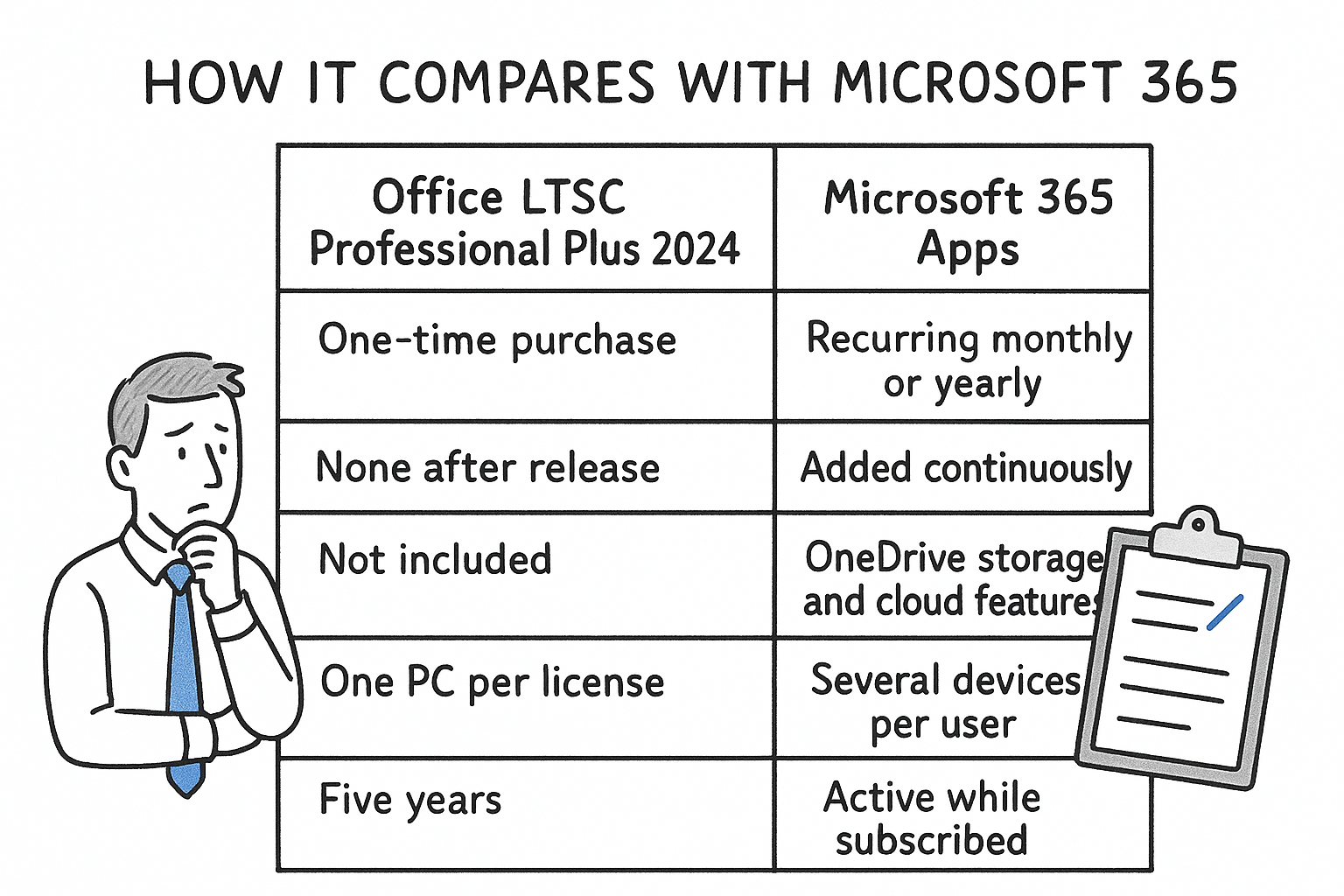
| Office LTSC Professional Plus 2024 | Microsoft 365 Apps | |
|---|---|---|
| Payment | One-time purchase | Recurring monthly or yearly |
| New features | None after release | Added continuously |
| Cloud services | Not included | OneDrive storage and cloud features |
| Devices | One PC per license | Several devices per user |
| Support | Five years | Active while subscribed |
Cost math decides it for many buyers. A subscription charges you every year, while a perpetual license is a single payment. If you keep the same PC for four or five years, the one-time license usually wins. If you want cloud storage, constant feature updates, or the same apps on several devices, a subscription fits better.
Timing also helps. Office LTSC 2021 support ends in October 2026, so many organizations are moving to the 2024 release now. Choosing Office LTSC 2024 gives you roughly three more years of security updates than staying on the older version.
How to download, install, and activate it
Get the installer from Microsoft
Begin with the Office Deployment Tool from the Microsoft Download Center. Volume editions do not install from a Microsoft 365 account page, so this tool is the official route to the Microsoft Office 2024 LTSC Professional Plus download. Run it to extract setup.exe, then save the file below as configuration.xml in the same folder.
LTSC installs through the Deployment Tool, not through a Microsoft 365 account page.
<Configuration>
  <Add OfficeClientEdition="64" Channel="PerpetualVL2024">
    <Product ID="ProPlus2024Volume">
      <Language ID="en-us" />
    </Product>
  </Add>
</Configuration>
Install and activate with your key
Next, follow these steps. Whole process takes about 15 minutes on a normal connection.
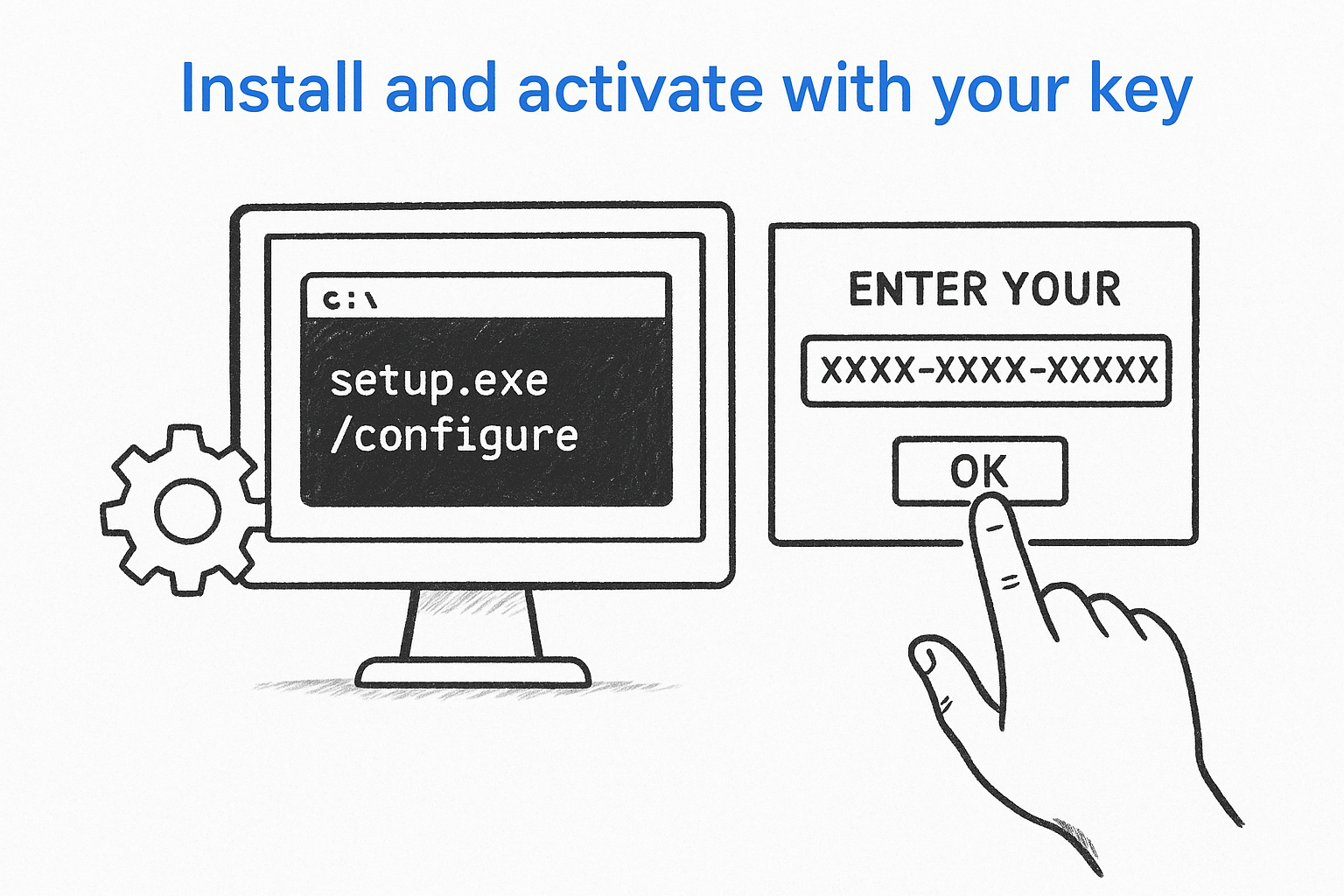
- Open Command Prompt as administrator in the folder with setup.exe.
- Run
setup.exe /configure configuration.xml. It downloads and installs the apps in one pass. - Open Word and enter your 25-character key when prompted.
- If no prompt appears, go to File > Account and choose Change Product Key.
Finally, check File > Account. It should read “Product Activated.” If you bought your key from Codesforever, live chat can walk you through activation step by step.
What’s included and system requirements
Apps in the suite
Microsoft Office LTSC 2024 Professional Plus installs the full desktop set: Word, Excel, PowerPoint, Outlook, OneNote, and Access. Publisher, which older editions carried, is not part of this release. Everything runs locally, so no cloud account is required to open or save files.
Visio and Project are not bundled. Microsoft sells each one separately, so budget for them if your team draws diagrams or plans schedules.
System requirements
The hardware bar is low, and the table shows the minimums.
| Component | Minimum |
|---|---|
| Operating system | Windows 10 or 11, or Windows Server 2022 |
| Processor | 1.6 GHz, 2 cores |
| Memory | 4 GB RAM |
| Disk space | 4 GB free |
| Display | 1280 x 768 resolution |
Most PCs bought in the last six years clear these numbers easily. The real catch is the operating system. Windows 8.1 and older are not supported, and Mac users need a separate edition. Before you start your Office LTSC Professional Plus 2024 download, confirm your Windows version under Settings > System > About.
Check your Windows version before you buy, because Office 2024 will not install on Windows 8.1 or older.
Cost, licensing, and support lifespan
What you pay and what you own
Buying MS Office LTSC Professional Plus 2024 is a one-time payment. Microsoft sells it as a volume license, so list prices per seat run high. Discounted keys from authorized resellers cost far less, and Codesforever carries them with instant email delivery.
Each key activates one PC. You get a perpetual license, so there is no renewal fee, and the software keeps working even after support ends. Confirm the key is for the 2024 volume edition before you pay, because 2021 keys will not activate it.
How long Microsoft supports it
Support follows a fixed clock, and five years of security updates is what your payment covers.
| Edition | Released | Support ends |
|---|---|---|
| Office LTSC 2021 | October 2021 | October 13, 2026 |
| Office LTSC 2024 | October 2024 | October 9, 2029 |
Your one-time payment buys security updates through October 2029, and nothing new after that.
Anyone still on LTSC 2021 has days left, so plan the move now. After 2029 your copy keeps running, but it stops getting patches. Budget for a successor edition by then, especially if you handle client data.
Common setup problems and how to fix them
Install fails or stalls
Most failed installs trace back to an older Office already on the PC. Office LTSC 2024 will not install next to Microsoft 365 Apps, so remove them first under Settings > Apps. Then rerun the setup command from the steps above. If the download still stalls, check these:
- Confirm configuration.xml uses
PerpetualVL2024andProPlus2024Volume. - Turn off any VPN or proxy during the download.
- Keep at least 4 GB of free disk space.
Key and activation errors
Activation errors usually come from a mismatched key or a blocked connection. Match your symptom in the table before you contact anyone.
| Symptom | Likely cause | Fix |
|---|---|---|
| “Key not valid” | Key is for 2021 or a retail edition | Confirm it is a 2024 volume key, or request a replacement |
| “Unlicensed Product” banner | Activation never completed | Re-enter the key under File > Account, then restart Office |
| Activation times out | Firewall or no internet | Reconnect, then retry |
A 2024 volume key only activates the 2024 volume installer.
Still stuck with your copy of MS Office LTSC Professional Plus 2024? Reach Codesforever live chat or WhatsApp and describe the exact message on screen. Our replacement or money-back policy covers any key that proves invalid, so you never pay for a dead code.
Is this edition right for you?
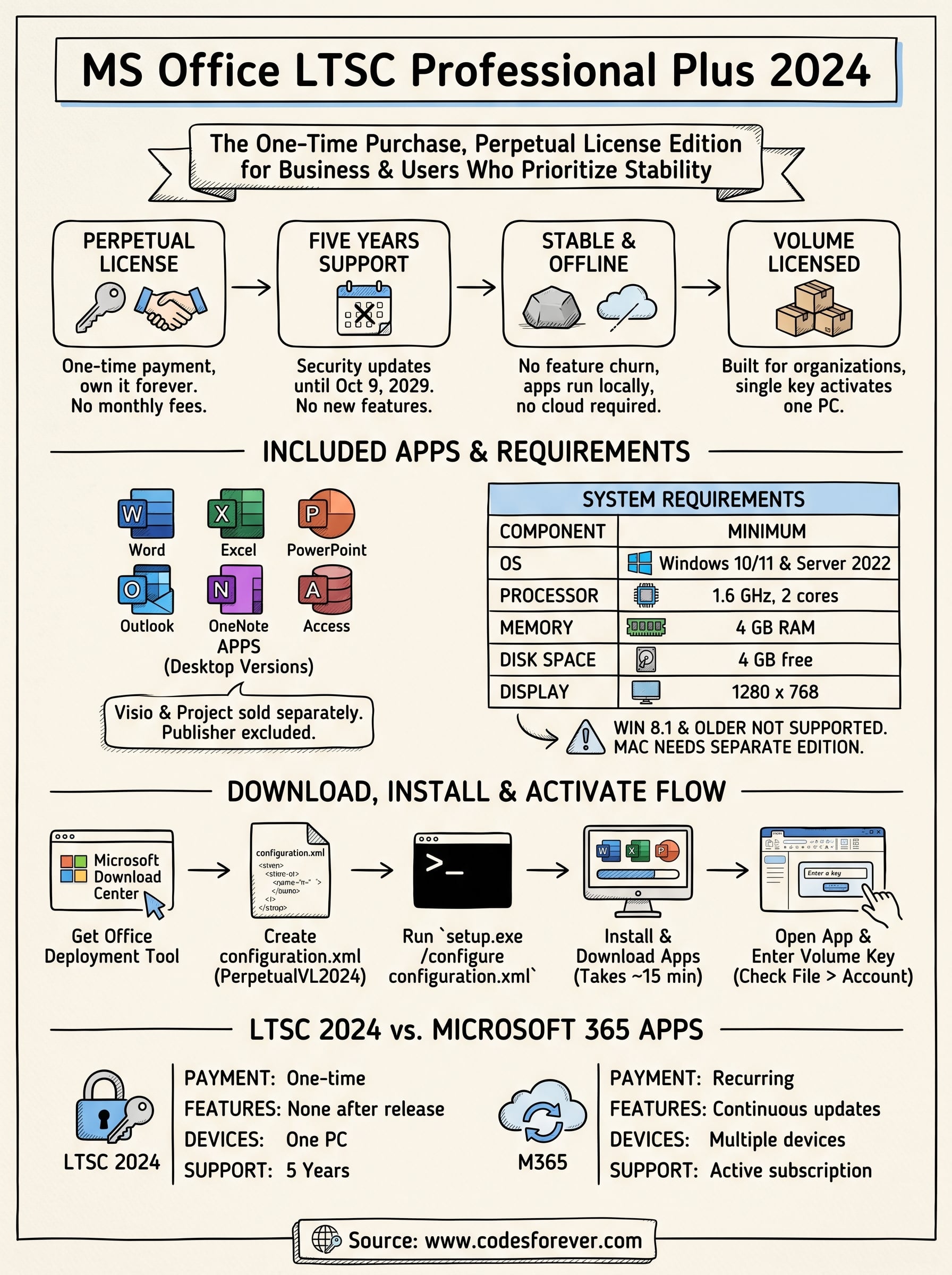
MS Office LTSC Professional Plus 2024 fits you if you want software you pay for once and that works the same way for five years. Accounting teams, schools, clinics, and home users on a single Windows PC get the most from it. You give up cloud storage and new features, and you get a predictable cost with fully offline apps.
Skip it if you need Mac support, several devices per user, or a steady stream of new tools. In that case Microsoft 365 is the better match, and Visio or Project will cost extra either way.
Ready to set it up? Buy a 2024 volume key, install through the Deployment Tool, and activate in about 15 minutes. You can get a discounted Office LTSC key with instant email delivery, live chat help, and a replacement or money-back guarantee at the Codesforever store. Check your Windows version first, and you are set.