

AutoCAD for Mac 2020 Guide | Everything You Need to Know Before Installing


Introduction
Autodesk AutoCAD for Mac 2020 remains a useful version for users who need a Mac-native CAD environment for creating, editing, and documenting DWG drawings. Released in 2019, AutoCAD 2020 for Mac was designed around macOS workflows and provides familiar drafting tools while maintaining compatibility with AutoCAD drawing files. Autodesk's official documentation provides dedicated installation, activation, update, and troubleshooting information for this release.
Activation is an important part of installing AutoCAD correctly. It connects the installed application with an eligible Autodesk license and helps Autodesk verify that the software is being used according to the applicable license terms. The activation method depends on the type of license associated with the product. Autodesk identifies common activation approaches such as signing in with an Autodesk ID, using a network license, or entering a serial number when that option applies to the product and license.
It does not cover cracks, key generators, unauthorized serial numbers, license bypasses, or other methods intended to circumvent Autodesk's licensing system.
What Is Autodesk AutoCAD for Mac 2020?
AutoCAD for Mac 2020 is a professional computer-aided design application developed by Autodesk for compatible Apple Mac computers. It supports common CAD workflows involving 2D drafting, drawing documentation, annotation, DWG files, layers, blocks, dimensions, layouts, and other design operations.
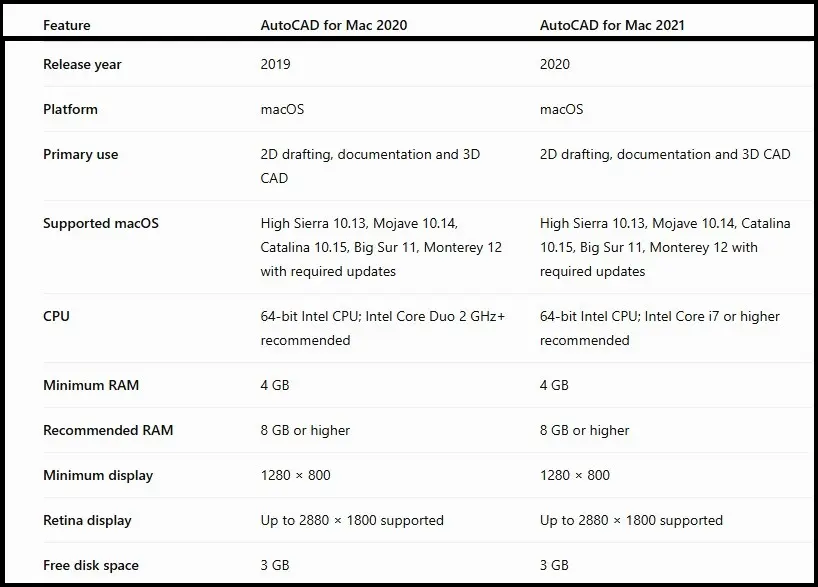
The 2020 Mac release has its own installation and system requirements. Autodesk's documentation identifies supported operating systems including macOS High Sierra 10.13 and Mojave 10.14, with later updates adding compatibility for Catalina, Big Sur, and Monterey.
Because AutoCAD 2020 is an older release, users should distinguish between the original 2020 release and later 2020.x updates. This distinction is especially important when using newer versions of macOS.
Why Is Activation Required?
Activation authenticates an Autodesk product against its applicable license.
Depending on the license arrangement, activation may involve:
- Signing in with an Autodesk account
- Using a subscription assigned to your Autodesk account
- Connecting to an organization's network license server
- Entering a valid serial number for an eligible license
- Completing an applicable offline activation process for certain perpetual licenses
Autodesk explains that the activation screen and available options can vary according to the product version and license type.
A successful installation does not necessarily mean the license has been successfully authenticated. If licensing information is missing, expired, corrupted, or unavailable, AutoCAD may remain in trial mode or display an activation error.
AutoCAD for Mac 2020 Features
Before discussing activation, it is useful to understand what AutoCAD for Mac 2020 provides.
1. 2D Drafting
AutoCAD provides tools for creating accurate 2D drawings. Users can work with:
- Lines
- Polylines
- Circles
- Arcs
- Splines
- Hatches
- Dimensions
- Construction geometry
- Annotation objects
These tools are useful for architectural, engineering, manufacturing, and general drafting workflows.
2. DWG Compatibility
DWG is central to AutoCAD workflows. AutoCAD for Mac 2020 allows users to open, edit, save, and share compatible DWG drawings.
This makes it easier for teams using different AutoCAD environments to exchange drawing files.
3. Layers
Layer management helps organize drawing information. Users can separate objects by discipline, purpose, visibility, or drafting requirements.
For example, a project might use separate layers for:
- Dimensions
- Walls
- Electrical information
- Furniture
- Structural elements
- Text
- Construction lines
4. Blocks
Blocks allow frequently used groups of drawing objects to be reused efficiently.
Instead of recreating a symbol repeatedly, users can create or insert a reusable block.
5. Annotation
AutoCAD includes tools for:
- Text
- Multiline text
- Dimensions
- Leaders
- Tables
- Notes
- Annotation scaling
These features are particularly useful for producing documentation-ready drawings.
6. Layouts and Plotting
Layouts allow users to prepare drawings for printing or PDF output.
A typical workflow involves creating model geometry in Model Space and preparing sheets using Paper Space layouts and viewports.
7. Mac-Native Workflow
AutoCAD for Mac is designed specifically for Apple's desktop operating system rather than simply running the Windows application through an emulator.
This gives Mac users an interface and workflow designed for macOS.
8. Updates for Newer macOS Releases
Autodesk released several updates for AutoCAD for Mac 2020. For example, the 2020.1 update added Catalina support, 2020.2 added Big Sur support, and 2020.3 added Monterey support.
This makes checking the installed 2020 update level particularly important.
How to Activate Autodesk AutoCAD for Mac 2020
Method 1: Activate With an Autodesk Account
For users whose license is associated with an Autodesk subscription or user-based entitlement, signing in is generally the simplest legitimate method.
Step 1: Install AutoCAD
Download the appropriate AutoCAD for Mac 2020 installer through an authorized Autodesk source or an organization-provided installation package.
Autodesk's installation guidance explains that Mac installers are supplied as DMG packages.
Step 2: Open the Application
After installation:
- Open Finder.
- Select Applications.
- Open the Autodesk folder.
- Launch AutoCAD 2020.
Autodesk's 2020 documentation describes the default installation location under /Applications/Autodesk/AutoCAD 2020.
Step 3: Select the Appropriate License Option
When the licensing screen appears, select the option corresponding to your legitimate license.
Depending on the product and version, Autodesk may present an option such as Sign in with your Autodesk ID.
Step 4: Sign In
Enter the Autodesk account credentials associated with your license.
If your organization manages the license, your administrator must have assigned the product to your account.
Step 5: Complete Authentication
Follow the on-screen prompts.
Once authentication succeeds, AutoCAD should recognize the license and allow normal use according to the terms of that license.
Method 2: Activate Using a Network License
Network licensing is intended primarily for organizations that manage Autodesk licenses centrally.
Instead of assigning a license directly to an individual user, the organization maintains a license server.
The Mac workstation communicates with the organization's licensing infrastructure to obtain an available license.
Autodesk's documentation discusses network licensing and notes that network environments need to be configured appropriately.
General Process
- Install AutoCAD for Mac 2020.
- Launch AutoCAD.
- Select the network or multi-user licensing option if provided.
- Enter the license server information supplied by your organization's administrator.
- Allow AutoCAD to communicate with the license server.
- Start the application after successful license validation.
Network License Troubleshooting
If a network license cannot be obtained, check:
- Server availability
- Server name
- Network connectivity
- Firewall configuration
- License-server configuration
- Organization's license availability
- IPv4/IPv6 configuration
Autodesk's 2020 documentation notes that a pure IPv6 environment can cause difficulties for a client workstation obtaining a license from a network license server.
Method 3: Activate With an Eligible Serial Number
Some older Autodesk licensing arrangements use a serial number.
If your legitimate AutoCAD 2020 license includes a serial number and the activation interface offers the serial-number option, use the credentials and licensing information supplied with that license.
Autodesk explains that the serial-number activation option applies when a user has received a serial number with the software.
General Process
- Launch AutoCAD.
- Select the serial-number option if available.
- Enter the valid serial number associated with your license.
- Provide the required product information.
- Complete the authentication process.
Do not use serial numbers obtained from unofficial websites, key generators, forums, or other unauthorized sources.
Method 4: Offline Activation for Eligible Perpetual Licenses
One important distinction exists for older Autodesk products.
Autodesk currently states that an activation code may be required when a user is offline and has a perpetual license for a standalone 2020-or-earlier product.
This does not mean that every AutoCAD 2020 installation can be activated offline.
Eligibility depends on the license arrangement.
General Offline Workflow
For an eligible perpetual license:
- Start the AutoCAD activation process.
- Follow Autodesk's instructions for generating the required request information.
- Obtain the applicable activation code through Autodesk's supported process.
- Enter the legitimate activation code into the activation interface.
- Complete registration.
Autodesk provides separate documentation explaining when an activation code is necessary and how eligible users can request one.
AutoCAD for Mac 2020 Licensing Types
Understanding the license type is one of the most important parts of activation troubleshooting.
Subscription/User License
A user-based Autodesk subscription generally requires the assigned user to sign in with an Autodesk account.
The administrator must assign the product to the appropriate Autodesk ID when the subscription is managed by an organization.
Network License
A network license is managed through an organization's licensing infrastructure.
The user generally needs access to the organization's license server.
Perpetual Standalone License
Older perpetual licenses may have different activation requirements from modern subscription licenses.
For eligible perpetual standalone 2020-or-earlier products, Autodesk says offline activation can require an activation code.
Education License
Education licenses have their own eligibility and authentication requirements.
Users should follow Autodesk's education licensing rules rather than attempting to convert an education entitlement into a commercial license.
AutoCAD 2020 Activation vs. Installation
It is useful to understand the difference.
Installation
Installation places the AutoCAD application and its components on the Mac.
Authentication
Authentication verifies the user's Autodesk identity and/or licensing entitlement.
Activation
Activation establishes the application's authorized licensing state.
Updates
Updates improve compatibility, stability, and functionality after the original installation.
These processes are related but not identical.
Common AutoCAD for Mac 2020 Activation Errors and Fixes
Error 1: AutoCAD Opens in Trial Mode
One of the most common problems is that AutoCAD continues to show trial information even though the user believes the product has already been activated.
Autodesk identifies several possible causes, including corrupted licensing information, an incorrectly assigned product, previous trial usage, or network/security software interfering with activation.
Possible Fixes
Check:
- Whether the correct Autodesk account is being used
- Whether AutoCAD is assigned to that account
- Whether the installed product matches the license
- Whether the Mac can communicate with Autodesk services
- Whether firewall/security software is blocking authentication
Error 2: Sign-In Does Not Work
If the Autodesk login window does not complete authentication, check your internet connection first.
Then verify that:
- Your Autodesk account is active
- Your password is correct
- The product is assigned to your account
- Your organization's network does not block Autodesk services
- VPN software is not interfering with the connection
Autodesk recommends checking required Autodesk URLs and licensing/sign-in components when troubleshooting activation problems
Error 3: License Not Assigned
You may successfully sign in but still receive a licensing error.
This can happen when your Autodesk account does not have the appropriate product entitlement.
Solution
If the license belongs to an organization, contact its Autodesk administrator and ask them to verify that your Autodesk ID has been assigned the correct AutoCAD license.
Autodesk specifically identifies product assignment as a prerequisite for account-based activation.
Error 4: Incorrect Product License
A license for AutoCAD may not activate AutoCAD LT, and an AutoCAD LT license may not activate AutoCAD.
Autodesk's current activation troubleshooting documentation explicitly recommends confirming that the assigned product matches the installed product.
Solution
Check:
Installed product → AutoCAD for Mac 2020
against:
Assigned license → AutoCAD for Mac/AutoCAD entitlement
If they don't match, use the correct product installation or obtain the appropriate entitlement.
Error 5: Activation Loop
An activation loop occurs when AutoCAD repeatedly asks the user to sign in or activate.
Potential causes include:
- Corrupted licensing information
- Previous trial data
- Incorrect account assignment
- Blocked Autodesk services
- Licensing component problems
Autodesk provides specific troubleshooting guidance for activation loops on macOS.
Recommended Approach
Rather than repeatedly reinstalling AutoCAD, check the license assignment and network connection first.
If necessary, follow Autodesk's official license-reset procedure for supported macOS installations.
Error 6: Firewall Blocks Activation
A firewall can prevent AutoCAD from contacting the services required for license validation.
Autodesk lists firewall and antivirus interference among possible causes of activation problems on macOS.
Solution
If permitted by your organization's IT policy, temporarily test whether the firewall is interfering with authentication.
On a managed business or school Mac, contact the administrator rather than changing security settings yourself.
Error 7: VPN Causes Authentication Problems
Corporate VPNs and restrictive networks can sometimes interfere with licensing communication.
Autodesk's activation troubleshooting guidance recommends checking network access and temporarily disabling VPN or firewall interference where appropriate.
Solution
Test authentication on a trusted network where permitted.
If AutoCAD works outside the organization's network, contact the IT administrator.
Error 8: AutoCAD 2020 Does Not Work Correctly on New macOS
Compatibility is especially important for AutoCAD 2020.
Therefore, if you are running AutoCAD 2020 on Catalina, Big Sur, or Monterey, check that the appropriate update is installed.
Conclusion
Activating Autodesk AutoCAD for Mac 2020 is primarily a matter of matching the installed product with the correct Autodesk license and using the authentication method applicable to that license.
For most account-based licenses, the process involves launching AutoCAD and signing in with the Autodesk account that has been assigned the product. Network-license users need access to their organization's licensing infrastructure, while certain older perpetual licenses may have additional activation-code requirements. Autodesk confirms that eligible perpetual standalone products from 2020 and earlier can require an activation code when activated offline.
Compatibility is another important consideration. AutoCAD 2020 originally targeted older macOS releases, while Autodesk subsequently released updates adding support for Catalina, Big Sur, and Monterey.
If AutoCAD remains in trial mode or repeatedly requests activation, check the Autodesk account assignment, product version, network connection, security software, and licensing components before attempting a reinstall. Autodesk's current troubleshooting guidance specifically identifies these areas as common causes of activation problems.
Most importantly, use only legitimate Autodesk licensing and activation procedures. Avoid cracks, key generators, unauthorized serial numbers, and modified licensing files. A genuine license provides a more reliable and secure installation and gives you a clear path to Autodesk support when something goes wrong.
Frequently Asked Questions (FAQs)
Use the legitimate activation method associated with your license. Depending on the license, this can involve signing in with an Autodesk account, using a network license, or entering an eligible serial number.
Some eligible perpetual standalone 2020-or-earlier licenses may use an activation code when offline. Autodesk says that an activation code may be required in this situation.
Yes, Autodesk released AutoCAD 2020.1 specifically adding Catalina support.
Autodesk released AutoCAD 2020.2 with Big Sur compatibility improvements.
Autodesk states that AutoCAD 2020.3 adds support for macOS Monterey.
Autodesk's published requirements indicate that M-series Macs are supported under Rosetta 2 mode.