

AutoCAD MEP 2022 | Ultimate Guide to MEP Design, Installation & Licensing

Introduction
Autodesk MEP 2022 (officially AutoCAD MEP 2022) is a specialized toolset built for mechanical, electrical, and plumbing designers who need precise, code-aware drafting tools without leaving the familiar AutoCAD environment. If you've just installed it and landed on a licensing prompt — whether it's asking you to sign in, enter a serial number, or contact a network license server — this guide will walk you through everything you need to get activated correctly and keep your license running smoothly going forward.
Important note before we begin: Everything in this article describes Autodesk's own official activation infrastructure — your Autodesk Account, a valid serial number and product key, or your organization's network license server. This guide does not cover, link to, or explain any method of bypassing Autodesk's licensing system (cracked installers, keygens, or patches). Doing so violates Autodesk's End User License Agreement, exposes your system to malware, and forfeits your access to updates, security patches, and official support.
What Is AutoCAD MEP 2022? (Overview & Key Features)
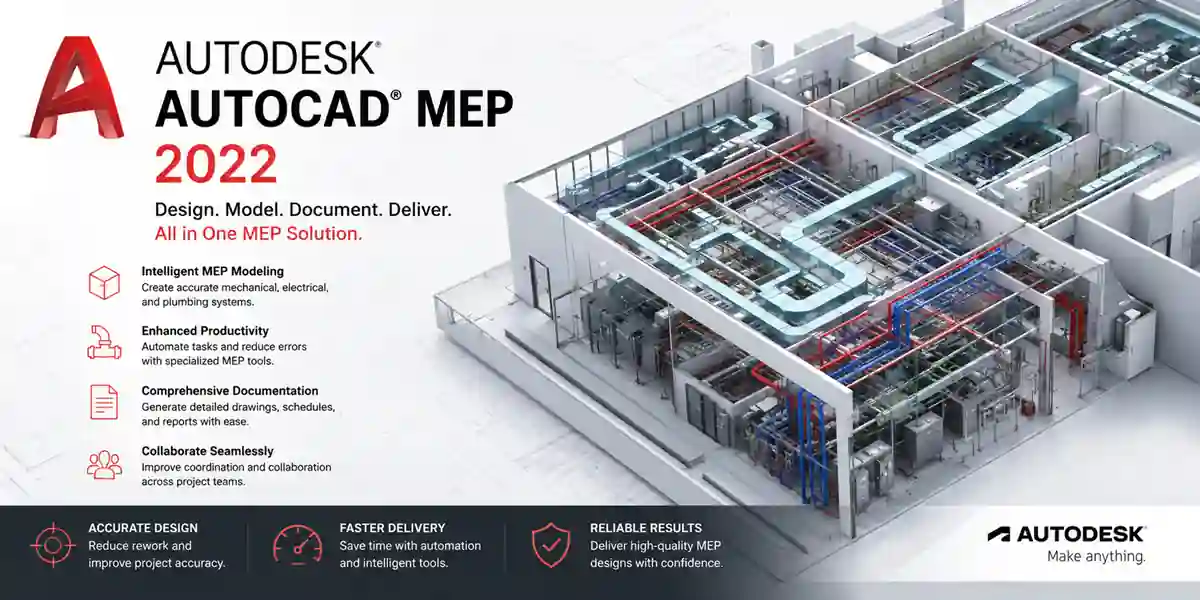
AutoCAD MEP 2022 is a discipline-specific version of AutoCAD tailored for mechanical, electrical, and plumbing engineers and designers. It extends the core AutoCAD drafting engine with intelligent, parametric MEP objects and calculation tools, allowing design teams to produce accurate, code-compliant construction documents faster than with generic AutoCAD geometry alone.
Key Features of AutoCAD MEP 2022
1. Intelligent MEP Objects
Ductwork, piping, conduit, cable tray, and electrical devices are represented as smart, parametric objects rather than plain lines and blocks. When you resize a duct or reroute a pipe, connected components update automatically, dramatically reducing manual redraw work.
2. Automatic Sizing and Calculations
Built-in calculation tools handle duct and pipe sizing based on airflow, pressure drop, and velocity requirements, helping engineers meet mechanical code requirements without manual calculation sheets for every run.
3. Electrical Circuiting and Panel Schedules
The software can automatically generate panel schedules and circuit documentation directly from the electrical layout, keeping load calculations and panel assignments synchronized with the drawing.
4. Multi-Discipline Coordination
Because MEP, Architecture, and plain AutoCAD share the same DWG-based platform, mechanical, electrical, and plumbing teams can coordinate directly with architectural and structural drawings without file-format conversion.
5. Built-In Content Libraries
AutoCAD MEP 2022 ships with an extensive library of manufacturer-based and generic MEP components — fixtures, fittings, equipment, and devices — that can be dragged directly into a design and customized.
6. Clash Detection Support
When paired with tools like Navisworks, MEP models built in AutoCAD MEP can be checked for spatial clashes against architectural and structural models before construction, reducing costly field conflicts.
7. Schedule and Tag Automation
Automated equipment schedules, fixture schedules, and tagging tools keep documentation consistent and reduce the manual labor of updating schedules every time a design changes.
8. Full AutoCAD Compatibility
Since it's built on the core AutoCAD platform, all standard AutoCAD commands, LISP routines, custom toolbars, and DWG compatibility carry over fully, so MEP teams don't have to abandon existing customization or workflows.
Understanding these features matters for licensing purposes because your entitlement — whether purchased standalone or as part of Autodesk's AEC Collection — determines exactly what you can activate and how.
Licenses: Understanding What You're Activating
Before covering activation methods, it helps to understand which license type applies to your copy of AutoCAD MEP 2022, since your activation screen depends entirely on this.
1. Named-User (Autodesk Account) Subscription License
The standard licensing model for most current Autodesk products. Your entitlement is tied to your Autodesk Account and verified through sign-in rather than a static unlock key.
2. Multi-User Network License
Common in larger engineering firms. A centralized Autodesk Network License Manager (NLM) server issues license seats to client machines on request, rather than each machine activating individually.
3. Trial License
A free 30-day evaluation license activated with just an Autodesk Account — no serial number required — intended for evaluation before purchase.
4. Legacy Standalone License (Serial Number + Product Key)
Older or specific purchase paths still use the classic serial number and product key combination. For AutoCAD MEP 2022, the commonly referenced product key is 235K1 — but you should always verify the exact key tied to your specific purchase inside your Autodesk Account, since Autodesk periodically updates these references.
5. AEC Collection License
If AutoCAD MEP 2022 was purchased as part of the Architecture, Engineering & Construction (AEC) Collection, your entitlement bundles it with Revit, Civil 3D, Architecture, and other AEC tools under a single subscription. Activation works the same way as an individual named-user subscription.
Methods to Activate AutoCAD MEP 2022
Method 1: Online Sign-In Activation (Most Common)
- Launch AutoCAD MEP 2022 for the first time.
- On the sign-in/activation screen, click Sign In.
- Enter your Autodesk Account email and password.
- The software automatically checks your entitlement against Autodesk's licensing servers.
- If a valid subscription or trial is found, you'll see a confirmation, and the application finishes loading.
- If you have multiple entitlements (e.g., an individual license plus an organization-assigned AEC Collection seat), you may be prompted to choose which one to use.
- Verify your license status anytime afterward via Help > About AutoCAD MEP.
Method 2: Offline Activation (No Internet on the Target Machine)
For secure or air-gapped environments:
- Launch the application and select Enter a Serial Number or Activate rather than signing in — this option appears for standalone/legacy licenses.
- Enter your Serial Number and Product Key (235K1 for AutoCAD MEP 2022, subject to verification in your account).
- Click Next. If no internet connection is detected, you'll see the option "I have an activation code from Autodesk."
- The dialog generates a unique Request Code.
- On a separate internet-connected device, go to Autodesk's official activation/registration portal and enter your Serial Number, Product Key, and Request Code.
- Autodesk generates a corresponding Activation Code.
- Return to the offline machine, enter the Activation Code, and click Next or Finish to complete activation without further internet access on that machine.
Method 3: Network License Activation (Enterprise Deployments)
- Your IT administrator installs the Autodesk Network License Manager (NLM) on a designated server and imports the .lic file provided by Autodesk (tied to the server's Host ID).
- The lmgrd service starts and begins listening for license checkout requests from client machines.
- Each client workstation is configured — either during installation or via Help > Licensing Preferences — to point to the license server using the format port@servername.
- When a user launches AutoCAD MEP, the software automatically checks out an available seat; no individual sign-in or key entry is required client-side.
- Admins monitor seat usage and availability using lmtools.exe or the lmutil lmstat command from the server.
Common Activation Errors and How to Fix Them
Error 1: "This serial number is not valid for this product"
Cause: Product key mismatch, a typo in the serial number, or a serial that has already reached its maximum activation count.
Fix:
- Confirm the product key matches AutoCAD MEP 2022 specifically via your Autodesk Account's "Manage" > "Product and Downloads" section.
- Copy-paste the serial number rather than typing it manually.
- Contact Autodesk support if the serial has exceeded its allowed activations.
Error 2: "No license found" / "Unable to obtain a license"
Cause: Entitlement hasn't propagated to your Autodesk Account yet, or a sync delay after a recent purchase or renewal.
Fix:
- Sign out and back into your Autodesk Account inside the application.
- Verify the entitlement appears under "Products and Services" in your Autodesk Account dashboard.
- Ask your organization's Autodesk Contract Manager to confirm your seat assignment.
- Allow 15–30 minutes for propagation after a new purchase before retrying.
Error 3: "License checkout failed" (Network License Environments)
Cause: The client can't reach the license server, or all seats are currently checked out.
Fix:
- Confirm the license server hostname/IP and port match on both client and server.
- Check firewall rules — the ports used by the Network License Manager must be open between client and server.
- Run lmutil lmstat -a on the server to check seat availability.
- Restart the lmgrd service if it appears unresponsive.
Error 4: Activation Code Rejected During Offline Activation
Cause: Mismatch between an outdated Request Code and a freshly generated Activation Code, or a manual entry typo.
Fix:
- Always generate a new Request Code immediately before requesting its matching Activation Code.
- Copy-paste codes rather than typing them.
- Contact Autodesk support with both codes if the problem persists.
Error 5: Installation Fails Before the Activation Screen Even Appears
Cause: Antivirus/firewall interference, insufficient disk space, or a corrupted installer download.
Fix:
- Temporarily disable antivirus/firewall software during installation.
- Confirm sufficient free disk space (at least 10 GB recommended).
- Re-download the installer in case the original file was corrupted.
- Run the installer as Administrator.
Error 6: "Sign-in failed. Please check your internet connection."
Cause: Corporate proxy/firewall blocking Autodesk's authentication domains, or a temporary Autodesk service outage.
Fix:
- Test browser access to Autodesk's account portal from the same machine.
- Whitelist Autodesk's authentication and licensing domains in your firewall/proxy configuration.
- Flush DNS and retry.
- Check Autodesk's official system status page for reported outages.
Error 7: Trial Won't Reactivate or Expired Prematurely
Cause: Incorrect system date/time, or reinstalling the trial on the same machine/account combination (trials are tied to both, not just install count).
Fix:
- Verify your system clock is accurate and synced.
- Understand that trials generally can't be extended indefinitely on the same machine — a paid subscription is required to continue.
Error 8: License Conflicts After Installing Multiple Autodesk Products
Cause: Overlapping trial and paid entitlements, or corrupted licensing cache files from a previous install/uninstall cycle.
Fix:
- Run the Autodesk Licensing Troubleshooter to clear corrupted caches.
- Reinstall the Autodesk Desktop App, which manages background licensing communication.
- Confirm you're signing in with the correct Autodesk Account if you have access to multiple organizational accounts.
Error 9: "Your subscription has expired" Despite Recent Renewal
Cause: Payment processing delay, or the renewal was applied to a different Autodesk Account than the one currently signed in.
Fix:
- Confirm which Autodesk Account the renewal was applied to and sign in with that account.
- Check your subscription's billing status directly in your Autodesk Account dashboard.
- Contact Autodesk billing support if the renewal shows as processed but the software still reports it as expired.
Licensing & Capacity Planning Formulas
Activation itself doesn't run on a publicly documented mathematical formula — the request-code-to-activation-code exchange uses an encrypted algorithm proprietary to Autodesk. What is genuinely useful, especially for IT admins managing multiple MEP seats, are practical planning formulas for license capacity, renewal timing, and network server sizing.
1. Concurrent Seat Requirement Formula
Required Seats = Peak Concurrent Users × Buffer Factor
Use a Buffer Factor of 1.10–1.25 to account for overlapping usage spikes during deadline periods.
Example: A firm with 35 MEP designers, 22 of whom typically work simultaneously during peak hours:
Required Seats = 22 × 1.20 = 26.4 → round up to 27 seats
2. License Utilization Rate Formula
Utilization Rate (%) = (Average Concurrent Seats Used / Total Seats Purchased) × 100
Example: 27 seats owned, average of 15 in concurrent use:
Utilization Rate = (15 / 27) × 100 ≈ 55.6%
Consistently low utilization (below ~50%) suggests you could reduce seat count at renewal; consistently high utilization (above ~90%) suggests you should add seats.
3. Trial Expiration Date Formula
Trial Expiration Date = Activation Date + 30 days
This is tied to your Autodesk Account and device fingerprint, so reinstalling the software does not reset the countdown.
4. Subscription Renewal Buffer Formula
Renewal Action Date = Subscription Expiration Date − Renewal Lead Time
A Renewal Lead Time of 30–45 days is generally recommended to allow for procurement approval and Autodesk Account propagation delays.
5. FLEXlm Port Range Formula (Network License Server Sizing)
Port Range = Base Port (27000) to Base Port + (Number of Vendor Daemons × 1)
For a single-product deployment (just MEP 2022), this typically means two open ports — one for lmgrd, one for adskflex. Firms running several Autodesk network products often reserve a contiguous block (e.g., 27000–27009) to prevent conflicts as more vendor daemons are added.
6. Redundant Server Quorum Formula
For Autodesk's redundant/failover network licensing setup (always deployed as exactly 3 servers):
Minimum Servers Online for License Availability = 2 of 3 servers must remain reachable
Licensing stays active as long as a majority (at least 2 of 3) of the configured redundant servers are online.
Conclusion
Activating AutoCAD MEP 2022 is a manageable, well-documented process once you understand which license type applies to your installation — a named-user subscription tied to your Autodesk Account, a legacy standalone serial number and product key, or a centrally managed network license shared across your firm. Autodesk provides a clear, supported activation path for each of these scenarios, including offline activation for secure environments without direct internet access.
The essentials to remember: activate only through Autodesk's official channels, keep your Autodesk Account entitlements current, understand the capacity-planning formulas if you're managing multiple seats, and know exactly where to check your license status when something doesn't go as expected. With the methods, error fixes, and formulas covered in this guide, you should be well-positioned to get AutoCAD MEP 2022 activated and running smoothly for your next mechanical, electrical, or plumbing design project.
Frequently Asked Questions (FAQs)
Yes, at least at some point in the process — even offline activation requires generating an activation code through an internet-connected device.
The commonly referenced key is 235K1, but always confirm the exact key for your specific purchase in your Autodesk Account, as these references can change.
This depends on your license type. Named-user subscriptions generally allow installation on multiple devices with certain concurrent-use limits, while standalone licenses may be more restrictive. Check your entitlement terms in your Autodesk Account.
Standard trials run for 30 days and typically can't be extended on the same machine/account combination. A paid subscription is required to continue.
This is often caused by corrupted local licensing cache files. Run the Autodesk Licensing Troubleshooter or re-sign into your Autodesk Account within the application.
Support windows vary by release. Check your Autodesk Account or Autodesk's official support documentation for current support status and any recommended upgrade path.