

Autodesk Civil 3D 2023 | Civil Engineering & Infrastructure Design Software

Introduction
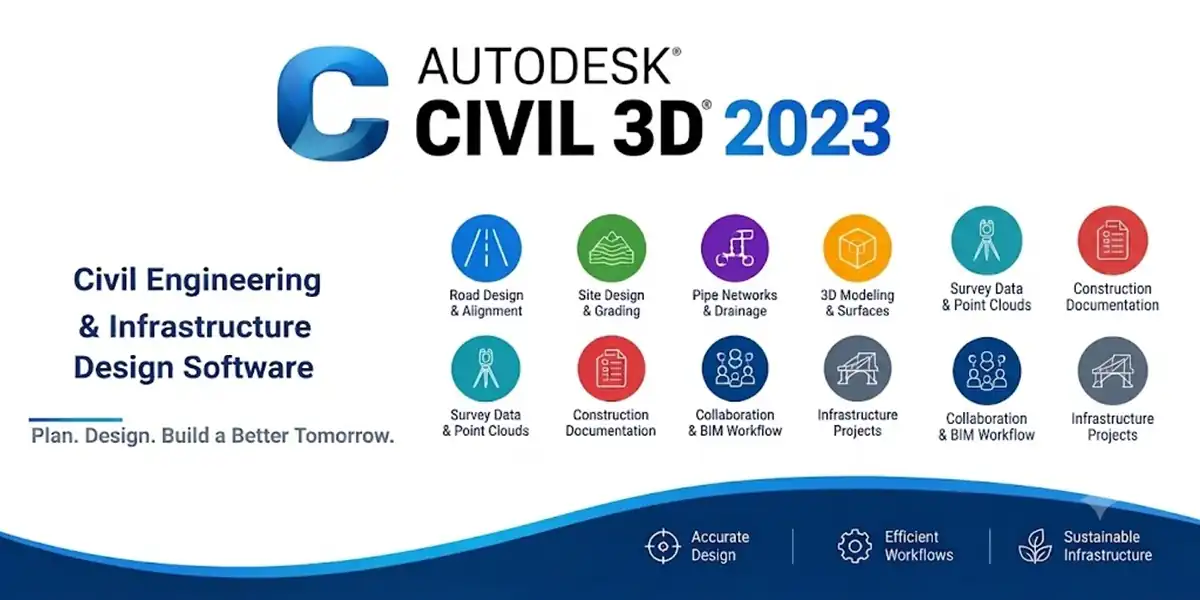
Autodesk Civil 3D 2023 is a specialized civil engineering design and documentation platform developed for professionals working on land development, transportation, surveying, site design, drainage, utilities, grading, corridors, and other infrastructure projects. It combines the capabilities of AutoCAD with civil-engineering-specific tools that help professionals build intelligent design models and produce construction documentation.
However, installing Civil 3D 2023 is only one part of getting started. Correct license activation is equally important. A properly installed copy can still display a licensing message, fail to start, request authentication repeatedly, or report that no valid license is available if the Autodesk Account, licensing service, network configuration, or installation components are not correctly configured.
This guide explains how to activate Autodesk Civil 3D 2023, how to prepare Windows before installation, which licensing methods may be available, how to troubleshoot common activation problems, and how to maintain a stable installation.
The objective is not simply to explain where to click. The goal is to help you understand why Civil 3D 2023 may require authentication, how Autodesk licensing works, and what to check when activation does not work as expected.
Autodesk's documentation states that Civil 3D 2023 supports 64-bit Windows 10 and Windows 11, with hardware requirements varying according to project size and complexity. Autodesk also documents several authentication paths depending on the license type, including Autodesk ID sign-in, network licensing, and serial-number activation where applicable.
Autodesk Civil 3D 2023 Features
Before discussing activation, it is useful to understand why Civil 3D 2023 is more specialized than standard CAD software.
1. Surface and Terrain Modeling
Civil 3D provides tools for creating and analyzing digital terrain models.
Surfaces can be generated from information such as:
- Survey points
- Breaklines
- Boundaries
- Contours
- Point files
- Corridor data
- Other surface information
Surface analysis can help users investigate elevations, slopes, watersheds, contours, and other terrain characteristics.
Autodesk documents Civil 3D surface tools for TIN, grid, cropped, and corridor surfaces, along with surface analysis and volume workflows.
2. Survey Workflows
Survey data is often the starting point of a civil engineering project.
Civil 3D includes tools for importing, processing, analyzing, and using survey information within a design environment.
A survey workflow may involve:
- Capturing field information.
- Transferring the information to the office.
- Importing survey data.
- Creating points and surfaces.
- Establishing existing conditions.
- Building the proposed design.
- Producing documentation.
This can reduce the amount of manual drafting required between survey information and engineering design.
3. Alignment Design
Alignments are fundamental to many transportation projects.
Civil 3D can be used to create horizontal alignments for:
- Roads
- Highways
- Railways
- Site access
- Curvilinear infrastructure
- Other linear projects
Alignment geometry can then be used as part of larger design workflows involving profiles, corridors, labels, and documentation.
4. Profile and Profile View Tools
Profiles help designers understand elevation along an alignment.
A typical roadway workflow can involve:
Existing ground → Proposed profile → Vertical geometry → Corridor model → Sections → Documentation
This makes profiles particularly important for road and infrastructure design.
5. Corridor Modeling
Corridor modeling is one of Civil 3D's major capabilities.
A corridor can combine:
- Alignment
- Profile
- Assembly
- Subassemblies
- Existing surface
- Proposed geometry
The result is a dynamic model that can represent a road or other alignment-based infrastructure.
Autodesk describes Civil 3D corridor modeling as a way to create data-rich corridor models for highways, roads, and rail tracks.
6. Pipe Networks
Civil 3D supports workflows for utility and drainage systems.
Pipe networks can be used to represent systems such as:
- Stormwater networks
- Sanitary sewer systems
- Drainage infrastructure
- Utility layouts
Civil 3D also provides pressure-network functionality for appropriate water and utility design workflows.
7. Grading and Site Design
Civil 3D provides specialized grading tools for creating proposed ground conditions.
Site-design workflows can involve:
- Feature lines
- Grading objects
- Parcels
- Surfaces
- Elevations
- Site topology
These tools can be useful for residential developments, commercial sites, industrial properties, roads, parking areas, and other land-development projects.
8. Plan Production and Documentation
A design is only useful when it can be communicated clearly.
Civil 3D provides tools for producing documentation such as:
- Plan sheets
- Profile sheets
- Plan-and-profile sheets
- Section sheets
- Construction documentation
Autodesk identifies plan production and construction documentation as a core Civil 3D capability.
9. Point Cloud Workflows
Point clouds can contain very large amounts of captured spatial information.
Civil 3D provides workflows for using point-cloud information to represent existing conditions and support design work.
For projects involving laser scanning or other reality-capture technologies, point clouds can provide valuable existing-condition information.
10. Performance and Workflow Improvements
Civil 3D 2023 introduced new and updated functionality across areas including labeling, corridors, Subassembly Composer, pressure networks, rail workflows, performance, APIs, and Dynamo for Civil 3D.
Autodesk's official Civil 3D 2023 documentation describes improvements across these areas in the 2023, 2023.1, and 2023.2 releases.
How to Install Autodesk Civil 3D 2023
The safest approach is to obtain Civil 3D from Autodesk or an authorized organizational source.
Autodesk's installation documentation explains that users can sign in to Autodesk Account, select a product, choose a version and installation method, and then install the software.
Step 1: Sign In to Autodesk Account
Open your Autodesk Account and sign in using the credentials associated with your product entitlement.
For organizational users, make sure the account has actually been assigned the Civil 3D license.
Step 2: Find Civil 3D
Open All Products and Services.
Locate Civil 3D and select the available version.
Because Civil 3D 2023 is an older release, it may not appear in every account's normal current-version list. Autodesk's current documentation explains that access to previous versions depends on account eligibility and Autodesk's available previous-version program.
Step 3: Select Civil 3D 2023
If Civil 3D 2023 is available for your account, select the version and appropriate operating system and language.
Verify the version carefully before downloading.
Step 4: Select the Installation Method
Depending on availability, Autodesk may provide installation choices such as:
- Install
- Download
- Direct Download
- Custom Install
The exact options can change over time.
For troubleshooting situations, the Download or Direct Download method can sometimes be useful because it provides a fuller installation package.
Autodesk specifically recommends the Download or Custom Install method in some Civil 3D installation troubleshooting scenarios.
Step 5: Run the Installer
If you downloaded an installer:
- Locate the installation file.
- Right-click it.
- Choose Run as administrator when appropriate.
- Follow the Autodesk installation wizard.
- Review the installation components.
- Select the desired installation location.
- Start the installation.
- Wait for the installation to complete.
Do not shut down Windows while the installer is working.
Step 6: Restart if Requested
If Autodesk or Windows requests a restart, restart the computer before launching Civil 3D.
This can allow licensing and supporting components to initialize correctly.
How to Activate Autodesk Civil 3D 2023
After installation, launch Civil 3D 2023.
Depending on the license environment, the authentication process can vary.
Autodesk's official authentication guidance describes three broad possibilities that may appear depending on product version and license type:
- Sign in with Autodesk ID
- Use a network license
- Enter a serial number
The exact wording and available options can differ by product version and license configuration.
Method 1: Activate Civil 3D 2023 With Autodesk Account Sign-In
For many current subscription environments, Autodesk Account sign-in is the primary authentication method.
Step 1: Launch Civil 3D
Open Autodesk Civil 3D 2023 from the Windows Start menu or desktop shortcut.
Step 2: Select Sign In
If the authentication screen appears, choose the sign-in option.
Depending on the version, Autodesk may display wording such as:
Sign In
or
Sign in with your Autodesk ID
Step 3: Enter Your Autodesk Credentials
Enter the email address associated with your Autodesk Account.
Then enter your password.
Complete any additional security verification requested by Autodesk.
Step 4: Verify License Assignment
If you receive a message indicating that no license is available, the issue may not be your password.
Your Autodesk ID must have appropriate product access.
Autodesk specifically advises users to check that the Autodesk ID is assigned to a license by the contract administrator.
For business users, contact the organization's Autodesk contract administrator if Civil 3D does not appear in your assigned products.
Step 5: Start Civil 3D
After successful authentication, Civil 3D should proceed into the application.
If it repeatedly asks you to sign in, continue to the troubleshooting section later in this article.
Method 2: Activate Civil 3D 2023 With a Network License
Network licensing is intended for organizations that manage software access through a network licensing environment.
In this configuration, Civil 3D does not simply rely on an individual user's subscription login.
Instead, the workstation communicates with the organization's license server.
Typical Network License Workflow
A simplified organizational workflow is:
License entitlement → License server → Network configuration → Civil 3D workstation → License checkout
The exact server configuration should be handled by the organization's IT or Autodesk licensing administrator.
Autodesk's authentication documentation identifies network licensing as an activation option for products using a network or multi-user license configuration.
What Information Might Be Required?
Depending on the organization's configuration, the workstation may need information identifying the appropriate license server.
Do not guess the server name.
If Civil 3D reports that the license server cannot be reached, contact the person responsible for Autodesk licensing within your organization.
Method 3: Activate Civil 3D 2023 With a Serial Number
Some Autodesk product environments may present a serial number activation option.
Autodesk's current authentication documentation states that the serial-number option is used when the user received a serial number with the software.
If your legitimate license includes a serial number:
- Start Civil 3D.
- Select the serial-number activation option if displayed.
- Enter the valid serial number.
- Enter the product key if requested.
- Follow the authentication instructions.
- Complete activation.
Do not use serial numbers found on unofficial websites.
A serial number is licensing information, not a generic activation code that can be shared freely between unrelated users.
Understanding Autodesk Civil 3D 2023 Licenses
One of the most common causes of activation confusion is misunderstanding the license type.
Named User / Subscription Access
With named-user access, a specific Autodesk Account is assigned access to the product.
The user generally signs in using that Autodesk Account.
This approach is designed around individual user identity and account-based authorization.
Network Licensing
Network licensing is intended for organizational environments where license access is managed centrally.
A network configuration can be useful when an IT department needs to administer software access across multiple workstations.
The network license configuration should be maintained by the responsible administrator.
Educational Access
Students and educators who meet Autodesk's eligibility requirements may have access to Autodesk educational software.
Educational access is subject to Autodesk's eligibility rules and terms.
It should not be represented as a commercial license for business production work.
Trial Access
Depending on Autodesk's current offerings and account eligibility, trial access may be available.
A trial is temporary and should not be confused with permanent licensed access.
When a trial expires, the appropriate solution is to obtain or use a valid license rather than attempting to bypass the licensing mechanism.
Civil 3D 2023 Installation vs Activation: What's the Difference?
This distinction is important.
Installation
Installation places the Civil 3D application and its required components on your computer.
Activation / Authentication
Activation confirms that the software can use an authorized licensing arrangement.
Therefore:
Installed does not always mean activated.
You can have a successful installation and still encounter a licensing problem.
Similarly, you can have a valid license but experience installation problems because required components are missing or corrupted.
Common Autodesk Civil 3D 2023 Activation Errors and Fixes
Licensing errors can be frustrating, but they often have identifiable causes.
The following troubleshooting steps are based on common Autodesk support guidance.
Error 1: Civil 3D Says No License Is Available
Possible Causes
- License not assigned to the Autodesk Account
- Subscription expired
- Wrong Autodesk Account
- Network license unavailable
- Licensing service problem
- Temporary authentication issue
Fix
First, verify that you are signed into the correct Autodesk Account.
Then check whether Civil 3D is actually assigned to the account.
Autodesk recommends checking product assignment when activation fails.
If you are using a company license, ask the administrator to verify your assignment.
Error 2: Civil 3D Keeps Asking You to Sign In
Repeated sign-in prompts can be related to authentication components, cached credentials, licensing services, or network/security configuration.
Recommended Steps
- Close Civil 3D.
- Restart Windows.
- Launch Civil 3D again.
- Sign out if a user session is already active.
- Sign back in.
- Confirm your license assignment.
- Check the Autodesk Desktop Licensing Service.
- Update relevant Autodesk authentication components.
Autodesk's troubleshooting guidance recommends restarting, signing out and back in, checking license assignment, and verifying the Autodesk Desktop Licensing Service.
Error 3: Autodesk Desktop Licensing Service Is Not Running
Civil 3D 2023 depends on Autodesk licensing components.
If the licensing service is stopped or corrupted, activation can fail.
Check the Service
- Press Windows + R.
- Enter services.msc.
- Press Enter.
- Locate Autodesk Desktop Licensing Service.
- Check its status.
- If appropriate, start the service.
Autodesk identifies the Desktop Licensing Service as an important component for licensing Autodesk desktop products.
If the service is corrupted, reinstalling the Autodesk Licensing Service may be necessary.
Error 4: “This Product Has Not Been Registered With the Licensing Service Yet”
This error can occur when the Autodesk product is not properly registered with the licensing service.
Autodesk has documented this issue for Autodesk desktop products including 2023 versions.
One documented solution path involves registering the product using Autodesk's supported licensing tools. If that does not resolve the problem, Autodesk recommends uninstalling the affected product, downloading a fresh installer, and reinstalling it.
Error 5: Installation Error 1603
Error 1603 is a common Windows installation failure that can occur with Autodesk products.
Autodesk's Civil 3D-specific documentation identifies possible causes including:
- Missing Windows updates
- Security software interference
- Shell-folder redirection
- Corrupted Autodesk Desktop Licensing Service
- Corrupted Microsoft Visual C++ Redistributables
- Files remaining from an earlier installation attempt
Possible Fix Sequence
- Install Windows updates.
- Restart the computer.
- Review security software interference.
- Verify Autodesk licensing components.
- Repair or reinstall required Microsoft components where appropriate.
- Perform a clean uninstall if the existing installation is corrupted.
- Download a fresh installer.
- Reinstall Civil 3D.
Error 6: Installation Error 61
Autodesk has documented Error 61 on Autodesk products from 2023 and later.
One identified cause is a failure involving the Autodesk Licensing Service update.
Autodesk recommends reviewing the installation log and, where applicable, manually installing the appropriate Autodesk Licensing Service update.
Where to Look for Installation Logs
Autodesk identifies the following location for relevant installation logs:
%LOCALAPPDATA%\Autodesk\ODIS
The log can provide useful information about which component failed.
Error 7: Licensing Error After an Update
Sometimes a Civil 3D installation works correctly before an update but develops problems afterward.
Possible causes include:
- Licensing components
- Authentication components
- Installation dependencies
- Security software
- Incomplete updates
- Corrupted installation files
Before making major changes, restart Windows and verify the Autodesk licensing service.
If an update refuses to install, Autodesk has documented a Civil 3D 2023 case where the recommended solution was to use a Direct Download of the full product package from Autodesk Account.
Error 8: Civil 3D Freezes at “Checking License”
If Civil 3D appears to hang during startup while checking or loading the license, several causes are possible.
Autodesk identifies factors including:
- Licensing problems
- Internet connection issues
- Antivirus/security software
- Insufficient permissions
- Microsoft Visual C++ components
- Graphics issues
- Corrupted installation
- Legacy activation situations
Recommended Troubleshooting Order
Try the least disruptive steps first:
- Restart Windows.
- Check your internet connection.
- Sign out and sign in again.
- Verify the Autodesk license.
- Check Autodesk Desktop Licensing Service.
- Update Autodesk components.
- Review antivirus/security restrictions.
- Repair or reinstall the software if necessary.
Error 9: Civil 3D Cannot Connect to a Network License
If your organization uses a network license, the workstation needs access to the configured licensing environment.
Possible causes include:
- License server unavailable
- Incorrect server configuration
- Network interruption
- Firewall restrictions
- Incorrect licensing variables
- Server-side licensing problem
Autodesk documentation for Civil 3D-related licensing issues notes that slow client-to-license-server connections and incorrect license-server settings can cause licensing problems.
Best Approach
Contact your organization's Autodesk or IT administrator and provide:
- Exact error message
- Civil 3D version
- Windows version
- Time the problem occurred
- Whether other users are affected
- Whether the license server is reachable
This information can significantly reduce troubleshooting time.
Error 10: Civil 3D 2023 Is Not Available in Autodesk Account
Civil 3D 2023 is an older release.
Therefore, its availability can depend on the account, subscription, and Autodesk's previous-version access rules.
Autodesk's current documentation explains that customers may access eligible previous versions through Autodesk Account, while older releases may require Autodesk's separate previous-version process.
If Civil 3D 2023 is not visible:
- Confirm you are using the correct Autodesk Account.
- Confirm that Civil 3D is assigned to your account.
- Check All Products and Services.
- Review the previous-version options.
- If the version is not available, contact Autodesk Support or your contract administrator.
Do not download a supposedly “official” Civil 3D 2023 installer from an unknown file-sharing site.
Conclusion
Autodesk Civil 3D 2023 provides a powerful environment for civil engineering, surveying, infrastructure design, site development, road design, grading, drainage, corridor modeling, and construction documentation.
But getting the best experience from the software starts with a clean installation and correct licensing configuration.
The most important lesson is simple: activation should match your actual Autodesk license type.
For named-user access, sign in with the Autodesk Account that has the appropriate product entitlement. For an organization's network license, use the network licensing configuration supplied by the administrator. Where a legitimate serial-number-based license is applicable, use the official serial number associated with that license. Autodesk documents these activation paths and emphasizes that the available method depends on the product's licensing configuration.
If activation fails, do not immediately assume that the software itself is defective. Check the fundamentals first:
Account → License Assignment → Internet/Network → Licensing Service → Authentication Components → Installation → Updates
This structured approach can resolve many common licensing and installation problems without unnecessary reinstallation.
Civil 3D 2023 is also an older release, so availability of downloads and support resources can depend on Autodesk's current previous-version policies and your account entitlement. Autodesk provides official documentation for obtaining eligible previous releases.
Most importantly, professional engineering software deserves a professional licensing approach. Avoid unauthorized activation tools, modified installers, key generators, and license-bypass utilities. They can create security and reliability problems while leaving you without legitimate software authorization.
Frequently Asked Questions (FAQs)
Install Civil 3D 2023 from an authorized Autodesk source and launch the application. Depending on your license type, Autodesk may ask you to sign in with your Autodesk ID, connect to a network license, or enter a valid serial number. The exact activation options depend on your license configuration.
For subscription-based named-user access, you generally need the Autodesk Account associated with your license assignment. Other licensing arrangements may use network licensing or a serial-number-based method where applicable.
Common causes include:
- Wrong Autodesk Account
- License not assigned
- Expired entitlement
- Network license unavailable
- Licensing service problem
- Authentication issue
Check your Autodesk Account and verify that Civil 3D is assigned to your user.
Repeated authentication requests can be caused by cached credentials, licensing services, authentication components, network problems, or an incorrect account.
Restart Windows, sign out and sign in again, verify your license assignment, and check the Autodesk Desktop Licensing Service.
Autodesk's Civil 3D 2023 system requirements list 64-bit Windows 11 and Windows 10 version 1809 or later as supported operating systems.
Civil 3D 2023 is a Windows application. Autodesk's published 2023 system requirements specify Windows operating systems rather than a native macOS version.
Users considering virtualization should verify the current Autodesk-supported configuration before deployment.