

Autodesk for Mac 2025 | Installation and Licensing Guide for macOS

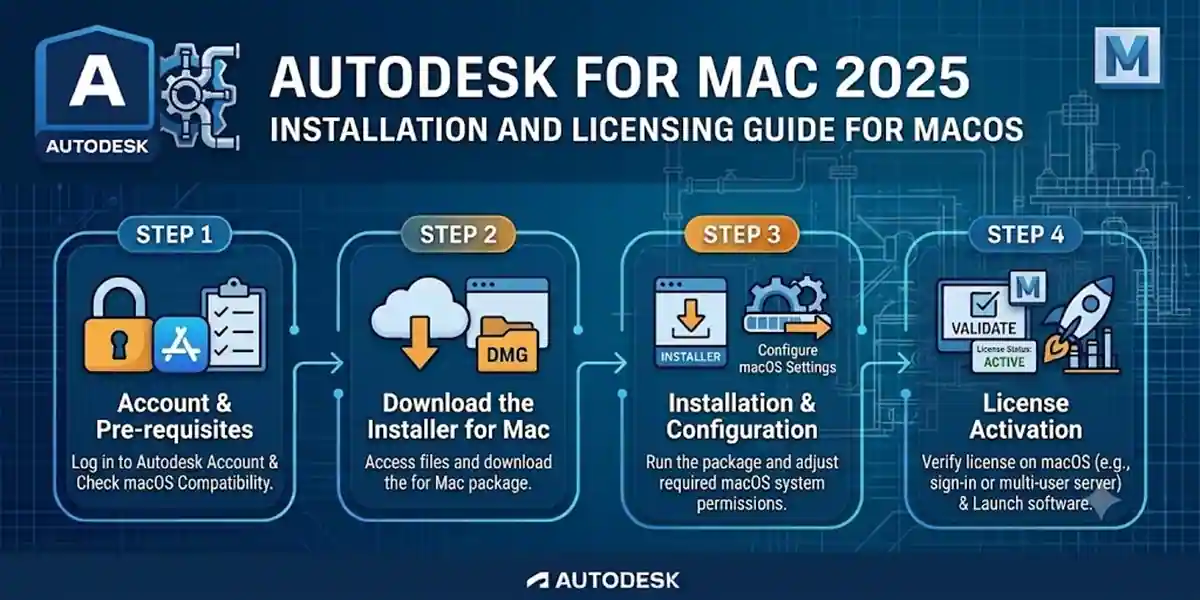
Introduction
Autodesk software is widely used by architects, engineers, designers, and creative professionals for computer-aided design (CAD), building information modeling (BIM), 3D modeling, and engineering workflows. For Mac users, Autodesk applications can provide powerful tools for designing products, developing architectural concepts, preparing technical drawings, and managing complex projects. However, the installation and activation process depends on the particular Autodesk product, macOS version, and Mac hardware.
If you are searching for how to activate Autodesk for Mac 2025, this guide explains how to prepare your Mac, check software compatibility, install an eligible Autodesk application, sign in to your Autodesk account, and resolve common licensing issues. It also covers subscription licensing, educational access, product activation, and troubleshooting steps.
One important detail is that Autodesk for Mac 2025 does not refer to a single application. Autodesk offers different products, and not every Windows application has a native macOS version. Some applications may require a different workflow, a supported virtualized environment, or access to a Windows computer.
Before starting, identify the exact Autodesk product you want to use, such as AutoCAD for Mac, and verify its compatibility with your computer. Always obtain installers from official Autodesk sources and activate software through a valid license.
This article provides a practical, step-by-step reference for installing and activating compatible Autodesk software on a Mac while maintaining software security and licensing compliance.
What Is Autodesk for Mac 2025?
Autodesk for Mac 2025 is a general search term used for Autodesk design and engineering software intended for Mac users. The available features and installation requirements vary depending on the application.
Autodesk develops software for several professional fields, including architecture, manufacturing, construction, mechanical engineering, product design, and visual communication.
For example, AutoCAD for Mac supports computer-aided drafting and design, while other Autodesk applications may focus on building information modeling, 3D design, simulation, or specialized engineering tasks.
Before downloading anything, determine whether the application you need supports macOS natively. A Windows installer will not normally work as a native Mac application, and changing a license or activation setting cannot make an unsupported application compatible.
Why do Mac users choose Autodesk software?
Common reasons include:
Professional drafting: Create technical drawings and design documentation.
Architectural design: Develop layouts and coordinate design information using compatible applications.
3D modeling: Create and refine digital models where supported.
Cross-platform collaboration: Exchange supported project files with colleagues using other operating systems.
Design productivity: Use application-specific tools, templates, and workflows.
Cloud-based collaboration: Access supported account services and project resources.
The right choice depends on the type of work you perform, your hardware, and the software requirements of your organization.
Key Features of Autodesk Software for Mac
Autodesk applications provide different features depending on their purpose. The following capabilities illustrate what users may find in compatible applications.
Computer-aided design (CAD)
CAD software enables users to create, edit, and document technical drawings. Depending on the application, tools may include geometry creation, object editing, layers, dimensions, annotations, and drawing layouts.
These features are useful for designers, architects, engineers, and drafting professionals who need accurate technical documentation.
2D drafting and documentation
Compatible drafting applications can help users prepare floor plans, mechanical drawings, construction details, and other technical documents.
Common drafting functions include:
Lines, arcs, circles, and geometric objects.
Layers and object properties.
Dimensioning and annotation tools.
Drawing layouts and plotting.
Supported import and export formats.
The exact tools available depend on the Autodesk product and edition.
3D design and modeling
Some Autodesk applications support three-dimensional modeling, enabling users to visualize components, spaces, or products before manufacturing or construction.
Depending on the software, modeling workflows may include solid modeling, surface creation, component editing, rendering, and model inspection.
Check the individual application's macOS support before relying on any particular 3D workflow.
File compatibility and collaboration
Many Autodesk products support exchanging files with other applications and collaborating with teams. Supported file formats vary, so verify compatibility before transferring important projects between different versions or operating systems.
For example, a project created in one application may require a compatible version of that application to preserve all its editable features.
Account and licensing management
Autodesk account services help eligible users manage subscriptions, access available software, and sign in to supported applications.
A valid license determines which products a user can access. Installing an application does not automatically provide a license, and having an account does not necessarily mean every Autodesk product is available to that account.
Compatibility with Mac hardware
Mac computers use different hardware configurations, including Intel processors in older models and Apple silicon in newer models.
Application compatibility may depend on:
Processor architecture.
Available memory.
Graphics capabilities.
macOS version.
Available storage.
Application-specific system requirements.
Review the official requirements for the exact product and release before installation.
How to Prepare Your Mac Before Installation
Correct preparation can prevent installation failures, incomplete downloads, and sign-in problems.
Step 1: Update macOS if necessary
Check whether your Mac is running a supported operating-system version. Install updates only after confirming that your Autodesk application supports the target macOS release.
If you use a Mac for important business projects, back up your files before performing a major operating-system upgrade.
Step 2: Restart your Mac
A restart closes unnecessary background processes and can resolve temporary system problems.
Save your work, close open applications, and restart the computer before beginning the installation.
Step 3: Confirm administrator access
Installing desktop software may require an administrator password or permission to make changes to the system.
Use an authorized Mac account with the required installation permissions. If your computer belongs to an organization, ask the IT administrator to handle restricted installation tasks.
Step 4: Verify your Autodesk account
Visit Autodesk Account and sign in with the account associated with your subscription, trial, or eligible educational access.
Check that the required product appears under your available products and services. If a company or school manages the license, confirm that the administrator has assigned the product to your account.
Step 5: Close unnecessary applications
Close applications that are not needed during installation. This helps avoid interruptions and makes it easier to identify any error that occurs.
Step 6: Download from an official source
Obtain the installer from Autodesk Account or the appropriate official Autodesk product page.
Avoid unofficial download websites, modified installers, unknown activation utilities, and packages that promise to bypass the license verification process. These sources may contain unwanted software or create problems with future updates.
How to Download Autodesk for Mac 2025
The exact download options depend on the product, version, account entitlement, and supported operating system.
Step 1: Open Autodesk Account
Go and sign in using your Autodesk ID.
Step 2: Find your product
Open All Products and Services and locate the application you want to install.
If the product is missing, verify that you are using the correct account and that your license or trial is available.
Step 3: Select the correct version
Choose the 2025 release if it is available for your product and account. Confirm that the selected platform is macOS where a native Mac version is offered.
Do not select a Windows installer when you intend to install a native Mac application.
Step 4: Select a download method
Autodesk provides different download methods depending on the product. The available options may include an installation workflow that downloads and installs the application in one process or a download workflow that lets you obtain the installer first.
For a native Mac application, the installation package may be provided as a DMG file.
Step 5: Check the downloaded file
Wait for the download to finish. If the file appears incomplete or the download fails, remove the incomplete download and obtain a fresh copy from Autodesk.
Keep the original installer until you have verified that the application installs and launches successfully.
How to Install Autodesk for Mac 2025
The following instructions apply to a compatible native Mac application such as AutoCAD for Mac. Other Autodesk products may have different installation screens or requirements.
Step 1: Locate the installerOpen Finder and navigate to the folder where the downloaded installer is saved. Confirm that you selected the Mac version of the correct Autodesk product.
Step 2: Open the DMG fileDouble-click the downloaded DMG file. macOS will mount the disk image and display its contents. Follow the installer instructions provided with the package.
Step 3: Run the installer
Open the installation application and review the displayed prompts. Accept the applicable terms and provide administrator authorization if requested.
Step 4: Complete installationFollow the on-screen instructions until installation finishes. Avoid interrupting the installer or shutting down your Mac while it is working.
Step 5: Launch the applicationOpen Finder, select Applications, and launch the installed Autodesk product. If an update is available for your installed release, review and install it through an official Autodesk workflow.
How to Activate Autodesk for Mac 2025
Activation verifies that your software is authorized for use. For most current individual Autodesk subscriptions, activation is completed by signing in with the Autodesk account associated with the license. The exact screen depends on the product and license type.
Method 1: Activate through your Autodesk account
This is the usual approach for an eligible individual subscription.
Launch the installed Autodesk application.
When prompted, select Sign In or the equivalent Autodesk account option.
Enter the email address associated with your Autodesk account.
Complete the password and any requested security verification.
Allow the application to check your license.
Confirm that the application opens with the expected licensed access.
If activation succeeds, you should be able to use the features included in your subscription or other entitlement.
Important: Signing in with an account that has no license for the product will not activate the software. Check the account's product assignments if access is denied.
Method 2: Activate an eligible trial
Autodesk may offer trial access for certain products and regions.
To use a trial:
Visit the official Autodesk website for the selected application.
Check whether a trial is available for the 2025 version.
Follow the official registration or download process.
Install the compatible application.
Sign in with the account used to obtain the trial.
Follow the on-screen instructions to begin eligible trial access.
Trial length and availability depend on the product and current Autodesk terms. If a trial has expired, choose an available legitimate subscription or another eligible access option.
Method 3: Activate an organization-managed license
If your company or educational institution manages Autodesk licenses, your administrator may need to assign a product entitlement to your account.
Follow these steps:
Contact your software or IT administrator.
Confirm the exact Autodesk product and release you need.
Ask the administrator to verify your license assignment.
Sign in to the application with the assigned account.
Follow any additional organization-specific authentication instructions.
If the product is missing from your account, do not purchase another license until you have confirmed that the correct account is being used.
Method 4: Use a serial number if your license requires one
Some legacy or specific license arrangements use a serial number and product key. These options do not apply to every current Autodesk subscription.
If Autodesk has issued a serial number for your product:
Sign in to Autodesk Account.
Open the relevant product details.
Locate the available license information.
Follow the activation instructions for that specific license type.
Enter only the serial number and product key legitimately assigned to your software.
Never use another person's serial number or a serial number obtained from an unofficial website. If your application expects account-based activation instead, follow the account sign-in workflow.
Understanding Autodesk License Types
Understanding your license is an essential part of learning how to activate Autodesk for Mac 2025. The available licensing options depend on the product, purchase arrangement, and account.
Individual subscription
An individual subscription generally allows the assigned user to access the products included in the subscription by signing in with the appropriate Autodesk account.
Typical characteristics include:
Access to the products included in the subscription.
License validation through Autodesk account services.
Access for the assigned user subject to the applicable terms.
Subscription renewal and expiration conditions.
Product updates and other benefits according to the subscription.
To verify your entitlement, open Autodesk Account and review your available products and services.
Educational access
Eligible students and educators may qualify for educational access under Autodesk's current eligibility requirements.
Educational access is intended for qualifying educational purposes and is subject to Autodesk's terms. It should not be treated as a commercial license for paid client work.
Trial license
A trial lets eligible users evaluate a product for a limited period. Availability, duration, and included functionality depend on Autodesk's current trial offering.
Before starting a trial, confirm that your Mac is compatible and that you understand what happens when the trial expires.
If you decide to continue using the software, follow Autodesk's instructions for purchasing or converting to an eligible subscription.
Network or organization-managed licensing
Some Autodesk products and license arrangements support organization-managed access. The precise options vary by product and contract.
If your organization provides a network or other centrally managed license, contact the administrator for the correct installation and authentication procedure.
Do not select a network-license option unless it is appropriate for your license. A license server address cannot replace a subscription entitlement that has not been assigned to your account.
Legacy serial-number licenses
Certain older or specific Autodesk licenses use serial numbers and product keys. Many newer subscription arrangements use account-based authentication instead.
Use the licensing method shown for your particular product. Do not assume that every Autodesk 2025 application requires a serial number or that an old serial number can activate a different release.
How to Verify Your Autodesk License
After installation, confirm that your Autodesk account has the correct entitlement.
Open Autodesk Account in your browser.
Sign in with the account used by the application.
Select All Products and Services.
Find the Autodesk product you installed.
Review its version, available access, and license details.
If your company manages the license, confirm that the product is assigned to your user account.
If the product is missing, check for spelling differences in your email address, alternate Autodesk accounts, subscription status, and administrator assignments.
A successful installation does not necessarily mean that the license has been activated. The application must also validate the appropriate entitlement.
Common Autodesk for Mac 2025 Activation Errors and Fixes
Activation errors can result from account issues, network restrictions, incompatible software, expired access, or outdated application components. Autodesk recommends working through a structured troubleshooting process and testing the application after each step.
Error 1: Autodesk sign-in failed
Possible causes
Incorrect email address or password.
An expired sign-in session.
A temporary authentication issue.
An account that is not assigned the required product.
Fixes
Confirm that you can sign in to Autodesk Account through a browser.
Check that you are using the correct account.
Sign out of the Autodesk application if the option is available.
Quit the application and reopen it.
Sign in again using the correct credentials.
Verify the product assignment if access is still denied.
If browser sign-in works but the desktop application does not, check for available updates and consult Autodesk's official troubleshooting guidance.
Error 2: No license found
Possible causes
The product is not assigned to your account.
The subscription has expired.
You signed in with a different Autodesk ID.
The organization administrator has not completed the assignment.
Fixes
Open Autodesk Account.
Check whether the product is listed.
Verify that the license or subscription is active.
Confirm that the correct version is included.
Contact your organization's administrator if the product is company-managed.
Purchasing another subscription should not be the first troubleshooting step. Verify the account and entitlement before making a new purchase.
Error 3: Activation cannot connect to Autodesk servers
Possible causes
An unreliable internet connection.
A VPN or firewall restriction.
Network filtering on a company or school network.
Temporary service interruptions.
Fixes
Confirm that the Mac has a working internet connection.
Open Autodesk Account in your browser.
Restart the application and try again.
If permitted, test a trusted alternative network.
Review the network requirements for Autodesk licensing.
Ask your IT administrator to check whether required Autodesk services are blocked.
Do not permanently disable your firewall or security software. If a security setting is suspected, make only authorized, temporary diagnostic changes and restore normal protection afterward.
Error 4: The application reports an expired license
Possible causes
An expired subscription or trial.
A license that was removed or reassigned.
An incorrect account.
A delayed refresh of licensing information.
Fixes
Confirm the subscription status in Autodesk Account.
Check whether the trial period has ended.
Verify that the correct user is assigned to the product.
Restart the Mac.
Reopen the application and sign in again.
Contact Autodesk support if your account shows valid access but the application continues to report expiration.
A system date change is not a legitimate substitute for a valid license.
Error 5: Autodesk opens in trial mode
Possible causes
The application is signed in to an account without the expected entitlement.
A trial was started before a subscription was assigned.
The product has not refreshed its license information.
The installed product differs from the one included in your subscription.
Fixes
Sign in with the correct Autodesk account, confirm the product and version in your account, and follow the application's supported process for converting trial access to a subscription.
Error 6: Installation fails or the installer closes unexpectedly
Possible causes
An incomplete download.
Insufficient disk space.
An unsupported macOS version.
Missing installation permissions.
A damaged installer package.
Fixes
Restart your Mac.
Check available disk space.
Verify the product's macOS requirements.
Download a fresh installer from Autodesk.
Close unnecessary applications.
Retry installation with an authorized administrator account.
If the problem continues, record the error message and review the installation logs or contact Autodesk support.
Error 7: The application crashes after installation
Possible causes
An unsupported operating-system version.
An application defect or outdated update.
Incompatible third-party extensions.
Insufficient memory or graphics resources.
Corrupted application preferences.
Fixes
Check the product's compatibility requirements, install available official updates, and temporarily remove nonessential third-party extensions from the troubleshooting process.
If the application crashes consistently, record the steps that reproduce the problem and provide those details to Autodesk support.
Error 8: The Mac shows a security warning
Possible causes
The application was downloaded from an untrusted source.
The installer is incomplete or damaged.
macOS cannot verify the developer or package.
Fixes
Download a fresh installer from Autodesk's official website and verify that it is the intended product. Follow Apple's standard security guidance.
Error 9: The application reports a device limit
Possible causes
The license is being used in another session.
A previous session did not close correctly.
The account or subscription has usage restrictions.
Fixes
Close Autodesk applications on devices you are no longer using, sign out of unnecessary sessions where appropriate, and restart the Mac.
Check the terms for your specific subscription. If the device limit persists, consult Autodesk's activation support rather than attempting to bypass the restriction.
Error 10: Autodesk updates are missing
Possible causes
The installed release is not the expected version.
The update is not available for that product or platform.
The account does not provide access to the selected version.
An installation or network issue interrupted the update.
Fixes
Open Autodesk Account, check the available product versions and updates, and follow the official installation instructions. Confirm that any update is compatible with your macOS version and existing application.
Conclusion
Learning how to activate Autodesk for Mac 2025 starts with selecting the correct application, checking macOS compatibility, downloading an official installer, and understanding the license associated with your Autodesk account.
For compatible Mac applications, the installation process typically involves opening the downloaded package, following the installation prompts, launching the application, and signing in to validate the license. If activation fails, checking your account assignment, subscription status, internet connection, and application compatibility can help identify the cause.
Remember that Autodesk does not offer every application natively for macOS. Products such as AutoCAD for Mac have dedicated Mac versions, while Windows-specific applications require a different supported setup.
For the most reliable experience, use official Autodesk downloads, maintain an eligible license, keep your software updated, and follow the product-specific documentation. These practices will help you install and activate your Autodesk application securely and get started with your design workflow.
Frequently Asked Questions (FAQs)
Install a compatible Autodesk application from an official source, launch it, and sign in using the Autodesk account associated with your license. Follow the application's prompts to complete authentication.
No. It is a general term for Autodesk software used on Mac computers. The available products, features, licensing methods, and system requirements differ by application.
Autodesk offers AutoCAD for Mac. Verify the requirements and download the correct native Mac installer for the 2025 release. Do not use the Windows installer for a native macOS installation.
Revit 2025 does not have a native macOS version. If you need Revit, check Autodesk's current guidance on supported Windows systems and any permitted alternative environments.
Most current individual subscriptions use Autodesk account sign-in. Some specific or legacy license types may require a serial number and product key. Follow the instructions for your license.
Account-based subscription activation generally requires communication with Autodesk's licensing services. Offline capabilities and requirements vary by product and license type. Check the official documentation for your specific arrangement.