

Autodesk Mechanical 2025 Activation Guide | Step-by-Step Instructions

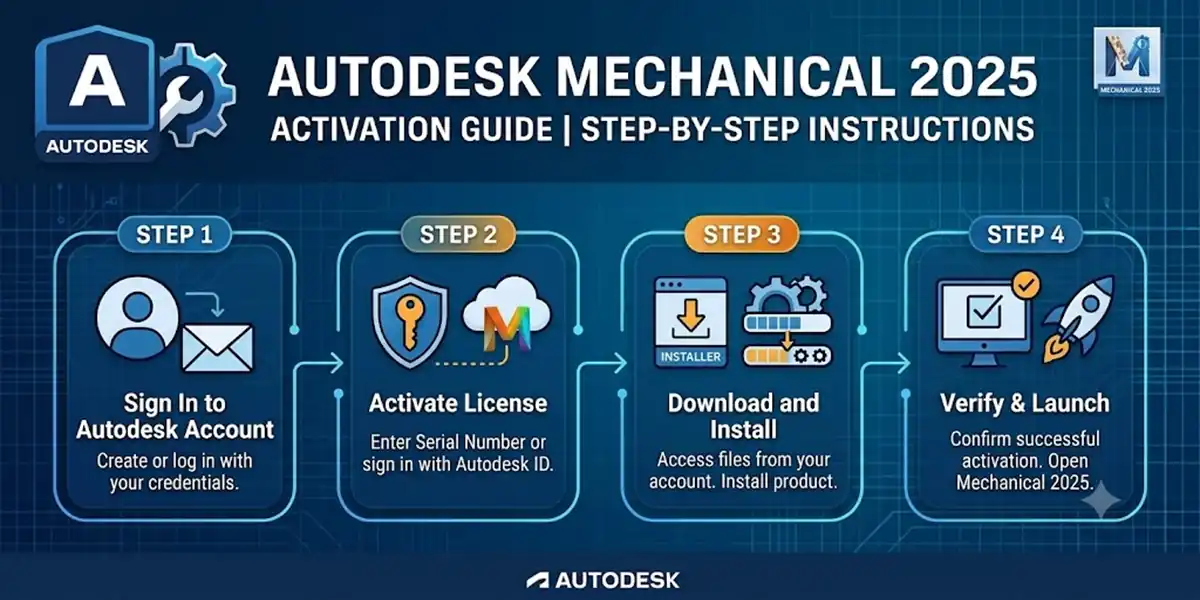
Introduction
Mechanical engineers, drafters, and manufacturers around the world use AutoCAD Mechanical to produce accurate 2D drawings quickly. It builds on the AutoCAD interface you already know, then adds standard parts, mechanical layers, dimensioning tools, and bills of materials that remove a lot of repetitive work. The 2025 release continues that approach with new content and updated standards support.
None of this is available until the software is installed and activated. Activation is usually quick. When it fails, the cause is almost always simple: the wrong Autodesk account, a seat that was never assigned, a firewall that blocks Autodesk services, an old sign-in file, or a license server that cannot be reached. Instead of fixing the real problem, some people turn to “cracks” and “activators.” Those are unsafe and illegal, and this guide does not cover them. Here you will find the official, supported ways to activate AutoCAD Mechanical 2025, along with the commands and fixes that solve the most common problems.
What Is AutoCAD Mechanical 2025?
AutoCAD Mechanical is a specialized toolset built on top of AutoCAD, designed for mechanical design and drafting. Instead of drawing every bolt, bearing, and dimension by hand, you insert intelligent standard parts and features, and you annotate with tools that understand mechanical drawing conventions.
Autodesk explains that the toolset was previously referred to as AutoCAD Mechanical and is now included as part of the AutoCAD including specialized toolsets offering. The toolset also works differently from plain AutoCAD in a few ways. For example, AutoCAD Mechanical ships with 31 layer definitions that are assigned to different objects by default, and its commands create standard parts and features on those layers. It also uses scaling mechanisms such as scale areas, detail views, and annotation views that are not available in basic AutoCAD. Mechanical toolset is included with AutoCAD.
How you get it
In recent releases, the Mechanical toolset is included with an AutoCAD subscription. It may also be part of a collection that includes AutoCAD with its specialized toolsets, such as the Product Design & Manufacturing Collection. Packaging changes over time, so check your own plan in your Autodesk account to see exactly what you have.
You can read Autodesk’s own description on the AutoCAD Mechanical toolset page and find detailed documentation in the AutoCAD Mechanical 2025 help.
Key Features of AutoCAD Mechanical 2025
Knowing what you are unlocking helps you confirm that activation worked. These are the main features worth knowing about.
A huge library of standard parts and features
Autodesk says the Mechanical toolset includes more than 700,000 intelligent parts and features, with standards-based parts, tools, and custom content. The standard components support ISO, ANSI, DIN, JIS, BSI, CSN, and GB standards. That means you can follow the standard your customer or country requires without redrawing common components.
Content Manager for your own parts
You can create and save custom content through the Content Manager, which lets you add a part or feature to a content library. Teams can build a shared library of company-standard parts so everyone draws the same way.
Mechanical layer management
Commands that create mechanical layers save you from setting up layers manually. You also get the ability to customize object properties and create objects on custom layers, which helps when your company has its own drafting standard.
Bills of materials, part lists, and balloons
The toolset gives you more control over bills of materials, part lists, associative balloons, and part references. Automating tasks such as creating bills of materials is one of the main reasons teams adopt it. If the design changes, the BOM and balloons stay in sync.
Productivity gains
Autodesk reports that in its own study the Mechanical toolset boosted productivity by up to 55% on common mechanical design tasks. Treat this as a vendor figure, because your results will depend on how you work, but it shows why many teams use the toolset.
2025 updates
In AutoCAD Mechanical 2025, surface texture symbols support the latest revisions of the ISO and ANSI/ASME standards. More than 1,197 new parts were added to the content library. If you produce drawings for manufacturing, up-to-date symbols and parts help reduce questions from the shop floor.
Platform improvements from AutoCAD 2025
Because the toolset sits on AutoCAD 2025, you also get improvements to the platform itself, including the performance and collaboration updates in the main product.
Other everyday strengths
- Intelligent drafting tools such as centerlines, construction lines, and symmetrical lines
- Powerful dimensioning and annotation tools for mechanical drawings
- Standard part generation for fasteners, shafts, bearings, and more
- Support for detail views and different scales on one sheet
- Compatibility with the broader AutoCAD file format and workflows
One thing to remember
All of these features need an active, correctly authenticated license. If tools are missing, if you see a trial or “not licensed” message, or if the software shuts down after a short time, activation did not finish properly.
Understanding Your License Type
Before you activate, find out which license type you have. The method depends on it.
Named-user subscription (most common)
A seat is assigned to your Autodesk ID. You sign in, and the software checks your entitlement. There is no serial number to type. This is the standard model for current releases.
Multi-user (network) license
A license server on your company network hands out seats when users launch the software. An administrator manages it with the Autodesk Network License Manager. Availability depends on your contract.
Serial number and product key (legacy)
Older perpetual licenses and some legacy agreements use a serial number and a product key that you enter during installation or activation.
Educational license
Students and educators can get a free license after verifying their eligibility. It is for learning and non-commercial work only. Learn more on the Autodesk Education page.
Free trial
Autodesk offers time-limited trials so you can test performance before you buy. Start from the free trials page.
How to Download AutoCAD Mechanical 2025
Always download from Autodesk directly. Installers from random websites and file-sharing portals are a common way to spread malware.
- Go to the Autodesk Account and sign in.
- Open All Products and Services.
- Find AutoCAD (with the Mechanical toolset) or the collection that includes it.
- Use the drop-down menus to choose 2025, your operating system, and your language. If 2025 is not shown at first, look for a previous versions option.
- Choose how to get it:
- Install starts the Autodesk installer right away.
- Download saves the installer to run later.
- Custom Install (where available) lets IT teams build a package with specific settings.
- Save the installer on a drive with enough free space.
The download can be large, so use a stable connection.
How to Install AutoCAD Mechanical 2025 (Step by Step)
Step 1: Prepare
Close all applications. If security software blocks the installer, you can pause it briefly, then turn it back on after installation.
Step 2: Run the installer as administrator
Right-click the installer and choose Run as administrator.
Step 3: Accept the terms
Read and accept the license and services agreement.
Step 4: Choose what to install
Select AutoCAD with the Mechanical toolset, or the product shown in your plan. Optional components may include:
- Content libraries and standard parts
- Language packs
- Autodesk Docs and collaboration components
- Other toolsets that your plan includes
Install only what you need. You can add more later.
Step 5: Choose the location
The default folder works for most people. A fast local drive improves performance. Avoid network drives.
Step 6: Install
Click Install. It can take from a few minutes to over an hour depending on your computer, your connection, and the options you chose. Do not close the installer or shut down the computer.
Step 7: Finish and restart
Click Finish and restart Windows if prompted. This lets the licensing service register properly.
Step 8: Start the software
Open AutoCAD from the Start menu. On first launch you will usually see a sign-in or license prompt. Once AutoCAD opens, switch to a Mechanical workspace to use the toolset. The WSCURRENT command lets you pick a workspace by name if you prefer the command line.
Installing on many computers (IT teams)
Administrators can build a deployment package in their Autodesk account and push it with tools such as Microsoft Intune or Configuration Manager (SCCM). This keeps every machine configured the same way. Test on one computer first. For exact silent-install options, follow Autodesk’s deployment documentation and the Autodesk Support knowledge base.
Methods of Activation
Method 1: Sign In with a Named-User Subscription (Easiest)
- Launch AutoCAD. You should see a Sign in screen.
- Click Sign In. Your browser opens an Autodesk sign-in page.
- Enter your Autodesk ID. If your company uses single sign-on, choose that option.
- Complete multi-factor authentication if your account requires it.
- Return to the application. The browser sends the sign-in back automatically.
- Wait a moment. The software checks your entitlement and licenses itself.
- Confirm. Type ABOUT in the command line, or open Help → About, to check the license information.
Tips
- Use the account that holds the subscription. Signing in with a personal email when the subscription belongs to your work email is the most common cause of problems.
- Stay online for the first launch. Later, limited offline use is allowed, but the software needs to re-check your license from time to time.
- Do not share your login. Each named user should have their own account.
- If the browser does not hand the sign-in back to AutoCAD, try copying the sign-in link into another browser.
Signs of success: no trial banner, your name or Autodesk ID in the account area, and the Mechanical workspace available with its ribbon tabs.
Method 2: Connect to a Network (Multi-User) License
Network licensing involves two roles: the administrator, who sets up the server, and the user, who connects to it.
For administrators
- Get the license file. In your Autodesk account’s licensing area, generate or download the license file for your server (usually with the server’s host name and MAC address).
- Install the Autodesk Network License Manager on the server, from Autodesk’s official download.
- Place the license file in the manager’s folder and check that the SERVER line matches your host name.
- Start the service with LMTOOLS or the manager’s configuration tool.
- Open the firewall ports for the license daemon and the vendor daemon.
- Verify with the Server Status tab and Perform Status Enquiry.
A command-line check looks like this:
lmutil lmstat -a -c 27000@YOUR-LICENSE-SERVER
Replace the port and server name with your own.
For users
- When the installer or the first-launch dialog asks about license type, choose Multi-user (network).
- Enter the server name or port@server address from your IT team.
- For redundant servers, enter the list in the order your IT team gives.
- Click Activate or Continue.
You can also set the connection with an environment variable, using an elevated Command Prompt:
setx ADSKFLEX_LICENSE_FILE "27000@YOUR-LICENSE-SERVER" /M
Restart AutoCAD afterward. To confirm the value in a new Command Prompt:
echo %ADSKFLEX_LICENSE_FILE%
Always confirm details with your IT team and Autodesk’s documentation for your version.
Network license tips
- Put the license server on a stable, always-on machine with a fixed IP address or DNS name.
- Write down your ports and firewall rules.
- Watch seat usage and plan for peak times.
- Keep the host name and MAC address stable, because changes can invalidate the license file.
Method 3: Serial Number and Product Key (Legacy)
Some older installations still use a serial number and a product key. Product keys are specific to each product and version. For AutoCAD Mechanical 2025 you will often see 206R1 published, but always confirm it against Autodesk’s official product key list rather than trusting a blog, including this one.
Steps
- Start the installation, or launch the trial and click Activate.
- Choose Enter a serial number.
- Type the serial number from your purchase confirmation.
- Type the product key for your product and version.
- Click Next, then Activate.
- If you are online, the software activates automatically.
If online activation fails, some legacy agreements allowed an activation-code process. Select the option for having an activation code, generate a request code, submit it through Autodesk’s official support channels, then enter the activation code you receive. This is not available for every product or agreement, so ask Autodesk Support or your reseller what applies to you.
Reminders
- The serial number and product key must match the product and version.
- A key from another year or product causes an invalid key error.
- Collection keys do not work for single products, and vice versa.
Method 4: Education License
Eligible students and educators can use AutoCAD Mechanical for learning at no cost.
- Create or sign in to your Autodesk account.
- Verify your status in the Autodesk Education area.
- Find AutoCAD (with the Mechanical toolset) and install it from your account.
- Launch it and sign in with the same account.
Notes: education licenses usually run for a set period, such as a year, and can be renewed while you remain eligible. Output may be marked as educational, and commercial use is not allowed.
Method 5: Turn a Trial into a Full License
If you started with a trial, you do not need to reinstall.
- Make sure your subscription is active and assigned to your Autodesk ID.
- Open AutoCAD.
- Sign out of the trial account if prompted, then sign in with the subscription account.
- Restart the application if asked.
- Check that the trial banner is gone.
If it remains, confirm that you installed the same product and version that your subscription covers.
Method 6: Autodesk Licensing Helper (Command Line, for IT)
Autodesk installs a licensing service and a command-line helper. IT administrators use it to check status and switch license types. The path and options can vary by version, so check Autodesk’s documentation first.
Common location:
C:\Program Files (x86)\Common Files\Autodesk Shared\AdskLicensing\Current\helper\AdskLicensingInstHelper.exe
List products and license settings
AdskLicensingInstHelper.exe list
Switch to named-user licensing
AdskLicensingInstHelper.exe change --pk PRODUCT_KEY --pv PRODUCT_VERSION --lm USER
Switch to network licensing
AdskLicensingInstHelper.exe change --pk PRODUCT_KEY --pv PRODUCT_VERSION --lm NETWORK --ls 27000@YOUR-LICENSE-SERVER
Notes: use the exact key and version shown by the list command, run from an elevated Command Prompt, test on one machine first, and keep a record of the original settings.
Commands for Checking and Fixing Licensing
These standard commands solve a large share of activation problems. Run them in an elevated Command Prompt or PowerShell unless noted.
Inside AutoCAD
ABOUT
Opens the About dialog so you can check product and license information.
WSCURRENT
Lets you choose the current workspace, so you can switch to a Mechanical workspace without using the menus.
AMOPTIONS
Opens the Mechanical toolset’s options dialog. If the command is not recognized, the Mechanical toolset is probably not installed or loaded, which is a useful clue when you troubleshoot.
Check that the Autodesk licensing service is running
sc query AdskLicensingService
If it is not running, start it:
net start AdskLicensingService
Restart it if needed:
net stop AdskLicensingService

net start AdskLicensingService
You can also press Windows + R, type services.msc, and look for Autodesk Desktop Licensing Service. Set it to Automatic. Service names can differ slightly between builds.
Reset the stored sign-in state
Close all Autodesk applications first, then run:
del "%localappdata%\Autodesk\Web Services\LoginState.xml"
Restart AutoCAD and sign in again.
Fix the system clock
w32tm /resync
Test your connection
ping www.autodesk.com
nslookup accounts.autodesk.com
Flush the DNS cache
ipconfig /flushdns
Check the proxy
netsh winhttp show proxy
Check your Windows version
winver
Repair damaged Windows files
sfc /scannow
If that finds problems it cannot fix, run:
DISM /Online /Cleanup-Image /RestoreHealth
List installed Autodesk programs (PowerShell)
Get-Package -Name "*Autodesk*"
This helps you spot leftover or conflicting installations.
Check the network license variable
echo %ADSKFLEX_LICENSE_FILE%
Common Errors and Fixes
1. “Product is not licensed” or “Your license is no longer valid”
Why it happens: wrong account, expired subscription, no seat assigned, or a corrupt login state.
How to fix it:
- Sign out and sign in with the account that holds the subscription.
- Check your Autodesk account to confirm the product is assigned and the subscription is active.
- Ask your admin to assign or reassign your seat.
- Look for a billing problem that paused the subscription.
- Delete LoginState.xml using the command above and try again.
2. Sign-in loop or the browser does not return to AutoCAD
Why it happens: browser settings, blocked pop-ups, cookies, or a stale login file.
How to fix it:
- Set a different browser as default and retry.
- Clear cookies and cache for Autodesk websites.
- Close AutoCAD, delete the login state file, and sign in fresh.
3. Licensing errors in the 0015 family (such as 0015.111 or 0015.426)
Autodesk uses codes starting with 0015 for licensing problems. The meaning varies, so look up your code on Autodesk Support. Common fixes:
- Make sure the licensing service is running (sc query AdskLicensingService, then net start AdskLicensingService).
- Repair or reinstall the licensing component from Autodesk’s official source.
- Update Windows and check that security software is not blocking the service.
- Use AdskLicensingInstHelper.exe list to review the license configuration.
4. “License manager is not functioning or is improperly installed”
This appears with network or legacy licensing.
How to fix it:
- Make sure the license server is running and reachable.
- Check the ADSKFLEX_LICENSE_FILE variable and verify the server name and port.
- Open the firewall ports for the license and vendor daemons.
- Run lmutil lmstat -a -c 27000@YOUR-LICENSE-SERVER to confirm features are available.
- Restart the license manager service and the client.
5. “No licenses available” or “All licenses are in use”
Why it happens: in a network setup, all seats are checked out.
How to fix it:
- Ask users to close the software when they are finished.
- Check who holds seats with LMTOOLS or lmutil lmstat.
- Consider adding seats if it keeps happening.
- Look for stale sessions after a crash. Restarting the machine or the license service can free the seat.
6. “Serial number or product key is invalid”
How to fix it:
- Re-check the numbers for typing mistakes.
- Confirm that the product key matches your product and version.
- Make sure you are not using a key from another year, product, or a collection.
- Contact Autodesk Support with your proof of purchase.
7. The software goes back to trial mode after a restart
Why it happens: profile resets, cleaning utilities, virtual desktops, or permission problems.
How to fix it:
- Make sure the user can write to the licensing data folders.
- Exclude Autodesk licensing folders from cleaning and disk-reset tools.
- In virtual desktops, use a licensing method designed for them and read Autodesk’s guidance.
8. Installation fails or hangs
How to fix it:
- Run the installer as administrator.
- Free up disk space and restart Windows.
- Remove leftovers from failed installs with Autodesk’s official uninstall tools.
- Repair Microsoft Visual C++ and .NET components.
- Run sfc /scannow.
- Pause conflicting security software briefly.
- Check the installer log files in your temporary folder.
9. “Unable to connect to the Autodesk licensing server”
How to fix it:
- Test your connection and open Autodesk’s sign-in page in a browser.
- Run ping www.autodesk.com and nslookup accounts.autodesk.com.
- Check the proxy with netsh winhttp show proxy.
- Allow Autodesk domains through your firewall.
- Check the date and time, and run w32tm /resync.
- Try a different network, such as a mobile hotspot, to rule out company restrictions.
10. AutoCAD opens, but the Mechanical tools or workspace are missing
Why it happens: the toolset was not installed, the workspace is not switched, or the plan does not include it.
How to fix it:
- Switch the workspace using the workspace selector or the WSCURRENT command.
- Open Apps and features, select the Autodesk entry, and choose Modify to add the toolset.
- Check your plan in your Autodesk account.
- Confirm that you installed AutoCAD with the Mechanical toolset, not a different product.
11. 2025 does not show up in my Autodesk account
How to fix it:
- Look for a previous versions link on the download page.
- Ask your administrator whether your plan includes access to that version.
- Contact Autodesk Support or your reseller if it is not offered.
12. Standard parts or content library are missing
This is a content problem rather than a license problem.
How to fix it:
- Run the installer’s Modify option and add the Mechanical content libraries.
- Install the latest content update from your Autodesk account.
- Check that your Content Manager settings point to the correct library folders.
13. Dimensions or scales look wrong in layouts
This is a drafting setup problem rather than a license problem. As noted in Autodesk’s guidance, if you honor AutoCAD scale factors and use different scales in different places in a drawing, the Mechanical toolset’s scaling mechanisms may not show the correct dimension value.
How to fix it:
- Use the toolset’s own scale areas, detail views, and annotation views for different scales.
- Avoid mixing AutoCAD scale factors with Mechanical scaling in the same drawing.
- Check your drawing options with AMOPTIONS.
14. Slow performance or crashes after activation
These are not license errors, but they often appear after a new install.
How to fix it:
- Update your graphics driver from the GPU maker.
- Install the latest AutoCAD Mechanical 2025 update.
- Keep project files on a local SSD while you work.
- Exclude drawing folders from real-time antivirus scanning.
- Purge and audit large drawings.
15. Problems after a Windows upgrade or new hardware
How to fix it:
- Sign out and back in.
- Review the license setup with the helper tool.
- If necessary, repair or reinstall the licensing service and AutoCAD.
Conclusion
Activating Autodesk AutoCAD Mechanical 2025 is simple once you have the right license and follow the right steps. For most people, it comes down to downloading the software from their Autodesk Account and signing in with the account that holds their subscription. Larger organizations may connect to a network license server, and some legacy installations still use a serial number and product key.
To recap:
- Confirm your plan and make sure AutoCAD with the Mechanical toolset is assigned to you.
- Download only from Autodesk, and install with administrator rights.
- Activate by signing in, connecting to a network license, entering legacy credentials, or using a verified education account.
- Use the licensing helper and standard Windows commands to check and repair your setup.
- Fix errors one step at a time: check the account, the licensing service, the network, and the license server.
- Avoid cracks, unofficial activators, and “lifetime license” offers that look too good to be true.
With the software activated, you can use the standard parts library, mechanical layers, BOM and balloon tools, and the 2025 updates to standards and content. A properly licensed copy gives you updates, support, and peace of mind, which matter when your drawings turn into real parts. If you have followed these steps and still cannot activate, contact Autodesk Support with your account email, product and version, operating system, and the exact error message.
Frequently Asked Questions (FAQs)
Install AutoCAD Mechanical 2025 from your Autodesk Account, launch it, click Sign In, and enter the Autodesk ID that holds your subscription. The software validates your entitlement and activates automatically. Legacy installations may need a serial number and product key, and network licenses connect to a license server.
Usually, yes. People often use the shorter name for AutoCAD Mechanical, a specialized toolset in AutoCAD. If you meant Inventor for 3D mechanical design, the sign-in process is similar, but you would download and install Inventor instead.
For named-user subscriptions you normally do not. You sign in with your Autodesk ID. Serial numbers and product keys apply to legacy installations and some older agreements.
The key commonly published is 206R1, but product keys are specific to each product and version. Confirm it against Autodesk’s official product key list before using it.
Yes, in recent releases Autodesk includes it with an AutoCAD subscription. Check your own plan in your Autodesk account to be sure, because collections and plans can differ.
The usual causes are using the wrong account, no seat assigned to you, an expired subscription, or a stale login state. Sign out, sign in with the right account, check your assignments, and if necessary delete LoginState.xml and try again.