

Autodesk Plant 3D 2021 | Ultimate Guide to Plant Design, Piping & P&ID Workflows


1. Introduction
Autodesk AutoCAD Plant 3D 2021 is a specialized toolset built on the AutoCAD platform, designed specifically for plant design engineers, piping designers, and process engineers. It combines the familiar AutoCAD environment with industry-specific tools for creating P&IDs, 3D piping models, and documentation.
The 2021 version brought several improvements over its predecessors, including enhanced insulation visualization on orthographics, PCF file support per drawing, and over 40 bug fixes addressing stability and performance issues.
Product Key: 426M1
Before you can use any of these features, you must activate the software. Activation verifies that your license is genuine and authorized. The method you use depends on the type of license you have purchased or been granted.
2. Key Features of Autodesk Plant 3D 2021
Understanding what you're activating for helps contextualize why proper activation matters. Here are the standout features of Plant 3D 2021:
P&ID Design
- Industry-standard symbol libraries — PIP, ISA, ISO/DIN, and JIS symbols included out of the box
- Quick P&ID drafting — in-context AutoCAD commands for faster schematic creation
- Data validation — scan P&IDs for data consistency according to user-definable rules
- Automated line numbering and tag generation
3D Piping & Plant Modeling
- Parametric 3D piping components — elbows, tees, flanges, valves, and more
- Specification-driven design — ensures components match project standards
- Automatic isometric extraction — generate fabrication-ready isometric drawings directly from the 3D model
- Orthographic drawing generation — plan, elevation, and section views
Collaboration & Documentation
- Collaboration for Plant 3D — cloud-based common data environment (BIM 360 integration)
- PCF export per drawing — improved support for fabricators
- Insulation on orthographics — transparent insulation visualization in the model, transferable to Navisworks and BIM 360
Performance Improvements
- Over 40 bug fixes addressing cut piece lists, stability, and performance
- Improved project standards validation tools
- Enhanced compliance checking against predefined rules
3. Understanding Autodesk Licensing Types
Before activating, you need to know what type of license you have. Autodesk offers several licensing models, and the activation process differs for each.
License Type Hierarchy
Autodesk follows a license type hierarchy that determines which license is used when multiple types are available:
- Education — Free educational access for students and educators
- Commercial / Subscription — Single-user or multi-user subscription
- Trial — Time-limited free trial
- Perpetual (Legacy) — Permanent license purchased before Autodesk moved to subscription-only model
4. Activation Methods (Step-by-Step)
Method 1: Online Activation (Single-User Subscription)
This is the simplest method and works for most modern subscription licenses.
Prerequisites:
- Active Autodesk subscription
- Internet connection
- Autodesk Account credentials
Steps:
- Install Autodesk Plant 3D 2021 using the installer from your Autodesk Account.
- Launch the software. The activation wizard will appear automatically.
- Sign in to your Autodesk Account when prompted.
- Select your license from the list of available subscriptions.
- Click "Activate." The software will contact Autodesk's servers to validate your license.
- Wait for confirmation. Activation completes automatically. You may need to restart the software.
Troubleshooting: If the activation wizard does not appear, go to Help > About > Product Information > Activate from within the software.
Method 2: Offline Activation (Request Code Method)
Use this method if you do not have internet access on the machine where Plant 3D is installed. This is common for perpetual license holders or users in secure/air-gapped environments.
When to use this method:
- Perpetual license (legacy) with serial number
- No internet access on the workstation
- Firewall restrictions blocking Autodesk servers
Steps:
- Launch Autodesk Plant 3D 2021. The activation screen appears.
- Select "Activate" and choose "I have an activation code from Autodesk."
- Copy the Request Code displayed on screen. This is a long alphanumeric string.
- Go to a machine with internet access (or use your phone/tablet).
- Visit the Autodesk Product Registration and Activation page: Autodesk.
- Sign in with your Autodesk Account.
- Enter your serial number (for perpetual licenses) or select your subscription.
- Paste the Request Code into the appropriate field.
- Click "Generate Activation Code." Autodesk's servers will return an activation code.
- Copy the activation code and return to your offline machine.
- Paste the activation code into the Plant 3D activation dialog.
- Click "Next" and then "Finish." The software is now activated.
Important: Perpetual license users with 2021 products or later must go online at least once to register the license before using it offline.
Method 3: Network License Activation (Multi-User)
For organizations using a network license server (FlexNet), activation happens at the server level, not on individual workstations.
Prerequisites:
- License server with FlexNet Publisher (LMTOOLS) installed
- Valid network license file (.lic) from Autodesk
- Client machines must be able to reach the license server on port 2080
Server-Side Setup:
- Install FlexNet License Manager on your server.
- Place your license file (e.g., plant3d_2021.lic) in the license directory.
- Configure the license server using LMTOOLS:
- Set the path to lmgrd.exe
- Set the path to the license file
- Set the path to the debug log file
- Start the license server:
lmgrd -z -c "C:\Autodesk\License\plant3d_2021.lic" -l "C:\Autodesk\License\lmgrd.log"
- Verify the server is running:
lmutil lmstat -a -c "C:\Autodesk\License\plant3d_2021.lic"
Client-Side Setup:
- Install Autodesk Plant 3D 2021 on the workstation.
- Set the license server environment variable:
set ADSK_LICENSE_SERVER=2080@YOUR_SERVER_NAME
Or configure this in the Autodesk Network License Manager settings within the software.
3. Launch Plant 3D. The software will contact the license server to check out a seat.
4. If successful, a license is borrowed from the pool. The software is now active.
License Borrowing: Users can borrow a license from the server for offline use:
lmutil lmborrow -c 2080@YOUR_SERVER_NAME -time 7
This borrows a license for 7 days.
Method 4: Education License Activation
Students and educators can access Autodesk Plant 3D 2021 for free through the Education Community.
Steps:
- Verify eligibility at Autodesk.
- Create or sign in to your Education account.
- Download Autodesk Plant 3D 2021 from the Education portal.
- Install the software.
- Launch and sign in with your Education account credentials.
- Activation happens automatically. The license is valid for 1 year and can be renewed.
Eligibility Requirements:
- Currently enrolled student or faculty/staff at a qualified educational institution
- Must verify eligibility every year
Method 5: Trial License Activation
Autodesk offers a 30-day free trial of Plant 3D 2021.
Steps:
- Visit the Autodesk Plant 3D product page.
- Click "Free Trial" and sign in or create an Autodesk Account.
- Download the trial installer.
- Install and launch. The trial activates automatically.
- The 30-day countdown begins on first launch.
Note: The trial cannot be extended. After 30 days, you must purchase a subscription to continue using the software.
5. Common Activation Errors and Solutions
Even with the correct method, activation can sometimes fail. Here are the most common errors and how to resolve them.
Error 1: "Activation Request Code Is Invalid"
Cause: The request code was copied incorrectly or has expired.
Solution:
- Re-copy the request code carefully (it's case-sensitive).
- Generate a new request code by restarting the activation process.
- Ensure you're using the correct Autodesk Account associated with the license.
Error 2: "Network License Server Not Found"
Cause: The client cannot reach the license server.
Solution:
- Verify the server name in the ADSK_LICENSE_SERVER variable is correct.
- Test connectivity:
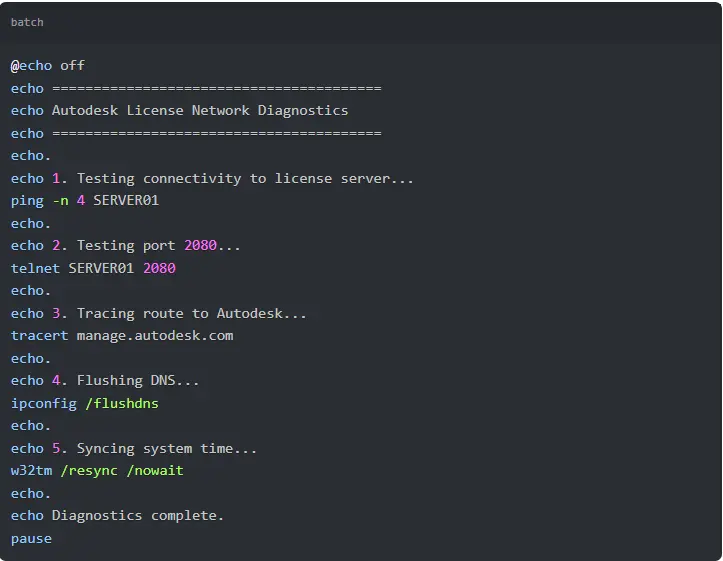
ping YOUR_SERVER_NAME telnet YOUR_SERVER_NAME 2080
- Ensure port 2080 is open in the firewall on both server and client.
- Restart the FlexNet license server.
Error 3: "License Manager Error -15"
Cause: The license server cannot find the license file or the file is corrupted.
Solution:
- Verify the license file path in LMTOOLS.
- Check that the license file is not expired.
- Re-download the license file from Autodesk Account.
- Restart the license server after updating the file.
Error 4: "No License Available"
Cause: All seats in a multi-user subscription are in use.
Solution:
- Check license usage:
lmutil lmstat -a -c 2080@YOUR_SERVER_NAME
- Wait for a seat to become available, or ask an admin to release unused licenses.
- Consider purchasing additional seats.
Error 5: "Serial Number Is Invalid"
Cause: The serial number entered does not match the product or has already been used.
Solution:
- Double-check the serial number in your Autodesk Account.
- Ensure you are using the correct product key (426M1 for Plant 3D 2021).
- If the serial number was used on another machine, deactivate it first.
Error 6: "Activation Code Expired"
Cause: The offline activation code was not used within the validity period.
Solution:
- Generate a new request code.
- Complete the activation process promptly — activation codes are typically valid for 24-48 hours.
Error 7: "Error 1606 / 1603 — Installation Failed"
Cause: Corrupted installer, insufficient permissions, or antivirus interference.
Solution:
- Run the installer as Administrator.
- Temporarily disable antivirus software during installation.
- Clean up previous installation attempts using the Microsoft Program Install and Uninstall Troubleshooter.
- Ensure you have sufficient disk space.
Error 8: "AdskLicensing Service Not Running"
Cause: The Autodesk Licensing Service is stopped or corrupted.
Solution:
- Restart the service:
net stop ADSKFLEX_LICENSE_SERVICE && net start ADSKFLEX_LICENSE_SERVICE
- Re-register the service:
"C:\Program Files (x86)\Common Files\Autodesk Shared\AdskLicensing\Current\helper\AdskLicensingInstHelper.exe" --launch
- Reinstall the Autodesk Licensing Service from your Autodesk Account downloads.
Error 9: "System Time Mismatch"
Cause: The system clock is set incorrectly, causing license validation to fail.
Solution:
- Sync system time:
w32tm /resync /nowait
- Ensure the date, time, and time zone are correct.
- Restart the software after correcting the time.
Error 10: "Product Already Activated on Another Machine"
Cause: A single-user subscription was activated on a different computer.
Solution:
- Sign in to your Autodesk Account and deactivate the license on the old machine.
- Wait up to 24 hours for the deactivation to propagate.
- Reactivate on the new machine.
6.Conclusion
Activating Autodesk Plant 3D 2021 is a straightforward process once you understand your license type and the corresponding activation method. Whether you're using a single-user subscription, a network license, a perpetual license, or an educational license, the steps outlined in this guide will help you get up and running quickly.
Key Takeaways:
- Know your license type before starting the activation process. The method differs for subscription, perpetual, network, education, and trial licenses.
- Online activation is the simplest method — sign in with your Autodesk Account and the software activates automatically.
- Use the offline method only if your machine has no internet access. Generate a request code, visit the Autodesk registration page from another device, and enter the returned activation code.
- Network licenses require server setup but simplify management across large teams. Configure FlexNet License Manager once, and all client machines connect automatically.
- Most activation errors have simple fixes — check your internet connection, system time, serial number, and licensing service status first.
- Keep your Autodesk Account information handy — serial numbers, product keys, and license details are all accessible there.
If you encounter persistent activation issues, Autodesk's support resources are extensive. For organizations, your Autodesk reseller can provide dedicated support for deployment and licensing.
With Plant 3D 2021 properly activated, you can now leverage its powerful features — from P&ID creation and 3D piping design to isometric extraction and collaboration — to streamline your plant design workflows and boost productivity.
Frequently Asked Questions (FAQs)
A: The product key for Autodesk AutoCAD Plant 3D 2021 is 426M1.
A: No. Autodesk stopped selling new perpetual licenses in 2021. You can only purchase a subscription. Existing perpetual license holders with active maintenance can still use 2021.
A: Verify the serial number in your Autodesk Account. Ensure you are using the correct product key (426M1). If you have a subscription, sign in with your Autodesk Account instead of entering a serial number.
A: For single-user subscriptions, sign in to your Autodesk Account, deactivate the license on the old machine, then activate on the new machine. For network licenses, simply install on the new machine and point it to the same license server.
A: Yes. For single-user subscriptions, go online once to activate, then you can work offline for up to 30 days. For network licenses, borrow a license using lmutil lmborrow. For perpetual licenses, use the offline activation method (request code).
A: The software enters a grace period (typically 30 days). After that, it stops working until you renew your subscription. Your data remains safe.