

Office 2021 End of Life 2026 Explained | Upgrade, Replace, or Continue Using It?

Introduction
Microsoft Office has been one of the most trusted productivity solutions for businesses, students, professionals, and organizations worldwide. From creating documents in Word and analyzing data in Excel to preparing presentations in PowerPoint and managing communication through Outlook, Office applications have become essential tools for daily operations.
However, every Microsoft Office version has a defined support lifecycle, and Microsoft Office 2021 will reach the end of support on October 13, 2026.
This upcoming change has created important questions among users:
- What happens after Office 2021 support ends?
- Will Office 2021 continue working after October 13, 2026?
- Should businesses upgrade to Office LTSC 2024?
- Is Microsoft 365 a better option?
- What are the risks of continuing with unsupported Office software?
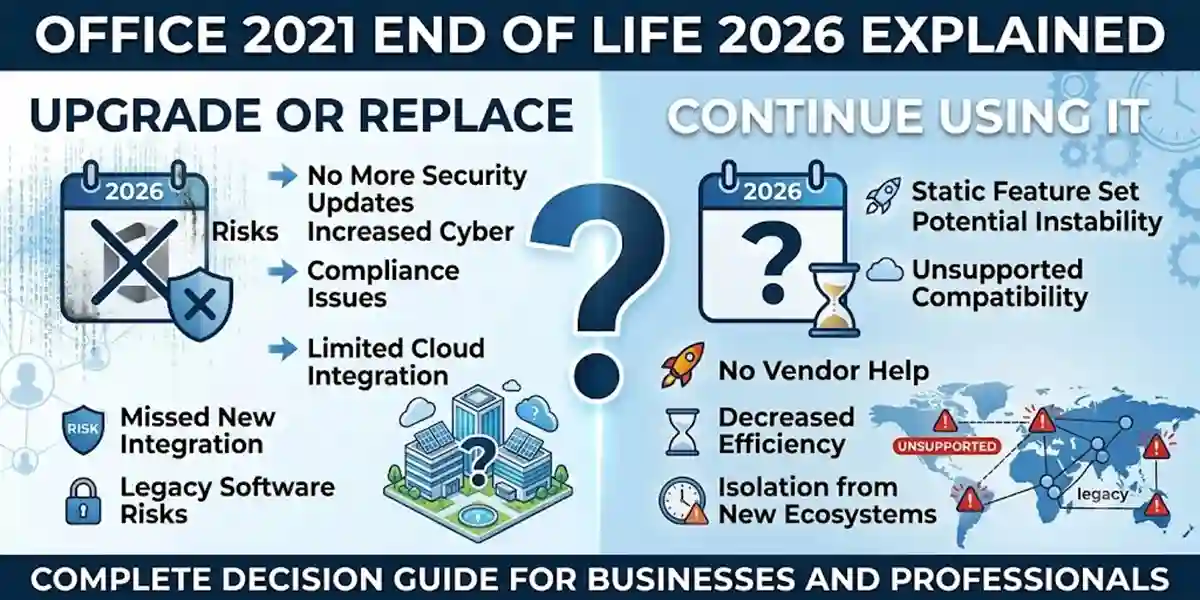
The end of support does not mean Office 2021 will suddenly stop opening. Users can continue using installed applications; however, Microsoft will stop providing important updates, including security fixes, bug improvements, and technical support.
For businesses, continuing with unsupported software can create challenges such as:
- Increased security risks
- Compatibility issues with newer systems
- Reduced compliance confidence
- Limited troubleshooting support
- Productivity problems
Organizations using Office 2021 should start planning their next step before October 13, 2026.
The most common upgrade options include:
- Microsoft Office LTSC 2024 – Best for businesses needing a one-time purchase and stable Office environment
- Microsoft 365 Apps – Best for users who need continuous updates, cloud collaboration, and AI-powered features
- Newer Microsoft Office solutions – Suitable for users looking for modern productivity tools
This complete guide explains everything about Microsoft Office 2021 End of Support, including features, risks, upgrade options, activation methods, troubleshooting errors, useful commands, formulas, and frequently asked questions.
What Does Microsoft Office 2021 End of Support Mean?
Microsoft product support usually follows a lifecycle that includes:
- Mainstream support
- Extended support
- End of support
When Office 2021 reaches the end of support date:
October 13, 2026
Microsoft will stop providing:
- Security updates
- Bug fixes
- Feature improvements
- Technical assistance
- Product support services
The applications will continue to function, but they will operate without future improvements from Microsoft.
What Happens After Office 2021 Support Ends?
1. No More Security Updates
Security updates protect users from newly discovered vulnerabilities.
After support ends:
- New security issues may not receive fixes
- Businesses may face increased risks
- IT teams may have difficulty maintaining compliance
For organizations handling confidential data, upgrading becomes especially important.
2. No Technical Support
Microsoft support teams will no longer provide official troubleshooting assistance for Office 2021.
Users may experience:
- Longer resolution times
- Limited support options
- Increased dependency on third-party solutions
3. Compatibility Problems
Technology continues to evolve.
Future changes may include:
- New Windows versions
- Updated cloud services
- Modern file formats
- Advanced collaboration tools
Older Office versions may eventually face compatibility limitations.
Microsoft Office 2021 Features
Before exploring an upgrade to a newer Office release, it is important to understand what Microsoft Office 2021 offers. Office 2021 provides a familiar collection of desktop productivity applications with useful improvements in performance, accessibility, collaboration, data analysis, and everyday document management.
Unlike Microsoft 365, Office 2021 is available as a one-time purchase, giving users a fixed version of the classic Office applications rather than an ongoing subscription.
1. Microsoft Word 2021 for Professional Documents
Microsoft Word 2021 remains a powerful document creation and editing application for home users, students, professionals, and businesses.
It can be used for:
- Professional business documents
- Reports and proposals
- Academic assignments
- Business letters
- Resumes and CVs
- Contracts and formatted documents
Key Word 2021 features include improved performance, accessibility tools, modern commenting capabilities, and collaboration features in supported Office 2021 editions. Microsoft also introduced improved document usability and editing tools as part of the Office 2021 release.
2. Microsoft Excel 2021 for Advanced Data Analysis
Excel 2021 is one of the core applications in Microsoft Office 2021 and provides powerful tools for spreadsheets, calculations, reporting, and business data analysis.
Important Excel 2021 features include:
- XLOOKUP for easier data searching
- Dynamic Arrays
- FILTER, SORT, SORTBY, UNIQUE, SEQUENCE, and RANDARRAY functions
- LET function for simplifying complex formulas
- Improved calculation performance
- Enhanced charts and data analysis tools
These capabilities make Excel 2021 useful for financial planning, inventory management, sales reporting, budgeting, business analytics, data tracking, and everyday spreadsheet management.
3. Microsoft PowerPoint 2021 for Professional Presentations
PowerPoint 2021 provides a complete presentation-design environment for creating professional slides, visual reports, training materials, and business presentations.
With PowerPoint 2021, users can work with:
- Professional slide layouts
- Presentation templates
- Visual effects and animations
- Improved media support
- Digital inking tools
- Presentation design features
It can support business presentations, marketing campaigns, educational projects, training sessions, product demonstrations, and corporate communication.
4. Microsoft Outlook 2021 for Email and Calendar Management
Outlook 2021 combines essential communication and scheduling tools in a familiar desktop application.
Users can manage:
- Professional and personal email
- Calendars and appointments
- Contacts
- Meetings
- Scheduling and reminders
For users who prefer a traditional desktop email client, Outlook 2021 provides an integrated way to manage communication and scheduling alongside other Office applications.
5. OneNote 2021 for Digital Note-Taking
OneNote 2021 provides a digital workspace for capturing and organizing information.
It can be useful for:
- Meeting notes
- Research
- Project planning
- Study materials
- Checklists
- Personal organization
- Business information
The desktop OneNote application is included with supported Office 2021 editions, helping users keep notes organized alongside their other Office workflows.
6. Modern Office Interface and Visual Refresh
Office 2021 introduced a modernized user interface and visual refresh, with updated ribbon tabs, cleaner icons, and a more contemporary design.
The refreshed experience was designed to provide a consistent look across applications while retaining the familiar Office workflow.
7. Dynamic Arrays and Advanced Excel Functions
One of the important improvements in Excel 2021 is support for dynamic array formulas.
Functions such as FILTER, SORT, SORTBY, UNIQUE, SEQUENCE, and RANDARRAY allow a single formula to return multiple results dynamically. This can make complex spreadsheet calculations and data analysis more efficient.
8. XLOOKUP for Smarter Data Searching
XLOOKUP in Excel 2021 provides a modern way to search for information within tables and ranges.
It can make many lookup tasks easier to manage compared with traditional lookup formulas, making it useful for business reports, inventory databases, customer records, financial spreadsheets, and data analysis.
9. Improved Performance and Stability
Microsoft Office 2021 includes performance improvements across Word, Excel, PowerPoint, and Outlook.
Users can benefit from improved application responsiveness, stability, and calculation performance, particularly when working with everyday business documents and spreadsheets.
10. Enhanced Accessibility Tools
Accessibility is an important part of the Office 2021 productivity experience.
The release includes accessibility improvements and tools such as the Accessibility Checker, which can help identify potential accessibility issues in documents and presentations. This is useful when creating content intended for a wider audience.
Best Alternatives After Office 2021 End of Support
Option 1: Upgrade to Microsoft Office LTSC 2024
Office LTSC 2024 is designed for organizations that prefer:
- One-time purchase licensing
- Stable deployment
- Controlled updates
- Long-term reliability
Best for:
- Businesses
- Government organizations
- Enterprises
- Specialized environments
Advantages:
✔ No recurring subscription
✔ Professional Office applications
✔ Stable feature set
✔ Easier IT management
Option 2: Move to Microsoft 365
Microsoft 365 is a subscription-based productivity platform.
It provides:
- Continuous updates
- Cloud storage
- Collaboration tools
- AI features
- Security improvements
Best for:
- Remote teams
- Modern businesses
- Organizations requiring cloud tools
Option 3: Continue Using Office 2021 Temporarily
Some users may continue using Office 2021 after support ends.
However, this should only be a temporary solution.
Possible concerns:
- Security limitations
- Future compatibility issues
- Lack of official support
How to Prepare Before Office 2021 End of Support
Step 1: Check Current Office Version
Open:
Word → File → Account
Check:
- Product name
- Version number
- Activation status
Step 2: Review Business Requirements
Ask:
- Do we need cloud collaboration?
- Do we require offline Office apps?
- How many users need licenses?
- What is the budget?
Step 3: Backup Important Data
Before migration:
Backup:
- Documents
- Excel files
- Outlook data
- Templates
- Custom settings
Step 4: Test New Office Version
Before complete migration:
- Install test version
- Check compatibility
- Verify business applications
Methods to Activate Microsoft Office After Upgrade
Method 1: Activate Using Product Key
Steps:
- Open Word or Excel
- Select:
File → Account
- Click:
Change Product Key
- Enter valid license key
- Complete activation
Method 2: Activate Through Microsoft Account
Steps:
- Open Office application
- Select Sign In
- Enter Microsoft account
- Connect license
- Complete activation
Method 3: Volume License Activation
Businesses may use:
- KMS Activation
- Active Directory-Based Activation
Benefits:
- Central management
- Multiple device activation
- Easier deployment
Common Microsoft Office Activation Errors and Fixes
Error 1: Product Activation Failed
Causes:
- Invalid license key
- Wrong Office edition
- Internet connection issue
Fix:
Check:
- License validity
- Installed Office version
- Microsoft account connection
Repair Office:
Settings → Apps → Microsoft Office → Modify → Repair
Error 2: Office Cannot Verify License
Causes:
- Account mismatch
- Previous Office installation
- Licensing service problem
Fix:
Remove old Office versions.
Steps:
- Open Control Panel
- Select Programs
- Remove old Office versions
- Restart PC
- Activate again
Error 3: Installation Failed
Causes:
- Old Office files
- Low storage
- Corrupted installer
Fix:
Solutions:
- Remove previous Office versions
- Free disk space
- Run installer as administrator
Error 4: Office Applications Crash
Causes:
- Add-in conflicts
- Windows problems
- Corrupted Office files
Fix:
Disable add-ins:
File → Options → Add-ins
Repair Office:
Online Repair
Update Windows:
Settings → Windows Update
Error 5: Activation Server Unavailable
Causes:
- Internet restrictions
- Firewall settings
- Microsoft server communication issues
Fix:
Check:
- Internet connection
- Date and time settings
- Firewall permissions
Microsoft Office Activation Commands
These commands are useful for Office licensing management.
Check License Status
cscript ospp.vbs /dstatusShows:
- License information
- Activation status
- Product details
Install Product Key
cscript ospp.vbs /inpkey:XXXXX-XXXXX-XXXXX-XXXXX-XXXXXActivate Office
cscript ospp.vbs /actRemove Product Key
cscript ospp.vbs /unpkey:XXXXXReset Office Licensing
cscript ospp.vbs /rearmMicrosoft Excel Formulas Useful After Upgrade
SUM Formula
Adds numbers:
=SUM(A1:A10)Average Formula
Calculates average values:
=AVERAGE(B1:B10)IF Formula
Creates conditions:
=IF(A1>100,"High","Low")VLOOKUP Formula
Searches information:
=VLOOKUP(A2,D:F,3,FALSE)XLOOKUP Formula
Modern lookup function:
=XLOOKUP(A2,A:A,B:B)COUNTIF Formula
Counts matching values:
=COUNTIF(A:A,"Complete")Microsoft Office Migration Checklist
Before upgrading:
✔ Identify all Office installations
✔ Check license requirements
✔ Backup important files
✔ Test compatibility
✔ Train users
✔ Deploy new Office version
✔ Verify activation
Final Conclusion
The Microsoft Office 2021 End of Support date on October 13, 2026 is an important milestone for businesses and professionals still using this productivity suite.
Although Office 2021 applications will continue working after support ends, users should understand the risks of running unsupported software. Lack of security updates, reduced support, and future compatibility issues can affect productivity and business operations.
For most organizations, upgrading before the deadline is the best strategy.
The recommended choices are:
Choose Office LTSC 2024 if you need:
✔ One-time purchase licensing
✔ Stable Office environment
✔ Professional desktop applications
Choose Microsoft 365 if you need:
✔ Cloud collaboration
✔ Continuous updates
✔ AI-powered productivity features
Preparing early helps businesses avoid disruption and ensures a secure, reliable productivity environment.
Frequently Asked Question (FAQ)
1. When will Microsoft Office 2021 support end?
Microsoft Office 2021 support ends on October 13, 2026.
2. Will Office 2021 stop working after October 2026?
No. Office 2021 applications will continue working, but Microsoft will stop providing updates and support.
3. Should I upgrade from Office 2021 before support ends?
Yes. Upgrading before the deadline helps maintain security, compatibility, and productivity.
4. Is Office LTSC 2024 better than Office 2021?
Office LTSC 2024 provides a newer Office experience and longer support lifecycle.
5. Can businesses continue using Office 2021?
Yes, but unsupported software may create security and compatibility risks.