

How to Download and License Visual Studio Professional 2026

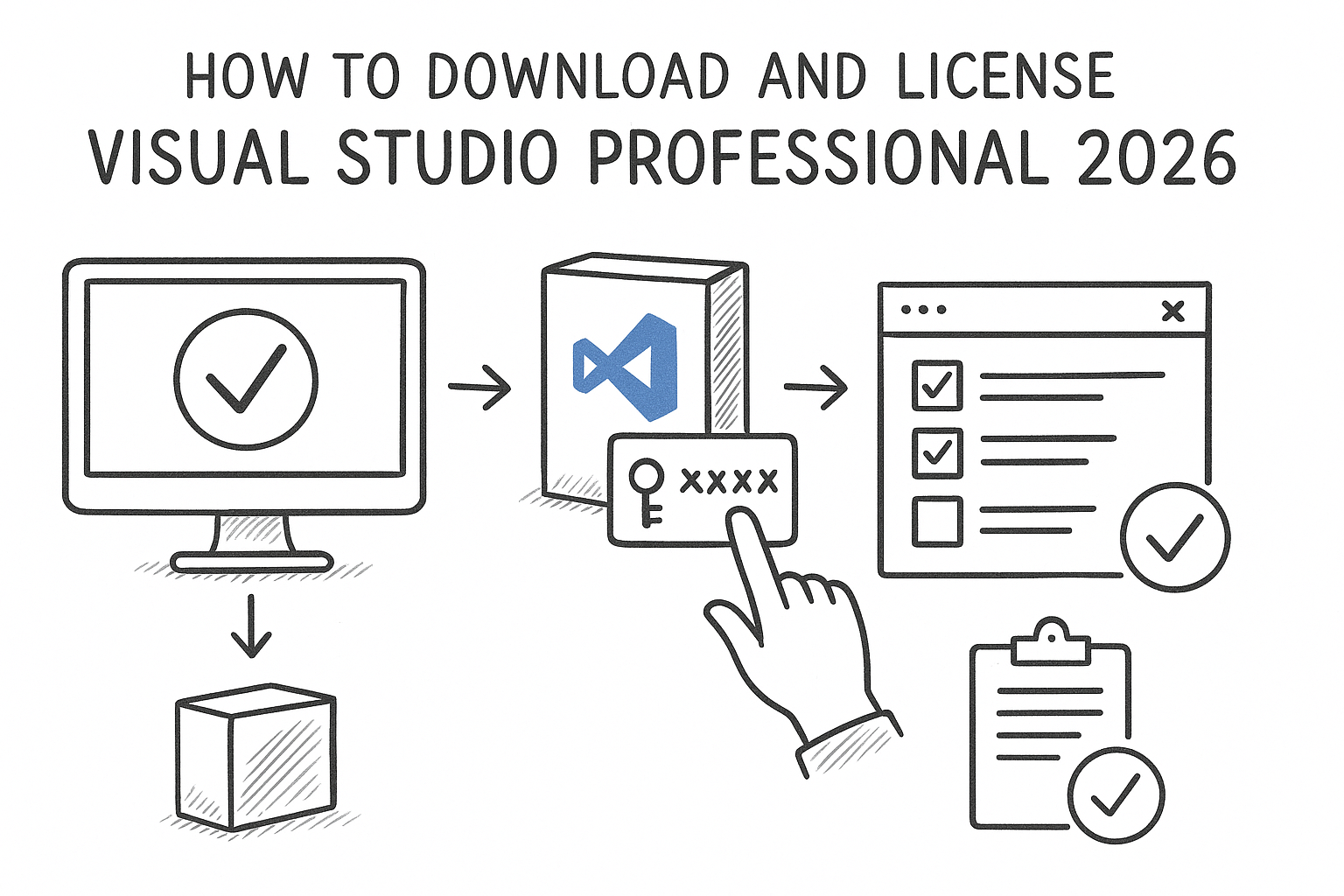
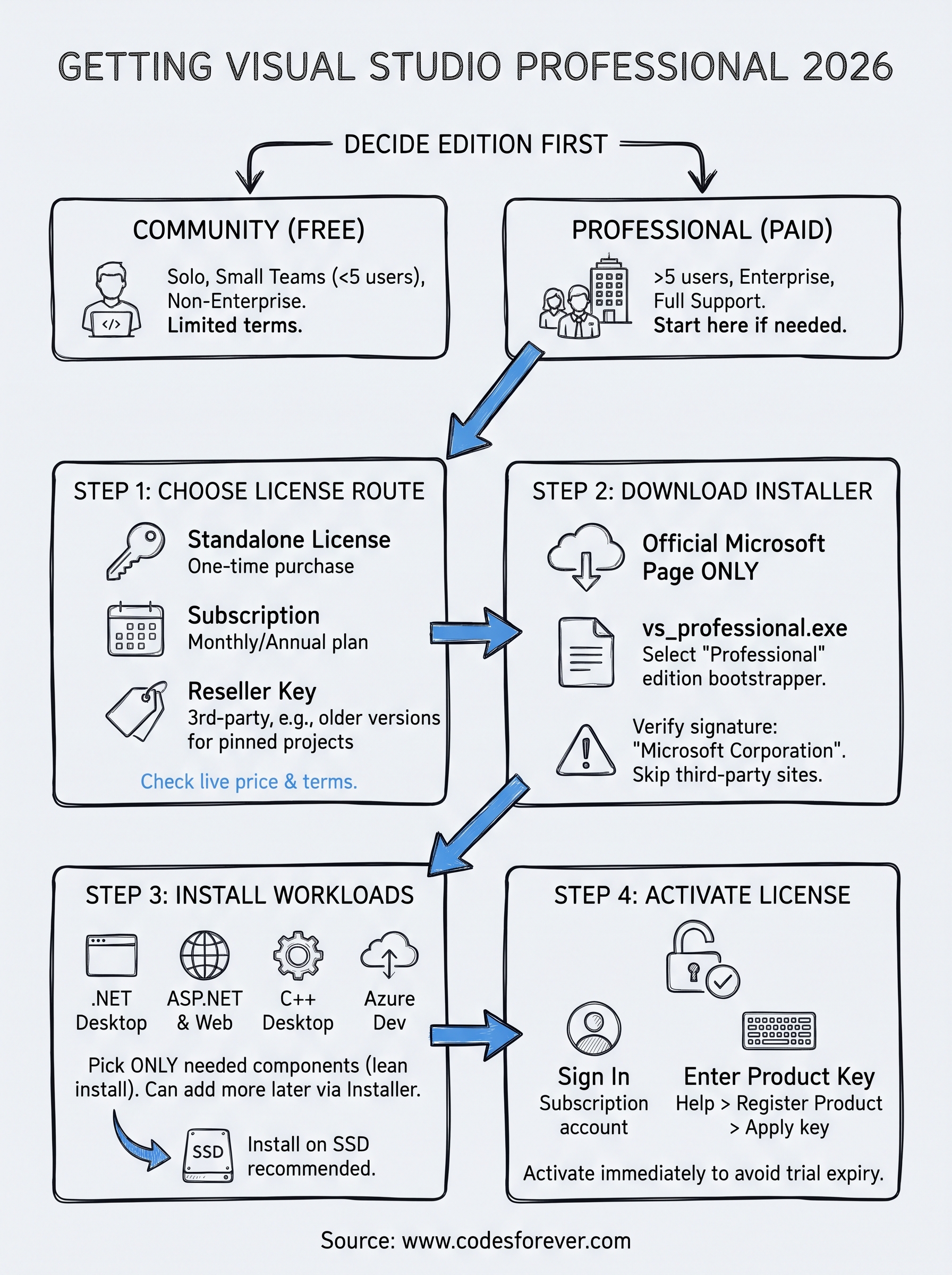
To get Visual Studio Professional 2026, download the small installer from Microsoft’s Visual Studio downloads page, choose the Professional edition, pick your workloads, and activate it with a product key or a Visual Studio subscription. Before you do that, check whether you need Professional at all.
Search results mix Microsoft pages, store listings and third-party download sites. Pricing depends on whether you buy a standalone license or a subscription. Keys are tied to a version, so a Visual Studio 2022 key will not unlock 2026.
This guide covers the edition decision first, then four steps: choose a license route, download the installer, install your workloads, and activate. At Codesforever we sell discounted license keys for developer software, including earlier Visual Studio versions, so we also explain where an older version makes sense and where it does not.
Why choose Professional over Community
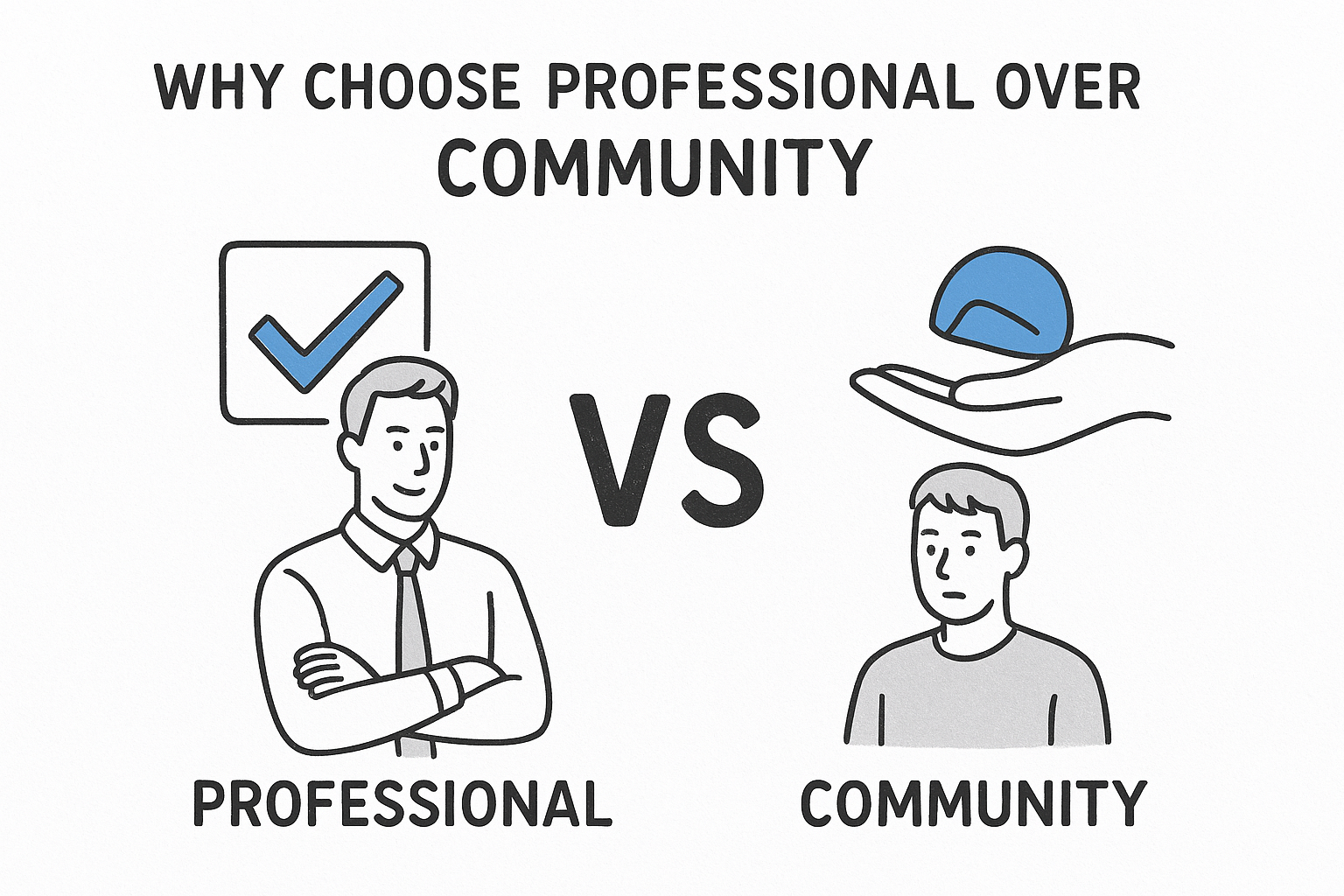
Choose Professional when your work falls outside, or when you want the tier’s support and licensing.
Release date and what changed
Microsoft made Visual Studio 2026 generally available in November 2025, so it is a mature release. The main changes are deeper Copilot integration, faster performance in C# and C++, a refreshed interface, and support for the newer .NET and C# versions. Code coverage also arrived and Professional for the first time, as the official release notes confirm.
Community, Professional and Enterprise compared
| Feature | Community | Professional | Enterprise |
|---|---|---|---|
| Price | trail | Paid | Paid, highest tier |
| Commercial team use | no | Yes | Yes |
| Code coverage | Yes | Yes | Yes |
| Live Unit Testing | No | No | Yes |
Individual developers can use for any app. A non-enterprise organization can have up to five users on it. Open source, academic research and classroom learning are always allowed. Organizations with more than 250 PCs or over $1 million in annual revenue cannot use it for ordinary commercial work.
Take a three-person studio under those limits. An eight-developer agency is over the five-user cap and needs Professional. So Professional is not free, though Microsoft offers a trial.
If your team has more than five developers or sits inside a large company,Professional is the practical choice.
Step 1. Choose how you will license it
You can license Visual Studio Professional 2026 through a standalone purchase, a Visual Studio subscription, or a reseller key. Decide this before you download, because the route determines how you activate.
Your three routes
- Standalone license: Microsoft lists a stand-alone Visual Studio Professional 2026 in its store. It is a one-time purchase, which is what people mean by a perpetual license.
- Subscription: a monthly or annual plan that adds subscription benefits. You sign in with your Microsoft account instead of typing a key.
- Reseller key: a product key you buy from a third-party seller, then enter in the IDE.
Check the live price on Microsoft’s listing before you budget. It changes, and I won’t quote a figure that may be stale.
Where earlier versions fit
Codesforever list a 2026 key. We carry Visual Studio Professional 2019 at US$30, with lifetime activation, for PCs running Windows 10 only, and a replacement or refund window of 30 days. We also have a Visual Studio 2022 key page. These keys will not activate 2026. They suit you if a client project or build server is pinned to an older toolchain, or if you want a low-cost licensed IDE and don’t need the 2026 features.
A product key unlocks only the version and edition it was sold for, so match "Professional" and "2026" before you pay.
Step 2. Download the installer
Download the Visual Studio Professional 2026 installer only from Microsoft’s Visual Studio downloads page. It is a small bootstrapper, not the full IDE, and it pulls the components you pick.
Get the official file
Open the page, find the Professional column and click its download button. You will get a file named vs_professional.exe. It starts a trial unless you activate with a key or subscription, and you can enter your key afterward.
The same page also offers Community and Enterprise. Download the Professional installer even if you plan to activate later, because switching editions afterward adds extra steps.
Verify what you downloaded
Third-party "download" sites often wrap installers in their own downloaders. Skip them. Right-click the file, open Properties, go to Digital Signatures, and confirm that Microsoft Corporation signed it. If the tab is missing or the signer differs, delete the file and download it again from Microsoft.
The only safe source for the Visual Studio 2026 Professional installer is Microsoft’s own downloads page.
Step 3. Install the workloads you need
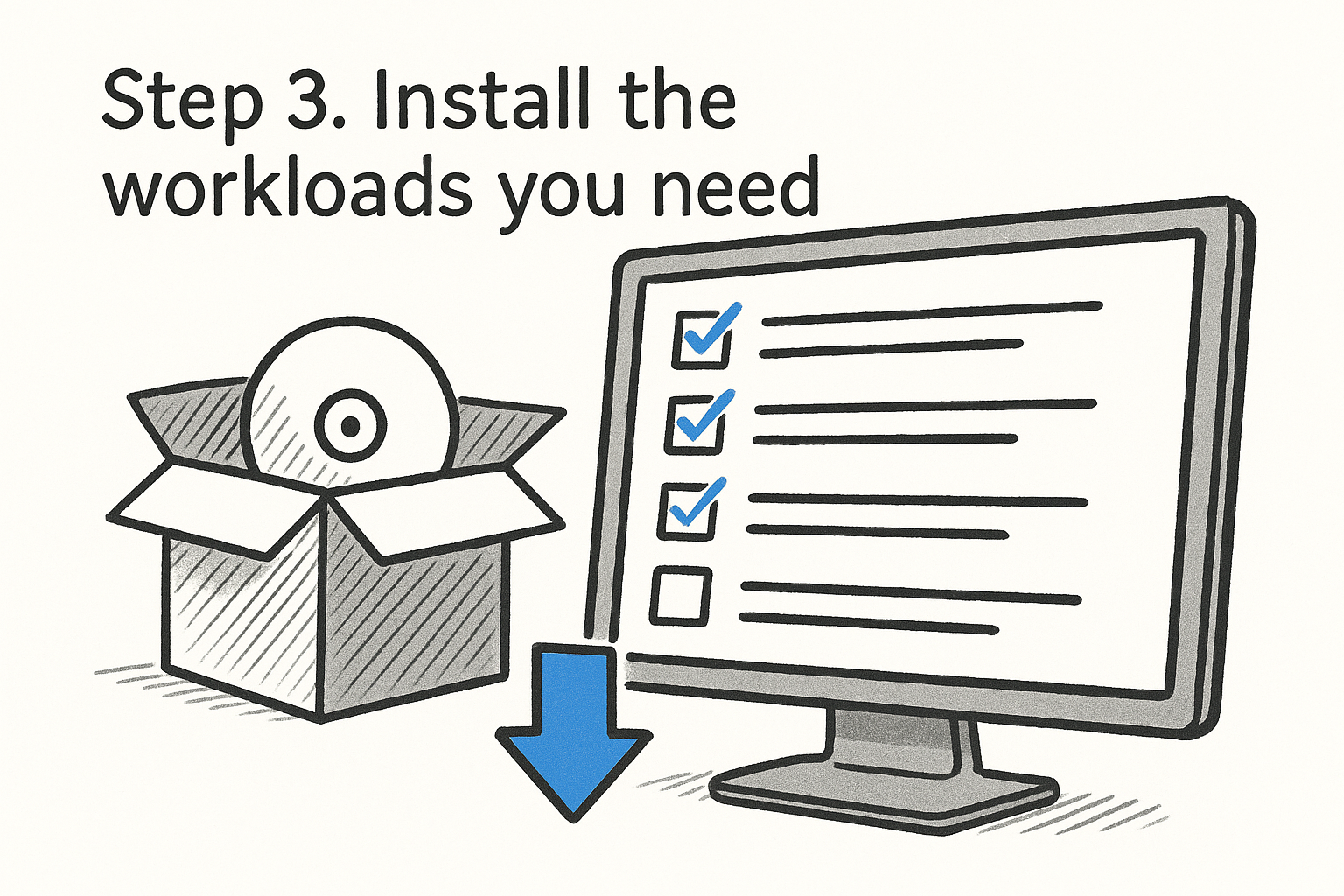
Run the installer and select only the workloads you will use. Each one adds several gigabytes, so a lean selection saves disk space and install time.
Pick your workloads
- .NET desktop development: WPF, Windows Forms and console apps.
- ASP.NET and web development: websites and APIs.
- Desktop development with C++: native Windows apps.
- Azure development: cloud tooling and deployment.
Install on an SSD if you can. You can reopen the Visual Studio Installer later to add or remove workloads, so don’t tick everything now. Visual Studio 2026 installs side by side with 2022, so you can keep both while you migrate.
Install from the command line
For several PCs or a slow connection, create an offline copy once, then install from it. Run this in a Command Prompt:
vs_professional.exe --layout C:\VS2026Layout --lang en-US --add Microsoft.VisualStudio.Workload.ManagedDesktop --add Microsoft.VisualStudio.Workload.NetWeb --includeRecommended
The layout folder then works without internet access. Copy it to each machine and run the installer inside it.
Install the workloads you actually build with, and add the rest later from the installer.
Step 4. Activate your license
Activate Visual Studio Professional 2026 entering your product key. Do it right after the first launch so the trial doesn’t run out on you.
Enter a key or sign in
Open Visual Studio and go to Help > Register Product. Choose Apply a product key, paste the 25-character key, and confirm. Menu labels can shift slightly between updates. If you can’t find the option, look in the account settings under your profile picture.
You can also pass the key during a scripted install:
vs_professional.exe --add Microsoft.VisualStudio.Workload.ManagedDesktop --passive --norestart --productKey XXXXX-XXXXX-XXXXX-XXXXX-XXXXX
Check it worked
Open the About Microsoft Visual Studio dialog and confirm it shows Professional with a licensed status, not a trial countdown. Then run the installer’s update check, since Visual Studio 2026 receives regular servicing releases. If a key from a seller fails, contact that seller straight away. Keep your order confirmation, because replacement windows are usually short.
Activate on day one, then update, and you won’t hit a trial expiry in the middle of a project.
Ready to set up your IDE
Download the installer from Microsoft, pick Professional, install only the workloads you need, and activate with a key or subscription.
If you need an older version for a pinned project, or want a lower-cost licensed IDE, look at a Visual Studio 2022 license key from Codesforever. It comes with instant email delivery and free 24/7 activation support.