

AutoCAD Electrical 2019 Ultimate Guide | Professional Electrical Schematic Design Software

Introduction
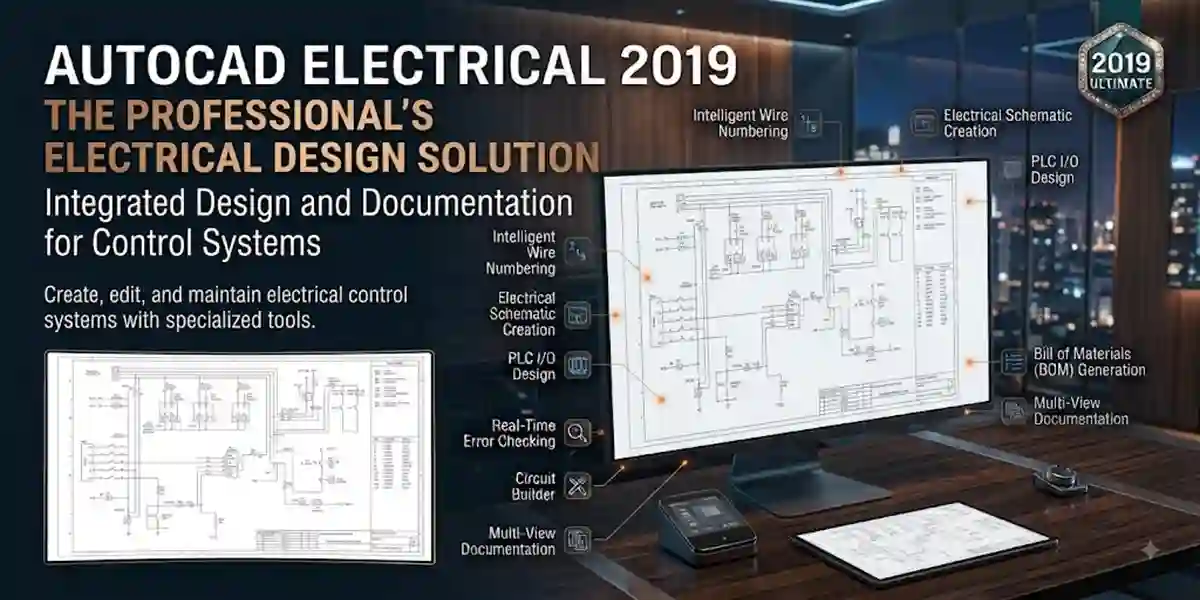
Autodesk AutoCAD Electrical 2019 is a powerful electrical engineering design software developed for professionals who create electrical schematics, control system drawings, wiring diagrams, PLC documentation, and industrial automation designs. It combines the familiar AutoCAD environment with specialized electrical engineering tools that help designers create accurate and professional electrical documentation.
Electrical engineers, automation specialists, machine designers, and manufacturing professionals use AutoCAD Electrical 2019 to improve productivity and reduce manual drafting work. The software provides intelligent electrical design features such as automatic wire numbering, component tagging, electrical symbol libraries, circuit management, panel layout tools, and automated report generation.
Unlike standard CAD software, AutoCAD Electrical 2019 is designed specifically for electrical workflows. It understands relationships between electrical components and automatically manages connections, references, and documentation.
For organizations working on industrial automation, control panels, and electrical equipment design, AutoCAD Electrical 2019 provides a reliable platform for creating complete electrical projects.
Activation is an important part of the installation process because it verifies that the software is connected with a valid Autodesk license. A properly activated version allows users to access complete features and maintain a stable professional workflow.
What is Autodesk AutoCAD Electrical 2019?
Autodesk AutoCAD Electrical 2019 is an advanced CAD solution created for electrical engineering and control system design.
It is built on the AutoCAD platform but includes additional electrical-specific tools that help engineers design and document electrical systems efficiently.
The software is commonly used for:
- Electrical schematic drawings
- Control circuit diagrams
- Wiring diagrams
- PLC documentation
- Control panel layouts
- Industrial automation projects
- Electrical equipment design
AutoCAD Electrical 2019 helps engineers reduce design time by automating repetitive tasks and maintaining accurate project documentation.
Main Industries Using AutoCAD Electrical 2019
Industrial Automation
Used for designing:
- Machine control systems
- PLC panels
- Automation circuits
- Factory equipment wiring
Manufacturing Industry
Used by companies creating:
- Production machinery
- Electrical cabinets
- Industrial equipment
Robotics Industry
Used for:
- Robot control wiring
- Automation documentation
- Electrical system layouts
Engineering Consultancy
Used for:
- Electrical project documentation
- Client drawings
- Technical reports
Features of Autodesk AutoCAD Electrical 2019
1. Intelligent Electrical Schematic Design
One of the most important features of AutoCAD Electrical 2019 is intelligent schematic creation.
Users can create professional electrical drawings using predefined electrical components.
Supported designs include:
- Power circuits
- Control circuits
- Motor circuits
- Relay circuits
- Automation diagrams
The intelligent system automatically manages relationships between components.
Benefits:
- Faster drafting
- Improved accuracy
- Reduced design mistakes
2. Electrical Symbol Library
AutoCAD Electrical 2019 includes a large library of electrical symbols.
Available symbols include:
- Switches
- Relays
- Motors
- Transformers
- Sensors
- Circuit breakers
- PLC modules
- Connectors
- Terminals
Engineers can quickly insert standard components into drawings without creating symbols manually.
3. Automatic Wire Numbering
Large electrical projects contain hundreds or thousands of wires.
Manually numbering wires can create errors.
AutoCAD Electrical 2019 automatically assigns wire numbers according to project settings.
Advantages:
- Faster documentation
- Better accuracy
- Easy troubleshooting
4. Component Tagging
Component tagging automatically identifies electrical devices.
Examples:
- MTR001 for motors
- K001 for relays
- SW001 for switches
Benefits:
- Easy component tracking
- Better documentation
- Professional engineering standards
5. PLC Design Tools
AutoCAD Electrical 2019 provides specialized PLC design features.
Users can create:
- PLC input/output drawings
- PLC ladder diagrams
- Module layouts
- Control system documentation
This makes it suitable for industrial automation engineers.
6. Control Panel Design
The software allows engineers to design complete control panels.
Panel design includes:
- Cabinet layouts
- Device placement
- Terminal arrangement
- Wiring connections
Used for:
- Manufacturing machines
- Automation systems
- Electrical cabinets
7. Automatic Electrical Reports
AutoCAD Electrical 2019 can automatically generate engineering reports.
Reports include:
- Bill of Materials (BOM)
- Component lists
- Wire lists
- Terminal reports
- Electrical documentation
This saves significant project preparation time.
8. Project Management System
Large electrical projects require proper file management.
AutoCAD Electrical 2019 provides project tools for:
- Drawing organization
- File tracking
- Component references
- Revision management
9. DWG File Compatibility
AutoCAD Electrical 2019 uses the DWG file format.
Advantages:
- Easy sharing
- Compatibility with AutoCAD products
- Industry-standard documentation
10. Custom Electrical Libraries
Companies can create their own:
- Electrical symbols
- Templates
- Standards
- Component databases
This helps organizations maintain consistent design practices.
Types of Autodesk AutoCAD Electrical 2019 Licenses
Before activating Autodesk AutoCAD Electrical 2019, it is important to understand the different license options available. Autodesk provides different licensing models depending on user requirements, organization size, and project needs. Activation methods depend on the license type selected.
1. Single-User License
A single-user license is designed for individual professionals who use AutoCAD Electrical 2019 on a personal workstation.
Suitable for:
- Freelance electrical engineers
- Individual designers
- Small businesses
- Independent consultants
Features:
- One Autodesk Account user access
- Online license verification
- Personal workstation usage
- Autodesk updates and support
Activation is generally completed by signing in with the Autodesk Account associated with the license.
2. Multi-User Network License
A network license is designed for organizations where multiple users need access to AutoCAD Electrical 2019.
Suitable for:
- Engineering companies
- Universities
- Manufacturing organizations
- Large design teams
Benefits:
- Central license management
- Multiple workstation access
- Controlled software usage
- Easier administration
The license server manages access for connected users.
3. Standalone License
A standalone license allows AutoCAD Electrical 2019 to be activated on a specific computer.
Features:
- Assigned to one device
- Suitable for individual users
- Does not require a company license server
Some older Autodesk products may require entering a serial number and product key during activation.
4. Educational License
Autodesk provides educational access for eligible students and educators.
Used for:
- Learning electrical CAD design
- Academic projects
- Training purposes
Educational licenses are intended only for educational use.
5. Trial License
Autodesk provides trial access for users who want to evaluate the software before purchasing a license.
Trial access allows users to explore:
- Electrical schematic tools
- Panel design features
- PLC documentation
- Project workflows
Installation Process of Autodesk AutoCAD Electrical 2019
Before activation, AutoCAD Electrical 2019 must be installed correctly.
Step 1: Prepare Your System
Before installation:
- Update Windows
- Close unnecessary applications
- Ensure enough storage space
- Disable temporary background interruptions
AutoCAD Electrical 2019 supports 64-bit Windows systems.
Step 2: Download Installation Files
Download AutoCAD Electrical 2019 from an authorized Autodesk source or your organization's deployment system.
Available installation methods:
- Autodesk Account download
- Autodesk installer
- Network deployment package
Step 3: Run the Installer
Follow these steps:
- Start the installer.
- Select installation location.
- Choose required components.
- Accept license agreement.
- Begin installation.
Required components may include:
- AutoCAD Electrical program files
- Electrical libraries
- Content packs
- Autodesk licensing components
Step 4: Complete Installation
After installation:
- Restart the computer.
- Open AutoCAD Electrical 2019.
- Continue with license activation.
Methods to Activate Autodesk AutoCAD Electrical 2019
Method 1: Activate Through Autodesk Account
This is the recommended activation method for subscription users.
Steps:
- Launch AutoCAD Electrical 2019.
- Select Sign In.
- Enter your Autodesk Account email.
- Enter your password.
- Autodesk verifies your license.
- Software becomes activated.
Autodesk activation verifies that the installed product has a valid license.
Method 2: Activate Using Serial Number and Product Key
For eligible standalone or perpetual licenses:
Steps:
- Open AutoCAD Electrical 2019.
- Select activation option.
- Enter valid serial number.
- Enter product key.
- Complete verification.
- Restart the software.
Autodesk recommends using the license information provided with your official purchase or Autodesk Account.
Method 3: Network License Activation
For organizations:
- Install Autodesk Network License Manager.
- Configure the license server.
- Connect client computers.
- Select network license option.
- Enter server information.
Network deployment is generally handled by system administrators.
Method 4: License Reset and Re-Activation
Sometimes users may need to reset licensing information because of:
- Computer replacement
- License change
- Account change
- Activation problems
For Autodesk 2019 products, Autodesk provides license reset procedures involving removal of stored licensing information and restarting activation.
AutoCAD Electrical 2019 Commands and Tools
AutoCAD Electrical includes specialized commands that improve electrical design productivity.
1. Project Manager Commands
Project management tools help organize electrical drawings.
Common tasks:
- Create projects
- Add drawings
- Update references
- Manage files
2. Component Insert Tools
Used for inserting electrical components.
Examples:
- Motors
- Relays
- Switches
- PLC modules
Benefits:
- Faster schematic creation
- Automatic tagging
- Better documentation
3. Wire Number Commands
Wire numbering tools automatically assign identification numbers.
Benefits:
- Reduces manual errors
- Maintains electrical standards
- Improves troubleshooting
4. Cross Reference Tools
Cross-reference tools help locate related components.
Examples:
- Relay contacts
- Coil references
- Parent-child components
5. Report Generation Commands
AutoCAD Electrical 2019 can generate:
- Bill of Materials
- Component reports
- Wire reports
- Terminal reports
6. Electrical Audit Tools
Audit tools help identify:
- Missing components
- Duplicate tags
- Wiring problems
- Documentation issues
7. Symbol Builder Tools
Users can create custom electrical symbols according to company standards.
Used for:
- Custom equipment
- Special components
- Manufacturer-specific devices
Common Activation Problems and Fixes
Error 1: "License Manager Not Functioning"
Causes:
- Licensing service problem
- Corrupted installation
- Missing updates
Fix:
- Restart computer
- Update Autodesk licensing components
- Repair installation
Error 2: "The License Cannot Be Verified"
Causes:
- Incorrect Autodesk Account
- Expired license
- Internet connection issue
Solutions:
- Verify account details
- Check subscription status
- Confirm network connection
Error 3: Activation Window Does Not Open
Causes:
- Damaged installation files
- Background service failure
Fix:
- Restart Autodesk services
- Repair AutoCAD Electrical installation
- Reinstall required components
Error 4: Serial Number Error
Causes:
- Incorrect license information
- Wrong product version
- Invalid license details
Fix:
- Verify product information
- Confirm license ownership
- Enter correct details carefully
Error 5: Software Opens in Trial Mode
Causes:
- License not assigned
- Autodesk Account mismatch
Fix:
- Sign out from Autodesk Account
- Sign in with the correct account
- Verify assigned product access
Error 6: Network License Connection Failed
Causes:
- Server unavailable
- Incorrect server settings
- Network communication problem
Fix:
- Check server status
- Verify network configuration
- Contact system administrator
Error 7: Autodesk Licensing Service Error
Problem:
When launching AutoCAD Electrical 2019, users may receive messages such as:
- License manager is not functioning
- Unable to obtain a license
- Licensing service unavailable
Possible Causes:
- Autodesk Licensing Service is damaged
- Installation files are incomplete
- Windows services are stopped
Fix:
- Restart the computer.
- Check Autodesk licensing services.
- Repair AutoCAD Electrical installation.
- Install available Autodesk updates.
- Restart the application.
Error 8: AutoCAD Electrical 2019 Crashes During Startup
Symptoms:
- Software closes automatically
- Loading stops at startup screen
- Application freezes
Causes:
- Graphics driver problems
- Corrupted user profile
- Plugin conflicts
- Missing Windows updates
Solutions:
Update Graphics Driver
Install the latest compatible graphics driver from your hardware manufacturer.
Reset User Settings
Reset AutoCAD Electrical user preferences and restart the application.
Disable Third-Party Plugins
Temporarily remove unsupported plugins and test the software again.
Error 9: Missing Electrical Libraries
Problem:
Users may notice missing:
- Symbols
- Manufacturer parts
- Electrical components
Causes:
- Content libraries were not installed
- Incorrect installation options selected
Fix:
- Open Autodesk installation settings.
- Add missing electrical content libraries.
- Restart AutoCAD Electrical 2019.
AutoCAD Electrical includes electrical symbol libraries and manufacturer content designed for faster electrical documentation.
Error 10: Project Files Not Opening Correctly
Symptoms:
- Drawings open with warnings
- Components lose references
- Project database errors
Causes:
- Files moved incorrectly
- Project database corruption
- Version compatibility issues
Fix:
- Open projects through Project Manager.
- Verify project file paths.
- Use project recovery tools.
- Restore from backup copies.
Error 11: Slow Performance in Large Electrical Projects
Causes:
- Large drawing files
- Insufficient RAM
- Too many external references
- Heavy symbol libraries
Solutions:
Improve performance by:
- Closing unnecessary applications
- Increasing system RAM
- Cleaning unused drawing data
- Managing external references
Error 12: AutoCAD Electrical 2019 Cannot Connect Online
Causes:
- Internet restrictions
- Firewall settings
- Autodesk service interruption
Fix:
- Check internet connection
- Allow Autodesk services through firewall
- Verify Autodesk Account access
AutoCAD Electrical 2019 Useful Commands and Tools
AutoCAD Electrical uses specialized commands to improve electrical design productivity.
The official workflow includes projects, schematic components, terminals, wires, cross-referencing, panel layouts, and reports.
1. Project Commands
Project tools help manage complete electrical drawing sets.
Common operations:
- Create project
- Add drawings
- Update project database
- Validate project files
Used for:
- Industrial control projects
- Automation documentation
- Large electrical systems
2. Wire Numbering Tools
Wire numbering is one of the most important electrical automation features.
Functions:
- Automatic wire numbering
- Wire sequence management
- Wire editing
Benefits:
- Reduces errors
- Improves documentation accuracy
3. Component Insert Commands
Used for adding electrical devices.
Examples:
- Motors
- Relays
- Switches
- Sensors
- PLC modules
Benefits:
- Automatic tagging
- Faster schematic creation
4. Cross Reference Tools
Cross-reference tools connect related electrical components.
Examples:
- Relay coils
- Contacts
- Control devices
Benefits:
- Easier troubleshooting
- Better documentation
5. PLC Tools
PLC tools help create automation drawings.
Features:
- PLC module insertion
- PLC I/O documentation
- Ladder diagrams
6. Panel Layout Tools
Used for creating physical control panel designs.
Includes:
- Component placement
- Panel footprints
- Terminal arrangements
7. Report Generation Tools
AutoCAD Electrical 2019 can create:
- Bill of Materials
- Component reports
- Wire lists
- Terminal reports
8. Electrical Audit Tools
Audit tools help detect:
Missing components
Duplicate tags
Wiring problems
Documentation errors
Conclusion
Autodesk AutoCAD Electrical 2019 remains a powerful electrical engineering design solution for professionals who need accurate schematics, control panel designs, PLC documentation, and industrial automation drawings.
With intelligent electrical tools, automated documentation, symbol libraries, reporting features, and project management capabilities, it helps engineers complete complex electrical projects efficiently.
Proper activation using a valid Autodesk license ensures reliable access to the complete software environment. By understanding license types, activation methods, commands, and troubleshooting solutions, users can maintain a smooth and productive electrical design workflow.
For electrical engineers and automation professionals, AutoCAD Electrical 2019 continues to provide a professional platform for creating accurate and industry-standard electrical documentation.
Frequently Asked Questions (FAQs)
AutoCAD Electrical 2019 is specialized CAD software designed for electrical schematic design, wiring diagrams, PLC documentation, and control panel layouts.
Activation is completed using a valid Autodesk license through Autodesk Account sign-in or applicable license activation methods.
Yes. AutoCAD Electrical includes specialized electrical tools, libraries, automation features, and reporting functions.
Yes. It includes tools for creating PLC I/O drawings and electrical automation documentation.
It is used in:
- Manufacturing
- Automation
- Robotics
- Electrical engineering
- Industrial control systems
Yes. It uses the standard DWG format for compatibility.