

AutoCAD Plant 3D 2020 | Complete Tutorial Guide for Piping and Plant Design


Introduction
Autodesk AutoCAD Plant 3D is an industry-standard software environment designed specifically for plant layout design, piping design, structural framing, and process modeling. Built on the familiar AutoCAD platform, AutoCAD Plant 3D provides process plant designers and engineers with specialized tools to draft, model, and document 3D industrial facilities.
Whether you are configuring piping specs, running collision checks, generating isometric drawings (P&IDs), or exporting Bills of Materials (BOMs), AutoCAD Plant 3D streamlines complex plant design processes into structured workflows.
To access these features, the application requires valid licensing and software activation. This guide walks you through the core capabilities of AutoCAD Plant 3D, step-by-step methods to activate your license, solutions for activation errors, and answers to frequently asked questions.
Core Features of AutoCAD Plant 3D
Piping Instrumentation & Diagram Integration (P&ID): Link 2D schematic diagrams directly to 3D plant models to maintain design consistency and sync data across project files.
Spec-Driven Piping & Components: Route piping using industry-standard specifications (ASME, DIN, ISO) or create custom spec sheets using the built-in Spec Editor.
Automated Isometric Drawing Generation: Generate PCF-driven production isometric drawings (Isos) automatically from 3D models with customizable title blocks.
Orthographic Views & Documentation: Extract scaled 2D orthographic plan views, elevations, and section cuts straight from your 3D models.
Equipment and Structural Modeling: Parametrically create equipment (tanks, pumps, heat exchangers) and structural frameworks (ladders, stairs, platforms, structural steel profiles).
Collision Detection & Reporting: Detect interference between piping routes, equipment, structural frames, and HVAC elements to prevent field rework.
Cloud Collaboration via Autodesk Construction Cloud: Work concurrently on central projects with global teams using Autodesk BIM Collaborate Pro integration.
Prerequisites Before Activation
Before proceeding with activation, confirm that your workstation meets system requirements and your system environment is properly prepared:
Autodesk Account Entitlement: Ensure the Primary or Secondary Administrator in your organization has assigned an active AutoCAD Plant 3D seat to your email address in the Autodesk Account Portal.
Network & Firewall Exceptions: Allow outbound HTTPS communication over port 443 to Autodesk authentication servers.
Autodesk Desktop Licensing Service: Verify that the latest version of the Autodesk Desktop Licensing Service and Autodesk Identity Manager are installed.
Administrative Credentials: Ensure local system administrative access if installing or managing network environment variables.
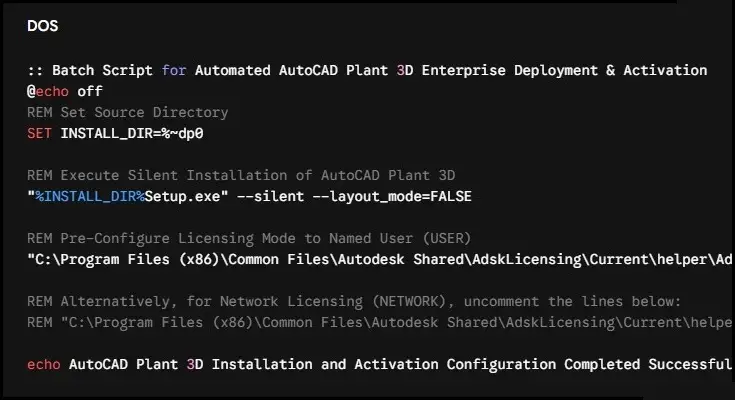
How to Activate Autodesk AutoCAD Plant 3D
Autodesk supports three primary methods for authenticating and activating AutoCAD Plant 3D: Named User Subscriptions, Network Multi-User Licenses, and Legacy Serial Numbers.
Method 1: Named User Subscription Activation (User Sign-In)
The Named User method is the standard activation model for modern Autodesk subscriptions.
Launch AutoCAD Plant 3D: Open the application from your desktop or Windows Start Menu.
Access the Sign-In Prompt: On the initial launch screen, locate the "Let's Get Started" dialog window.
Select Authentication Type: Click Sign in with your Autodesk ID (or Single-user).
Enter Credentials: Enter the email address and password associated with your assigned Autodesk subscription.
Complete Licensing Handshake: The software connects to Autodesk Cloud licensing servers, validates your seat, and activates the product.
+-------------------------------------------------------------+

|                     Let's Get Started                       |

+-------------------------------------------------------------+

|   [ Sign in with your Autodesk ID ]  <-- Select this option |

|   [ Use a network license ]                                 |

|   [ Enter a serial number ]                                 |

+-------------------------------------------------------------+
Method 2: Network / Multi-User License Activation (NLM)
The Network License model is designed for organizations running local network license servers managed by the Autodesk Network License Manager (NLM) using FlexNet technology.
Launch AutoCAD Plant 3D: Start the software on your local workstation.
Select Network Activation: On the "Let's Get Started" screen, select Use a Network License (or Multi-user).
Specify License Server Configuration: Choose your organization's server architecture:
Single License Server: Enter the single server hostname or IP address.
Redundant License Server: Enter the three designated server hostnames.
Distributed License Server: Enter multiple server hostnames separated by semicolons.
Define Connection Environment Variable (Optional): If the server is not auto-discovered, set the Windows System Environment Variable ADSKFLEX_LICENSE_FILE to @YourServerName.
Finalize Checkout: Click Done. The application checks out an active license token over ports 2080 and 27000-27009.
Method 3: Standalone Serial Number Activation (Legacy & Perpetual)
This method applies to legacy standalone licenses or specific institutional perpetual licenses.
Obtain License Keys: Log in to the Autodesk Account Portal, navigate to Products & Services, select AutoCAD Plant 3D, and retrieve your Serial Number and Product Key.
Launch Application: Open AutoCAD Plant 3D.
Enter Serial Number: Select Enter a Serial Number on the activation screen.
Input Data: Enter your 11-digit Serial Number and 5-digit Product Key.
Online Verification: Click Activate / Next to allow the software to validate the serial number against Autodesk servers online.
Troubleshooting Common Activation Errors
1. "License Not Available" / "License Not Assigned"
Cause: Your Autodesk ID account is logged in, but no product seat has been assigned to your user account by your IT administrator.
Solution: Log into the Autodesk Account Portal as an Administrator, navigate to User Management -> By User, select the user email, and check the checkbox next to AutoCAD Plant 3D.
2. Network License Error -5.412.0 or -8.544.0
Cause: All pool licenses are currently checked out by other users, or the feature code in the license file has expired.
Solution: Have your Network Admin check LMTOOLS under Perform Status Enquiry to see active seat usage or generate an updated license file (.lic) from Autodesk.
3. Network License Error -15.570.0 or -97.121
Cause: The client computer cannot establish a network socket connection to the NLM server.
Solution: Ensure TCP ports 2080 and 27000–27009 are open through local and network firewalls on the server hosting NLM.
4. "The License Manager is not functioning or is improperly installed"
Cause: Corrupted Autodesk Desktop Licensing Service files or service stoppage.
Solution:
Press Win + R, type services.msc, and press Enter.
Locate Autodesk Desktop Licensing Service.
Right-click and choose Restart.
If the issue persists, run C:\Program Files (x86)\Common Files\Autodesk Shared\AdskLicensing\uninstall.exe as Administrator and reinstall the latest licensing service component.
Conclusion
In the modern landscape of process plant engineering, chemical processing, oil and gas, pharmaceutical manufacturing, and power generation, digital design tools form the bedrock of capital project execution. Autodesk AutoCAD Plant 3D stands out as a leading solution for spec-driven 3D piping design, process and instrumentation diagram (P&ID) integration, and structural layout generation. However, software capabilities are only as effective as the underlying licensing, activation, and administrative infrastructure that supports them.
Activating AutoCAD Plant 3D correctly—and managing its lifecycle across an enterprise—is not merely an administrative IT task. It is a critical operational safeguard that directly impacts billable engineering hours, project delivery schedules, multi-office collaboration, and regulatory compliance. Unplanned software downtime caused by licensing misconfigurations, expired network tokens, or improper user assignments can halt entire engineering departments, leading to missed milestones, project cost overruns, and fractured client trust.
This comprehensive analysis provides an exhaustive roadmap to mastering AutoCAD Plant 3D activation, enterprise licensing management, advanced technical troubleshooting, operational integration, and long-term software lifecycle management. By aligning license deployment with organizational objectives, engineering firms can secure their design pipeline and maximize their Return on Investment (ROI).
Frequently Asked Questions (FAQs)
Named User Subscriptions: You can operate offline for up to 30 days. After 30 days, the software requires connecting to the internet to validate your account credentials and refresh your license token.
Network Licenses: You can use the
BORROWLICENSEcommand while connected to your local network to check out a license token. This allows offline work for up to 6 months (or the maximum borrowing period specified by your network administrator).
Launch AutoCAD Plant 3D.
Click the drop-down arrow next to your profile/user account name in the upper-right corner of the interface and select Manage License.
Click Change License Type to clear your cached choice.
Restart the application to bring up the "Let's Get Started" activation menu.
Yes, a single Named User subscription allows installation on up to 3 different devices (such as a primary desktop, a laptop, and a home workstation). However, only the single designated user may run the software on one active machine at any given time.
This is typically caused by a stopped background licensing service or conflicting security software. Open the Windows Run dialog (Win + R), type services.msc, locate Autodesk Desktop Licensing Service, and ensure its status is set to Running. If necessary, temporarily disable local antivirus software or run a clean reinstall of the licensing component.
No. Autodesk transitioned exclusively to named-user subscription plans, discontinuing new sales of perpetual licenses and multi-user network licenses. Active legacy perpetual and network contracts are still supported using legacy setup methods.
This usually happens when using a standalone serial number for a subscription-based product or entering an incorrect Product Key. Verify your license type in the Autodesk Portal. Modern subscriptions do not require a serial number; select Sign in with your Autodesk ID on the activation screen instead.