

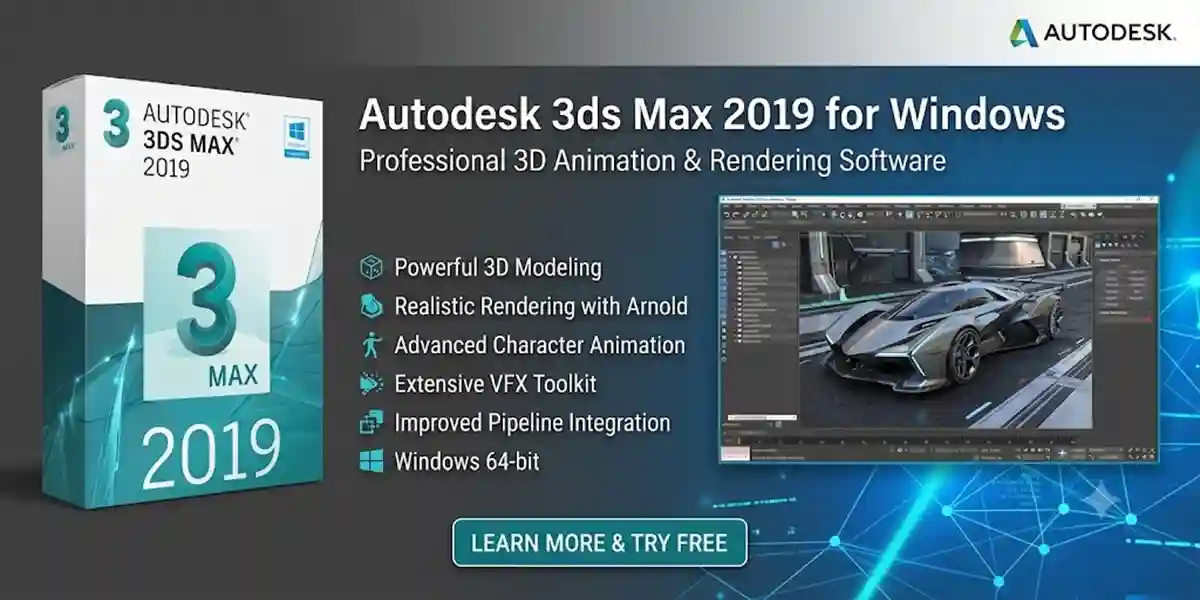
Autodesk 3ds Max 2019 for Windows | Professional 3D Animation & Rendering Software

Introduction
Autodesk 3ds Max 2019 remains one of the most popular professional 3D modeling, animation, and rendering solutions used by designers, architects, game developers, VFX artists, and visualization professionals. Known for its powerful modeling tools, advanced rendering capabilities, and flexible animation workflows, 3ds Max 2019 continues to be used in many production environments where stability and compatibility with existing plugins are essential.
Many users who install Autodesk 3ds Max 2019 often face questions such as:
- How do I activate Autodesk 3ds Max 2019?
- What are the correct license activation steps?
- Why is my Autodesk product not activating?
- How can I fix Autodesk licensing errors?
- What should I do if my serial number or license is not recognized?
A successful activation process ensures that Autodesk 3ds Max 2019 works correctly and provides access to all professional features without interruptions.
This complete guide explains everything about Autodesk 3ds Max 2019 activation, including installation requirements, license setup methods, common activation errors, troubleshooting solutions, and useful commands for checking Autodesk licensing status.
What Is Autodesk 3ds Max 2019?
Autodesk 3ds Max 2019 is a professional 3D computer graphics software developed by Autodesk for creating high-quality 3D models, animations, simulations, and rendered images.
It is widely used in industries including:
- Architectural visualization
- Interior design
- Product design
- Game development
- Film production
- Motion graphics
- Virtual reality content creation
3ds Max 2019 provides a complete set of tools for creating realistic environments, characters, objects, and visual effects.
The software supports advanced workflows involving:
- Polygon modeling
- Character animation
- Particle systems
- Lighting and rendering
- Materials and textures
- Simulation effects
- Camera animation
Key Features
1. Advanced 3D Modeling Tools
Autodesk 3ds Max 2019 includes powerful modeling tools that allow artists to create detailed and complex 3D objects.
Important modeling features include:
- Polygon modeling
- Editable Poly workflows
- Boolean operations
- Spline modeling
- Surface modeling
- Modifier-based modeling
The modifier stack allows users to apply multiple editing operations while keeping the original geometry flexible.
Professionals use these tools for creating:
- Buildings
- Vehicles
- Characters
- Furniture
- Game assets
- Industrial designs
2. Arnold Renderer Integration
One of the major improvements in modern Autodesk workflows is integration with Arnold rendering technology.
Arnold provides:
- Physically accurate rendering
- Realistic lighting
- Advanced materials
- Global illumination
- High-quality visual effects
Artists can create realistic:
- Product renders
- Architectural images
- Film-quality animations
- Visual effects sequences
3. Improved Animation System
3ds Max 2019 provides professional animation tools for creating realistic movements.
Animation features include:
- Keyframe animation
- Character rigging
- Motion paths
- Controllers
- Animation layers
These tools help artists create:
- Character animations
- Camera movements
- Mechanical animations
- Motion graphics
4. Enhanced Viewport Performance
The Nitrous viewport technology improves real-time visualization.
Benefits include:
- Faster scene navigation
- Better display quality
- Improved shading performance
- Real-time previews
Large architectural scenes can be handled more efficiently with optimized hardware.
5. Particle Flow System
3ds Max 2019 includes Particle Flow for creating complex simulations.
Common uses:
- Smoke effects
- Fire effects
- Rain simulations
- Dust effects
- Explosions
- Environmental effects
Particle systems are widely used in gaming and visual effects production.
6. Material and Texture Support
3ds Max 2019 provides advanced material tools for creating realistic surfaces.
Supported workflows include:
- Physically Based Rendering (PBR)
- Standard materials
- Physical materials
- Texture mapping
- UV editing
Users can create realistic:
- Metal surfaces
- Glass materials
- Wood textures
- Fabric materials
- Real-world environments
7. Camera and Lighting Tools
Professional visualization requires accurate cameras and lighting.
3ds Max 2019 includes:
- Physical cameras
- Photometric lights
- HDR lighting support
- Shadow controls
- Exposure settings
These tools help create realistic architectural and product presentations.
System Requirements
Before installing and activating Autodesk 3ds Max 2019, make sure your computer meets the required specifications.
Operating System
Supported systems:
- Windows 10 (64-bit)
- Windows 8.1 (64-bit)
- Windows 7 Professional (64-bit)
Processor Requirements
Minimum:
- 64-bit Intel or AMD processor
Recommended:
- Multi-core processor with high clock speed
Memory Requirements
Minimum:
- 4 GB RAM
Recommended:
- 8 GB or more RAM
For large scenes:
- 16 GB+ RAM recommended
Graphics Requirements
Recommended:
- Professional NVIDIA or AMD graphics card
Features supported:
- DirectX 11 compatibility
- Hardware acceleration
- Dedicated VRAM
Storage Requirements
Required:
- Minimum 9 GB free disk space
Recommended:
- SSD storage for faster loading
Before Activating Autodesk 3ds Max 2019
Before starting activation, complete these preparation steps:
1. Install Autodesk Desktop App
The Autodesk Desktop App helps manage:
- Software updates
- Autodesk products
- Account information
2. Create Autodesk Account
An Autodesk account is required for many activation methods.
Steps:
- Visit Autodesk website
- Select Create Account
- Enter your details
- Verify your email address
- Sign in
3. Check Internet Connection
Activation requires communication with Autodesk servers.
Ensure:
- Stable internet connection
- Firewall allows Autodesk services
- Date and time settings are correct
Methods to Activate Autodesk 3ds Max 2019
Autodesk provides different activation methods depending on the license type.
Method 1: Activate Using Autodesk Account
This is the most common activation method.
Steps:
- Open Autodesk 3ds Max 2019
- On the activation screen select:
Sign In With Autodesk ID
- Enter your Autodesk account email.
- Enter your password.
- The software will automatically verify your subscription.
- After successful verification, 3ds Max 2019 will become activated.
Method 2: Activate Using Serial Number and Product Key
For eligible perpetual licenses, activation can be completed using product information.
Steps:
- Launch Autodesk 3ds Max 2019
- Select:
Enter Serial Number
- Enter your Autodesk serial number.
- Enter product key.
- Click Activate.
- Restart the application.
Method 3: Network License Activation
Large organizations often use network licensing.
This method allows multiple users to access Autodesk products through a license server.
Benefits:
- Centralized license management
- Multiple workstation support
- Easier IT administration
Network licensing requires:
- Autodesk Network License Manager
- License server configuration
- Valid network license file
Common Autodesk 3ds Max 2019 Activation Errors and Fixes
Even after correctly installing Autodesk 3ds Max 2019, users may sometimes experience activation problems. These issues can occur due to incorrect installation, outdated Autodesk components, network problems, damaged licensing files, or account-related issues.
Below are the most common Autodesk 3ds Max 2019 activation errors and their solutions.
Error 1: Autodesk 3ds Max 2019 Product License Activation Failed
Error Message:
"Activation Failed"
or
"Your Autodesk license is not valid."
Possible Causes
- Incorrect Autodesk account login
- Invalid license information
- Internet connectivity issue
- Corrupted licensing files
- Wrong product version installed
Fix Solution
Step 1: Verify Autodesk Account
Make sure you are signed in with the correct Autodesk account.
Steps:
- Open Autodesk 3ds Max 2019
- Select Account Menu
- Sign Out
- Restart the software
- Sign in again
Step 2: Check License Information
Verify that:
- The license belongs to Autodesk 3ds Max
- The license has not expired
- The correct Autodesk account is being used
Step 3: Repair Autodesk Licensing Service
Steps:
- Open Windows Settings
- Go to Apps
- Find Autodesk Licensing Service
- Select Repair
- Restart your computer
Error 2: Autodesk 3ds Max 2019 Cannot Connect to License Server
Causes
This error usually appears with network licenses.
Possible reasons:
- License server unavailable
- Firewall blocking communication
- Incorrect server name
- Network connection issue
Fix
Check License Server
Verify:
- Server computer is running
- Autodesk License Manager is active
- Network connection works correctly
Allow Autodesk Through Firewall
Add Autodesk services to firewall exceptions:
- Autodesk Licensing Service
- Autodesk Desktop App
- 3ds Max application
Error 3: Serial Number or Product Key Not Accepted
Possible Causes
- Incorrect product key
- Wrong Autodesk product selected
- Typing mistakes
- License already registered
Fix
Check:
- Product name
- Version number
- License type
Make sure the product key matches:
Autodesk 3ds Max 2019
Error 4: Autodesk 3ds Max 2019 Trial Expired
Cause
The trial period has ended.
Fix
Possible solutions:
- Sign in with a valid Autodesk subscription
- Purchase a legitimate Autodesk license
- Contact Autodesk support for account assistance
Error 5: Autodesk Licensing Service Not Running
Error Message
"License Manager is not functioning or improperly installed."
Fix Method
Restart Autodesk Licensing Service.
Steps:
- Press:
Windows + R
- Type:
services.msc
- Press Enter
- Find:
Autodesk Desktop Licensing Service
- Right-click
- Select:
Restart
Error 6: Autodesk 3ds Max 2019 Installation Failed
Common Reasons
- Previous Autodesk installation remains
- Corrupted setup files
- Low storage space
- Antivirus interference
- Missing Windows updates
Fix
Remove Previous Autodesk Files
Use Autodesk uninstall tools.
Remove:
- Autodesk Desktop App
- Autodesk Licensing Service
- Previous 3ds Max versions
Restart your computer before reinstalling.
Error 7: 3ds Max 2019 Crashes After Activation
Causes
- Outdated graphics drivers
- Unsupported plugins
- Corrupted preferences
- Low system resources
Solutions
Update Graphics Driver
Recommended:
- NVIDIA Studio Driver
- AMD Professional Driver
Reset 3ds Max Preferences
Steps:
- Close 3ds Max
- Navigate to:
C:\Users\Username\AppData\Local\Autodesk
- Rename the 3ds Max folder
- Restart software
Useful Autodesk 3ds Max 2019 Commands
Autodesk provides several diagnostic commands for checking installation and licensing status.
1. Check License Status
Open Command Prompt as Administrator.
Run:
AdskLicensingInstHelper.exe -l
This displays licensing information.
2. Repair Autodesk Licensing
Command:
AdskLicensingInstHelper.exe -r
This repairs Autodesk licensing components.
3. Check Installation Information
Command:
wmic product get name,version
Displays installed Autodesk products.
4. Clear Autodesk Cache
Navigate:
C:\ProgramData\Autodesk
Remove temporary cache files.
Restart Autodesk services afterward.
5. Check Windows System Information
Command:
msinfo32
Displays:
- Hardware details
- Windows version
- System configuration
Autodesk 3ds Max 2019 Performance Optimization Tips
After successful activation, optimizing your system helps improve rendering speed and workflow performance.
1. Update Graphics Drivers
A professional GPU improves:
- Viewport performance
- Rendering speed
- Stability
Recommended:
- NVIDIA RTX Series
- AMD Radeon Pro Series
2. Increase RAM
Large 3D projects require more memory.
3. Use SSD Storage
Installing 3ds Max on an SSD improves:
- Startup speed
- File loading
- Rendering cache performance
4. Optimize Scene Files
Large scenes can slow down performance.
Best practices:
- Remove unused objects
- Optimize textures
- Use proxies
- Reduce unnecessary modifiers
5. Manage Plugins
Too many plugins may cause:
- Crashes
- Slow startup
- Compatibility issues
Install only required plugins.
Final Conclusion
Autodesk 3ds Max 2019 remains a powerful and reliable solution for professional 3D modeling, animation, rendering, and visualization workflows. Although newer Autodesk releases provide advanced features, many professionals continue using 3ds Max 2019 because of its stability, plugin compatibility, and proven production capabilities.
Successfully activating Autodesk 3ds Max 2019 requires proper installation, correct license information, and a working Autodesk licensing environment. By following the activation methods, troubleshooting solutions, and optimization tips explained in this guide, users can avoid common errors and maintain a smooth 3D production workflow.
Whether you are creating architectural visualization, cinematic animations, game assets, or product designs, Autodesk 3ds Max 2019 provides professional tools to transform creative ideas into realistic 3D experiences.
Frequently Asked Questions (FAQs)
Autodesk 3ds Max 2019 is professional 3D modeling, animation, and rendering software used for architecture, gaming, VFX, product visualization, and animation production.
Autodesk 3ds Max 2019 is an older version but remains used by professionals who require compatibility with existing projects, plugins, and workflows.
Yes, Autodesk 3ds Max 2019 supports compatible 64-bit Windows operating systems, including Windows 10.
Activation can be completed by signing in with an Autodesk account or using an appropriate license activation method depending on your license type.
Common reasons include:
- Incorrect account
- Licensing service issues
- Network problems
- Invalid license information
Try:
- Checking your Autodesk account
- Repairing Autodesk Licensing Service
- Updating Autodesk components
- Reinstalling damaged files