

Autodesk Mac 2019 Compatibility Guide | Supported Software, Features & Alternatives


Introduction
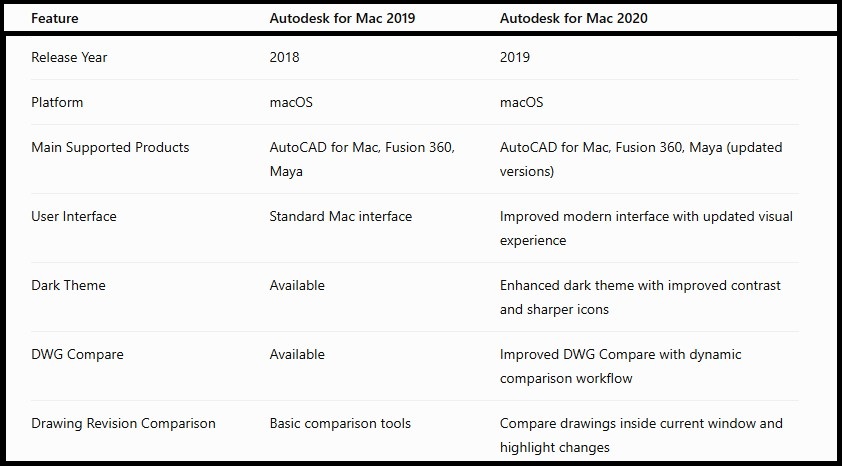
Autodesk for Mac 2019 is a powerful software ecosystem designed for creative professionals, architects, engineers, designers, and developers who use macOS as their primary working platform. Autodesk provides several professional applications that support Mac users, including AutoCAD for Mac, Fusion 360, Maya, and other design-focused solutions. These applications help users create 2D drawings, 3D models, animations, mechanical designs, product concepts, and engineering documentation.
For professionals working on Apple devices, Autodesk software provides a reliable environment for digital design and visualization. With advanced drafting tools, cloud collaboration features, professional rendering capabilities, and industry-standard workflows, Autodesk applications have become an important choice among designers and engineers.
Activating Autodesk software on Mac 2019 requires a valid Autodesk license and proper account authentication. The activation process verifies that the installed software is connected with a genuine Autodesk license. Depending on the product and license type, users may activate Autodesk software through Autodesk Account sign-in, serial number-based licensing, or network licensing.
Many users face difficulties while activating Autodesk applications on Mac because of licensing errors, account problems, outdated components, network restrictions, or incorrect installation settings. Understanding the correct activation process and troubleshooting methods helps users complete the setup smoothly.
Features of Autodesk Mac 2019 Software
1. Native macOS User Experience
Autodesk applications designed for Mac provide a user interface optimized for macOS users.
Benefits include:
- Mac keyboard shortcuts
- Retina display support
- macOS navigation
- Improved workflow compatibility
Users can work comfortably without switching between different operating systems.
2. Professional 2D and 3D Design Tools
Autodesk Mac applications provide advanced design capabilities.
Users can create:
- Engineering drawings
- Product models
- Architectural layouts
- 3D concepts
- Digital prototypes
The tools help professionals convert ideas into accurate digital designs.
3. DWG File Compatibility
AutoCAD for Mac 2019 supports DWG files, making collaboration easier between Mac and Windows users.
Advantages:
- Easy file exchange
- Industry-standard compatibility
- Better project collaboration
- Reduced conversion problems
4. Cloud Collaboration Features
Modern Autodesk workflows include cloud-based collaboration tools.
Benefits:
- Access projects remotely
- Share files with teams
- Manage design data
- Improve communication
5. Advanced Rendering and Visualization
Autodesk creative applications provide powerful visualization tools.
Users can create:
- Realistic renders
- Animated scenes
- Product presentations
- Design previews
6. Customizable Workspace
Autodesk software allows users to customize their working environment.
Customization options include:
- Tool placement
- Keyboard shortcuts
- Workspace layouts
- Display settings
This improves productivity for professional users.
7. Industry Standard Workflow
Autodesk applications are widely used in professional industries.
Common industries include:
- Architecture
- Manufacturing
- Engineering
- Media production
Product development
Preparing Your Mac Before Activation
Before activation, complete the following preparation steps:
1. Update macOS
Ensure your Mac has the latest supported updates.
Benefits:
- Better compatibility
- Improved security
- Fewer installation problems
2. Check Autodesk Account
Before activation, verify:
- Correct Autodesk email address
- Active subscription
- Assigned product license
Autodesk activation depends on the license assigned to the Autodesk Account.
3. Check Internet Connection
A stable internet connection is recommended because Autodesk products usually verify licenses through Autodesk servers.
Connection problems may cause:
- Sign-in failure
- License verification errors
- Activation delays
Autodesk License Types for Mac 2019
Autodesk uses different license models depending on how the product was purchased.
1. Single-User Subscription License
This is the most common method.
Activation process:
- Install Autodesk software
- Open application
- Sign in using Autodesk Account
- License verification completes automatically
Autodesk states that many single-user subscriptions activate through Autodesk ID authentication.
2. Serial Number License
Some older Autodesk products may require:
- Serial number
- Product key
The information is entered during the activation process.
3. Network License
Used by organizations with multiple users.
Requirements:
- License server
- Network configuration
- Administrator setup
How to Activate Autodesk for Mac 2019
Autodesk activation is the process of verifying that your Autodesk software installation is connected with a valid license. The activation method depends on the product version, purchase type, and license model. Autodesk products typically use Autodesk Account sign-in for subscription licenses, while some older perpetual licenses may require serial number and product key verification.
Before starting activation, make sure:
- Autodesk software is installed correctly.
- Your Mac has an active internet connection.
- You have access to your Autodesk Account.
- Your license is assigned to the correct user.
- macOS permissions allow Autodesk services to run.
Method 1: Activate Autodesk for Mac 2019 Using Autodesk Account
This is the recommended activation method for users with Autodesk subscription access.
Autodesk Account activation is simple because the license information is connected to your Autodesk ID. After signing in, the software checks your license status automatically.
Steps to Activate:
- Open your Autodesk application on Mac.
- Wait for the Let's Get Started window.
- Select Sign In with Autodesk ID.
- Enter your Autodesk email address.
- Enter your password.
- Allow the software to verify your license.
- Once verification is complete, the product will open normally.
This method is commonly used for applications such as AutoCAD for Mac and other Autodesk products that support Autodesk ID authentication.
Method 2: Activate Using Serial Number and Product Key
Some Autodesk 2019 products may use a serial number-based license system.
You will need:
- Valid serial number
- Product key
- Autodesk account details
Activation Steps:
- Launch Autodesk software.
- Select the activation option.
- Choose the serial number license option.
- Enter your valid license information.
- Complete the verification process.
- Restart the application.
Autodesk provides serial number details through the Products and Services section of Autodesk Account for eligible licenses.
Method 3: Network License Activation
Organizations, universities, and companies often use network licensing.
A network license allows multiple users to access Autodesk software through a license server.
Requirements:
- Network license agreement
- License server configuration
- IT administrator setup
General Process:
- Install Autodesk software on Mac devices.
- Select network license during setup.
- Enter the license server information.
- Autodesk connects with the organization’s license server.
- Users can access the software based on available licenses.
Method 4: Offline Activation for Eligible Licenses
Some older perpetual licenses may support offline activation options. Availability depends on the license type and Autodesk product version. Autodesk notes that activation codes are mainly associated with eligible standalone perpetual licenses, while subscription software generally requires online authentication.
General Process:
- Start the Autodesk application.
- Choose activation options.
- Generate the required request information if available.
- Follow Autodesk’s official activation process.
- Complete verification.
Autodesk Mac 2019 Activation Commands and Formulas
Autodesk 2019 products may use licensing components that can be checked or refreshed through macOS system tools. These commands are intended for troubleshooting licensed installations.
1. Open Terminal on Mac
To access Terminal:
- Open Finder.
- Go to Applications.
- Open Utilities.
- Select Terminal.
2. Check Autodesk Licensing Folder
Use Finder:
/Library/Application Support/Autodesk/This location contains Autodesk support files and licensing-related data.
3. Check User Autodesk Data
User-specific Autodesk information may exist in:
~/Library/Application Support/Autodesk/4. Autodesk Licensing Reset Locations
For troubleshooting older Autodesk versions, Autodesk documents locations where licensing information may need to be refreshed, including:
/Library/Application Support/Autodesk/CLM/LGS/and:
~/Library/Application Support/Autodesk/Web Services/5. Check Internet Connectivity Through Terminal
You can test your network connection:
ping www.autodesk.comA successful response indicates that your Mac can reach Autodesk servers.
6. Check macOS System Information
Use:
system_profiler SPHardwareDataTypeThis command displays:
- Processor information
- Memory details
- Hardware configuration
It helps verify whether your Mac meets Autodesk requirements.
Common Autodesk Mac 2019 Activation Errors and Fixes
Error 1: "Unable to Activate License"
Causes:
- Autodesk Account problem
- Incorrect license assignment
- Internet connection issue
- Damaged licensing data
Solutions:
- Check Autodesk Account.
- Confirm your license is active.
- Restart your Mac.
- Sign out and sign in again.
- Verify network access.
Autodesk recommends checking account assignment, device limits, network access, and licensing components when activation fails.
Error 2: "Invalid Serial Number"
Causes:
- Incorrect serial number entered
- Wrong product key
- License belongs to another account
Fix:
- Verify license information.
- Check Autodesk Account.
- Confirm the correct product version.
- Contact Autodesk Support if the license is valid.
Error 3: Autodesk Sign-In Not Working
Causes:
- Browser authentication problem
- Internet restrictions
- Firewall or VPN interference
Fix:
Try:
- Restart the Mac.
- Open Autodesk software again.
- Sign out and sign in again.
- Disable VPN temporarily.
- Check firewall permissions.
Error 4: "Your Trial Has Expired"
Causes:
- Trial period completed
- Previous trial information stored
- Wrong Autodesk account signed in
Fix:
- Sign in with the licensed Autodesk Account.
- Verify subscription status.
- Remove outdated login information.
- Restart the application.
Autodesk provides official license reset procedures for cases where activation needs to be restarted.
Error 5: Licensing Service Not Available
Causes:
- Damaged Autodesk components
- Installation interruption
- Missing permissions
Fix:
- Restart the Mac.
- Repair or reinstall Autodesk components.
- Install available Autodesk updates.
- Check user permissions.
Error 6: Autodesk Application Crashes After Activation
Causes:
- Outdated macOS
- Graphics compatibility issues
- Corrupted installation files
Fix:
Update:
- macOS
- Graphics drivers (if applicable)
- Autodesk updates
Also check:
- Available storage space
- Application permissions
- Hardware compatibility
Error 7: "Connection Error - Establish Internet Connection"
Causes:
- Blocked Autodesk servers
- Network restrictions
- Proxy configuration
Fix:
- Check internet connection.
- Disable VPN temporarily.
- Check firewall settings.
- Allow Autodesk services.
- Restart activation.
Autodesk recommends verifying network access and required Autodesk URLs when licensing connections fail.
Conclusion
Autodesk for Mac 2019 provides powerful design and creative solutions for professionals working on macOS. With applications such as AutoCAD for Mac, Fusion 360, and Maya, Autodesk supports a wide range of industries including engineering, architecture, manufacturing, animation, and product development.
Activating Autodesk software requires a valid license and proper authentication through Autodesk Account, serial number verification, or network licensing depending on the license type. Following the correct activation process helps users avoid errors and ensures access to complete software features.
Common activation problems such as sign-in failures, invalid license messages, expired trials, and connection issues can usually be resolved by checking account details, refreshing licensing components, and ensuring proper network access.
By maintaining updated software, following official licensing procedures, and optimizing system performance, Mac users can enjoy a smooth Autodesk workflow for professional design and creative projects.
Frequently Asked Questions (FAQs)
You can activate Autodesk for Mac 2019 by signing in with your Autodesk Account or using valid license information provided with your purchase.
Yes, selected Autodesk products such as AutoCAD for Mac, Fusion 360, and Maya support macOS.
No. Autodesk products require valid licensing for full activation.
Common reasons include:
- Incorrect account
- Network issues
- License problems
- Outdated components
Restart the software, verify your account, check internet access, and ensure Autodesk services are accessible.
Compatibility depends on the Autodesk product and macOS version.