

How to Buy Windows Server License Without Overpaying

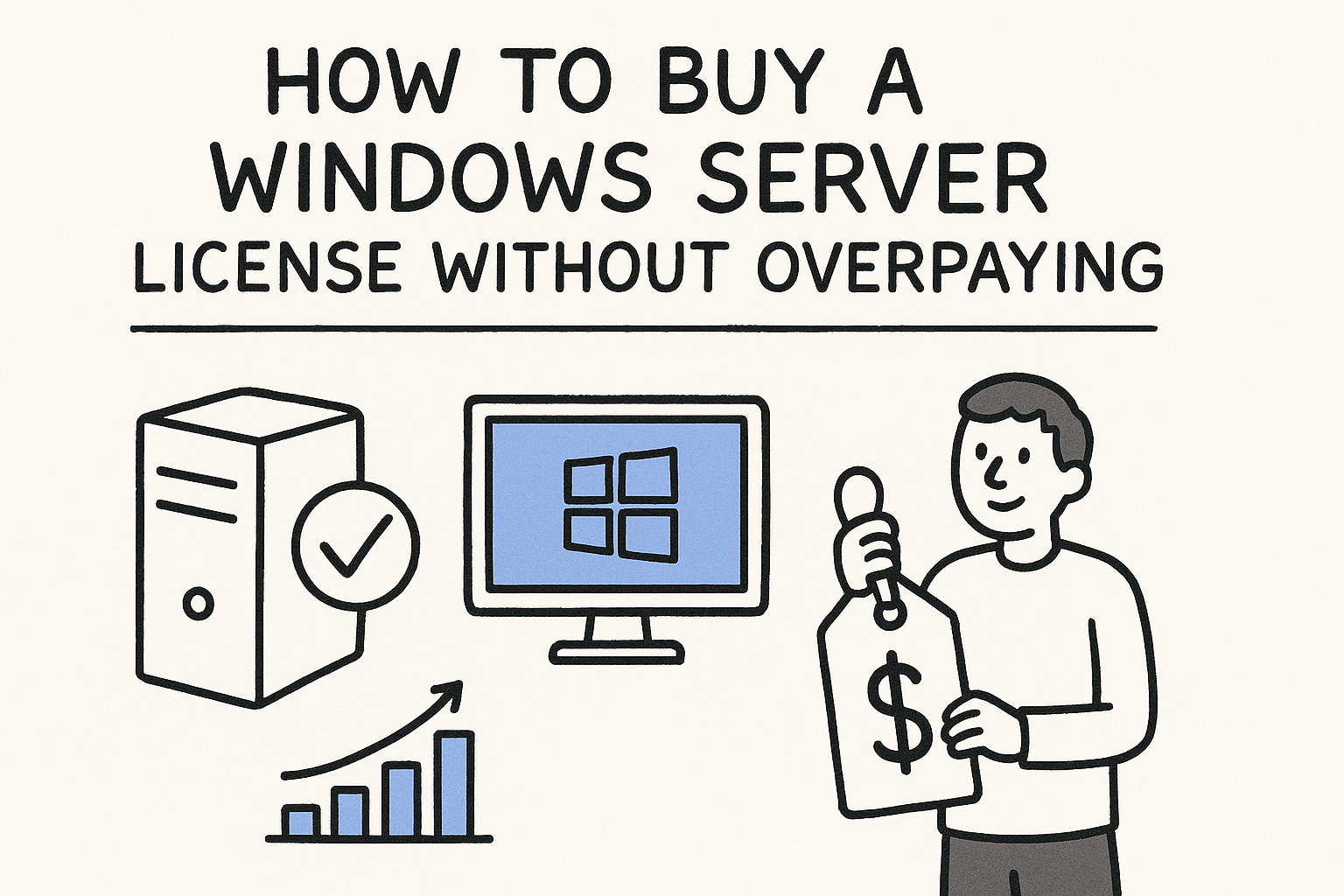
To buy a Windows Server license, choose Standard or Datacenter, count the physical cores in your server (16 is the minimum), add a Client Access License (CAL) for every user or device, and compare prices from Microsoft, a reseller, and a license key store before you pay. At Microsoft’s list price, a 16-core Standard license costs $1,176 and Datacenter costs $6,771, with CALs sold on top.
The trouble is that one product name carries very different price tags. Licenses are sold per core, not per server. CALs are a separate line item. Standard and Datacenter differ in how many virtual machines they cover. Reseller and key-store prices can sit far below list, so it is hard to tell a good deal from a license that will not fit your setup.
This guide walks through the purchase in four steps: pick the edition, count cores and CALs, compare prices by source, and activate. Codesforever has sold software license keys online for over ten years, so you will also see where discounted lifetime keys fit and where buying through Microsoft is the safer call.
How Windows Server licensing works
Windows Server is licensed per physical core, and every user or device that connects to it also needs a CAL. Get those two rules straight and the price lists make sense.
Per-core licensing and the 16-core minimum
Since Windows Server 2016, you license every physical core in the host, not the server as a whole. Each processor needs at least 8 core licenses, and each server needs at least 16. Cores are sold in packs, and Microsoft quotes its list prices for a 16-core pack. That works out to $73.50 per core for Standard and about $423 per core for Datacenter.
The smallest unit is a 2-core pack. At list price it costs about $147 for Standard and $846 for Datacenter. You build up to your core count by stacking packs.
You pay for physical cores, with a floor of 16 per server, no matter how few cores the CPU has.
Why CALs are a separate purchase
A core license lets the server run. A CAL gives a person or a device the right to use it. Microsoft states that CALs are required for every user or device accessing a server, on both Standard and Datacenter. Remote Desktop Services needs its own RDS CALs on top.
A CAL must be the same version as your server or newer. A Windows Server 2022 CAL covers a 2019 server, but a 2019 CAL does not cover a 2022 server.
Step 1. Choose Standard or Datacenter
Pick Standard if you run up to about ten virtual machines on the host, and Datacenter if you run more. The licensing rights are almost identical. Virtualization is the difference that matters.
What each edition covers
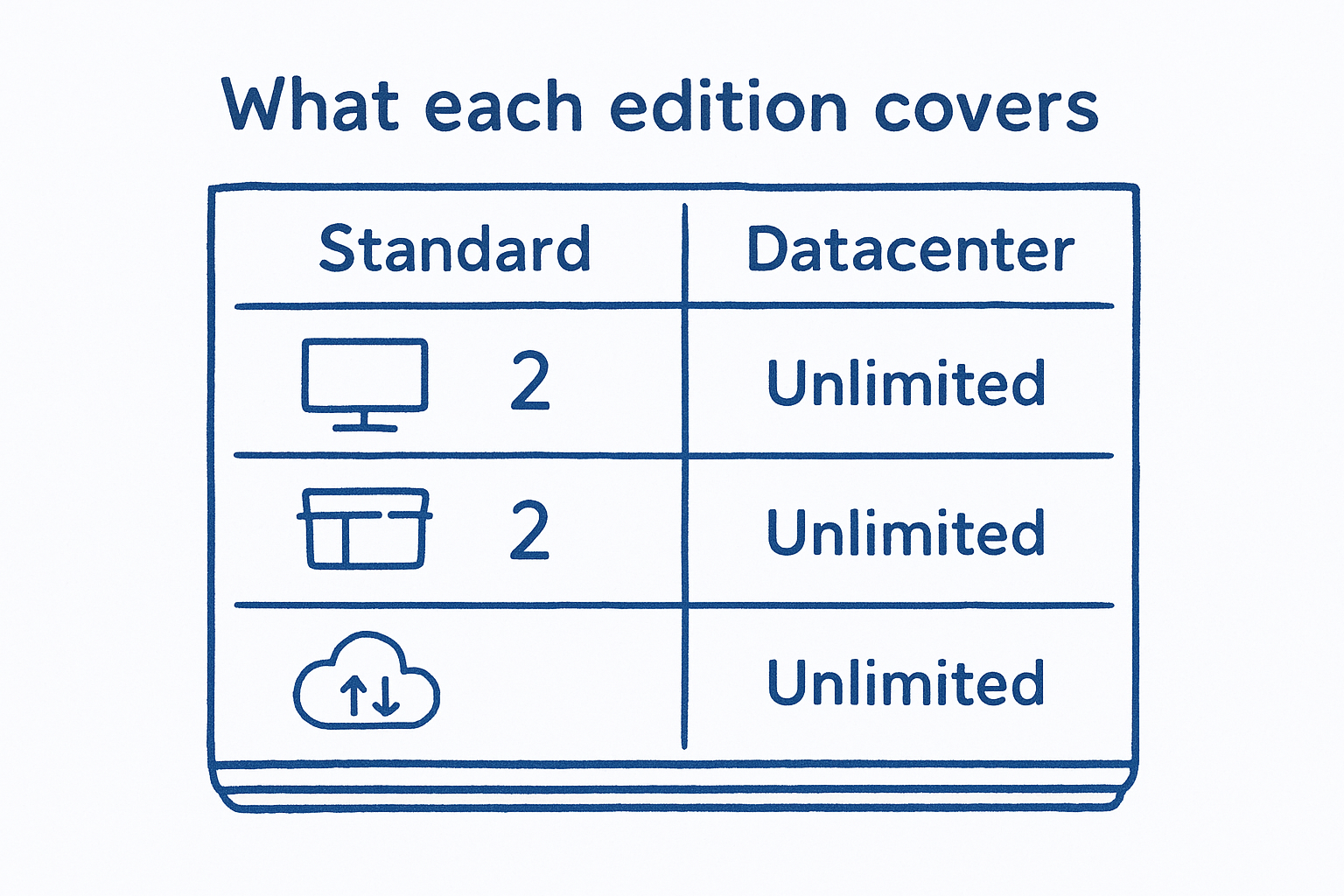
Microsoft’s own comparison for Windows Server 2025 shows where the editions differ:
| Standard | Datacenter | |
|---|---|---|
| List price, 16 cores | $1,176 | $6,771 |
| Price per core | $73.50 | about $423 |
| Virtual machines per license | 2 | Unlimited |
| Hyper-V isolated containers | 2 | Unlimited |
| Windows Server containers | Unlimited | Unlimited |
| Storage Replica | 1 partnership, one 2 TB volume | Unlimited |
Both editions support the same maximum RAM. If you only need a file server, a domain controller, or one or two VMs, Standard is the right edition.
Where Datacenter starts to pay off
You can license more VMs on Standard by licensing all the cores again for each extra pair of VMs. Take a 16-core host at list price:
- 4 VMs: 2 sets of Standard, 2 × $1,176 = $2,352
- 10 VMs: 5 sets, 5 × $1,176 = $5,880
- 11 VMs: 6 sets, 6 × $1,176 = $7,056, which is more than Datacenter at $6,771
So the break-even point is 11 VMs on a 16-core host. Choose the version last. Pick the current release unless your application vendor certifies only an older one.
Standard is cheaper until you pass ten virtual machines per host, and then Datacenter wins.
Step 2. Count your cores and CALs
Your total is the number of physical cores, rounded up to the 16-core minimum, plus one CAL per user or device. Count both before you ask for a quote.
Count the physical cores
Run this in PowerShell on the host. It lists physical cores per processor, not threads:
Get-CimInstance Win32_Processor | Select-Object NumberOfCores, NumberOfLogicalProcessors
Add up NumberOfCores across all processors. A server with one 6-core CPU still needs a 16-core license, so you pay $1,176 for Standard at list. A server with two 12-core CPUs has 24 cores, which means 12 two-core packs. At list that is 12 × $147 = $1,764 for Standard, or 12 × $846 = $10,152 for Datacenter.
Count the CALs
Buy a user CAL when staff connect from several devices, such as a laptop, desktop, and phone. Buy a device CAL when many people share one machine, such as a warehouse terminal used by three shifts. An office with 25 employees on personal workstations needs 25 user CALs. A site with 3 shared terminals used by 12 shift workers needs only 3 device CALs.
CALs add real cost. Microsoft’s store lists a 16-core Standard pack with 10 CALs at $1,848, which is $672 above the $1,176 list price for the cores alone. Some resellers bundle CALs into one price, so check whether a listing includes them.
Count physical cores and CALs before you compare prices, or you will compare the wrong totals.
Step 3. Compare prices across sources
The same 16-core license costs anywhere from under $100 to $6,771 depending on where you buy it, the version, and the license type. Compare like for like before you decide.
What a license costs by source
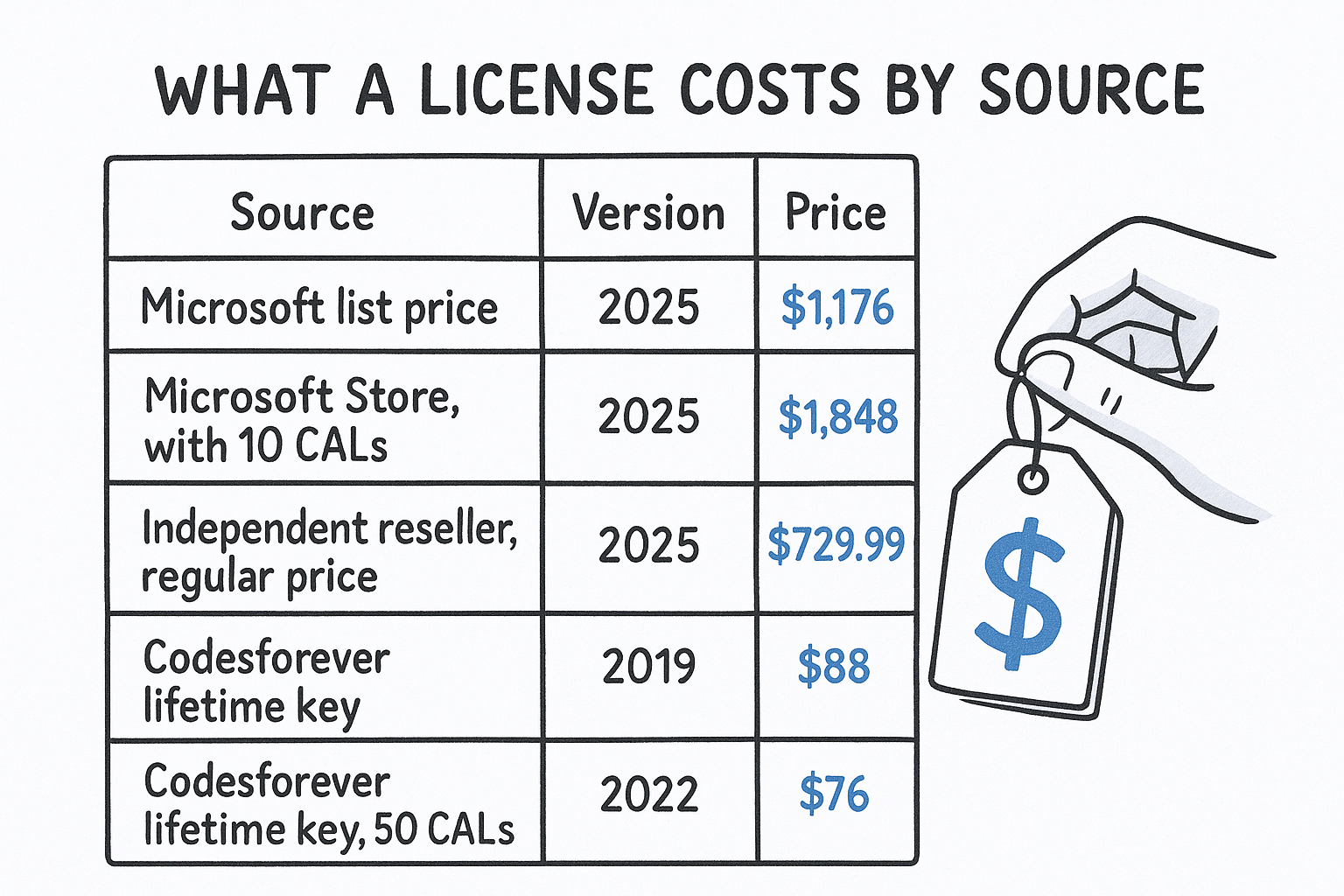
Prices are for 16 cores. The Microsoft and reseller rows are Windows Server 2025. The Codesforever rows are older versions, which is part of why they cost less.
| Source | Version | Standard | Datacenter |
|---|---|---|---|
| Microsoft list price | 2025 | $1,176 | $6,771 |
| Microsoft Store, with 10 CALs | 2025 | $1,848 | – |
| Independent reseller, regular price | 2025 | $729.99 | $3,889.99 |
| Codesforever lifetime key | 2019 | $88 | $91 |
| Codesforever lifetime key, 50 CALs included | 2022 | – | $76 |
Microsoft also offers pay as you go through Azure Arc at $33.58 per core per month, or $0.046 per hour. For 16 cores that is $537.28 a month, so after about 2.2 months you have spent more than the $1,176 list price of a Standard license. Use it for temporary capacity, not for a server that runs for years. Microsoft’s Windows Server pricing page has the current list prices.
What a discounted key does and does not give you
A discounted lifetime key is a good fit for a lab, a small office, or a test environment. Codesforever states that its products are genuine and legal and that it sources keys from wholesalers. The Windows Server 2019 Standard key covers up to 16 physical cores and one device.
Know the trade-offs. These keys usually come without Software Assurance, and Azure Hybrid Benefit requires Software Assurance, so a standalone key will not qualify. If your company faces regular licensing audits or you plan an Azure migration, buy through a Microsoft partner. Before any purchase, check:
- the version and edition
- the core count and device limit
- whether CALs are included
- the delivery method and the refund terms
A cheap key is fine for a lab or small office, but audited environments should buy through Microsoft or a partner.
Step 4. Buy, activate, and verify
Order, confirm the email arrives, install, then activate with the key. The whole process takes minutes once you have the installation media.
Place the order and check delivery
At Codesforever, checkout is encrypted, payments run through PayPal or Stripe, and no extra fees are added. Most products arrive by email, and a few take up to 24 hours. The email holds your key and the download link. Save both.
Check the edition and version in the email before you install. You can report a key problem within 7 days of purchase. Support replies with troubleshooting steps within 24 hours, and if those fail you get a replacement key or a refund. Wrong purchases and hardware incompatibility are not refunded, so confirm your specs first.
Activate with slmgr
Install Windows Server from the downloaded image, then open an elevated Command Prompt. Run these commands, replacing the placeholder with your key:
slmgr /ipk XXXXX-XXXXX-XXXXX-XXXXX-XXXXX
slmgr /ato
slmgr /dlv
The first command installs the key, the second activates it online, and the third shows the license details so you can confirm the edition. If the server has no internet access, you can activate by phone using the same key.
Windows Server CALs are not enforced by the operating system, but you still need them to be compliant. RDS CALs are different. You install them on a Remote Desktop Licensing server, or users lose access after the grace period.
Run slmgr /dlv after activation to confirm the edition and license status.
Pick the license that fits your server
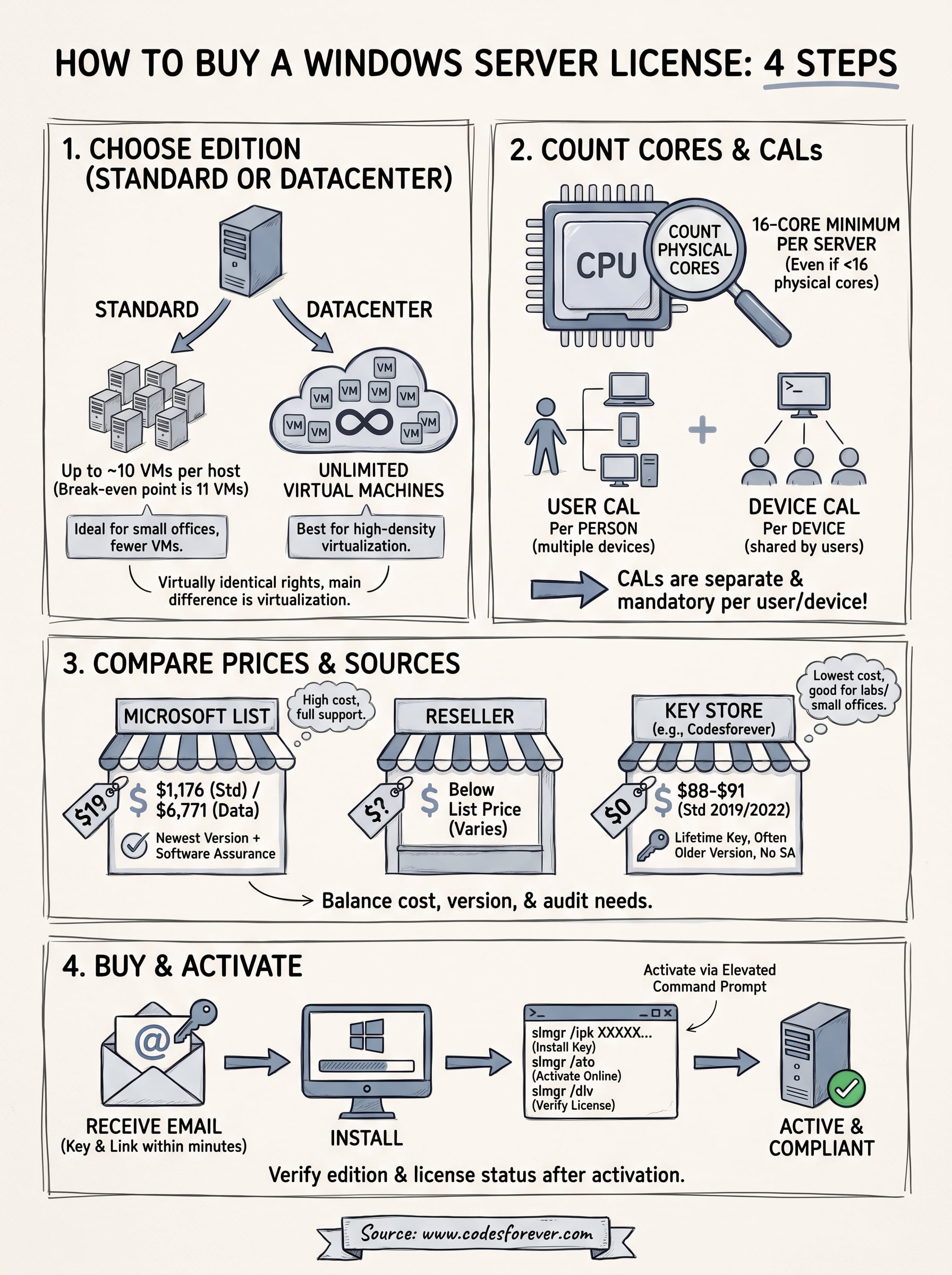
Buying a Windows Server license comes down to four checks. Choose Standard unless you run more than ten VMs per host. Count physical cores and round up to 16. Add one CAL per user or device. Then compare prices by source, with the version and license type side by side.
Microsoft and its partners are the right route when you face audits or an Azure move. For a lab, a small office, or a budget build, a lifetime key costs a fraction of list. If that fits, take a look at the Windows Server 2022 Datacenter license with 50 user and device CALs. It covers up to 16 cores, and support is available around the clock if activation gives you trouble.