

Excel Formulas for Beginners Guide | Master Spreadsheets Fast

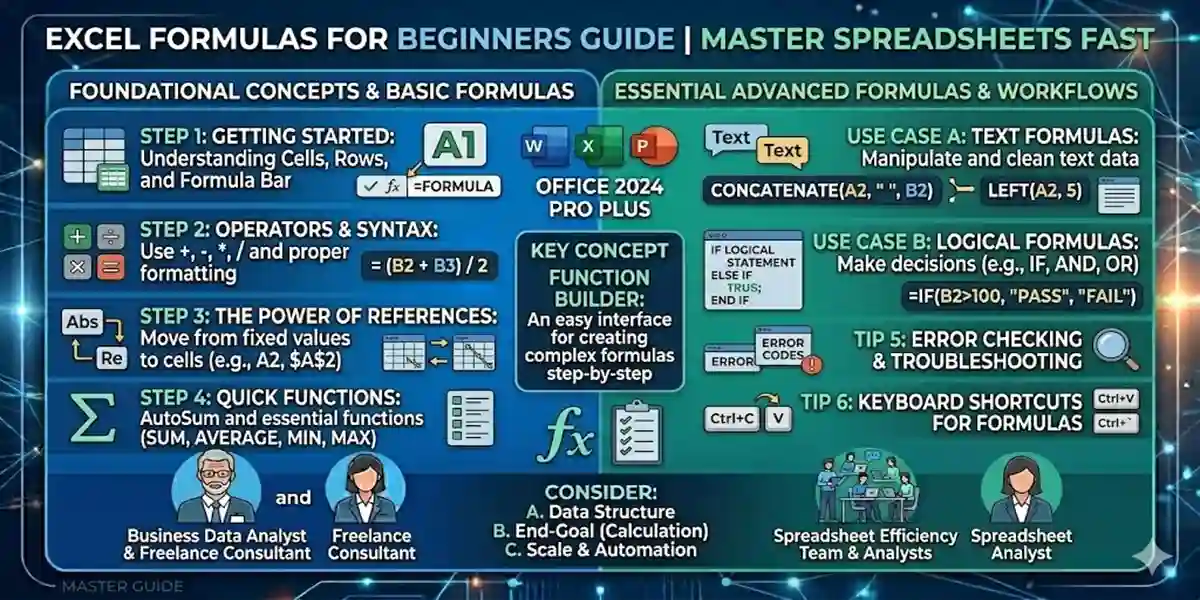
Introduction
Welcome to Part 3 of our 10-part Excel Tips & Tricks Series. In the previous guide, 15 Excel Keyboard Shortcuts to Work Faster, we focused on navigating through data efficiently without relying on a mouse. Now that you can navigate like a pro, it’s time to master Excel’s most powerful feature: formulas.
If Excel’s interface is the body and keyboard shortcuts are the reflexes, formulas are the brain. Without them, spreadsheets are static tables; with them, spreadsheets transform into dynamic tools capable of analyzing business trends, automating calculations, and supporting complex decision-making in seconds.
This guide will demystify Excel formulas. We’ll cover formula basics, essential functions, and one of the concepts separating beginners from intermediate users: cell referencing. By the end, you’ll confidently write formulas and understand the logic behind Excel’s calculation engine.
What Is an Excel Formula?
At its core, a formula is an instruction you give Excel to perform calculations. Many beginners find formulas intimidating because of long strings like:
=IFERROR(VLOOKUP(A1, B2:G50, 4, FALSE), "Not Found")But complex formulas are just collections of simple building blocks.
The Golden Rule: Start With an Equals Sign (=)
Every Excel formula begins with =. It signals Excel to perform a calculation rather than treat your input as text.
- Typing 10 + 10 → shows 10 + 10
- Typing =10 + 10 → shows 20
Formulas vs Functions
- Formula: Any equation you write (e.g., =A1+A2+A3)
- Function: Predefined Excel command (e.g., =SUM(A1:A3))
Think of a function like a kitchen appliance: it automates a task that could be done manually, faster and more efficiently.
Excel Formula Syntax Explained (With Examples)
Most functions follow the structure:
=FUNCTION_NAME(Argument1, Argument2, ...)- Function Name: What Excel should do (SUM, AVERAGE, COUNT)
- Parentheses: Contain the arguments
- Arguments: The data Excel uses (single cell, range, or value.
Essential Excel Functions for Beginners
1. SUM Function
Adds numbers in a specified range.
- Syntax: =SUM(range)
- Example: =SUM(B2:B8) to add daily revenue.
- Pro Tip: Use AutoSum from the Home or Formulas tab for quick summation.
2. AVERAGE Function
Calculates arithmetic mean.
- Syntax: =AVERAGE(range)
- Example: =AVERAGE(C2:C50) to find average project completion time.
- Important Detail: Ignores blank cells but includes zeros.
3. COUNT Function
Counts numeric entries in a range.
- Syntax: =COUNT(range)
- Example: =COUNT(D2:D5000) counts leads with phone numbers.
- Variations:
- COUNTA → counts all cells with any content
- COUNTBLANK → counts empty cells
Relative vs Absolute References
Understanding cell referencing is critical.
Relative References
- Default behavior (=A1+B1)
- Adjust automatically when dragged across rows/columns
Absolute References
- Use $ to lock a cell (=$E$1)
- Example: =A2*$E$1 keeps the tax rate constant while copying the formula down
Shortcut: Press F4 while typing a reference to toggle between relative/absolute references.
Pro Tips for Excel Formula Success
- Avoid hardcoding numbers: Use a dedicated cell for constants, like tax rates
- Use the Status Bar: Highlights SUM, COUNT, and AVERAGE of selected ranges
- Organize long formulas: Use parentheses to control calculation order
Why Excel Version Matters
Older versions struggle with large datasets or complex formulas. Office LTSC 2024 Professional Plus ensures maximum calculation speed and stability.
Advanced Functions to Explore
After mastering SUM, AVERAGE, and COUNT, explore:
- VLOOKUP / HLOOKUP → search data
- IF / Nested IF → conditional logic
- XLOOKUP → newer and more flexible than VLOOKUP
- TEXT, CONCAT, LEFT, RIGHT → string manipulation.
Conclusion
Mastering Excel formulas transforms a simple spreadsheet into a powerful decision-making tool. Start with SUM, AVERAGE, and COUNT, learn cell referencing, understand errors, and progressively explore advanced functions. With practice, Excel becomes intuitive, enabling automation, analysis, and productivity.
CodesForever provides authentic resources, guides, and keys to help users make the most of Microsoft Excel efficiently.
Frequently Asked Questions (FAQs)
A1: A formula is a custom equation starting with =, while a function is a predefined Excel command like =SUM().
A2: Numbers formatted as text cannot be calculated. Convert them to numeric format.
A3: Includes zeros but ignores blanks.
A4: Use $ signs, or press F4 while typing a cell reference.
A5: Go to Formulas → Error Checking → Circular References to locate the issue.