

Windows 11 OEM Key: How to Buy, Check, and Activate It

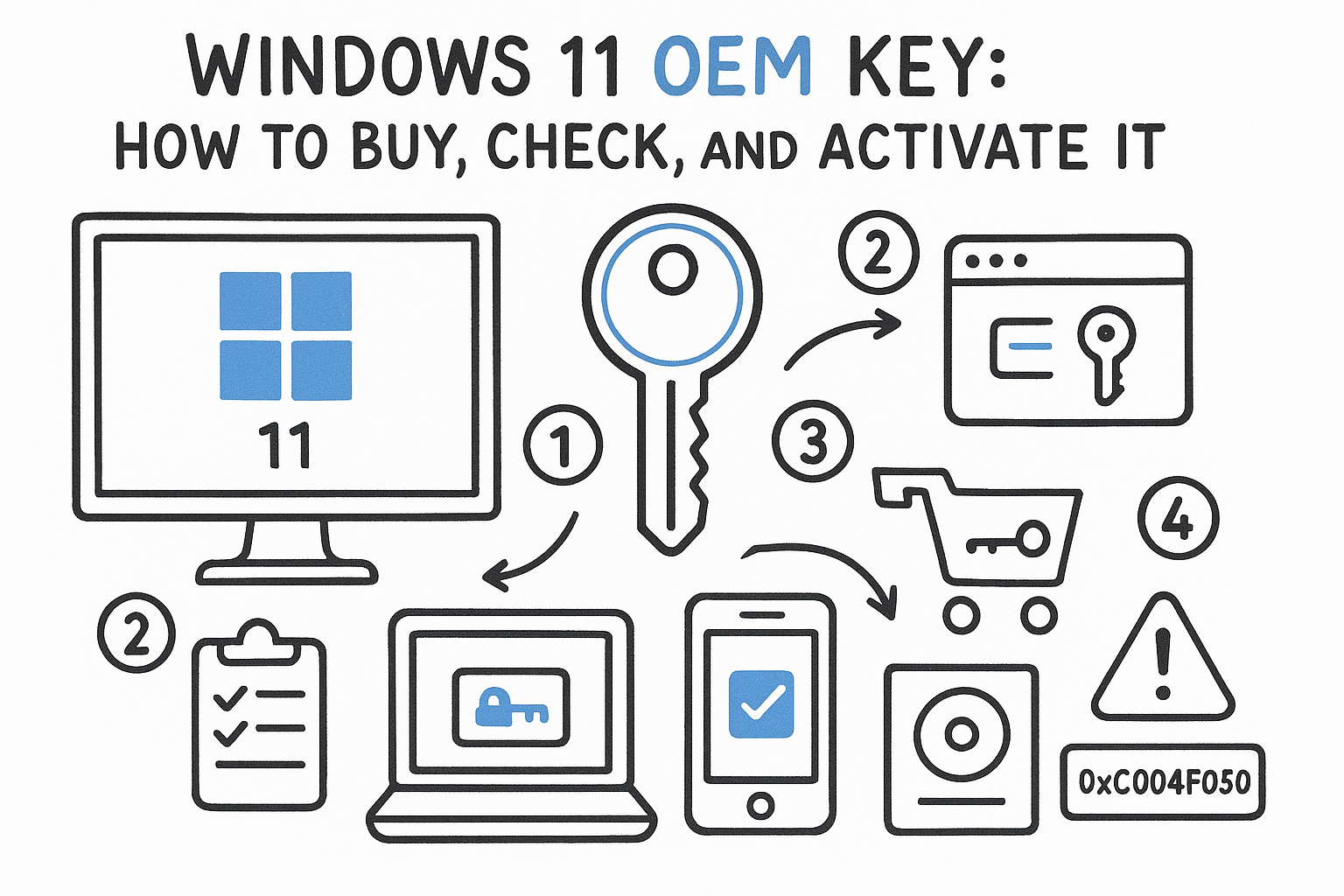
The safest way to get a Windows 11 OEM key is to follow five checks in order. Confirm your PC meets Windows 11’s requirements. Make sure you don’t already own a license. Buy a Windows 11 Pro key from a seller. Enter the key under Settings > System > Activation. Verify the activation the same day. Microsoft’s own store charges around $200 for Pro.
Shopping for a key is confusing. Prices run from a few dollars to $200, listings often skip the word "OEM" or "retail," and forum threads are full of buyers. Some keys work for years. Others get blocked within weeks, and nothing on the listing page tells you which kind you are buying.
This guide covers what an OEM key is and how it differs from retail, then walks through six steps, from checking your hardware to fixing activation errors. Codesforever sells Windows 11 Pro keys, so I show where its policies sit against the buying checklist. The steps work with any seller.
What a Windows 11 OEM key is and OEM vs retail
An OEM key is a Windows license meant for one specific PC, and it is cheaper than retail because you give up the right to move it. Everything else about it, including how you enter it and how it activates, works like any other Windows 11 key.
What OEM means for a Windows 11 Pro key
OEM stands for original equipment manufacturer. The license was designed for PC makers and system builders who ship Windows on new machines. The key itself is a 25-character code in five groups of five. The difference sits in the license terms, not the code.
"Windows 11 Pro" and "Windows 11 Professional" are the same edition. A Windows 11 Pro OEM key and a Windows 11 Professional OEM product key are the same product under two names. After activation, Windows stores a digital license tied to your hardware, mainly the motherboard. Swapping a GPU, RAM, or SSD changes nothing. Microsoft says replacing the motherboard can leave Windows deactivated.
An OEM key is a one-PC license, and that restriction is the reason it costs less than retail.
OEM vs retail at a glance
| OEM | Retail | |
|---|---|---|
| Built for | System builders, PC makers, and people building a PC they will keep | Buyers who want a license they can move |
| Move to a new PC | Not allowed under the license terms | Allowed, one PC at a time, after removing it from the old one |
| After a motherboard swap | Reactivation is not guaranteed, so plan on a new key | Usually reactivates if the license is linked to your Microsoft account |
| Price | Lowest | Higher |
| Best fit | A desktop that stays as it is | A PC you rebuild often or hand down |
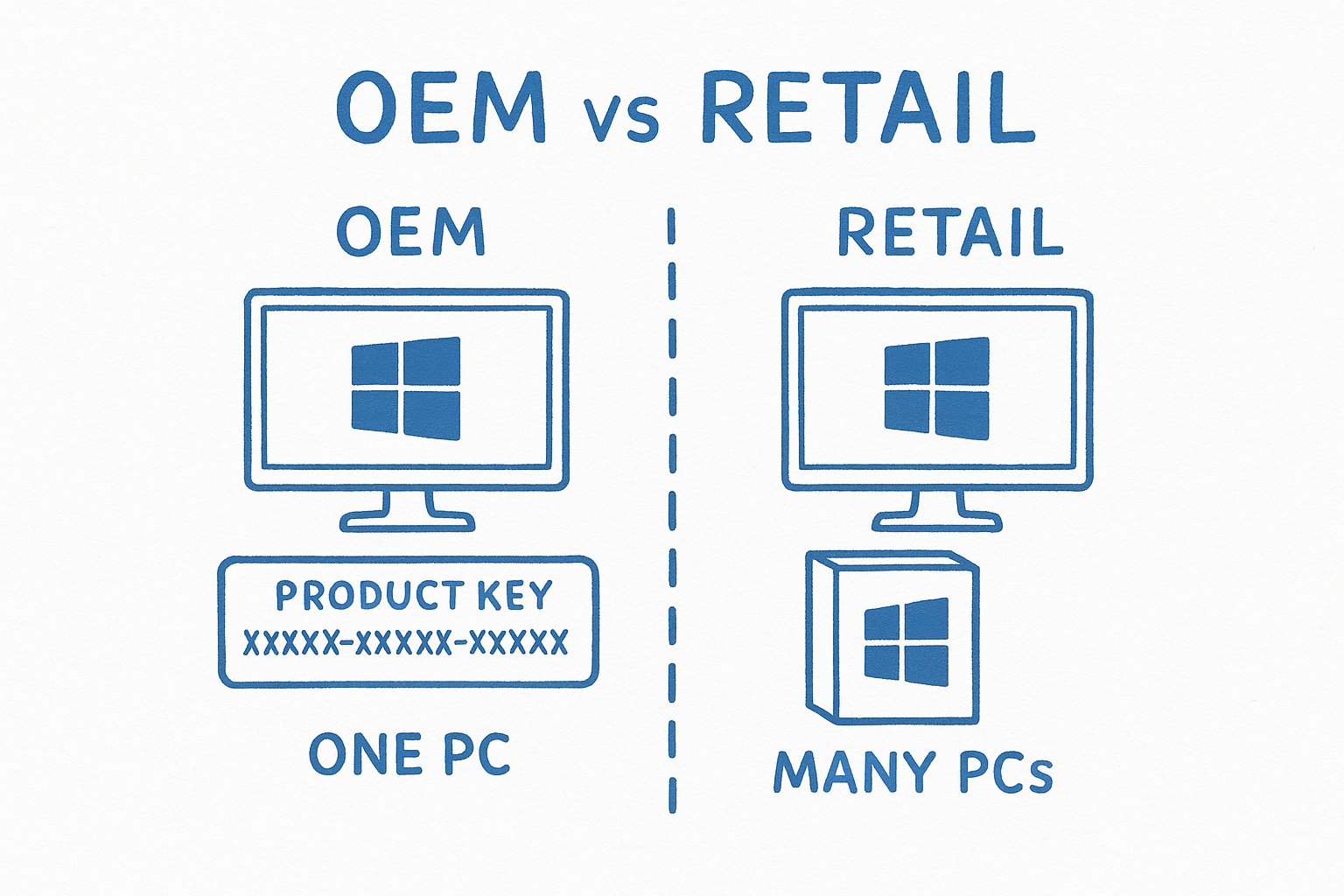
Choose OEM if the machine will stay put for its whole life. That covers most home desktops and office PCs. Choose retail if you upgrade the motherboard every few years or you move licenses between computers. If a listing does not say which type it is, ask before you pay.
Is a Windows 11 OEM key legitimate?
OEM is a real Microsoft license type, so the label is not the problem. The question is the channel the key came through. Microsoft sells Windows through its own store and authorized retailers. Keys from third-party marketplaces sit outside Microsoft’s direct support, which makes the seller’s refund policy your real protection.
Activation also proves less than people assume. Microsoft’s documentation states that activation only confirms the key is valid for the hardware. It does not guarantee the copy is genuine. So a key that activates today can still be revoked later. Step 3 shows how to cut that risk.
Step 1. Check your PC and pick the edition
Before you pay for any key, confirm that your PC can run Windows 11 and decide whether you need Pro or Home. A key for the wrong edition will not activate, and a PC that fails the requirements will not install Windows 11 at all.
Confirm the hardware requirements
Windows 11 needs the following:
- Processor: 1 GHz or faster, 2 or more cores, compatible 64-bit
- RAM: 4 GB
- Storage: 64 GB or more
- Firmware: UEFI with Secure Boot capability
- TPM: version 2.0
- Graphics: DirectX 12 compatible with a WDDM 2.0 driver
- Display: HD (720p), larger than 9 inches diagonally
You can check the two requirements that trip people up in a minute. Press Win + R, type tpm.msc, and read the specification version. Then run msinfo32 and look at BIOS Mode (it should say UEFI) and Secure State. Microsoft’s PC Health Check app runs the whole list for you.
If TPM 2.0 or Secure Boot is off in your BIOS, switch it on before you buy, because the installer will refuse to continue without them.
Pick the edition that matches your needs
Pro is the right choice if you want to manage encryption, host remote connections, or run virtual machines. Home covers everyday use.
| Feature | Home | Pro |
|---|---|---|
| BitLocker drive encryption management | No | Yes |
| Remote Desktop (host) | No | Yes |
| Hyper-V virtual machines | No | Yes |
| Group Policy and domain join | No | Yes |
| Maximum RAM | 128 GB | 2 TB |
Your key must match the edition you install, or Windows will not activate. To see what you run now, open Settings > System > About. If Windows 11 Home is installed and you buy a Pro key, you can upgrade in place by entering the Pro key under Change product key. Avoid "N" versions unless you really want a copy without the media features, such as Windows Media Player.
Step 2. Check for a license you already own
You may not need to buy anything. A PC can already hold a digital license, a firmware-embedded key, or an upgrade path that costs nothing, so check these before you spend money.
Look for a digital license or an embedded key
Open Settings > System > Activation. If it says Windows is activated with a digital license, you are done. Microsoft states that a PC that was running a genuine, activated Windows 10 can upgrade to Windows 11 for free, and it receives a digital license. PCs sold with Windows preinstalled often carry a key in the firmware. Read it from PowerShell:
(Get-CimInstance -ClassName SoftwareLicensingService).OA3xOriginalProductKey
A 25-character result is your key. Blank output means the firmware holds none. On a new build, a blank result is normal.
Weigh free, cheap, and full-price routes
| Route | Cost | What to know |
|---|---|---|
| Run Windows 11 unactivated | Free | A watermark appears and personalization settings are locked |
| Upgrade from activated Windows 10 | Less | Digital license carries over on eligible PCs |
| Microsoft Store Windows 11 Pro | Around $200 | Digital license on your Microsoft account |
| Third-party key store | Under $5 to about $25 | Cheapest route, but seller quality varies widely |
Here is a worked example. You build a desktop and need Pro. The Microsoft Store price of around $200 against a US$14 key leaves you about $186 better off, roughly 93% less. That gap is why a single-PC license is attractive for builds. It is also why the seller checks in Step 3 matter, since a bad key wastes the saving.
Spend nothing if your PC already has a digital license, and spend little only after you have confirmed that it does not.
Step 3. Buy from a seller you can trust
Buy from a seller that states the edition and key type, publishes a refund window in writing, and takes payment through a protected processor. Price comes last. A very low price with none of those three is the pattern behind most bad key purchases.
Where to buy a Windows 11 Pro OEM key
You have three realistic sources:
- Microsoft Store: full price, license stored on your Microsoft account.
- Large retailers: major retailers such as Amazon list OEM system builder copies of Windows 11 Pro. Check that the retailer itself sells and ships the item, since marketplace listings include third parties.
- Discounted key stores: the lowest prices, with the widest range in quality.
If you want the discounted route, Codesforever’s Windows 11 Pro lifetime license key for 1 PC is listed at US$14 with delivery by email and 24/7 activation support. The product page describes it as a lifetime license for one device. If it does not say OEM or retail to your satisfaction, ask support before paying, as you would with any seller.
How to vet a seller before you pay
Run every seller through this checklist:
- The listing names the exact edition (Pro, not Home or N) and says "1 PC."
- The key type is stated: OEM or retail.
- A written refund or replacement policy gives a number of days.
- Payment goes through a known processor, and the seller does not store card data.
- Support is reachable by chat or email, not just a contact form.
- Reviews exist on an independent platform, and you can read the bad ones.
- The price is believable. A Pro key under $5 is a warning sign.
Cheap keys are not automatically fake, but the cheapest ones carry the most risk of being revoked. Activate the key the day you receive it, not months later, because refund windows are short.
What Codesforever’s terms look like
Codesforever states that its software is genuine and legal, and that it sources keys from distributors and wholesalers. Against the checklist, its published terms look like this:
| Checklist item | Codesforever policy |
|---|---|
| Refund | 100% money-back guarantee |
| Reporting window | Issues reported within 7 days of purchase |
| Response | Troubleshooting steps within 24 hours, then replacement key or full refund if unresolved |
| Payment | Razorpay; card information is not stored; no extra checkout fees |
| Delivery | Digital by email, most products within 5 minutes, a select few within 24 hours |
| Support | Free 24/7 live chat and WhatsApp |
| Exclusions | No refund for incompatible hardware or software, or for wrong products bought by mistake |
Two more terms matter. You can cancel an order within 2 hours if the key is unredeemed. Exchanges to a higher version carry a 20% processing fee. You can read buyer feedback on the Codesforever reviews page, which is based on 16,055 customer reviews.
Treat the refund policy as part of the product, because it is the only protection you have if a key fails.
Step 4. Install Windows 11 and enter the key
Download Windows 11 directly from Microsoft, then enter the key during setup or afterward in Settings. Never install from a copy a seller sends you, since your key only needs to unlock Microsoft’s own files.
Get the installer from Microsoft
Go to Microsoft’s Windows 11 download page and use the Media Creation Tool with a USB drive of at least 8 GB. Boot the PC from that drive. If you are reinstalling, make sure the edition you pick matches the one on your key. If Windows 11 is already installed, skip ahead to the next part.
Enter the key during setup or afterward
Setup asks for a key near the start. You have two ways to handle it:
- Type the 25-character key when prompted, and Windows installs the matching edition and activates online when setup finishes.
- Select I don’t have a product key, pick Windows 11 Pro from the list, finish setup, and enter the key later.
To enter the key after installation, open Settings > System > Activation > Change product key. Type the code and select Next. Windows contacts Microsoft’s servers and activates over the internet.
If online activation fails, try phone activation. Press Win + R, type slui 4, choose your country, and follow the prompts. Codesforever supports both online and phone activation.
Install from Microsoft’s files and enter the key in Settings, because the key is only a license and never needs a special installer.
Step 5. Confirm activation and check the key type
Open Settings > System > Activation and read the status line. Then run two short commands to confirm the license channel, so you know what you actually bought.
Read your activation status
| Status message | What it means |
|---|---|
| Windows is activated | Activated |
| Windows is activated with a digital license | Activated |
| Windows is activated with a digital license linked to your Microsoft account | Activated and protected for hardware changes |
| Windows is not activated | An error message follows, and you may need a valid key |
Check the license channel with slmgr
Open Command Prompt as administrator and run these two commands:
slmgr /dli
slmgr /xpr
The first command shows the license description, including the channel. The second shows whether activation is permanent. A key bought as OEM normally shows an OEM channel.
A permanent activation message plus a matching license .
Step 6. Fix common activation errors
Most failures come from an edition mismatch, a typo, or a key the seller should replace. Work through the quick checks first, then match your error code to the table.
Fast checks before you contact the seller
Start with the cheap fixes:
- Confirm you are online and the date and time are correct.
- Check the edition under Settings > System > About. A Home install will not take a Pro key through the wrong route.
- Retype the key slowly. Letters like B and 8, or O and 0, are easy to mix up.
- Restart and try again. If the Settings route fails, force the install and activation from the command line:
slmgr /ipk XXXXX-XXXXX-XXXXX-XXXXX-XXXXX
slmgr /ato
Replace the X characters with your key. The first command installs it and the second asks Microsoft’s servers to activate.
Common error codes and what to do
| Error | Meaning | Action |
|---|---|---|
| 0xC004F050 | The key is invalid for this install | Retype it, confirm the edition is Pro, then run slmgr /ipk |
| 0xC004C003 | The activation server blocked the key | Stop retrying and ask the seller for a replacement or refund |
| 0x803F7001 | No valid digital license or key found | Enter your key under Change product key |
| 0xC004F213 | No key found, common after a motherboard swap | Run the Activation troubleshooter if your account is linked |
A message that says the key is already used also belongs with the seller. Microsoft’s page on activation errors lists further codes. If your key still fails, contact support inside the refund window. Codesforever’s chat and WhatsApp run 24/7, and you can email su*****@**********er.com with your order details.
Escalate a blocked or already-used key to the seller immediately, because every day of waiting shrinks your refund window.
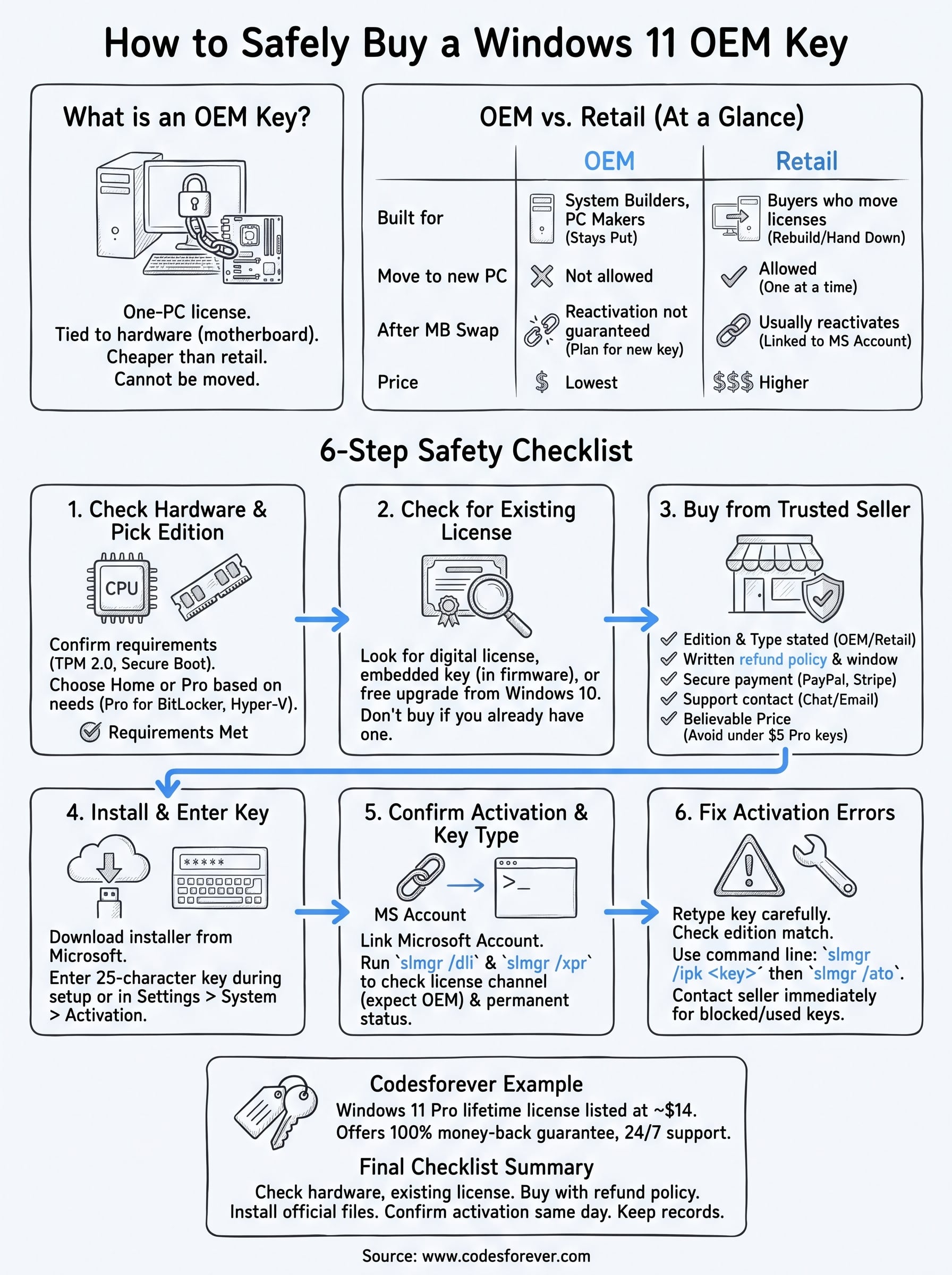
Your Windows 11 key checklist, finished
A Windows 11 OEM key is a one-PC license that costs far less than retail, and it is a good deal when the PC stays as built. Check your hardware, look for a license you already own, buy from a seller , install from Microsoft, and confirm the activation the same day. Keep your order details until you are sure everything works.
If you decide to buy, Codesforever’s Windows 11 Pro lifetime license key is a US$14 option that comes with a 100% money-back guarantee and free 24/7 support for activation and installation.